
Every week, you need new branded graphics. A hero image for a blog post. A one-pager for a sales call. A social graphic that matches your brand.
So you open a blank canvas, or you brief a designer, or you fight with a template. Either way, it takes hours of someone’s time.
That's the part of design we've stopped doing.
Claude Design is one of the most useful AI tools we've found for designers, marketers, and content creators. It's still in beta and it isn't perfect. But the output is good enough that it's now a core part of how we produce design assets at XRAY.
In this post, we share three tips that will get you significantly better results from Claude Design, plus two workarounds for the parts that will frustrate you.
This is the most important step. Get it right and Claude produces on-brand assets from the very first prompt.
A design system is a package of brand information, assets, and guidelines that Claude can reference. You can discover the full process of creating a design system in this blog post, but here's the short version of how to build one:
• Upload your site's code, if you have it
• Add your design guidelines, fonts, and logos
• Include any other brand assets you want Claude to use
The more context and examples you give it, the closer the output matches what your brand actually looks like.
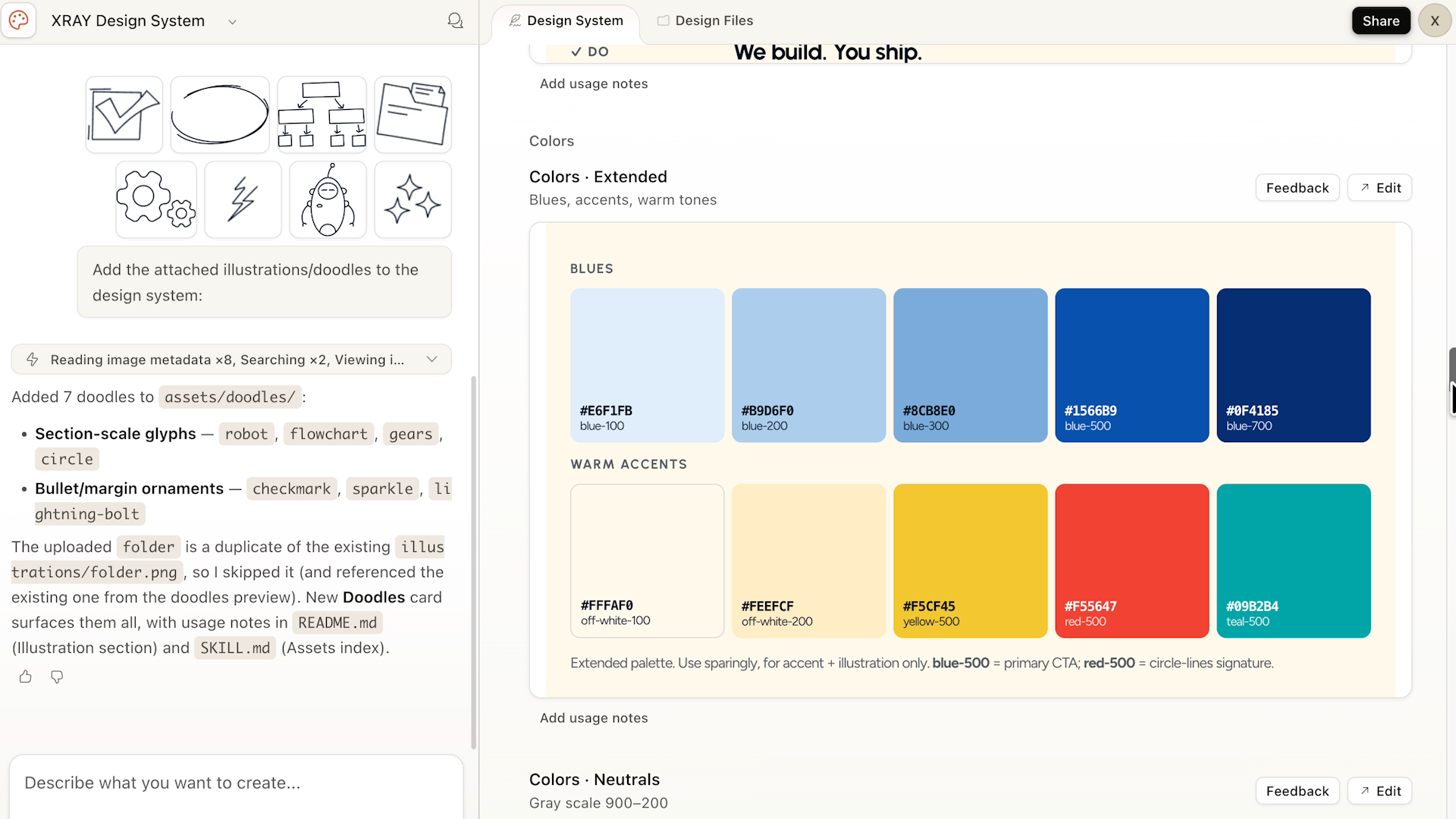
Our own design system references our site code, brand guidelines, logos, fonts, icons, and illustrations – basically everything that defines how XRAY looks. Once it's in place, Claude has something to design against instead of guessing.
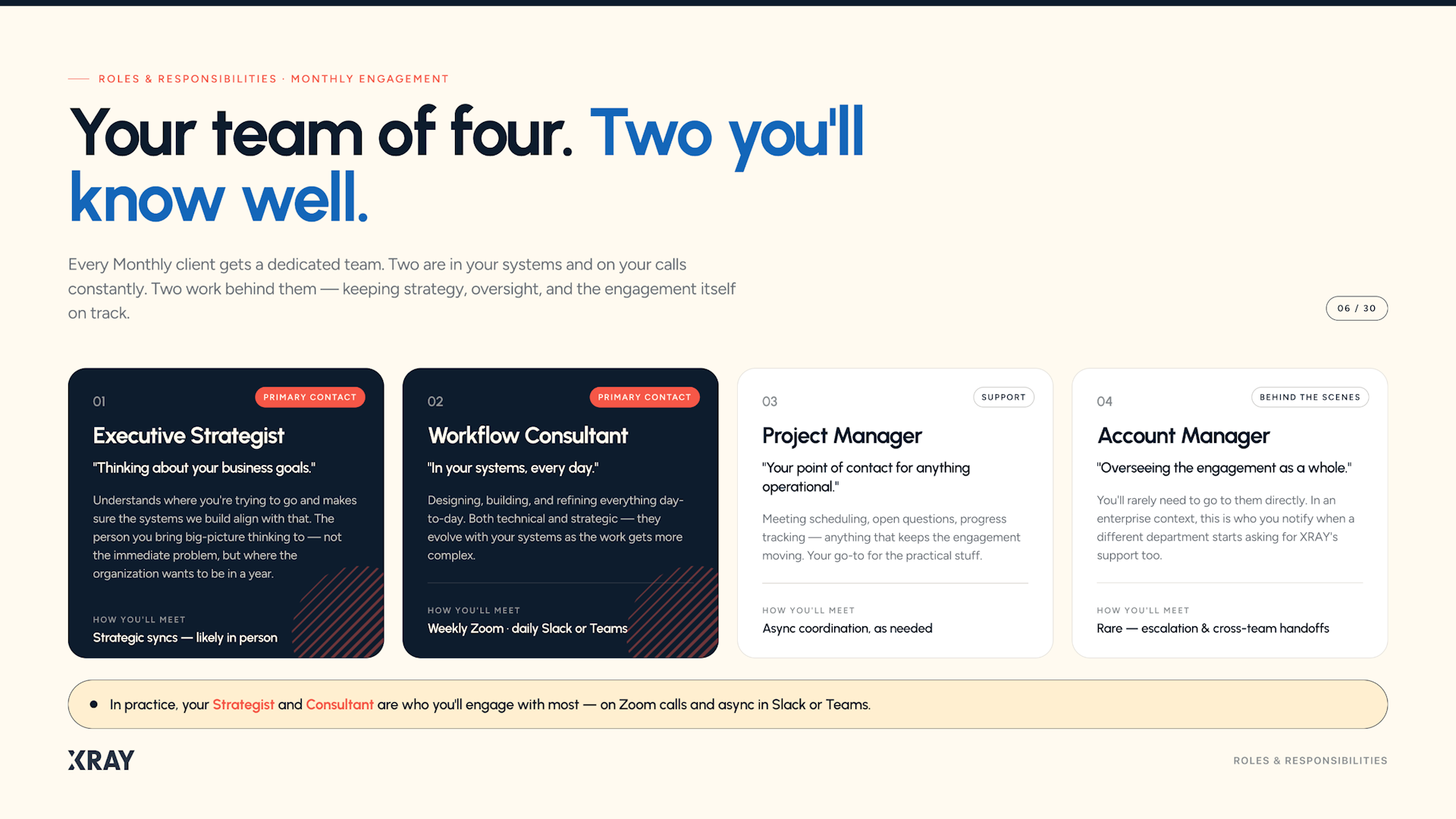
Even if you give Claude a very generic prompt (like “make a hero image for this blog”), there’s a good chance you’ll get a usable asset on the first attempt.
But “usable” alone isn't the goal. You want assets that look great and match your brand with almost no back and forth.
Reference is how you get there.
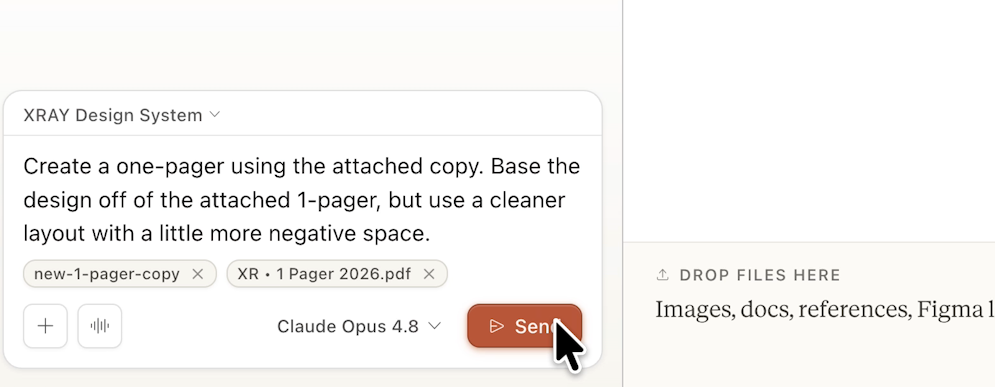
Here's an example. You can take a one-pager you've used before, upload it, and ask Claude to build a new one with different content and a different focus.
The output is strong out of the gate. Claude created a one-pager with largely the same layout and structure, but with brand new content.
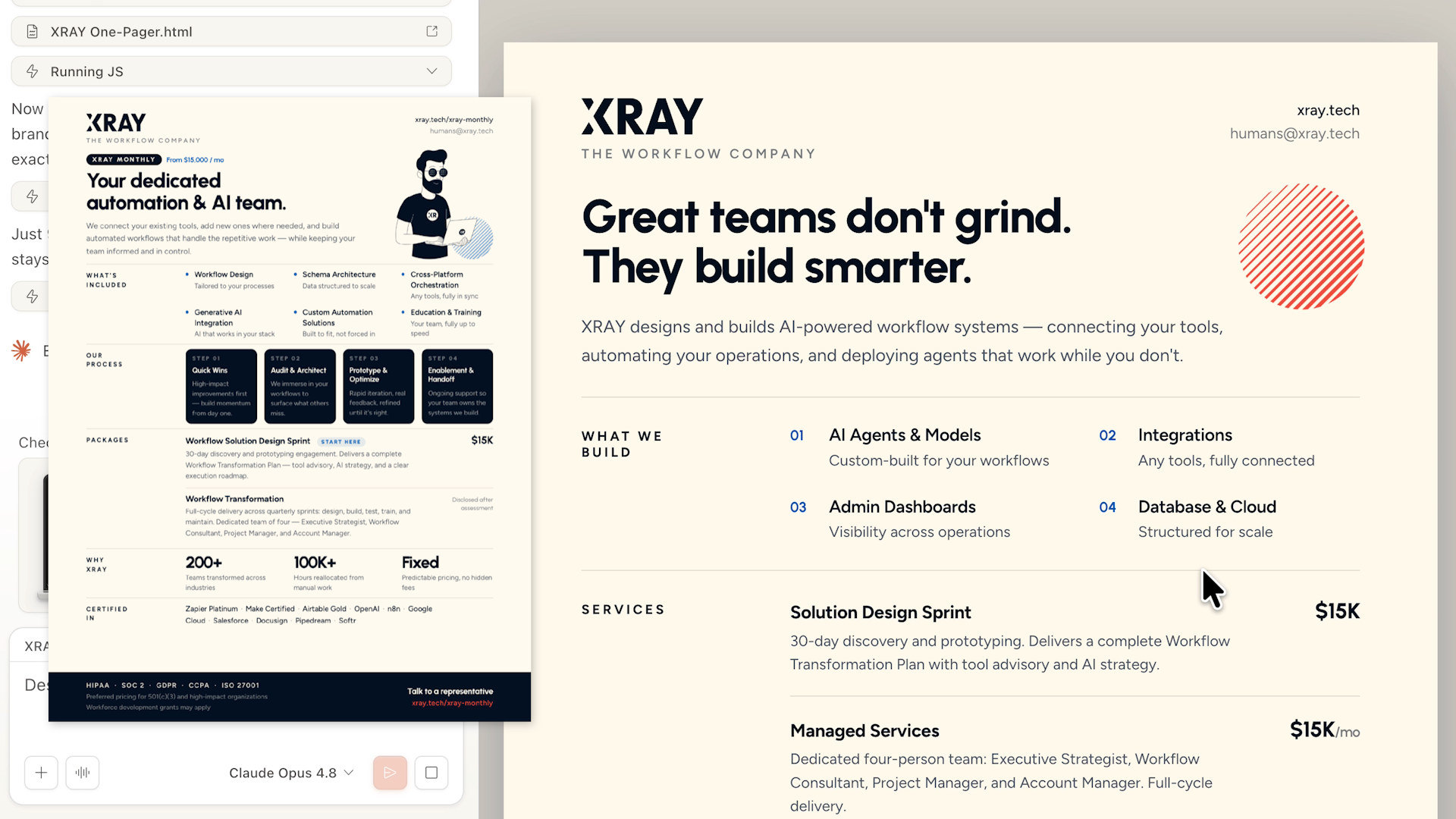
Key content areas are redesigned to match the new copy, but they still retain the same overall style.
The reference does the heavy lifting. You're not describing a design from scratch. You're pointing at something that already works and asking for a variation.
Of course, you don’t need to accept Claude’s first output. When you’re trying to create something brand new, it’s often best to treat the first result as a starting point and give Claude notes on what to change.
There are two ways to do this.
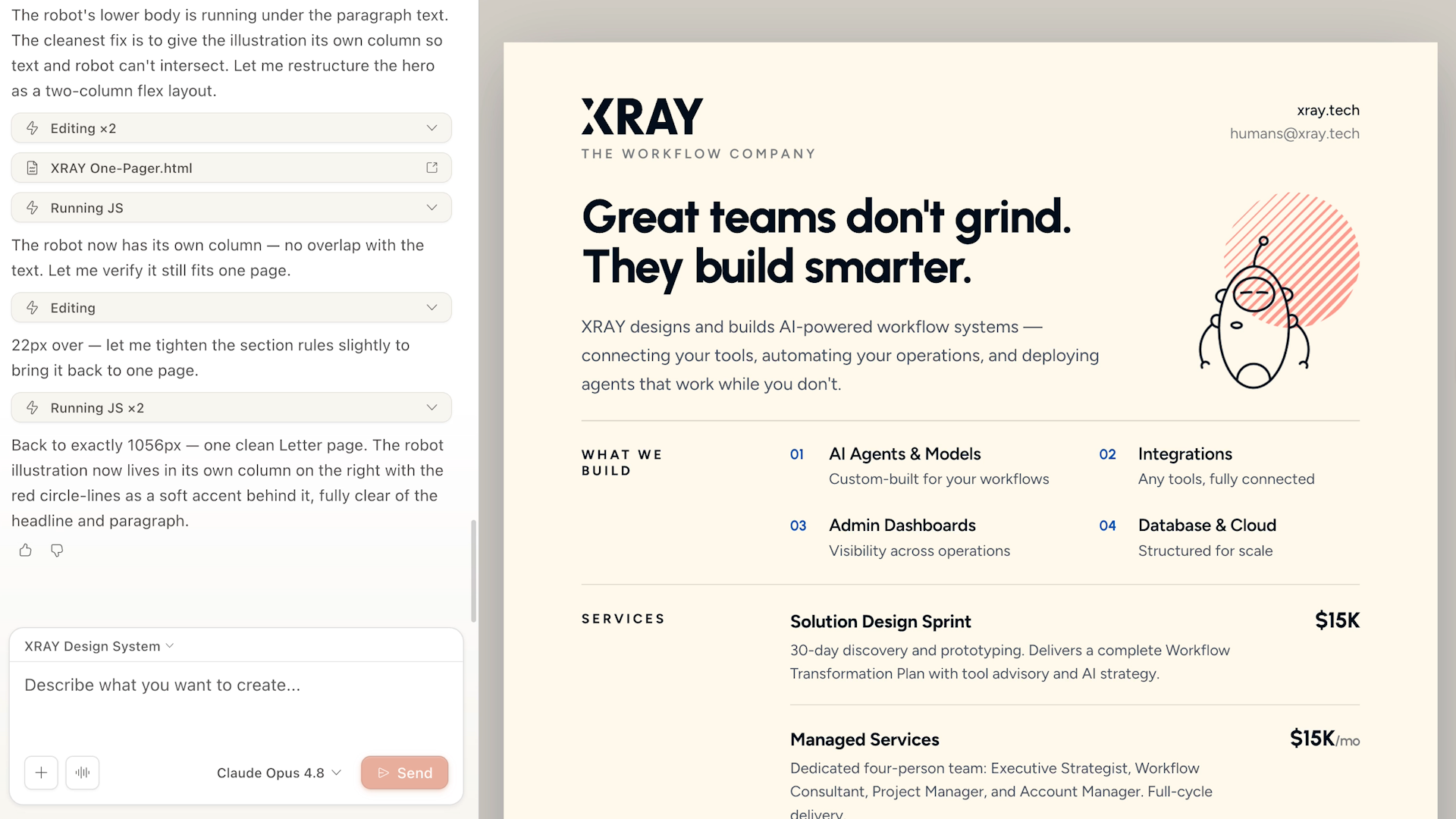
The first is the chat panel on the left. Describe what you want changed and send it.
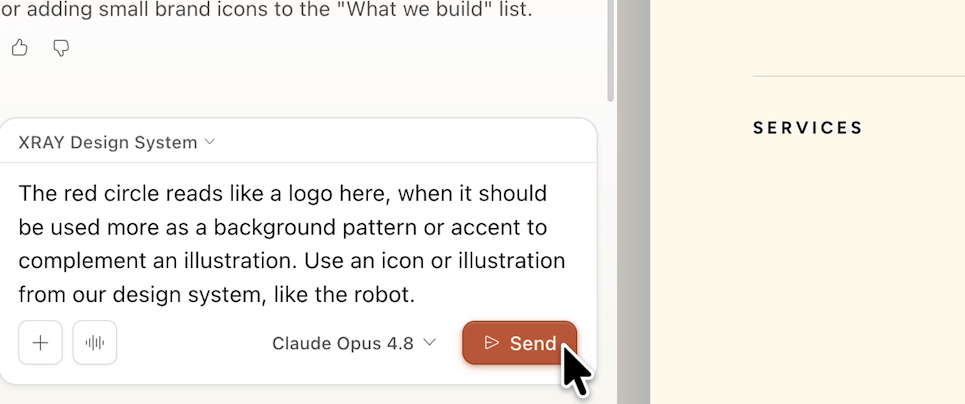
Claude makes the adjustment and leaves everything else alone. It won't touch elements you didn't mention.
The second editing option is markup.
Select “Markup”, then click on an element or draw on part of the page and leave a comment directly on it.
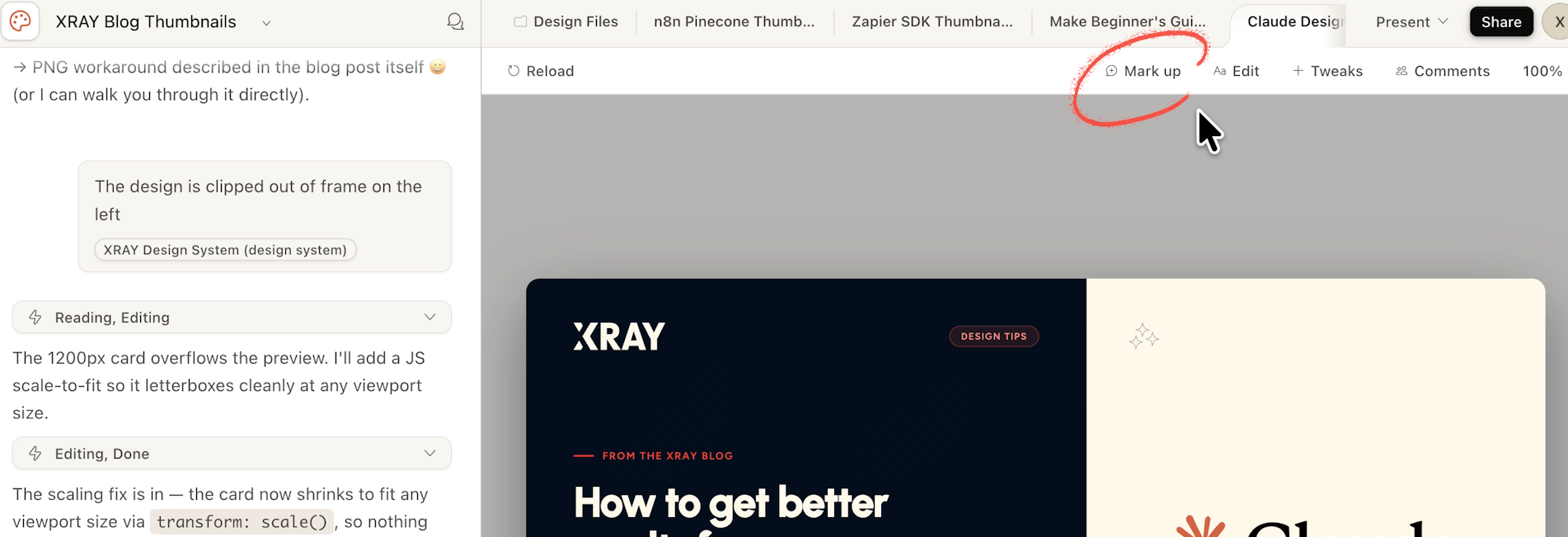
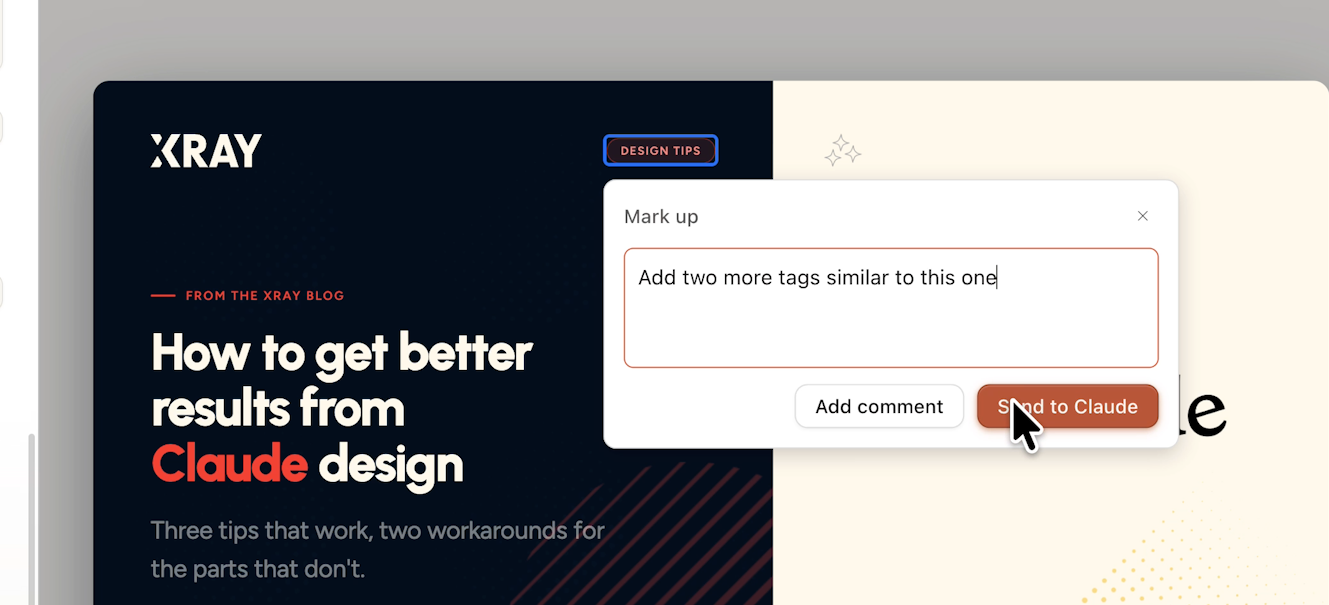
Claude gets to work on that specific change.
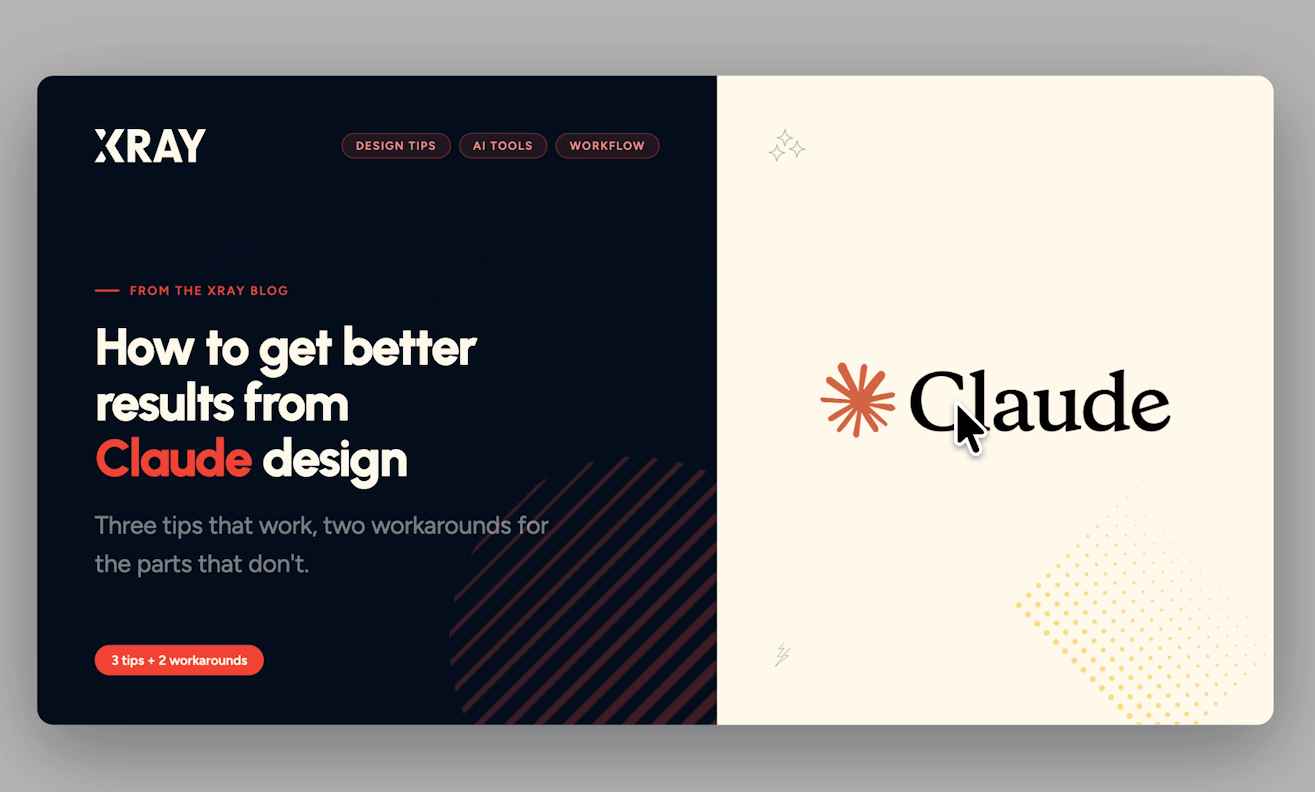
This is often faster than describing the exact position of something in text, especially when your design repeats a motif several times.
Either way, you don't redesign the whole asset to fix one piece. Claude preserves everything else and adjusts only what you call out.
Claude Design now shares the same usage limit as other Claude products, and it burns through tokens fast.
To save tokens, we recommend editing assets directly whenever you can.
Click edit, then select the element you want to change.
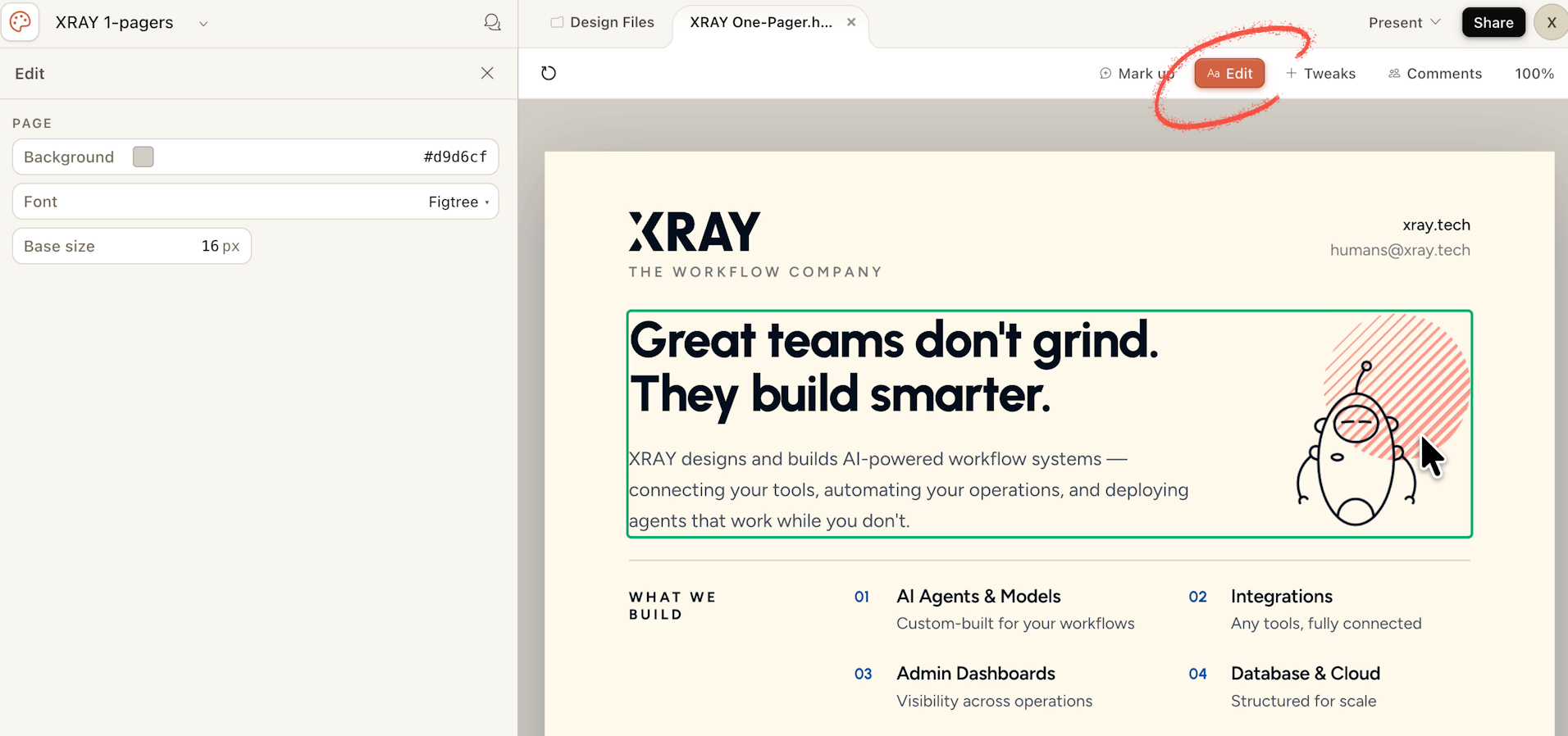
You can adjust copy, colors, borders, and alignment. Every element Claude generates is editable this way.
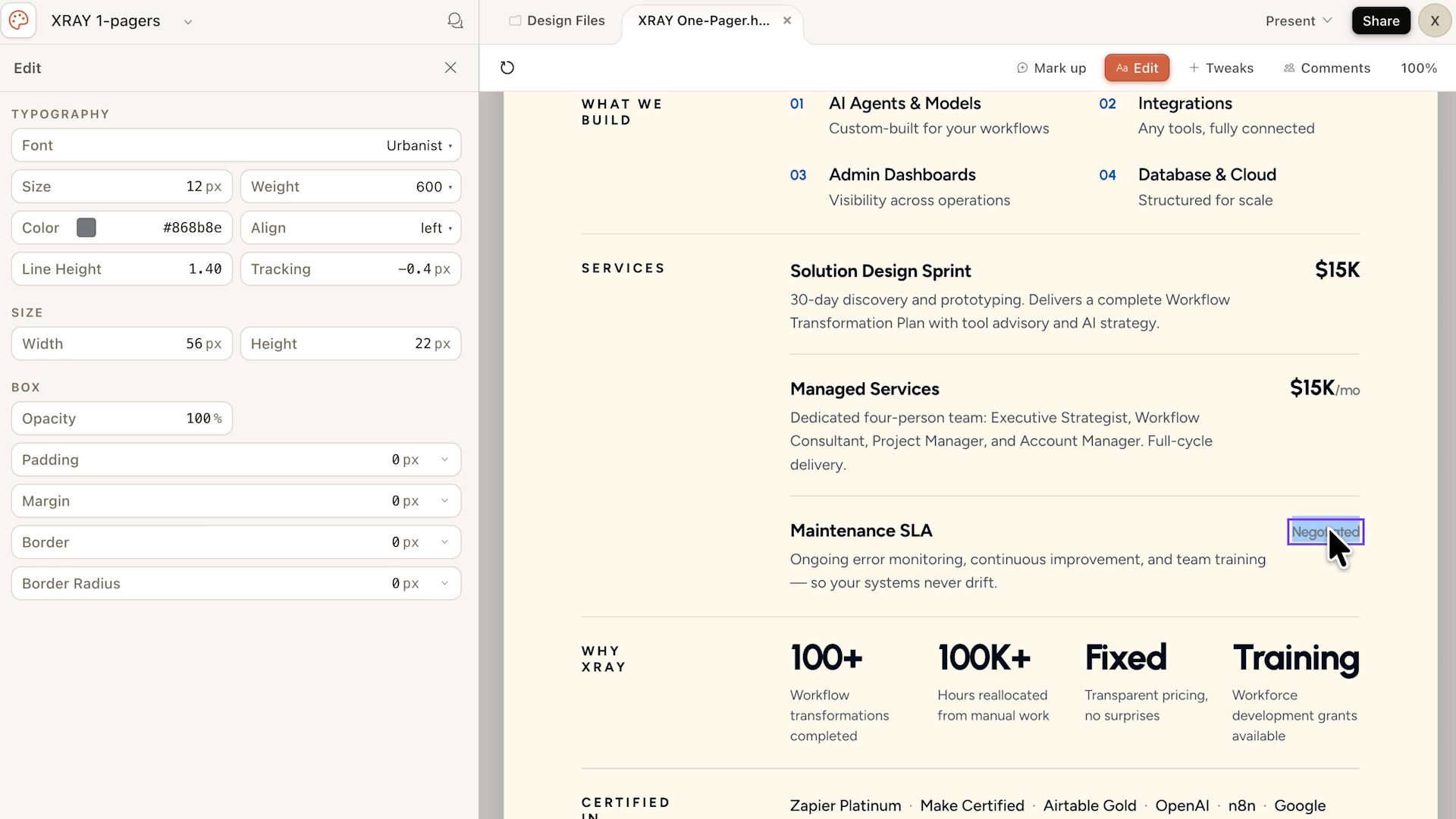
The one thing you can't do by hand is move elements around the canvas. For that, you still have to ask Claude.
There's a related pattern worth knowing. Sometimes Claude gets close but not all the way, and you run out of usage mid-session.
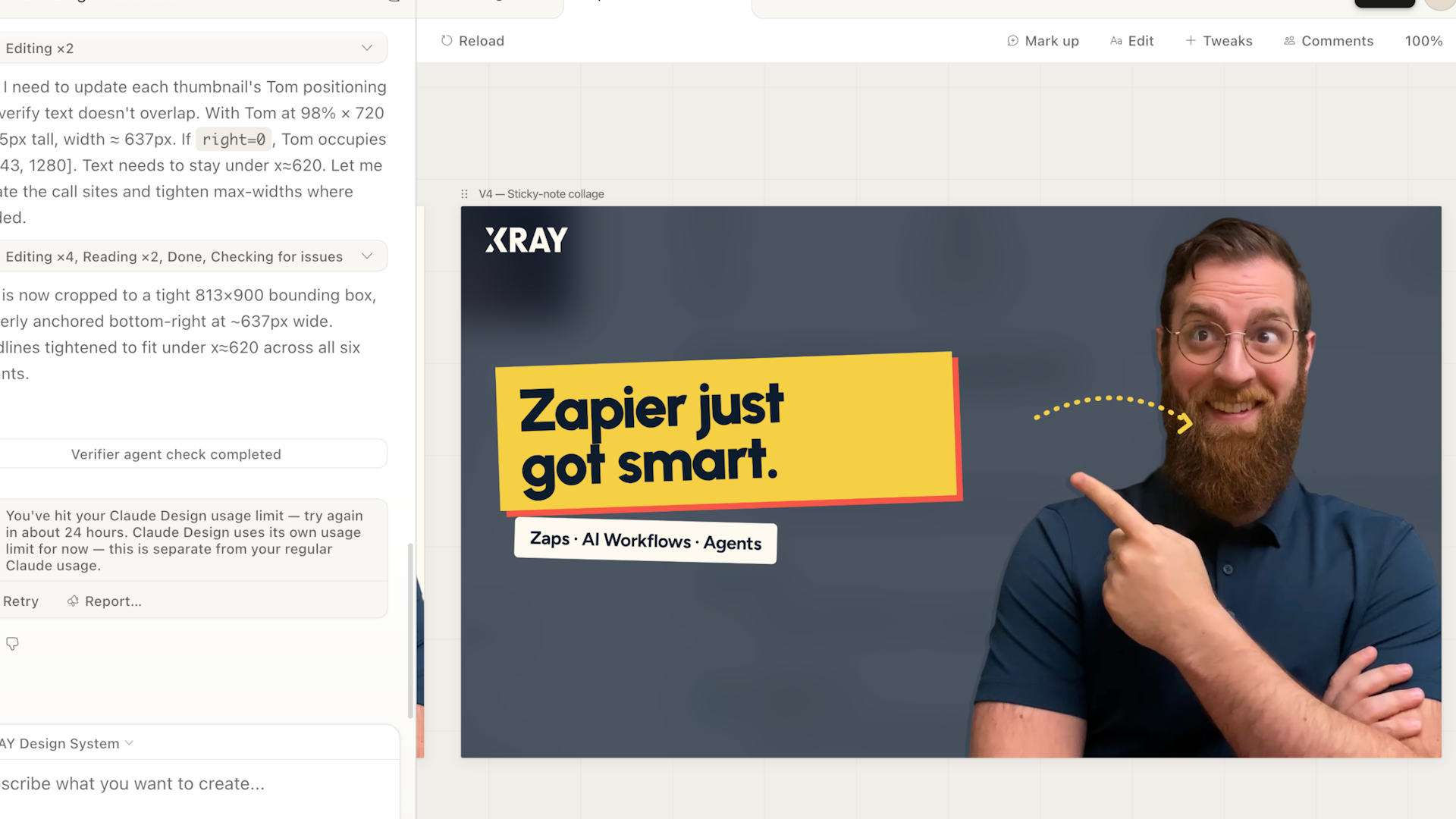
When that happens, use what Claude built as a reference and finish the design in another app.
Photoshop works. So does Canva, which has a direct integration. Send your design over and finish it where you're most comfortable.
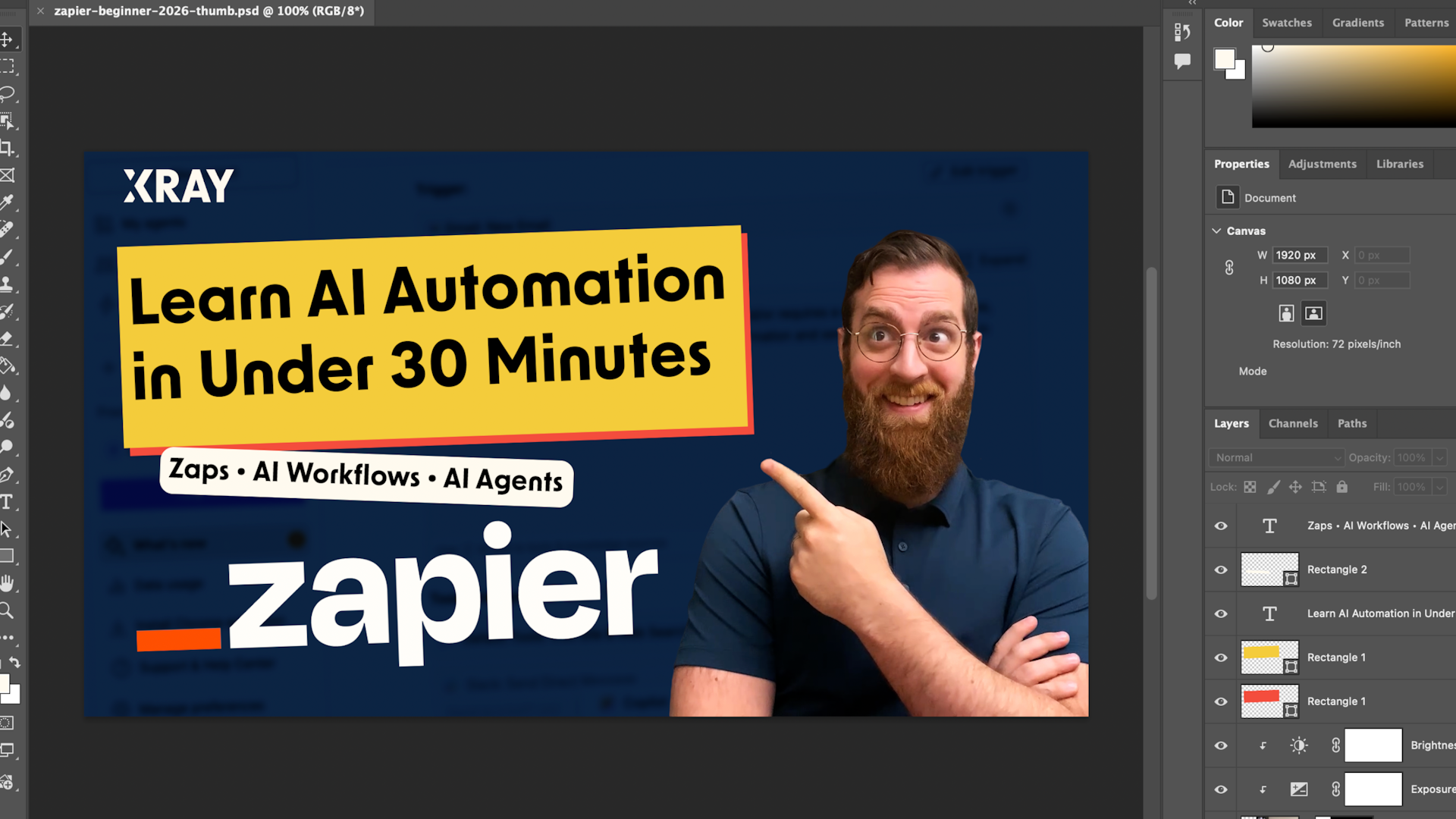
Because Claude is working from your design system, you already know which fonts, colors, and assets to use.
This is the most frustrating part of Claude Design right now. Exporting an accurate image of your design is harder than it should be.
Claude Design builds for the web first, so HTML exports look good.
However, slide decks and images are trickier. Claude offers an editable deck export, but in our experience those rarely look right. Key elements of the design are often not rendered correctly.
Here's the reliable path for exporting accurate decks and images:
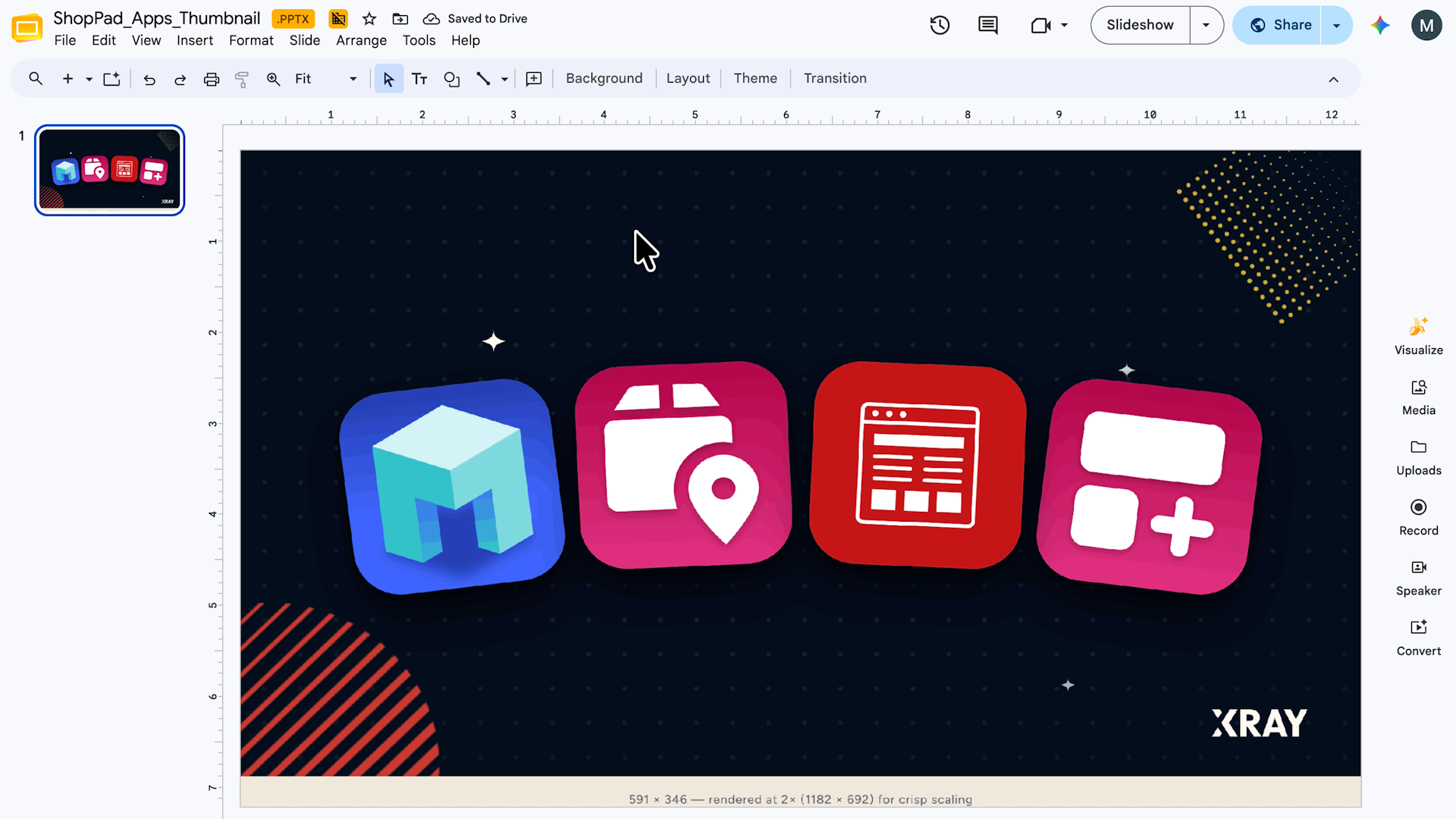
• Export a screenshot-based PowerPoint file (Share → Export → PPTX → Screenshot-based)
• Open it in PowerPoint, Google Slides, or Keynote
• Download it as an image (in Slides: File → Download → PNG or JPEG)
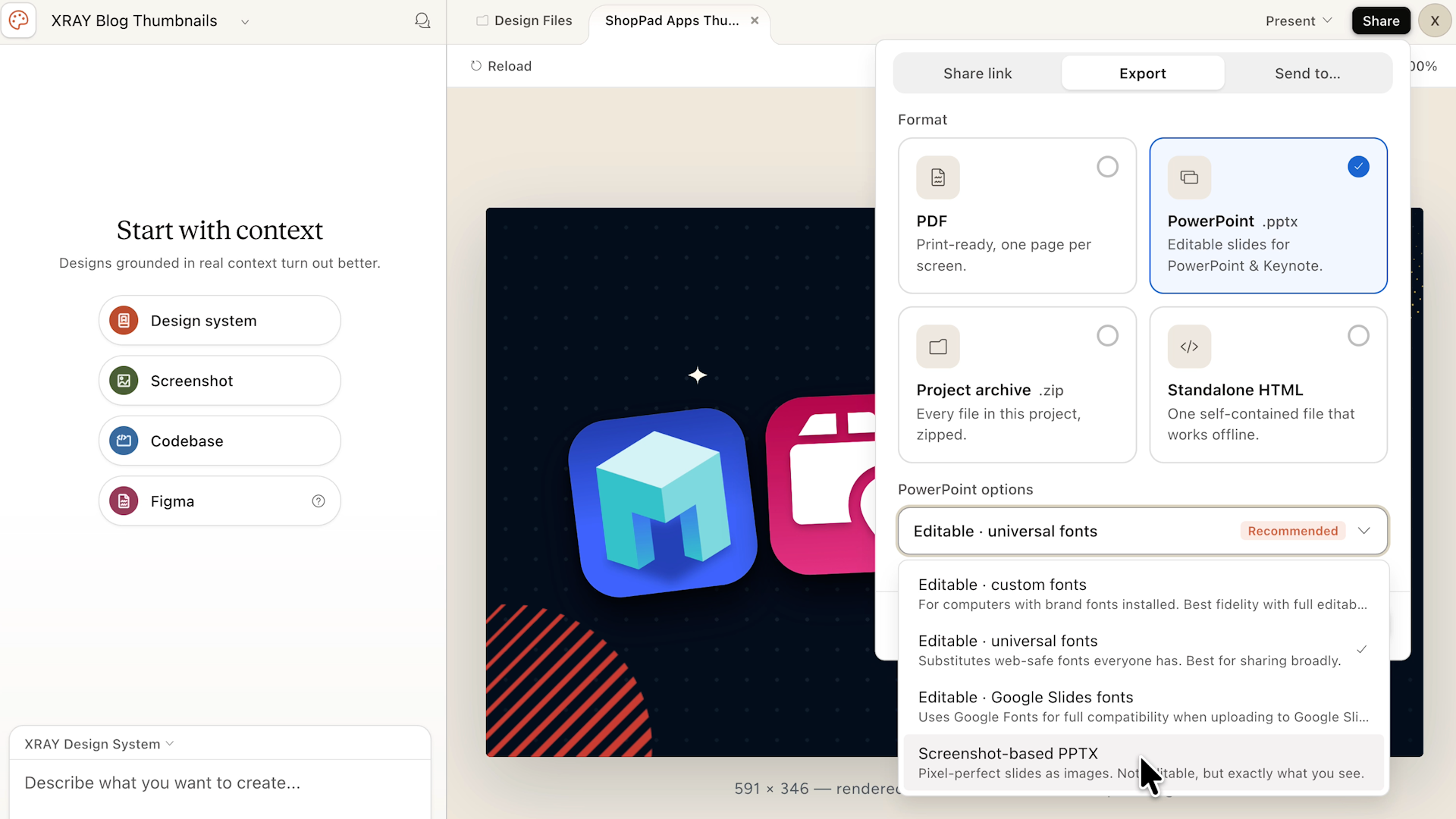
You won't be able to edit the text or layout in the screenshot version, but the design comes through accurately.
We'd love a reliable direct image export added soon, but for now, this gets you a clean, high-quality image every time.
Claude Design is the fastest way to produce branded assets we've found. You don't need to be a designer to use it.
Just set up your design system first, give Claude a clear reference, and iIterate on the output. Whenever you can, edit directly to save tokens.
It isn't a finished product. But it's already good enough to replace a meaningful chunk of your team's first-draft design work, and that gap is only going to close.
—
Want to go further with AI?
XRAY designs and implements AI workflows for businesses that want to stop doing things manually. If you want expert help on a specific problem, we offer support on an hourly basis. If you want to transform how your whole team works, we do that on a monthly retainer. Either way, you can learn more and get started here on our site.