
Nobody plans to run their business on a tangle of spreadsheets. It just happens.
You open Google Sheets to track one thing, and a year later you're managing four files, three spellings of the same person's name, and a column nobody remembers creating.
The tool that was supposed to save you time has quietly become the thing eating it.
You probably already know the answer is a real database. The problem is the migration, which means hours of reconciling names and rebuilding everything by hand.
That project never makes it to the top of the list, so the spreadsheets stay.
But now, you don't have to do that work yourself. Instead, you can hand the pile to a handy AI assistant like Claude and have it build a clean, connected database directly in the app you want to use.
Here’s how it works.
Every workflow is only as good as the data underneath it. The smartest AI agent in the world is useless if it's pulling from scattered, half accurate spreadsheets. Garbage in, garbage out, every time.
This is the step the AI hype crowd skips. It's also the one that decides whether anything you build afterward actually works.
Once the database is in place, the payoff starts:
• Automations that read and update records without human intervention
• AI agents that reference real, current information
• One source of truth instead of six competing ones
• New tools that plug in without a migration project first
There are all sorts of apps available for easily building clean, structured databases.
One of our top recommendations at XRAY is Airtable.
Airtable is a relational database, which is a fancy way of saying it keeps data connected. Records in one table link to records in another. A task points to its project. A volunteer points to their program. Nothing floats around on its own.
It also has a ready-made Claude connector, which is what makes the migration from Sheets so easy.
Before Claude can touch any data, it needs permission to reach it. That means two connectors: Google Drive, where the spreadsheets live, and Airtable, where the finished database ends up.
Adding them takes about a minute.
Start by opening the left hand panel in Claude, and click “Customize”.

Go to the connector section.

Click Add, then Browse connectors

Then, search for the apps you want to use and connect them. You’ll need both Google Drive and Airtable to follow along with our example.

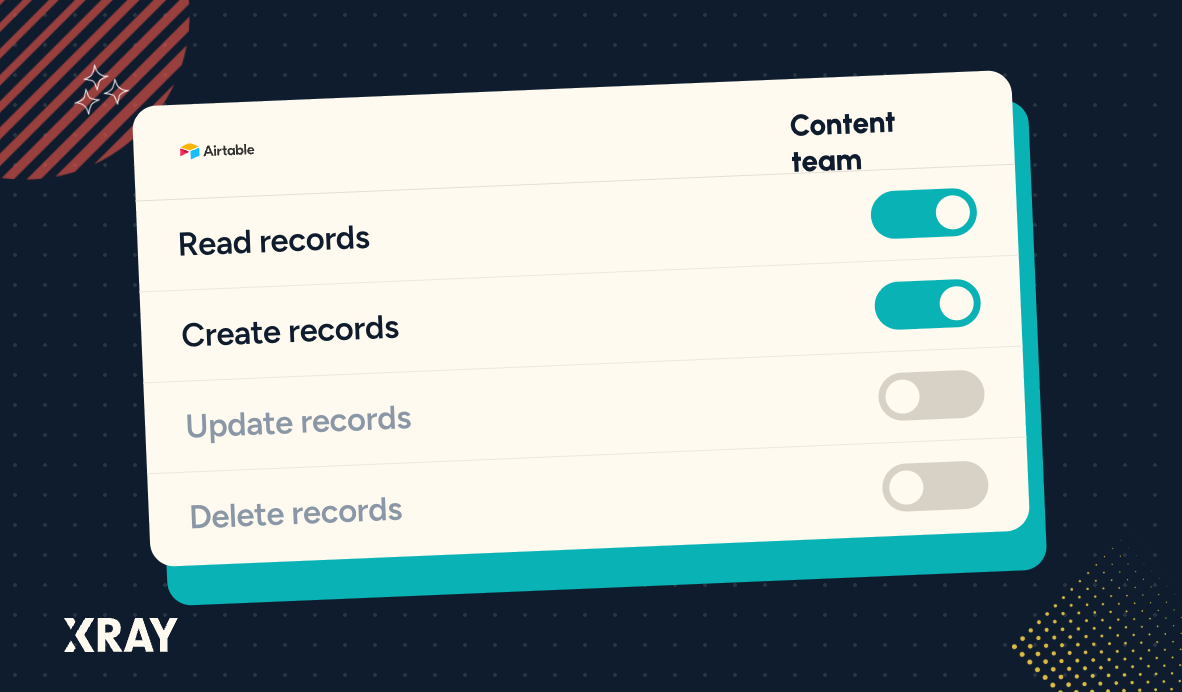
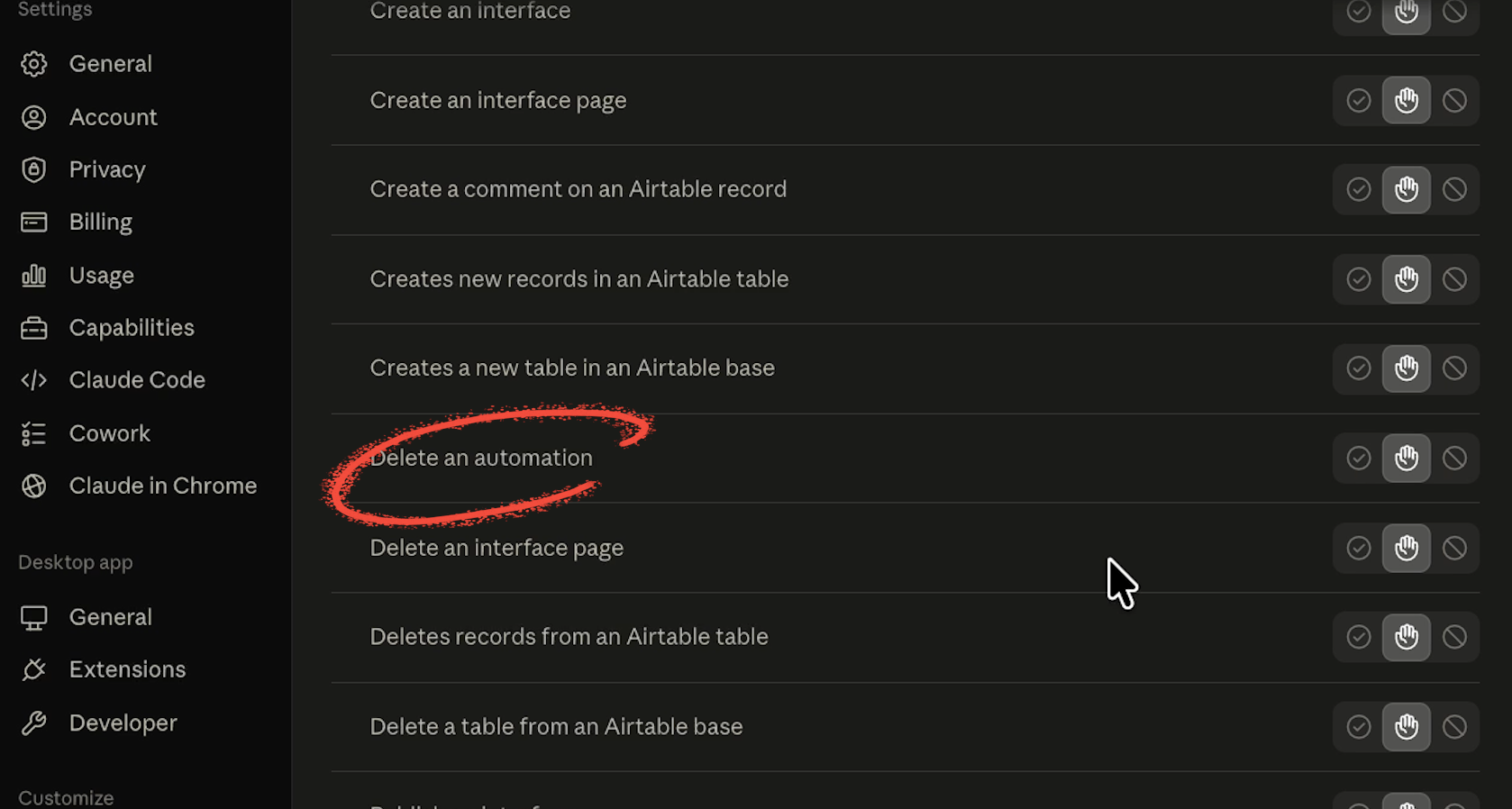
Every connector action can be set to one of three levels: always allow (check mark), block (prohibited symbol), or ask for permission (hand symbol).

“Ask for permission” should generally be your default setting for write and delete actions. Claude checks in before it does anything, which keeps a human in the loop on decisions that affect real data.
A reasonable setup looks like this:
• Read-only actions: safe to allow automatically, assuming nothing sensitive is involved
• Anything that writes or edits: ask for permission
• Anything that deletes: ask for permission, always – or block entirely
Never give Claude blanket authority to delete. It's powerful, not perfect, and a deletion is far harder to undo than a bad edit.
With connectors in place, the job is simple to hand off. Point Claude at the Google Drive folder holding the spreadsheets and ask it to convert them into a relational database in Airtable.
To make sure Claude gets things right on the first try, we've created a skill for converting Google Sheets to Airtable. You can download that skill for free by signing up for the XRAY newsletter here. Once you sign up, you'll get access to all of the resources we share with our tutorials.
Here's what a realistic starting point looks like. Take a fictional youth rec league running on a pile of sheets: players, coaches, a match calendar, program rosters.
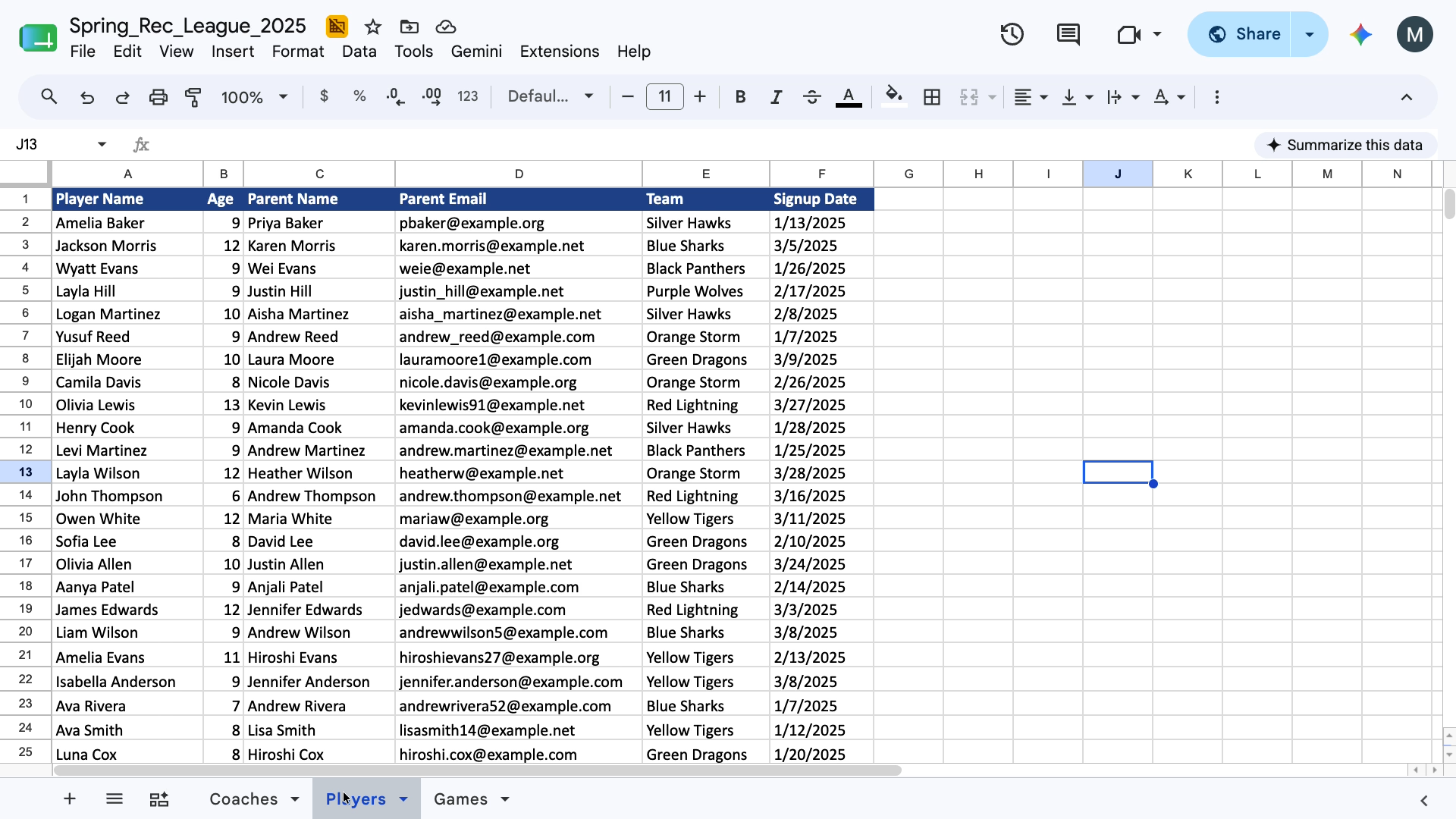
The data is scattered across several files and duplicates are everywhere. The same coaches appear in separate spreadsheets for the spring, summer, and fall programs.

That tangle is normal. It's what happens when a few different people manage the same information over a few years.
With your connectors set up, you can give Claude direct links to access your data in Sheets and Airtable, or you can just tell it where you want it to look. In our example prompt, we’ll do both.

No two Claude conversions look exactly alike. The number of files, the state of the data, and the structure you want on the other end all change how the conversation goes. What stays consistent is your role in it.
Three things matter:
• Call out the skill in your prompt. Claude will usually find it on its own, but naming it explicitly is the reliable way to make sure the process follows the instructions you built rather than improvising a structure.
• Review and answer Claude’s questions. Claude should come back before it makes structural decisions on ambiguous data.
In our rec league example, it asked whether coaches and volunteers belonged in a single People table, and whether it should fill in missing entries so the records came out complete.
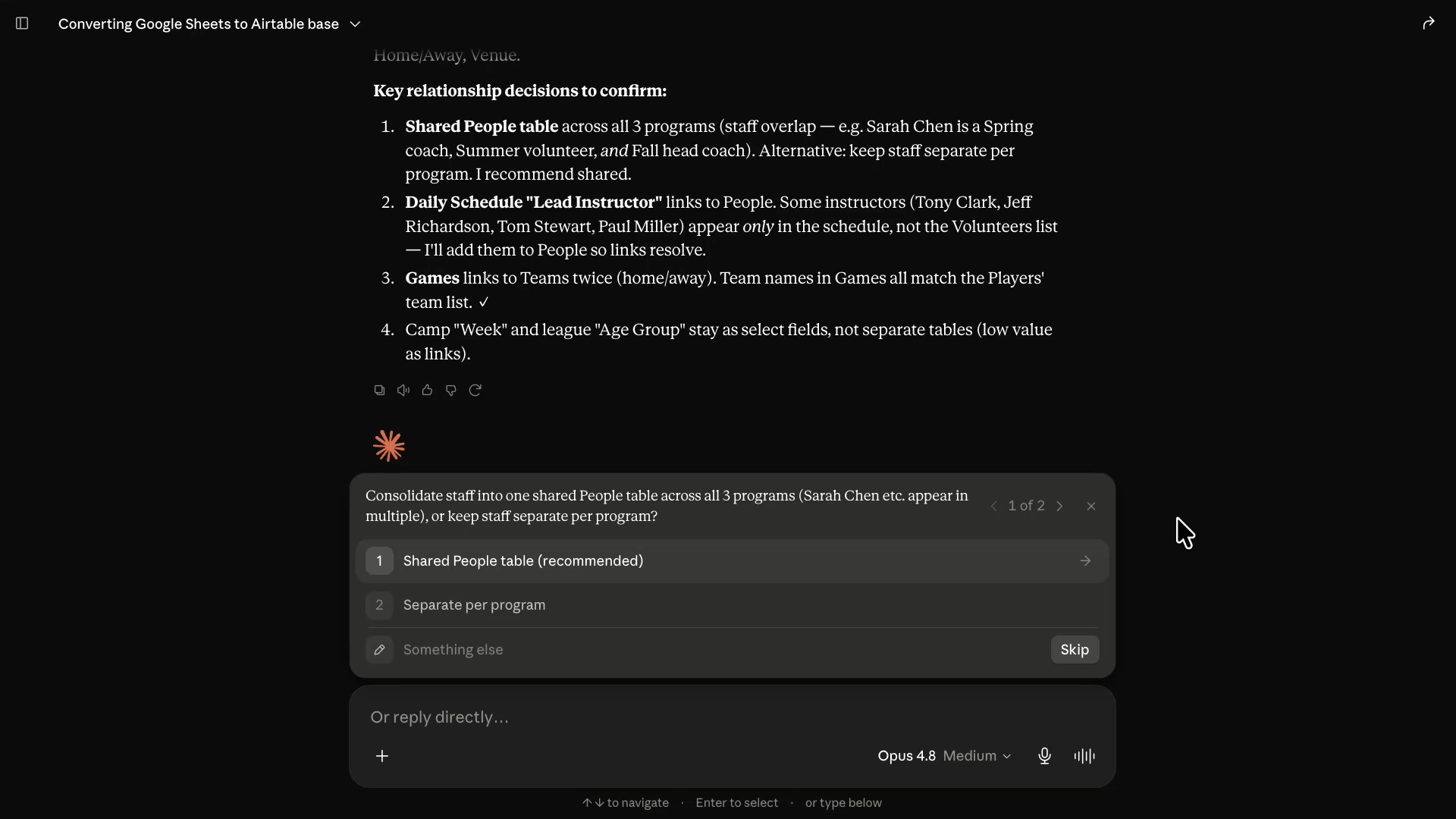
Those questions are the guardrail. Skimming past them is how you end up with a base you have to redo.
• Stay available to approve. Claude pauses for confirmation before write actions in Airtable, and those approvals need a person.

The build itself takes a while, so it's a fine time to work on something else. Just keep the tab open and check back, because the whole thing stalls politely while it waits on you.
Once Claude has finished, you should have a functional, organized base.
In the rec league example, every coach and volunteer now lives in one People table, with every program each person is involved in visible at a glance.

Adding a coach to a program means opening the program record and dropping them in, pulling them instantly from where they’re already tracked in the “People” table.
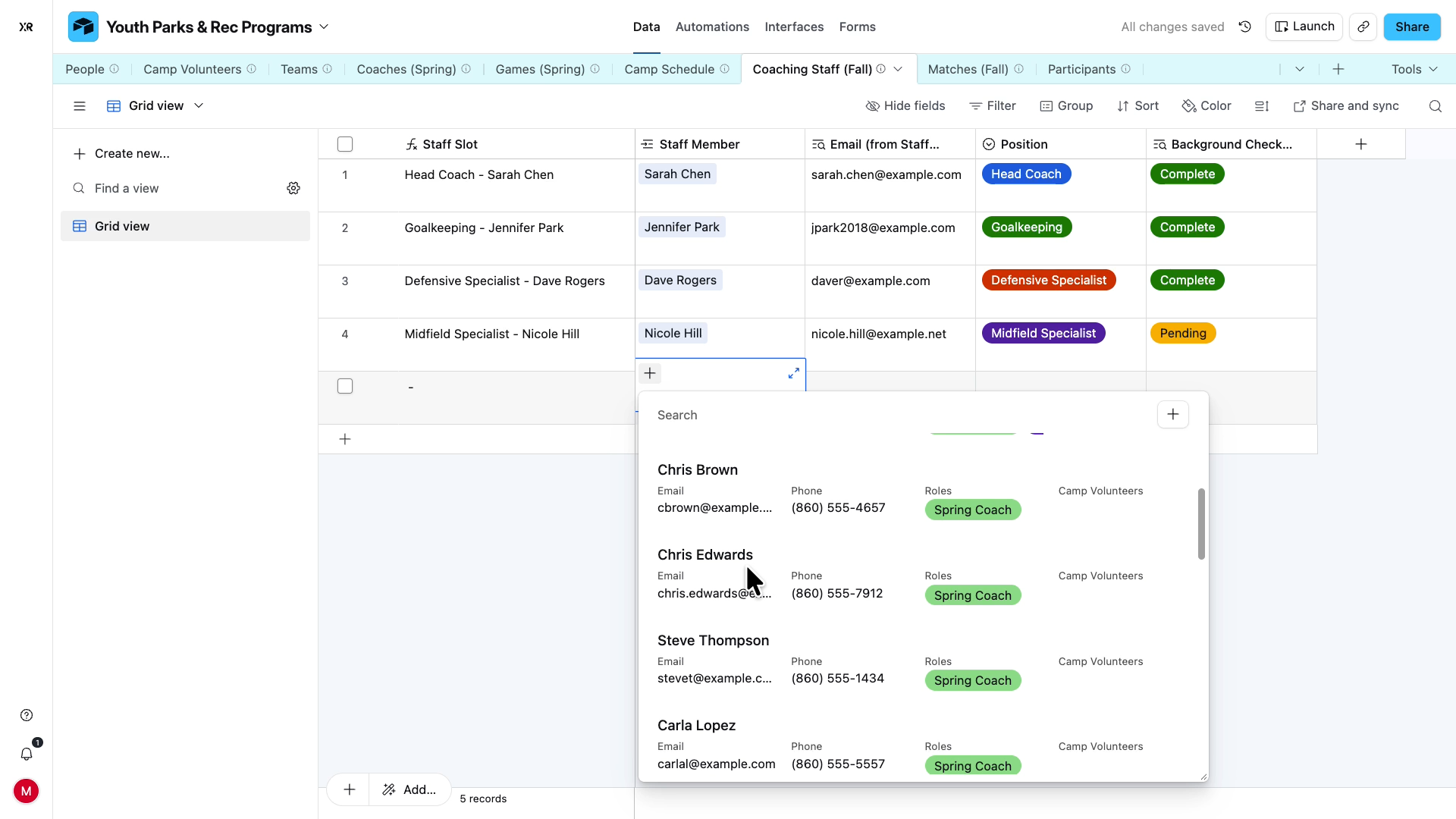
Lookup fields like email and background check status populate automatically, so the same information never gets typed in two places.
While the initial output should be usable right away, you may need to make a few tweaks first. You can either make those edits yourself directly in Airtable, or you can ask Claude to handle them for you.
In general, we’d recommend making small adjustments yourself. Changing the base’s color, renaming a field, and adding a simple filter can all be done faster in Airtable directly then by asking Claude to do it.
However, if you need to change anything structural, let Claude do the grunt work.
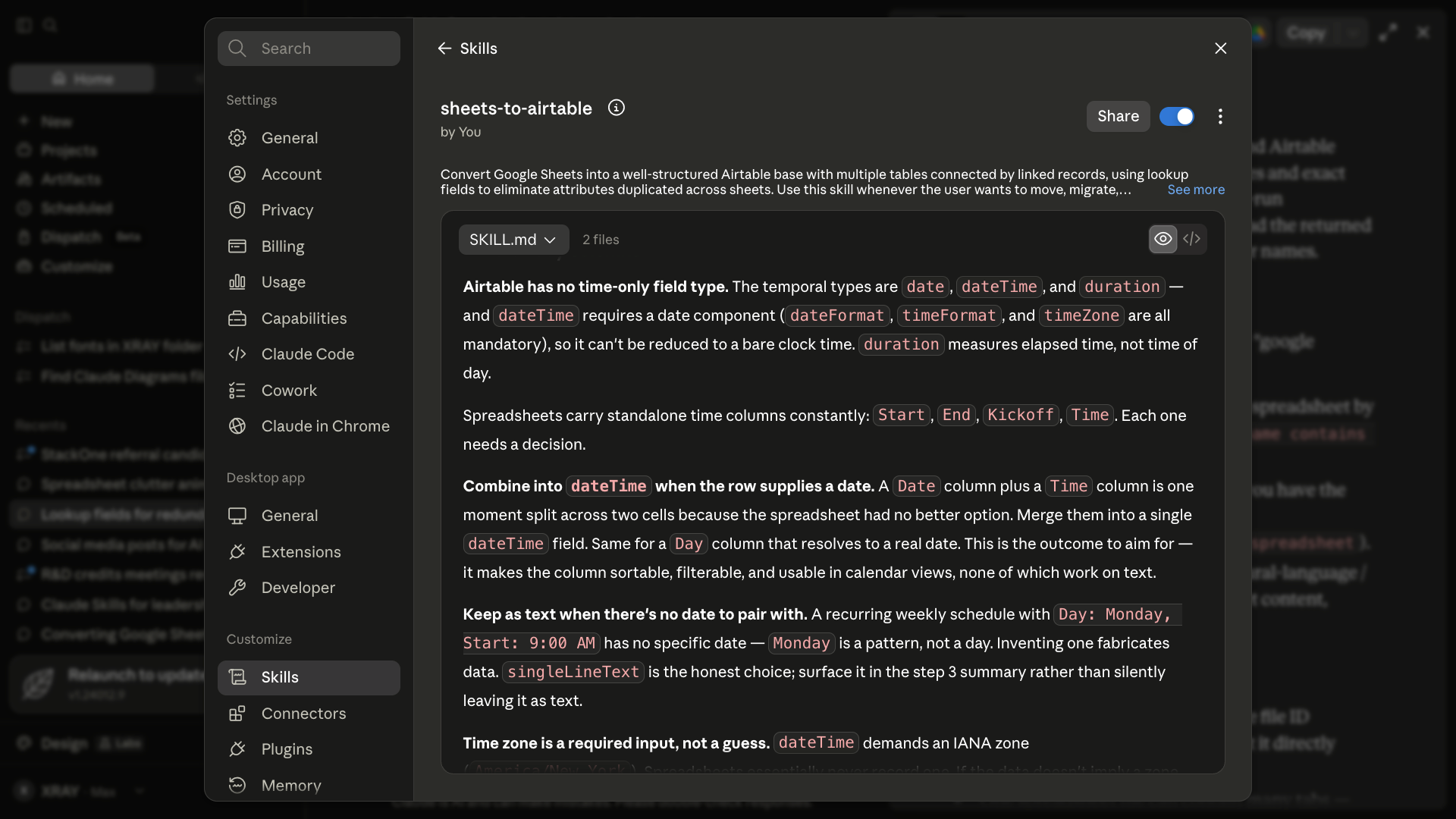
In this case, the time values in the Matches table came in as plain text.

This is because Airtable has no standalone time field to match the “Kickoff time” field in our original sheet. The only option is to combine date and time into a single value.
Without a proper time, the calendar view is incomplete: it shows which day an event lands on, but not when it starts or how long it runs.

To fix this, we’ll ask Claude to merge the date and time entries into a single field.

After getting to work, we’ve got a new field that combines data in the sheet to create a single date/time field, and the calendar now shows both.
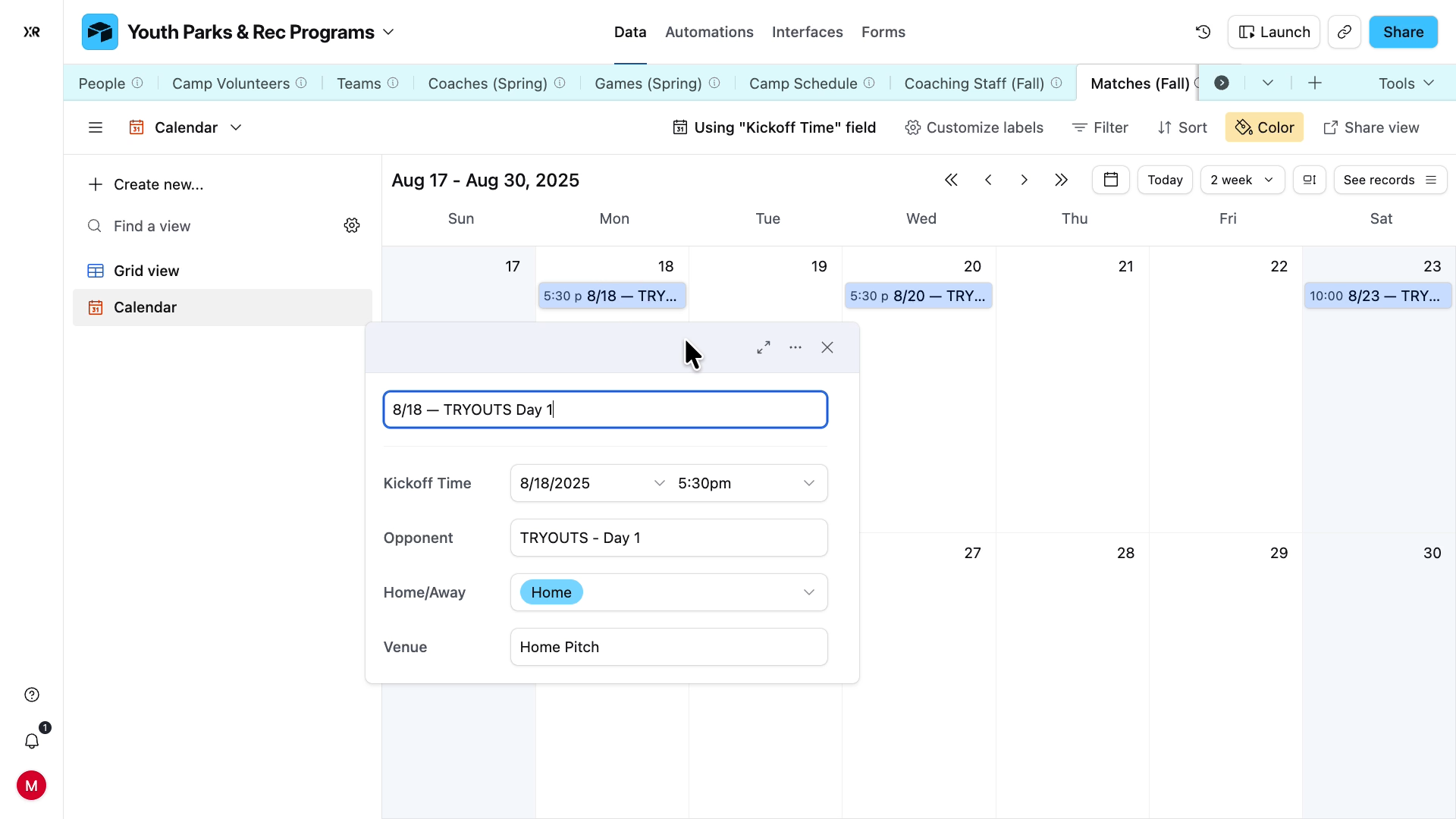
This is exactly where a skill earns its keep. Situations like this one repeat across projects, and a skill lets you write the instruction once so the same decision gets made correctly every time after.
After running into this issue in our tests, we updated our “Sheets to Airtable” skill to handle date/time fields better.
At this point the data is clean, organized, and ready for whatever comes next. Other apps. Automations. AI agents.
The lesson underneath the tutorial is simple. Before you automate anything, fix the foundation. Then stop doing the parts a tool can do better.
You didn't copy and paste a single row to get here. That's the point.
XRAY has built a Claude skill that handles this entire conversion, which you can access for free by signing up for the XRAY newsletter here.
If you'd rather have this done for you, or you want help figuring out what to automate once the data is in order, XRAY does this work every day. Schedule a call today to get started.