
Last year, OpenAI pushed a sudden update that changed the behavior of GPT-4o, one of their most popular models. Without warning, users were suddenly getting strange, sycophantic results in their chats.
In August of 2025, OpenAI launched GPT-5 to mixed reviews. One of the most frustrating aspects for early users was the model’s new automatic “routing”. Without any clear indication of what it was doing, OpenAI would send different requests to different variants of the model. Many users saw their requests handed off to the weaker variants when they had hoped to use the latest and greatest that OpenAI had to offer.
This is what vendor lock-in looks like in practice. It's not theoretical. It's already happening.
If your AI workflows are built tightly around a single provider, you're one product decision away from a bad day. The fix is to build in a way where the model underneath is interchangeable. That's exactly what the Zapier SDK makes possible.
Zapier SDK is a software development kit that lets you access Zapier's integrations directly from your code. Instead of building and maintaining individual API connections for every tool your app touches, you get access to thousands of prebuilt integrations through a single authenticated session.

That includes all the major AI providers. Claude, ChatGPT, Gemini, and more are all available as app clients in the SDK. You don't need to manage API keys or credentials for each one in your app. Instead, you authorize Zapier once, connect your accounts, and the SDK handles the rest.
Another practical benefit for AI workflows: your data pipeline and your AI provider are fully decoupled. The layer that pulls your data doesn't know or care which model generates the output. That separation is what makes switching providers fast.
To show how this works, we built a simple TypeScript app that delivers a personalized morning brief to Slack every day.
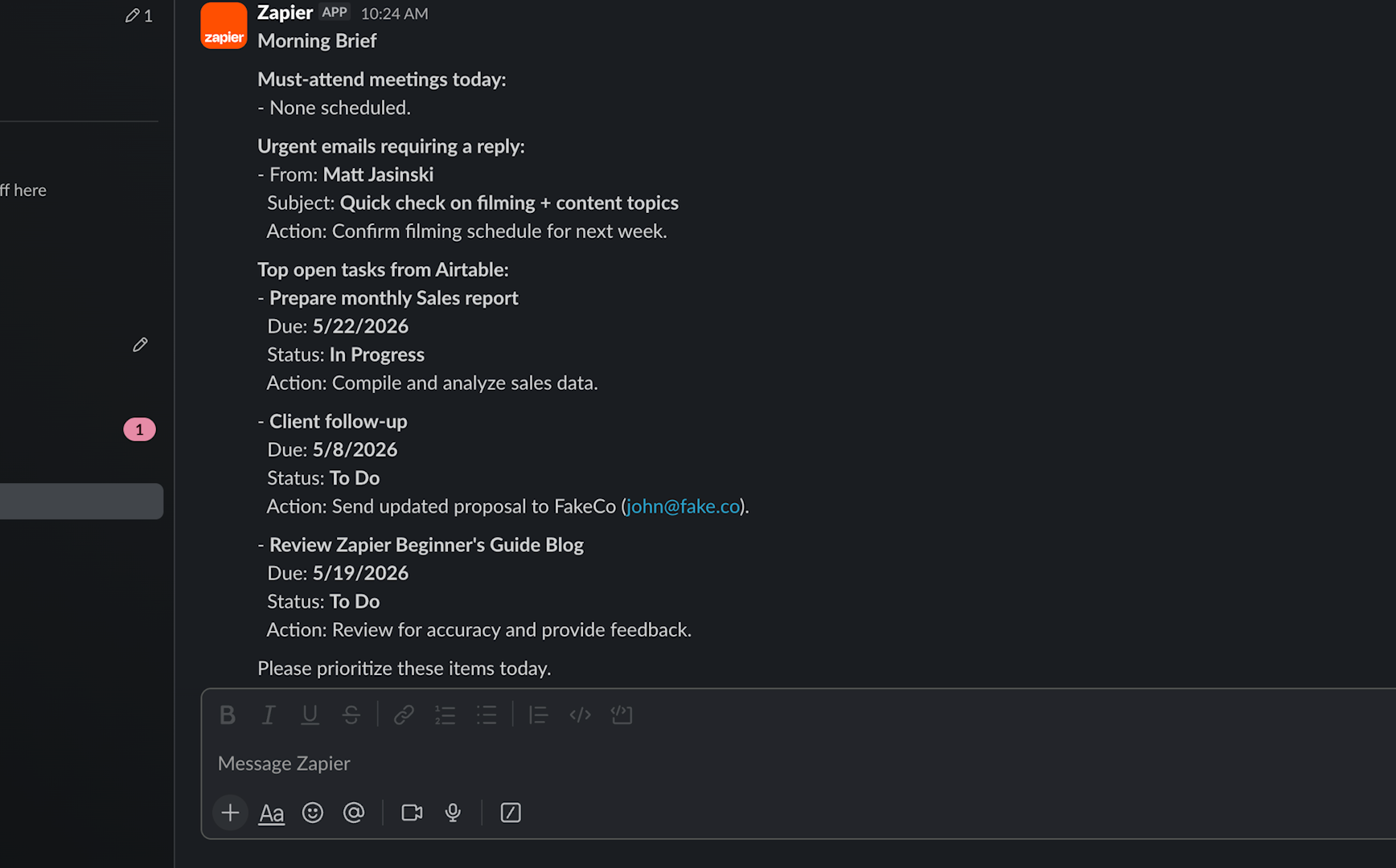
You can view the app here on Github if you’d like to follow along with our example. Here's what it does on each run:
• Fetches today's calendar events via Google Calendar
• Pulls unread emails from the last 24 hours via Gmail
• Retrieves open tasks from an Airtable base
• Sends all of that to an AI model with a structured prompt
• Delivers the AI-generated summary as a Slack DM
All of the data retrieval and delivery happens through the Zapier SDK. The app authenticates with a single Zapier session, then calls each connected app by name.
const calendar = zapier.apps.google_calendar({ connectionId: calConn.id });
const gmail    = zapier.apps.gmail({ connectionId: gmailConn.id });
const airtable = zapier.apps.airtable({ connectionId: airtableConn.id });
Each app client exposes read and write actions. To fetch emails, you call gmail.search.message(). To send a Slack DM, you call slack.write.direct_message(). The pattern is consistent across every app.
The AI step works the same way. The app calls an AI provider, passes the prompt, and returns the generated text. That's the only piece that changes when you switch providers.
The AI logic lives in a single function: generateBrief(). Here's what the OpenAI version looks like:
const conn = findConnection(connections, "ChatGPTCLIAPI", "");
const ai = zapier.apps.chatgpt({ connectionId: conn.id });
const result = await ai.write.conversation_responses_api({
  inputs: { user_message: prompt, model: "gpt-4o-mini" },
});
return ((result.data as unknown[])[0] as { output_text: string }).output_text;
Other than the findConnection() function, which is a custom helper designed to pick the right app connection among pre-fetched options, everything in this function is accomplished with the Zapier SDK alone.
function findConnection(connections: Connection[], appKey: string,
titleSearch = DEMO_ACCOUNT) {
  const conn = connections.find(
    (c) => (!titleSearch || c.title?.includes(titleSearch)) && c.app_key?.includes(appKey)
  );
  if (!conn) {
    throw new Error(
      `No active ${appKey} connection found${titleSearch ? ` matching "${titleSearch}"` : ""}.\n` +
        `Add it at: https://zapier.com/app/assets/connections`
    );
  }
  return conn;
}
To switch to Claude, you replace the contents of that function. Four things change:
• The connection app key (AnthropicCLIAPI instead of ChatGPTCLIAPI)
• The app client (zapier.apps.anthropic_claude instead of zapier.apps.chatgpt)
• The action name (create_message)
• The response shape (Anthropic structures its response differently than OpenAI)
Note that while the 2 required input fields happen to be the same (user_message, model), changing to different AI providers may result in different input fields with other apps.
Here's the Claude version:
const conn = findConnection(connections, "AnthropicCLIAPI", "");
const ai = zapier.apps.anthropic_claude({ connectionId: conn.id });
const result = await ai.write.create_message({
  inputs: { user_message: prompt, model: "claude-haiku-4-5" },
});
const item = (result.data as unknown[])[0] as { response: { content: { text: string }[] } };
return item.response.content[0].text;
That's the full change. The rest of the app is untouched. The data pipeline, the Slack delivery, the prompt itself — none of it moves.
If you're adding an AI provider you haven't worked with, you only need three pieces of information before you can write the code: the app key, the action key, and the required input fields. While you could explore the app’s API docs to find most of the answers you need, or hand the task off to your preferred AI coding agent, Zapier SDK itself also gives you all the tools you need to get set up.
Here's the process, with some terminal commands you can use to quickly surface the right data:
Run this from your project root, replacing the search term with your provider's name:
node -e "
const { createZapierSdk } = require('@zapier/zapier-sdk');
const zapier = createZapierSdk();
zapier.listApps({ search: 'Gemini' }).then(r =>
  r.data.forEach(a => console.log(a.key, '|', a.title))
).catch(e => console.error(e.message));
"
For Gemini, the result comes back as GoogleMakerSuiteCLIAPI.
List the write actions for that app:
node -e "
const { createZapierSdk } = require('@zapier/zapier-sdk');
const zapier = createZapierSdk();
zapier.listActions({ appKey: 'GoogleMakerSuiteCLIAPI', pageSize: 50 }).then(r =>
  r.data.filter(a => a.action_type === 'write')
       .forEach(a => console.log(a.key, '|', a.title))
).catch(e => console.error(e.message));
"
You're looking for whatever action sends a prompt. For Gemini, it's send_prompt.
node -e "
const { createZapierSdk } = require('@zapier/zapier-sdk');
const zapier = createZapierSdk();
zapier.listInputFields({ appKey: 'GoogleMakerSuiteCLIAPI', actionKey: 'send_prompt', actionType: 'write' }).then(r =>
  r.data.filter(f => f.is_required)
       .forEach(f => console.log(f.key, '|', f.title))
).catch(e => console.error(e.message));
"
For Gemini, only two fields are required: model and prompt.
Every provider structures its response differently. Add this debug line before your return statement to see what comes back:
console.log(JSON.stringify((result.data as unknown[])[0], null, 2));
Run the app once, find the field that contains the generated text, update your return statement, and remove the log. For Gemini, the path is candidates[0].content.parts[0].text.
Once you have that, the switch is complete. No new authentication. No new integration work.
AI vendors will keep moving fast. They'll keep pushing silent updates, changing pricing, and making decisions that affect your workflows without notice. That's not going to stop.
What you can control is the architecture. When your integration layer and your AI layer are separate, the model underneath becomes a configuration choice. One vendor makes a bad call, you swap them out. The rest of your system keeps running.
The Zapier SDK is available now, and you can try it for free here.
If you'd like help designing and building AI workflows that are built to last, that's what we do at XRAY.
We're a certified Zapier Solution Partner with a 5-star rating on their platform. We work with teams to build automation systems that don't depend on any single vendor behaving themselves.
Schedule a call through our Zapier directory or at the top of this page.