
A lot of people are moving on from ChatGPT right now. Whether you've switched to a different AI platform or you're just done with OpenAI, deleting your account is straightforward. But there are two things you should do before you click that delete button.
Do them in order. Skip them and you may regret it.
Your chat history is yours. Before you delete anything, download a copy of it.
Those conversations represent real time you spent working through problems, building prompts, and exploring ideas. If you're switching to a different AI tool, that context is worth keeping.
Here's how to export it:
Log into ChatGPT, click the circle in the bottom-left corner to open your profile menu, and select Settings
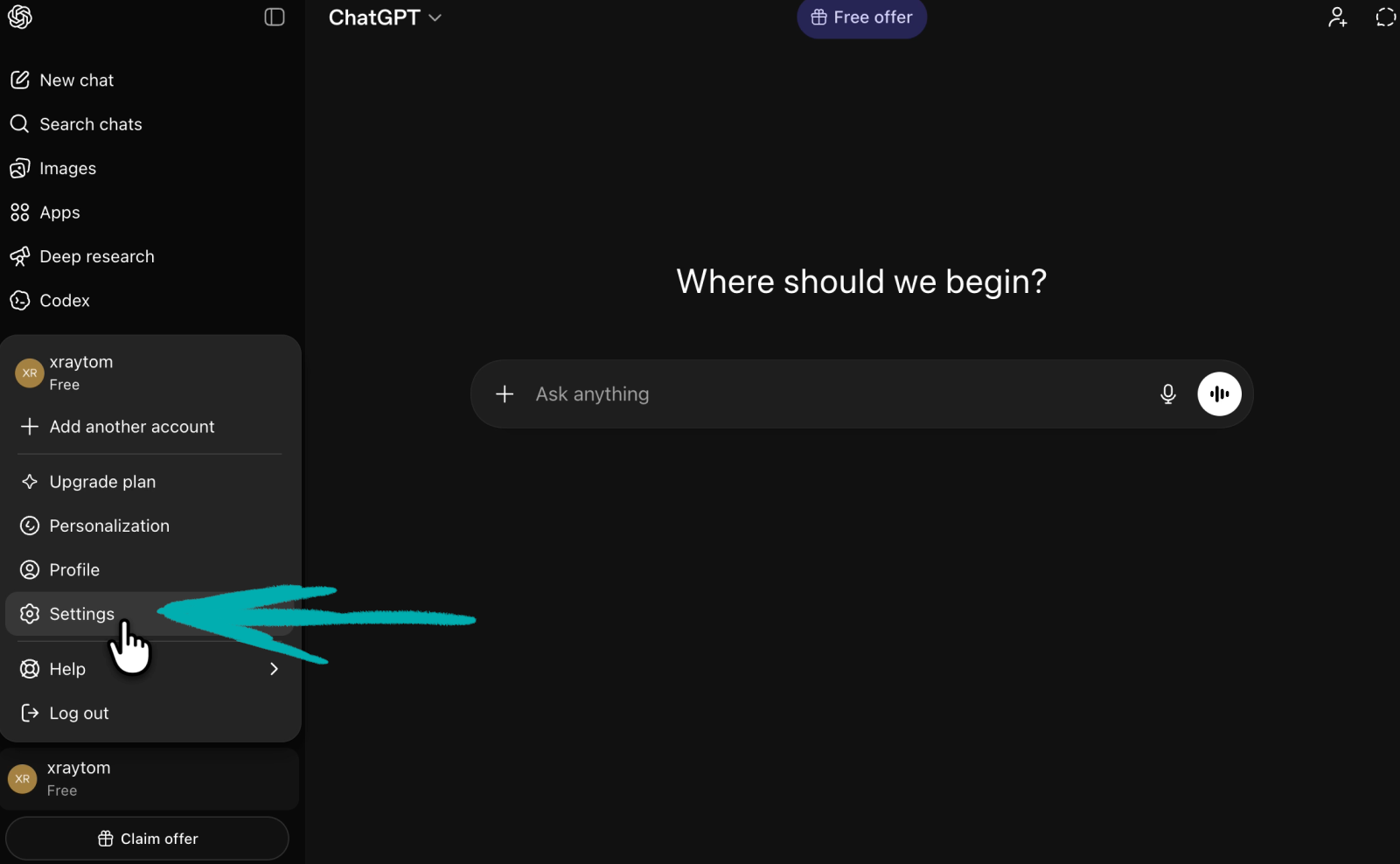
Then go to Data controls in the sidebar.
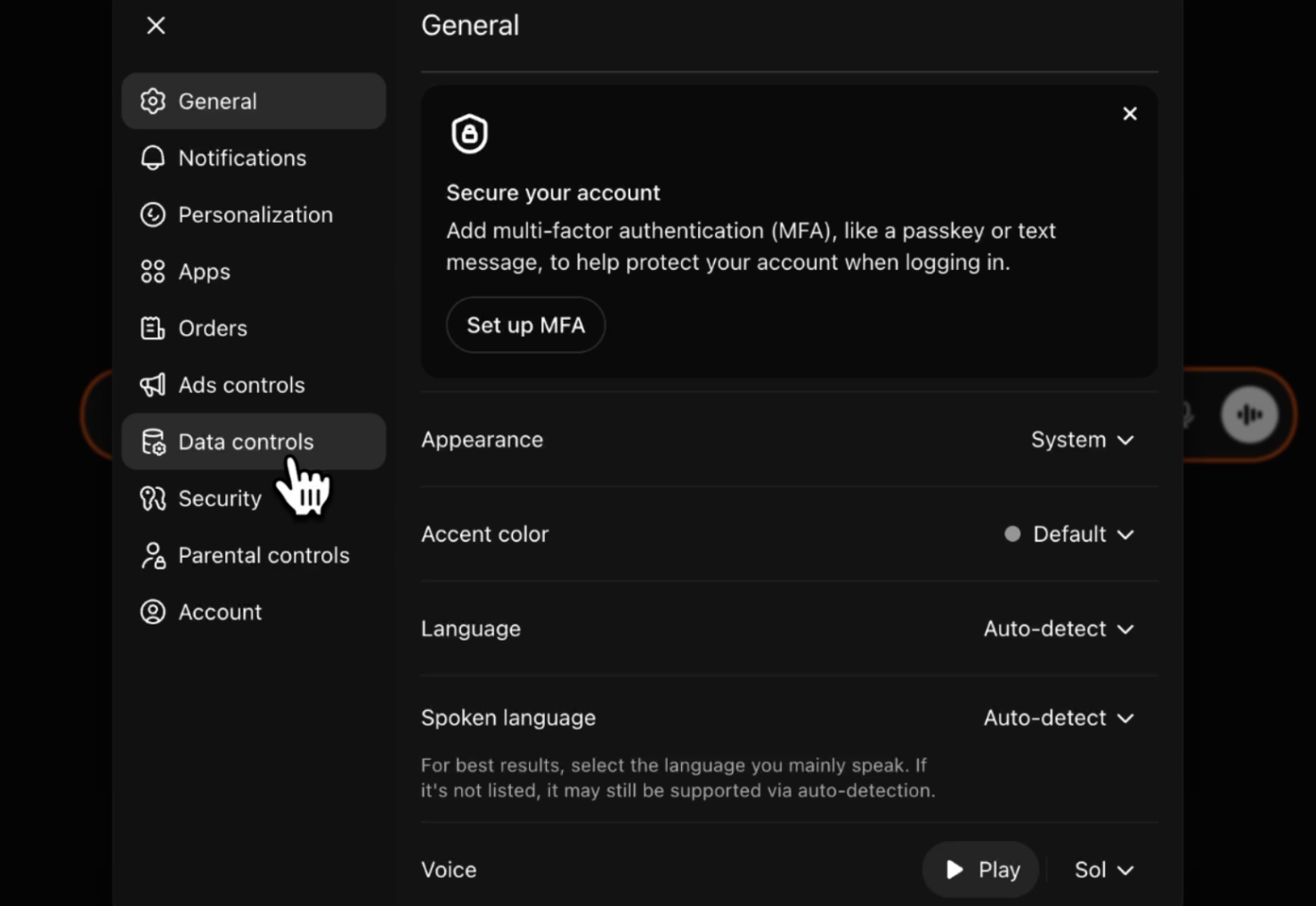
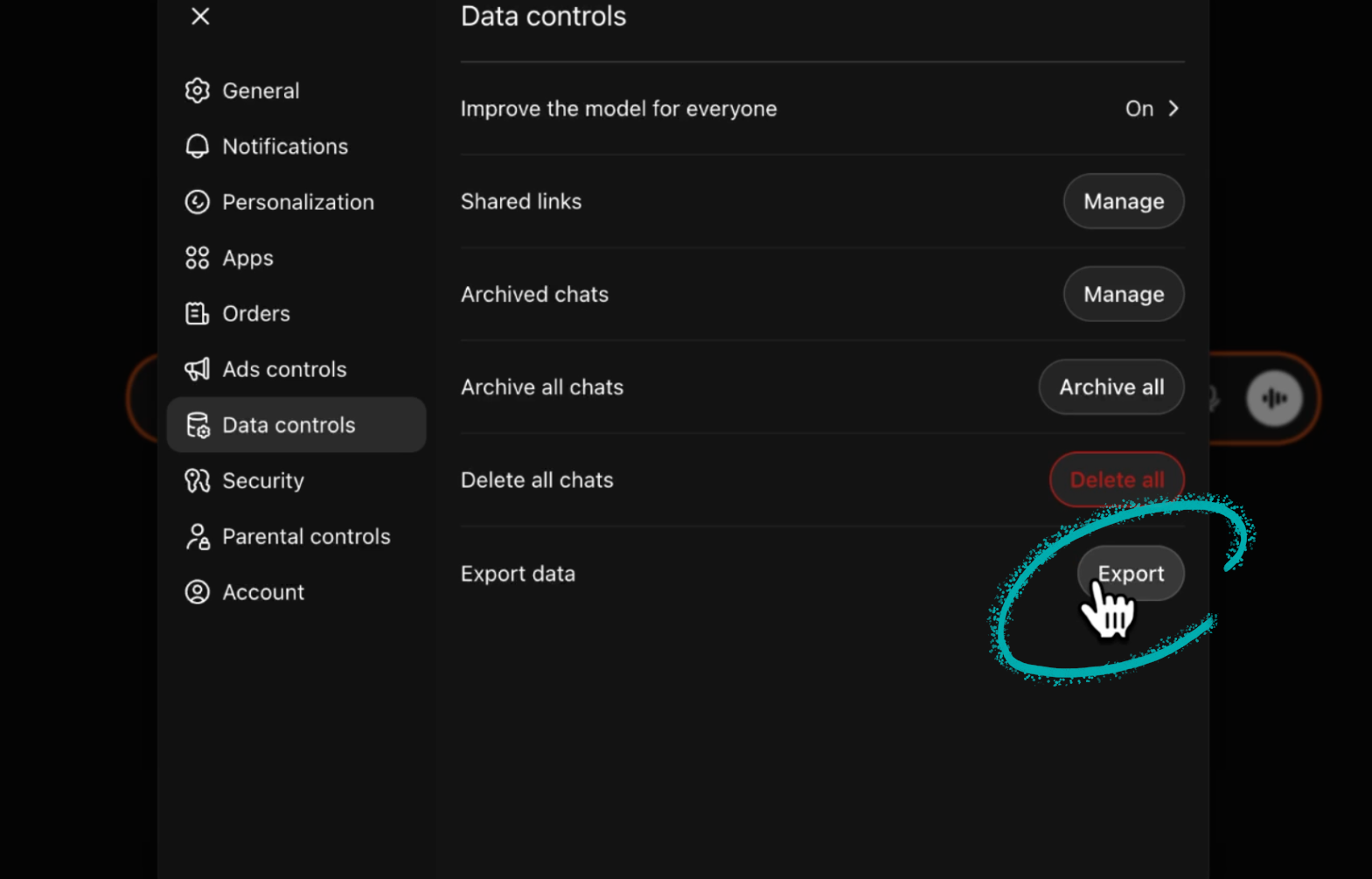
Click Export and confirm.
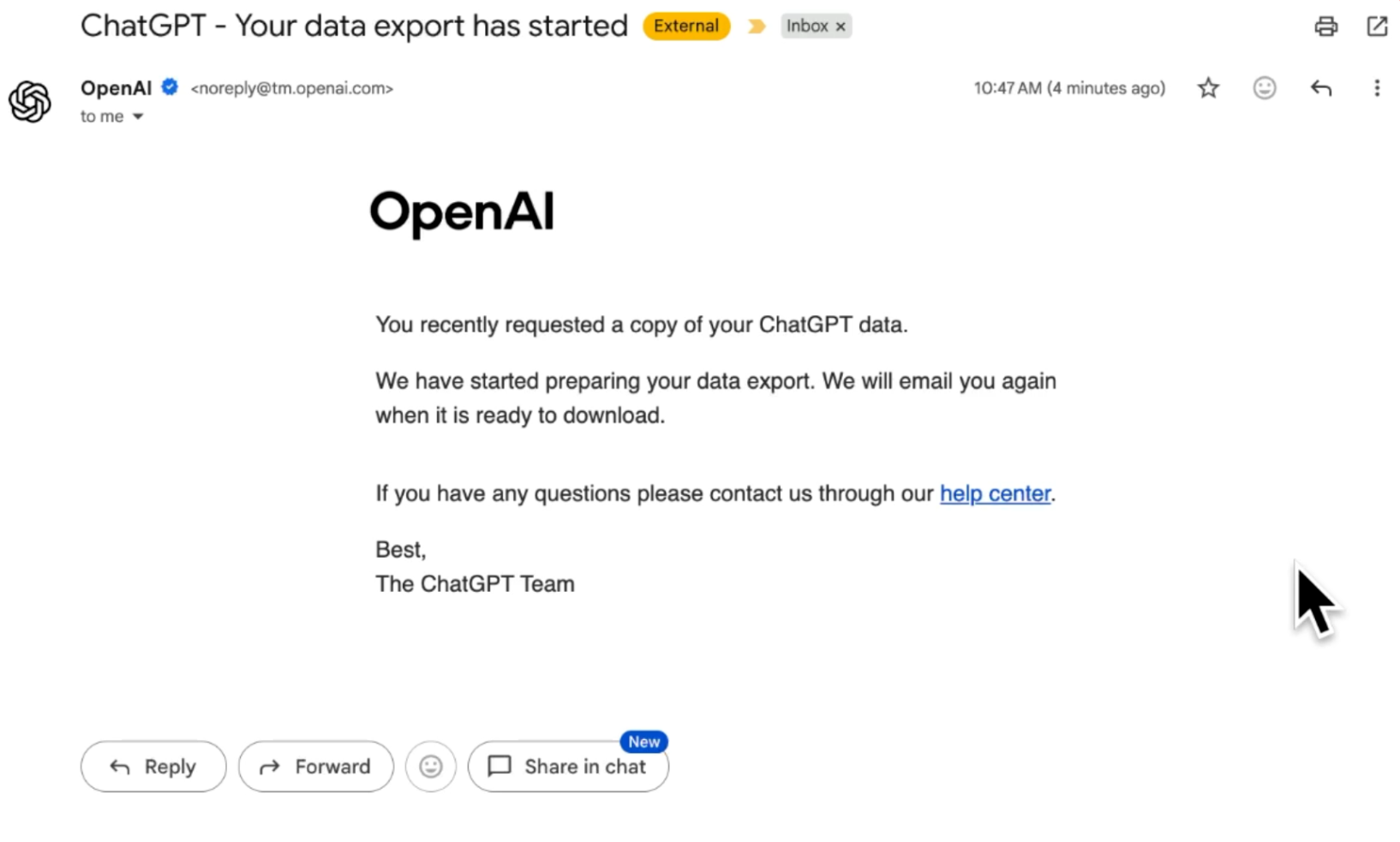
OpenAI will send you an email letting you know the export has started. That first email is just a notification. It does not contain your data yet.
Within 24 hours, you'll get a second email with a download link.
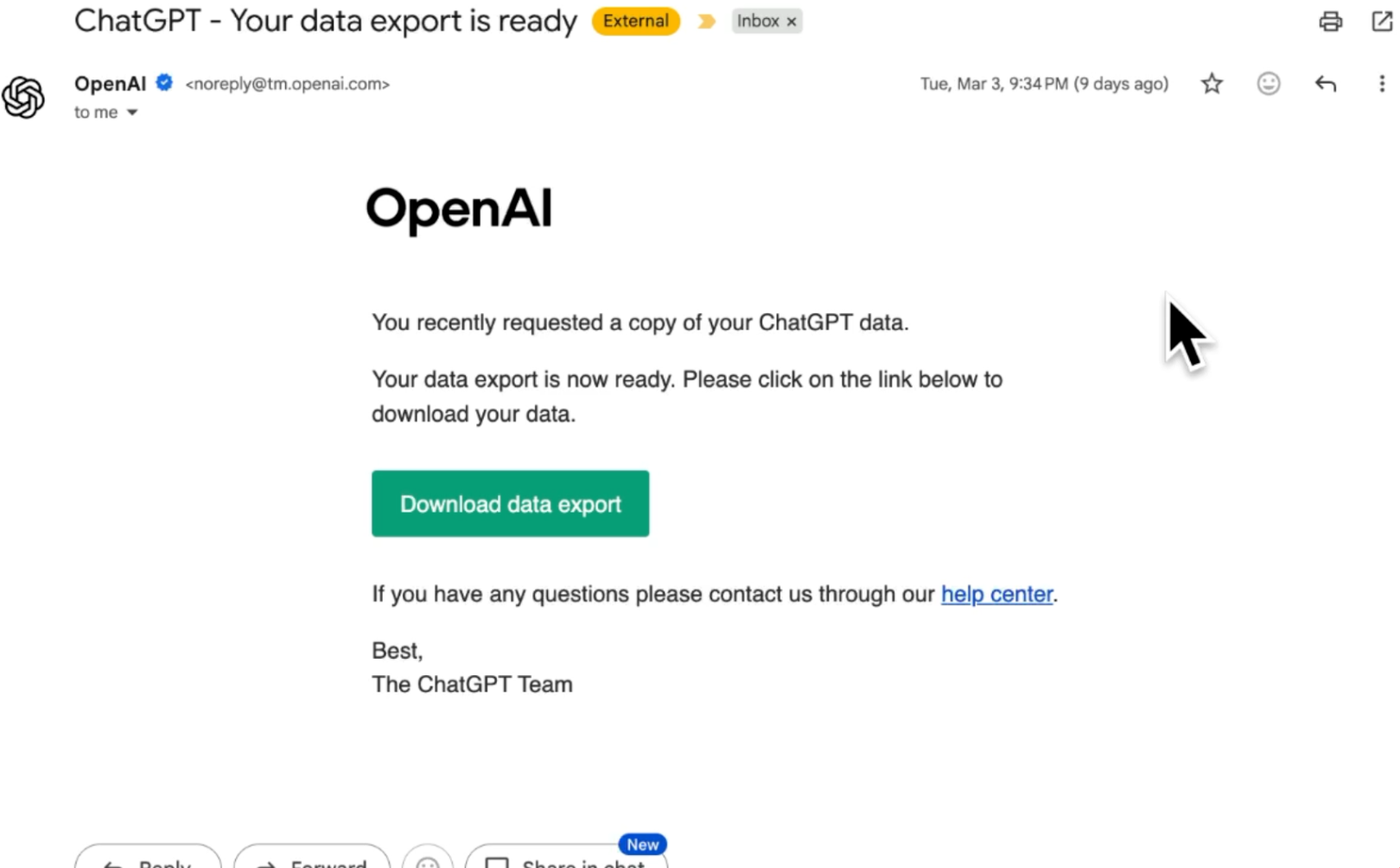
The link expires quickly, so check your inbox and download the file as soon as it arrives.
Once you have your data, go back into ChatGPT and clear your chats before closing the account. This will permanently remove your data from ChatGPT’s servers within 30 days.
Go back to Settings → Data controls.
Click Delete all next to "Delete all chats" and confirm.
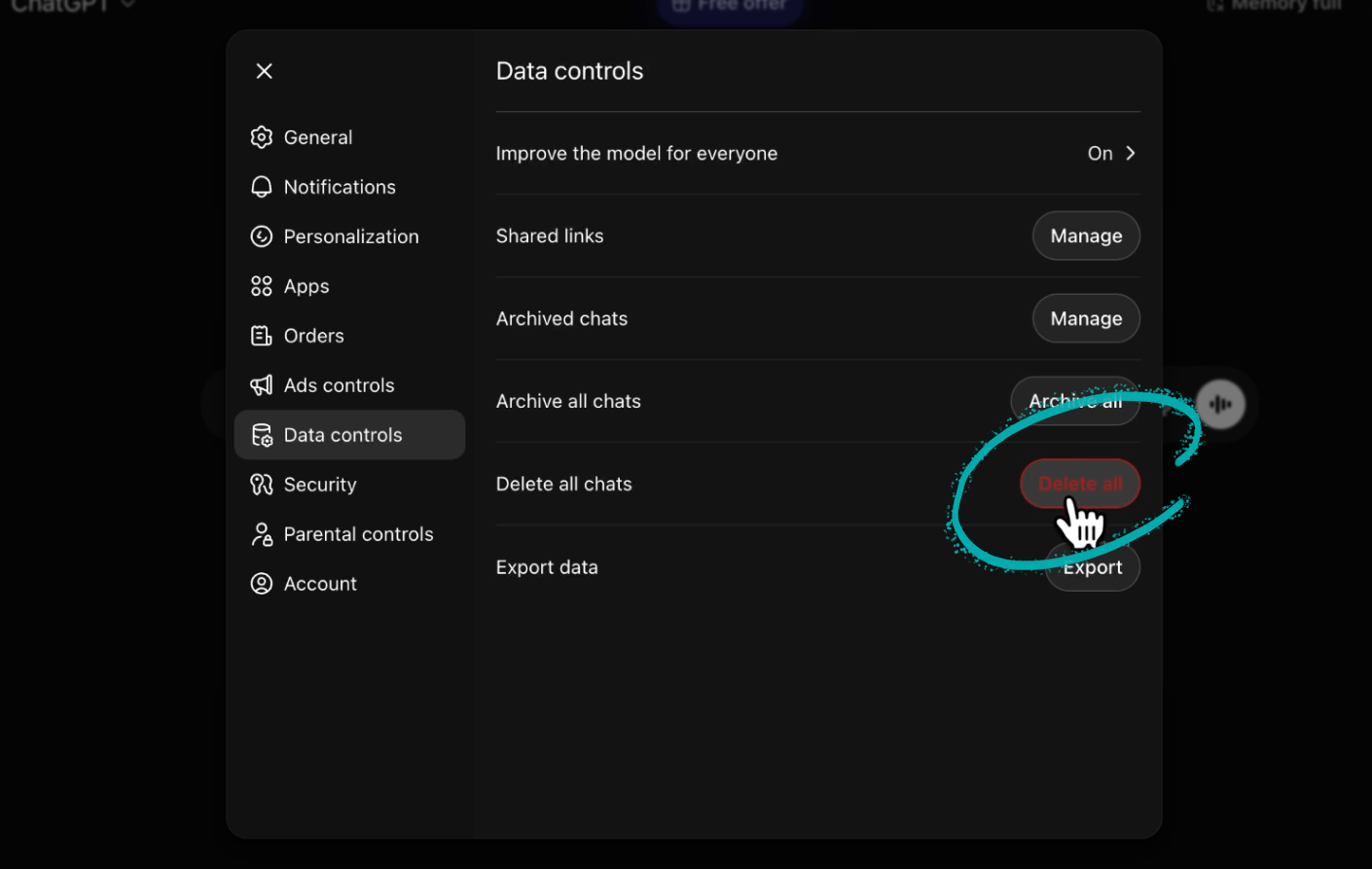
One thing to know: you may run into a glitch here. If the deletion appears to fail on your desktop browser and your chats are still showing up after multiple attempts, don't keep trying the same thing. Wait a day or two and try again from a different device, such as the ChatGPT mobile app. In our experience, that worked when the desktop version wouldn’t.
With your data exported and your chats cleared, you're ready to close the account permanently.
A few things to know before you do this:
• The deletion is permanent and cannot be undone
• You immediately lose access to ChatGPT, the API, and DALL-E
• OpenAI's own documentation conflicts on whether you can reuse your email address after 30 days. Assume you cannot. If you're deleting your account, delete it with intention.
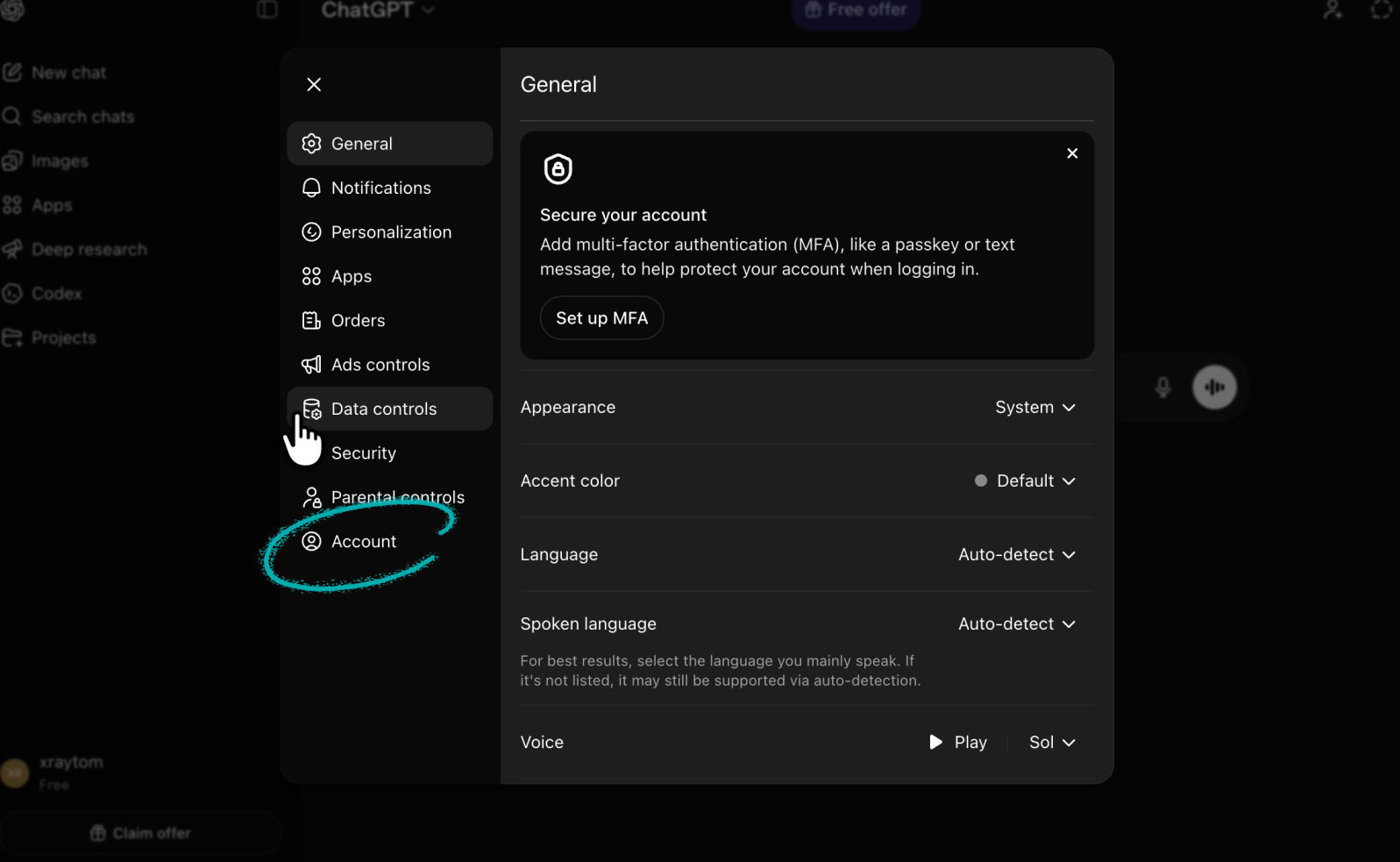
Go to Settings and click on Account at the bottom of the sidebar.
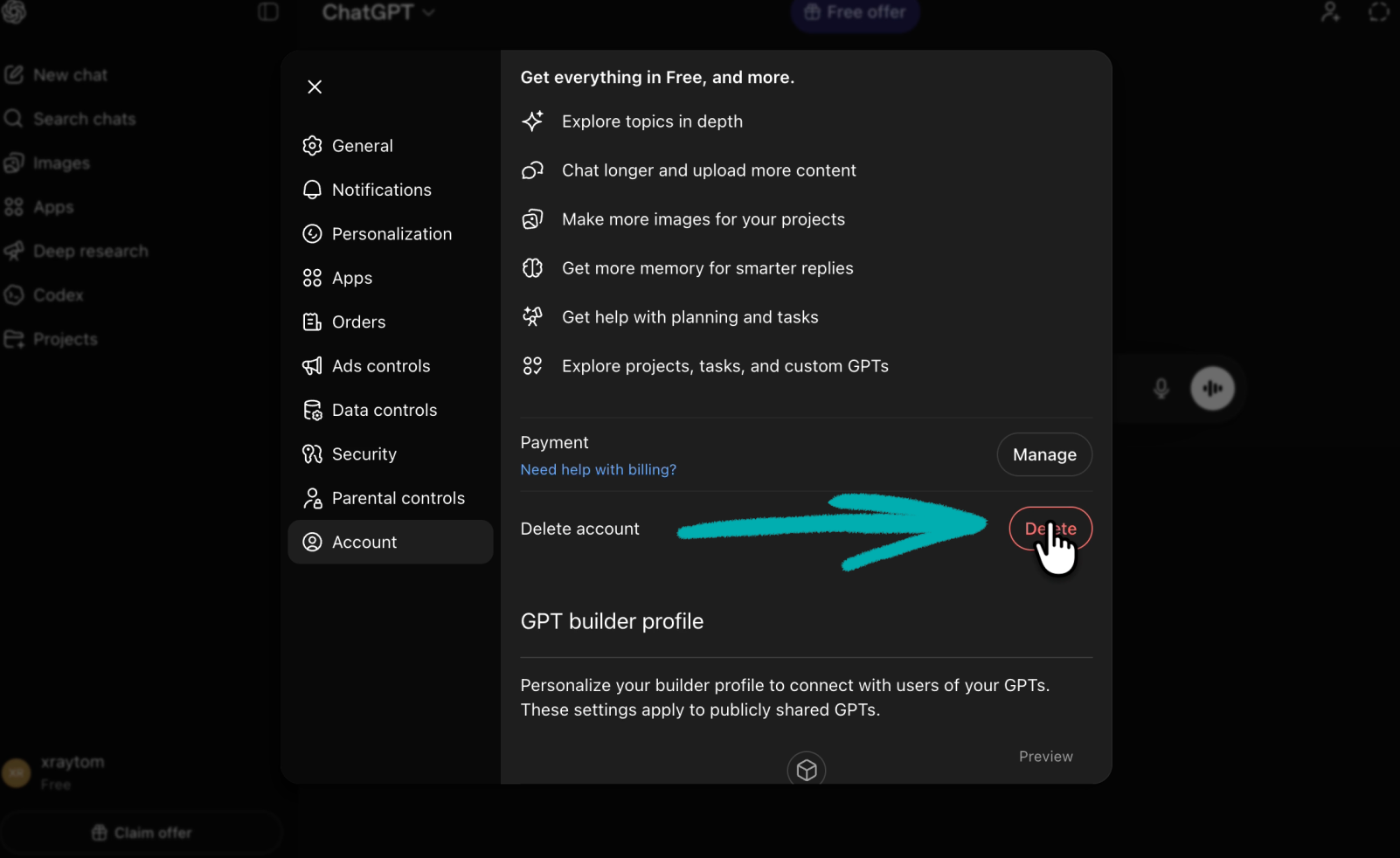
Scroll to the bottom and click the red Delete button under "Delete account".
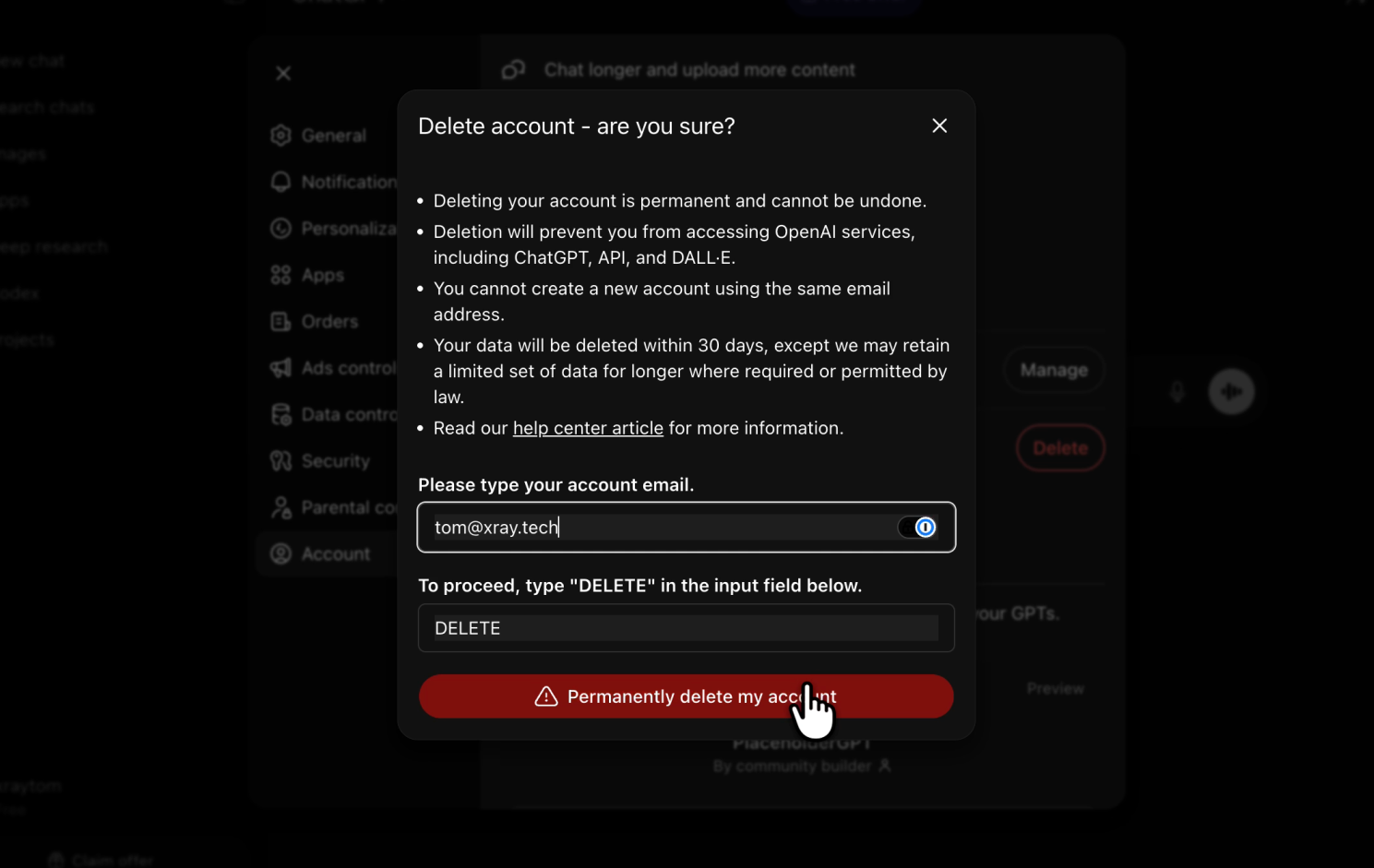
In the confirmation window, type DELETE in all caps, then enter your email address. Click Permanently delete my account.
The export file contains your full chat history. It's a useful reference, but it's not immediately searchable in the way ChatGPT was. The most practical thing to do is upload the relevant conversations to your new AI tool of choice and use them as context going forward.
The time you spent in ChatGPT building prompts and working through ideas doesn't have to disappear with the account.
If your team is ready to move to a more structured AI and automation setup, XRAY designs and maintains automated workflows for businesses of all sizes. You can learn more and book a free consultation at the top of this page.