

Claude can read an email, figure out what the sender needs, and write a solid reply.
Then the work stops at the draft, and you're the one who carries it into the CRM, the calendar, and the task list, one email at a time.
A rule-based automation can't close that gap on its own. It reads email only the way you set it up, spotting keywords or grabbing a field from a format it already knows, so it can't make sense of whatever random message lands next.
Connect Zapier to Claude and the gap disappears.
Claude decides what each email needs, Zapier carries the work into the apps you already use, and you approve everything before it changes. Below, we'll set it up, run it on an inbox, and show you which parts to hand off to automations that run on their own.
Zapier sponsored the video this post is based on. As a Zapier Solution Partner with more than 100 five-star reviews, this is exactly how we build for clients anyway: AI handles the judgment, automation handles the repetitive steps, and people keep an eye on all of it.
Claude for Small Business is a plugin for Claude with ready-made skills for running a business, covering everything from bookkeeping and content strategy to ad campaigns and hiring. The skills already know how to do the job, so you're not writing instructions from scratch.
The skills are built to work with popular apps like QuickBooks, HubSpot, and Google Workspace. The only app you need to connect directly to Claude is Zapier, and every other app you use connects through it.
That gives Claude secure access to more than 9,000 apps, from Trello and Mailchimp to Jobber, Clio, and Pipedrive. Zapier also gives you one place to manage all of those connections, including multiple accounts for the same app, which direct Claude connections don't support.
The skills tell Claude what to do. Zapier gives Claude access to the apps where the work actually happens.
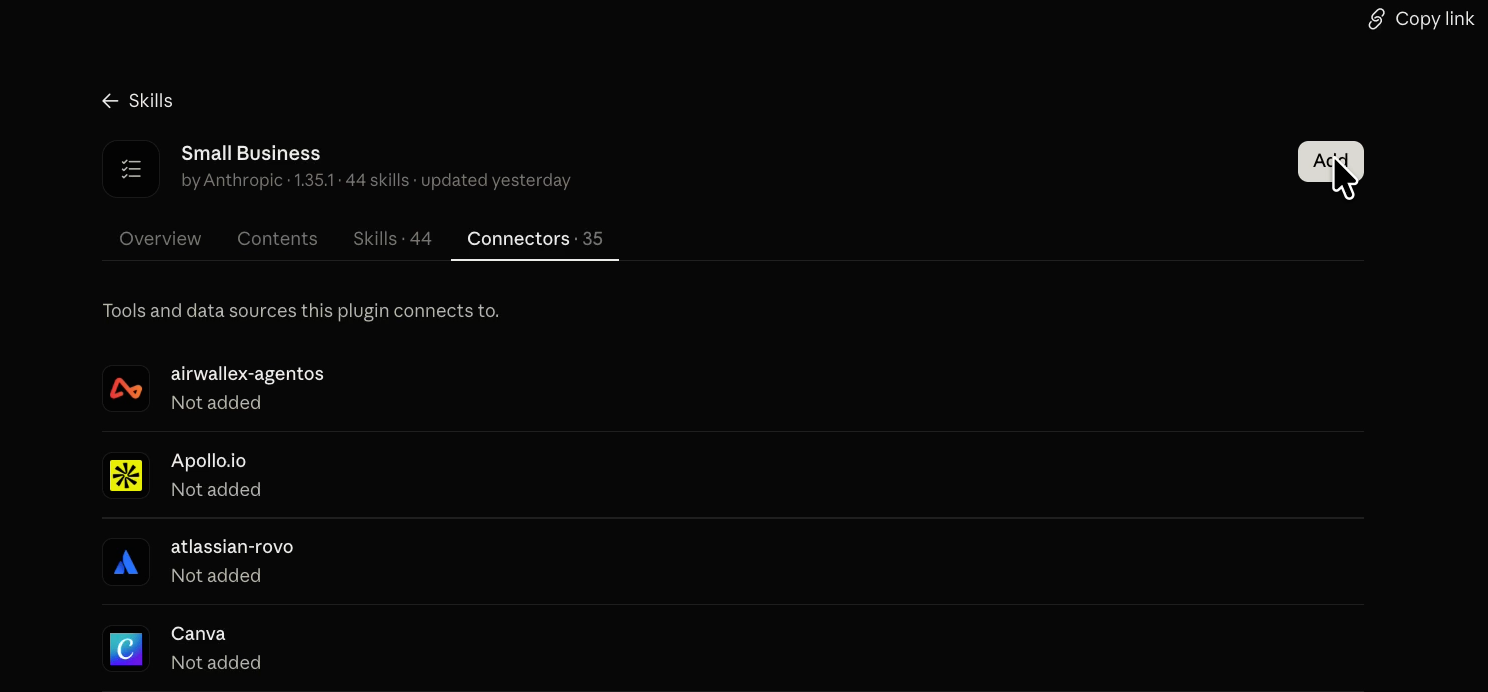
1. Add the Claude for Small Business plugin to get all of its skills. Search “Small business” from the Plugins directory to find it.
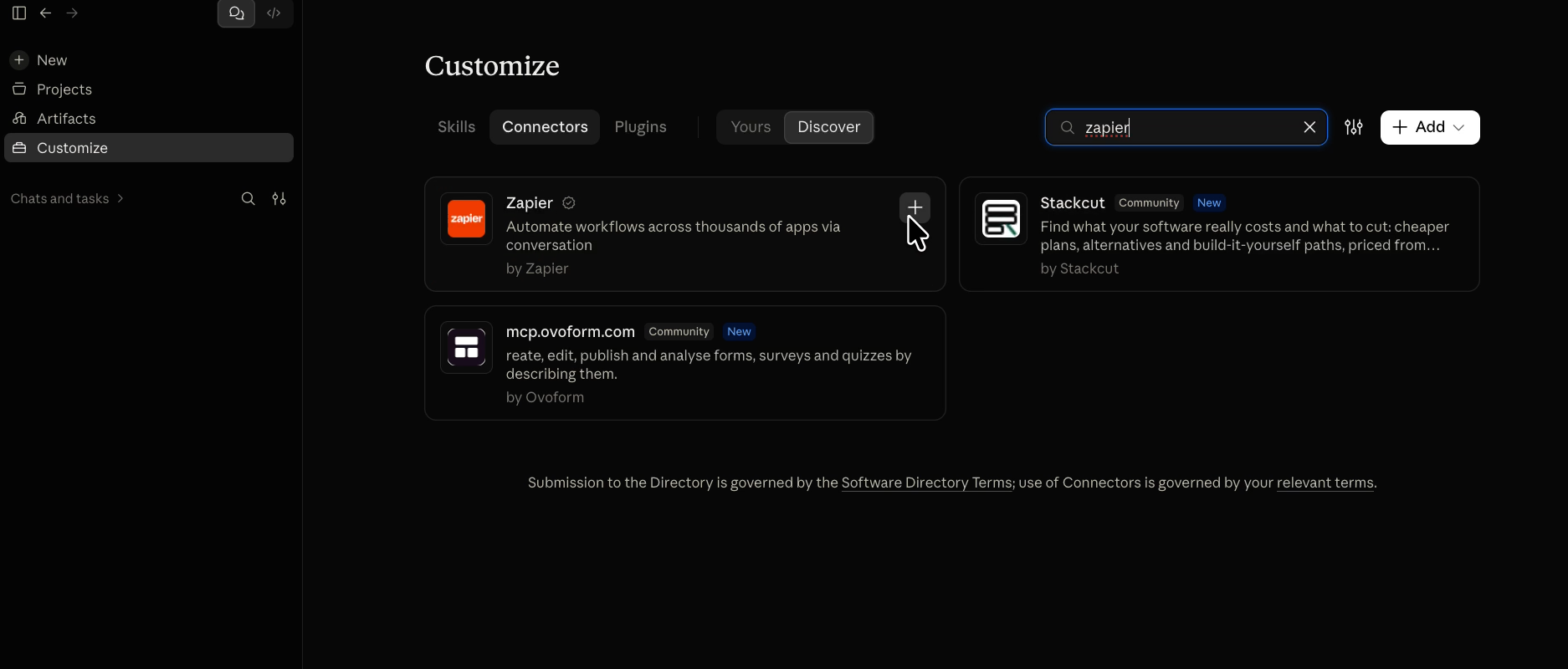
2. Open Connectors in Claude, search for Zapier, add it, and sign in with your Zapier account to authorize it. If you don't have a Zapier account yet, you can create one for free at Zapier.com.
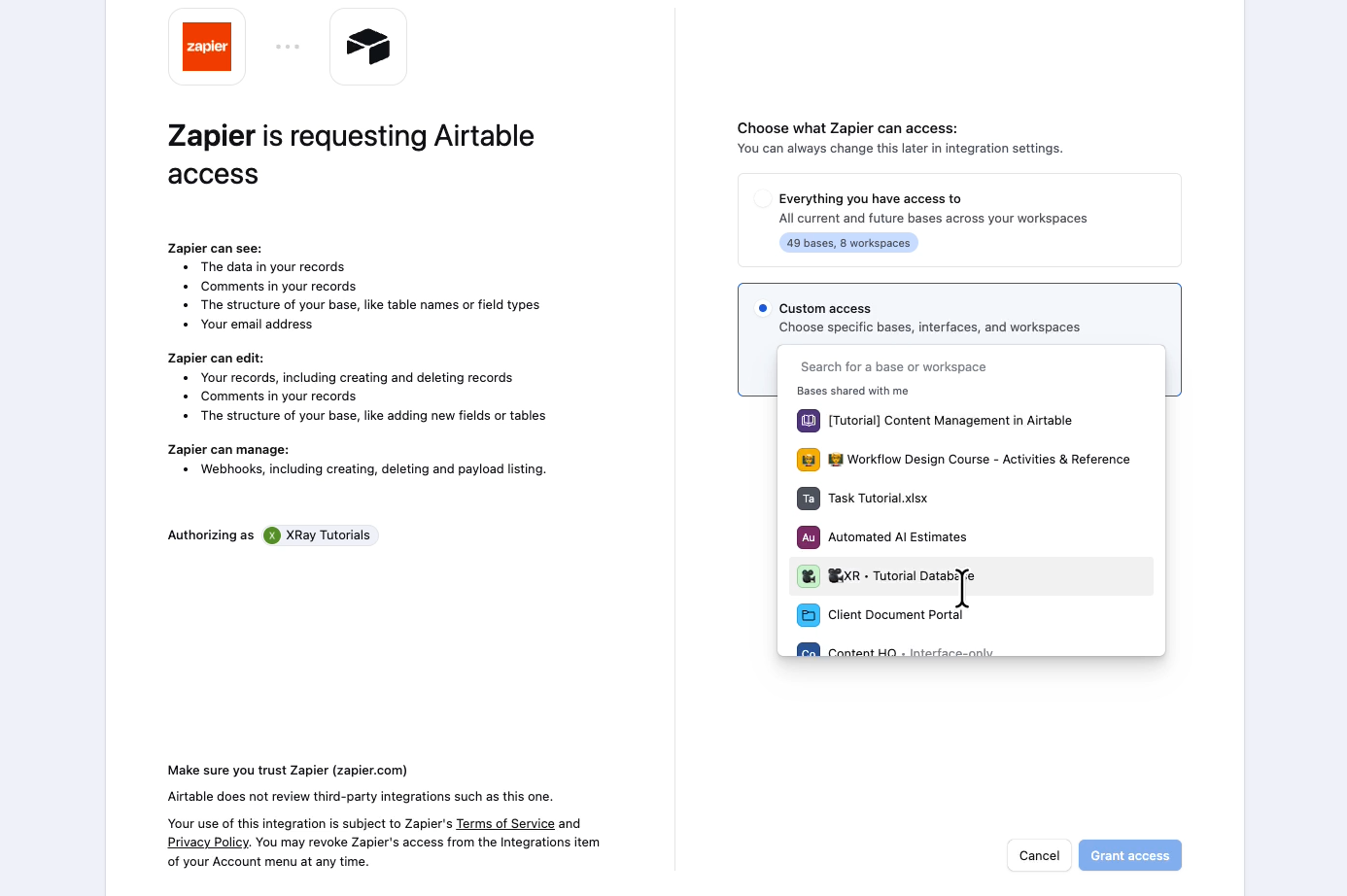
Permissions live in two places, and you should set both before you run anything.
In Zapier, you connect apps one at a time, so Claude only reaches what the job needs. Some apps let you narrow access further. With Airtable, for example, you pick exactly which bases Zapier can reach.
In Claude, each Zapier action, called a tool, gets one of three settings.
• Always allowed: Claude runs the tool without asking.
• Needs approval: Claude stops and asks you before it runs.
• Blocked: Claude can't use the tool at all.
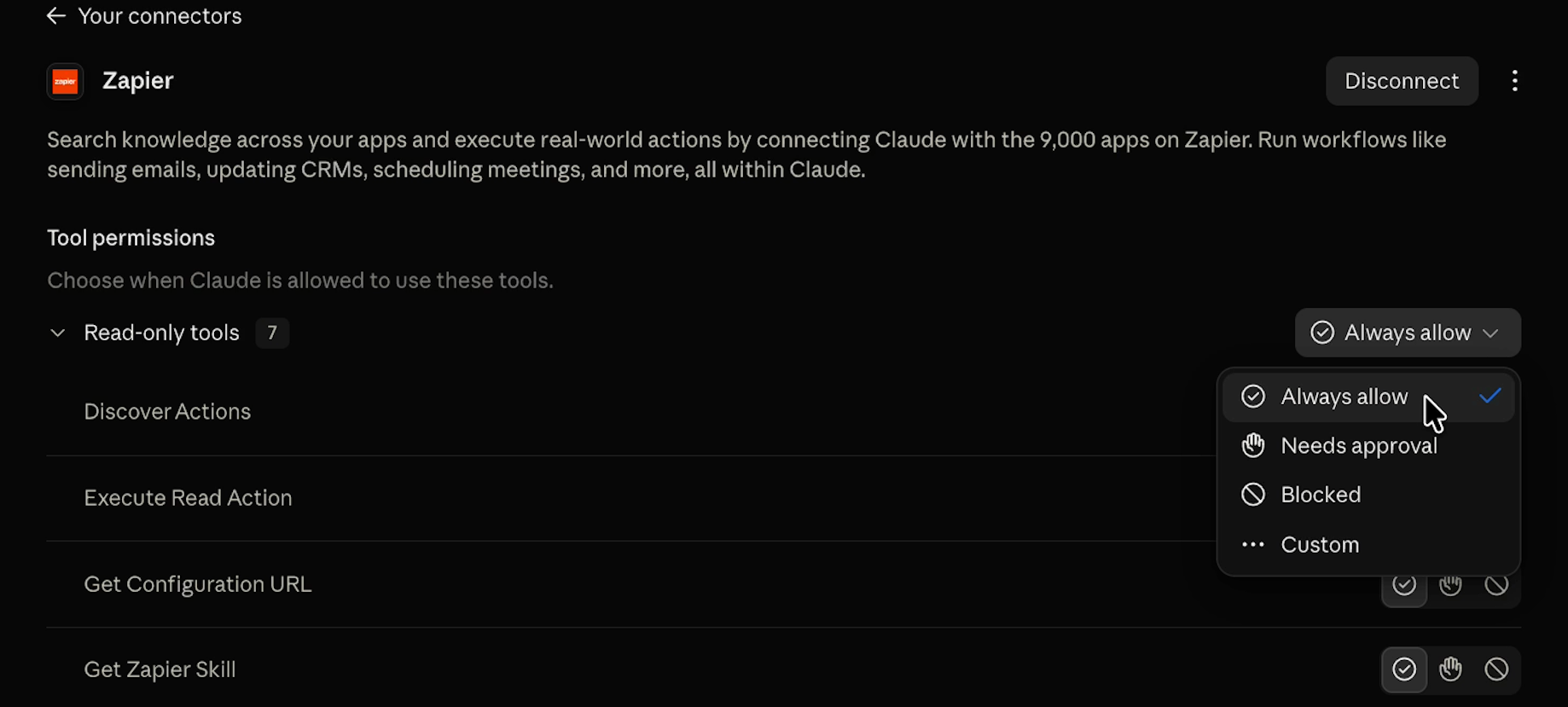
You can set permissions for all the read tools at once and all the write tools at once, so the initial configuration takes seconds.
Our setup is simple: Claude reads whatever it needs, but anything that sends, creates, or changes something comes to us for approval first.
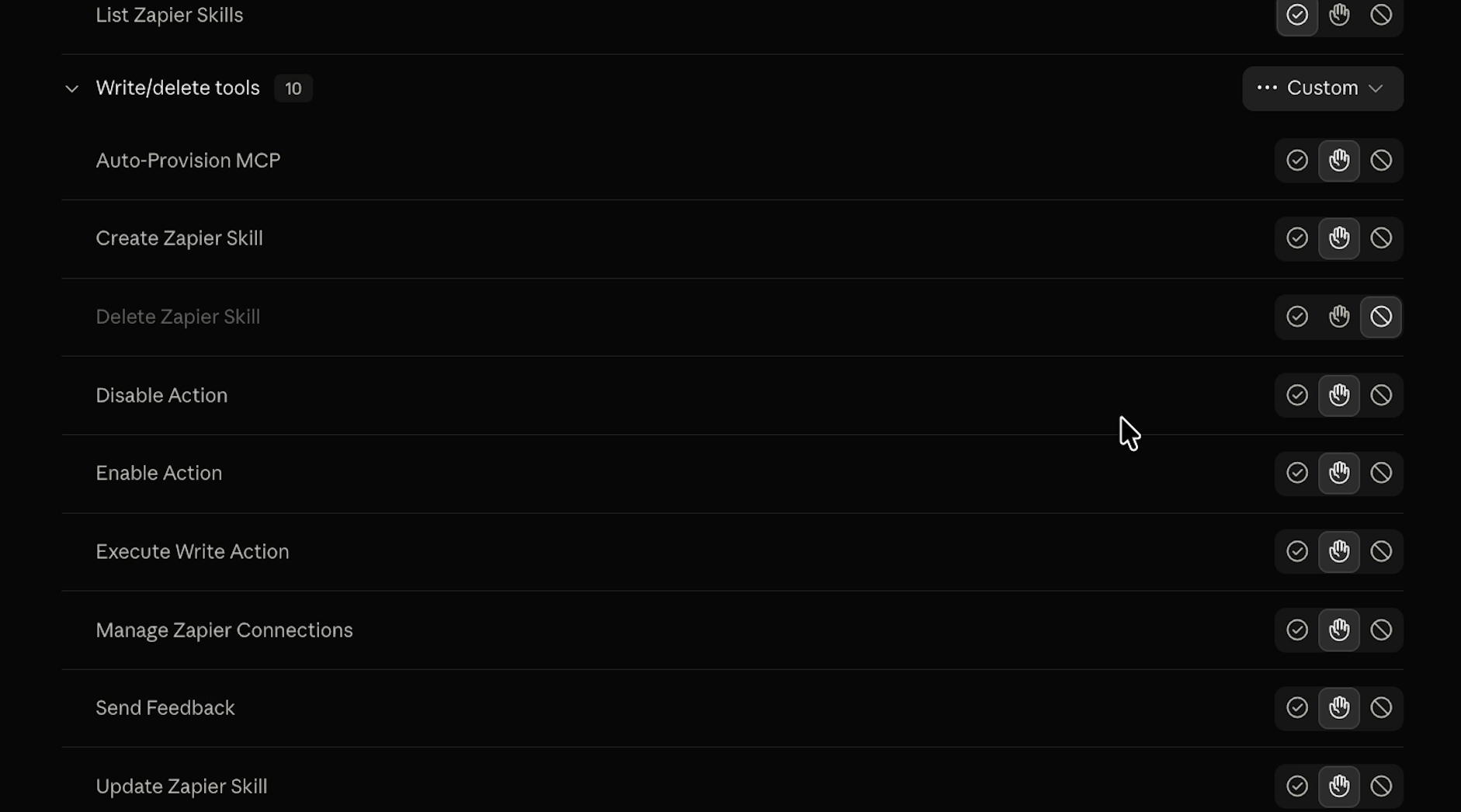
We generally recommend blocking any “delete” tools in Zapier or any other connector.
Just bear in mind that deleting something inside a connected app via Zapier (like removing a row in Google Sheets) would fall under “execute write action”. In order for the plugin to create or edit any data in your apps, this tool has to be set either to “Always allowed” or “Needs approval”.
The only delete tools you can block outright are tools that relate to deleting Zapier data, like deleting a Zapier skill.
Claude never sees your passwords or credentials, because Zapier holds those connections directly. Zapier is also SOC 2 Type II certified and GDPR compliant. You decide what Claude can touch, and nothing changes until you approve it.
You can read more about Zapier’s security in this blog post.
The inbox is where every app in your business ends up talking to you, so it's the best place to start. You can use the inbox-manager skill to have Claude sift through your messages and surface anything that actually needs your attention.
To see it in action, we filled a test inbox with a new lead, a request for a call, a client who needs help, and the usual pile of newsletters and cold pitches.
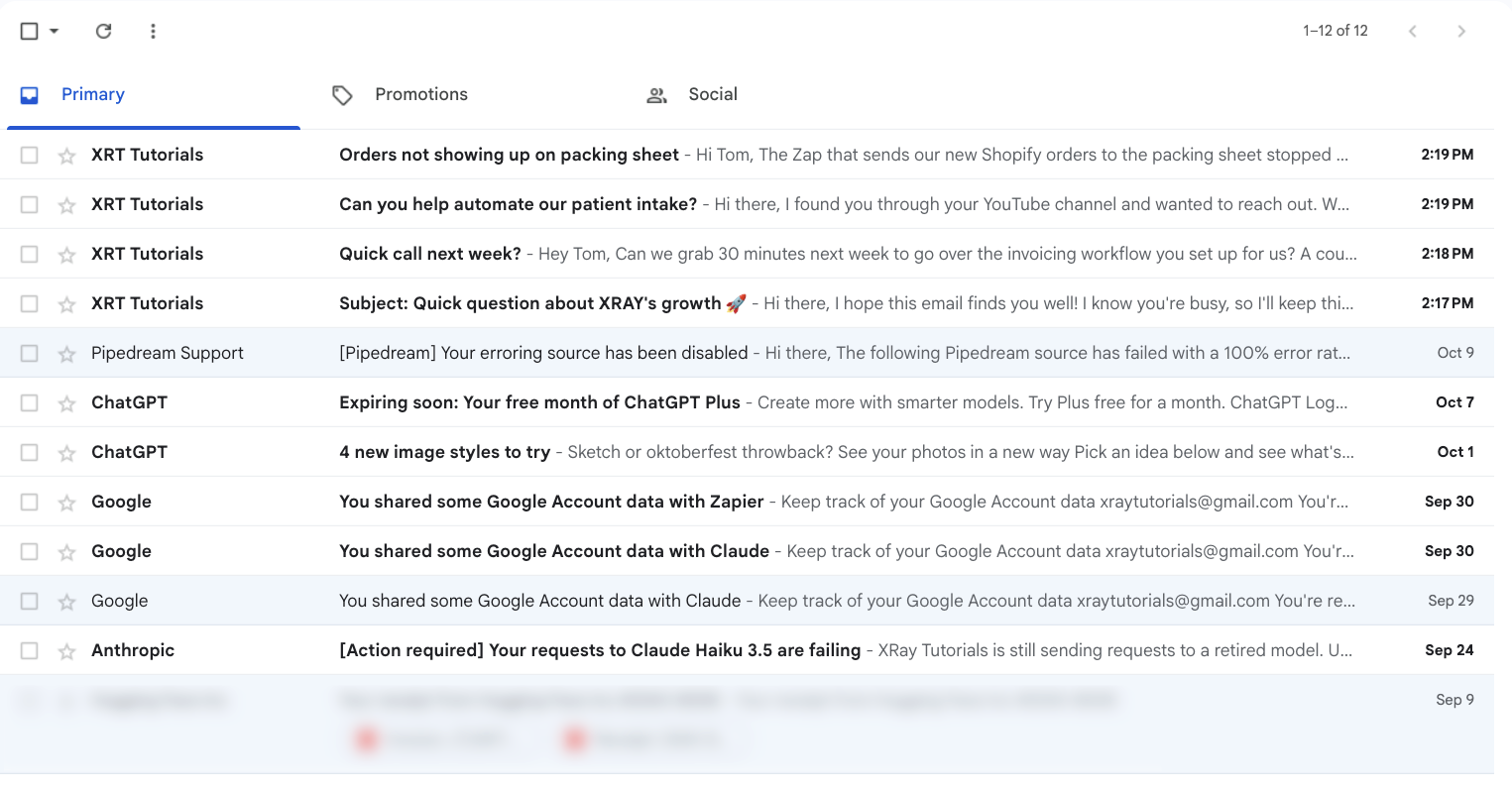
You can run the skill on test data or your real emails – either way, no messages will be sent without your approval.
To run a skill from the plugin, start a new chat. Type forward slash to search your skills, and choose /inbox-manager to invoke the skill directly.
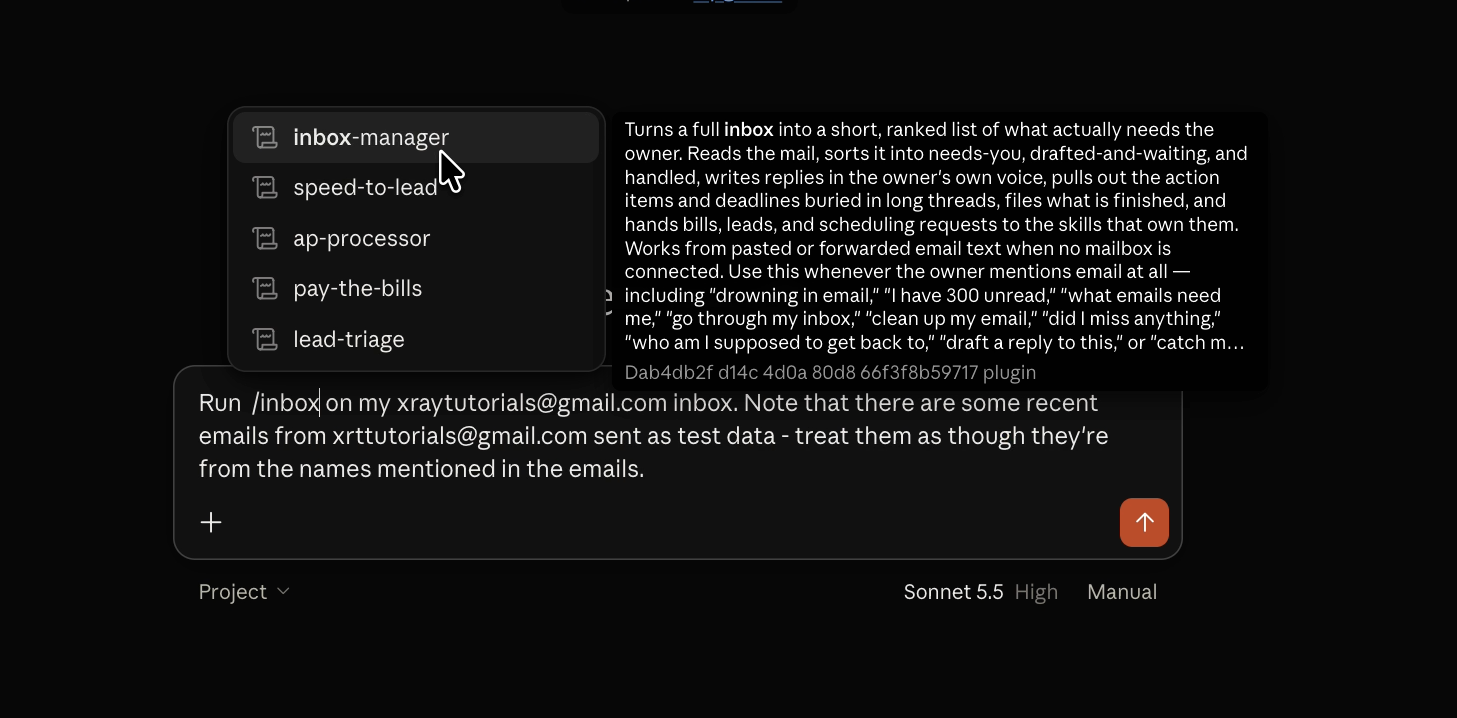
You can also just tell Claude that you’d like to use the skill – it usually doesn't need the exact formatting to know what you’re looking for.
To see how the skill works without any additional guidance, we simply asked it to run the skill. The only extra note we gave Claude was that the inbox held test data.
When you send a prompt using the inbox-manager skill, Claude will read through the skill file and follow the instructions step by step.
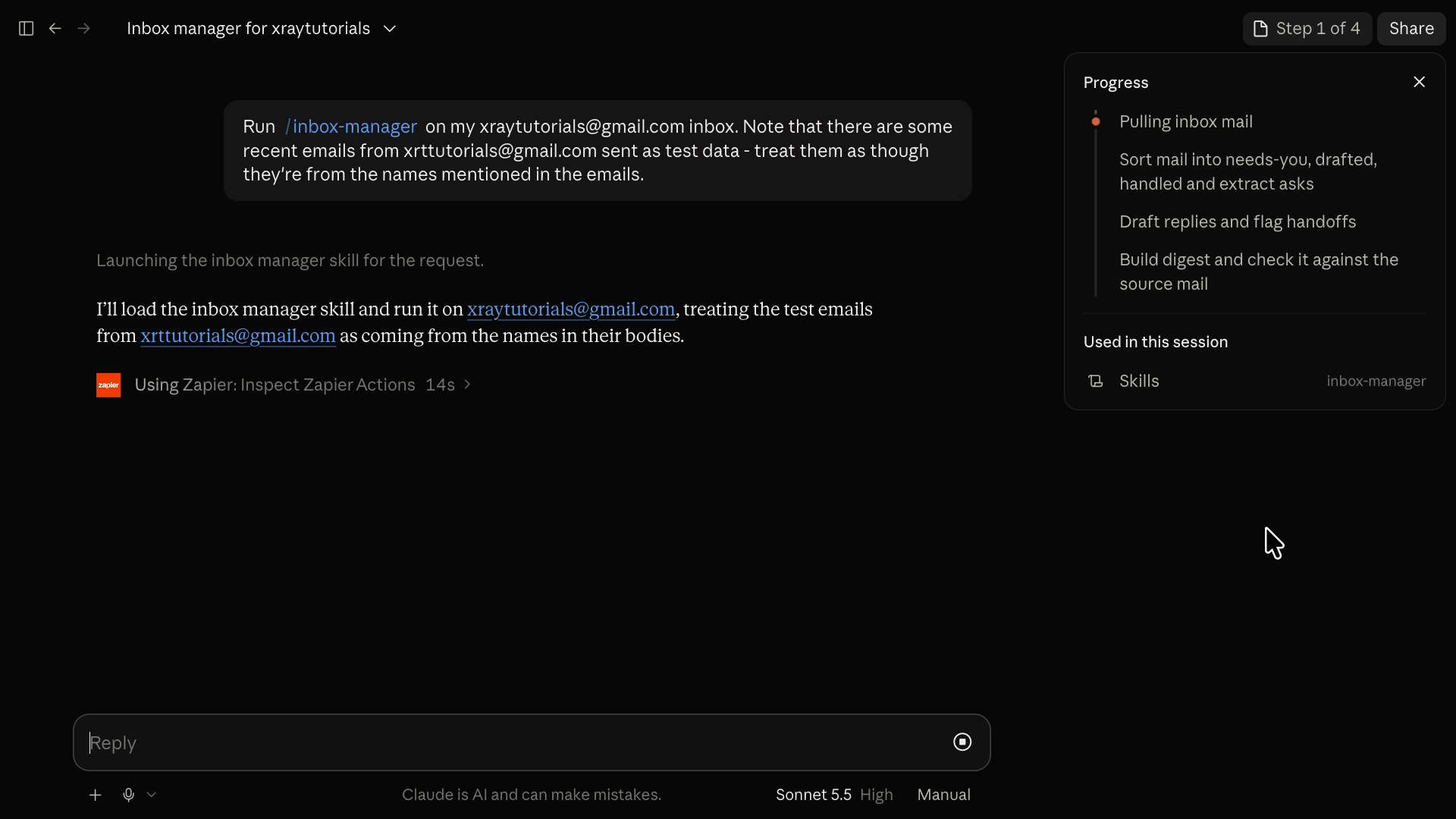
In our test run, Claude read every new message and built a to-do list from them. Since it only used read actions, it worked through the batch without stopping to ask permission, and a digest was ready after a couple of minutes.
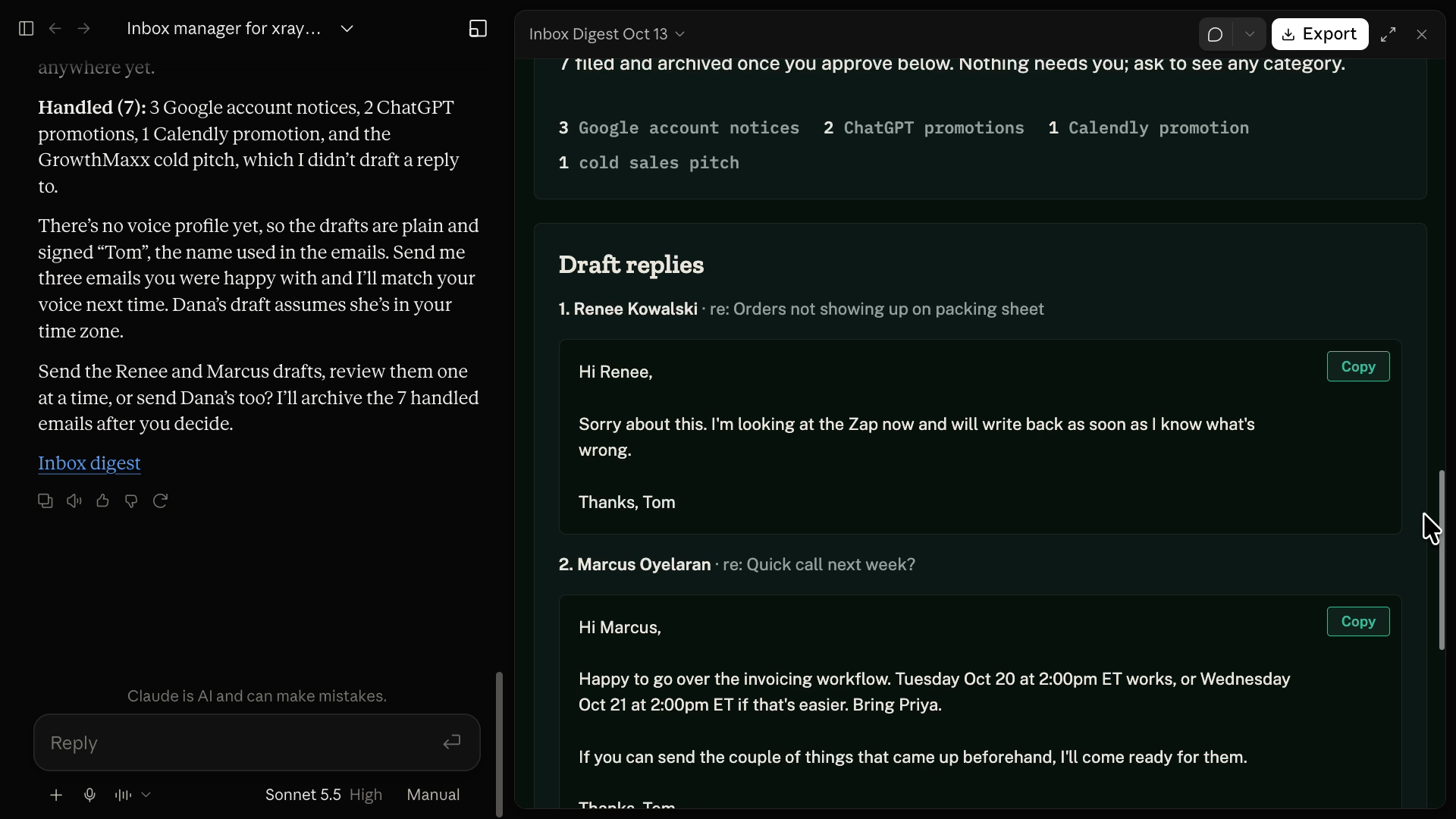
Out of the whole inbox, Claude flagged only a few emails as needing attention, with three replies drafted at the bottom digest.
That's a good start, but those drafts still need to be copied and pasted somewhere. The real goal is to have Claude do the work inside your other apps.
To have Zapier and Claude run actions on your behalf, connect any apps you want to use to Zapier and simply tell Claude what you’d like it to do.
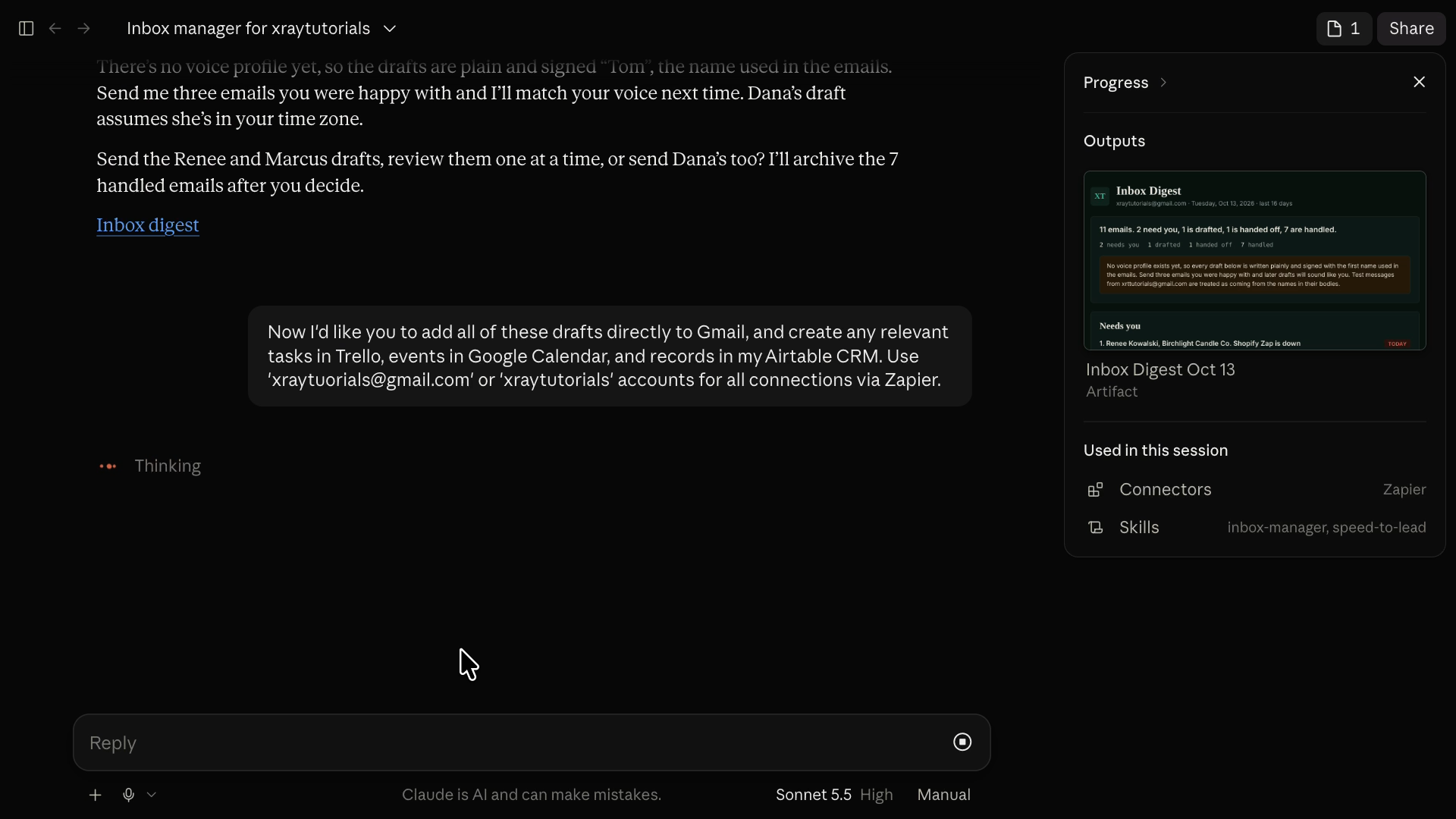
For our tests, we sent one more message, asking Claude to go beyond the digest and use these apps through Zapier.
• Gmail: create a draft for each reply.
• Trello: create tasks for the follow-up work.
• Google Calendar: add events for the meetings we need to schedule.
• Airtable: log every lead in our CRM.
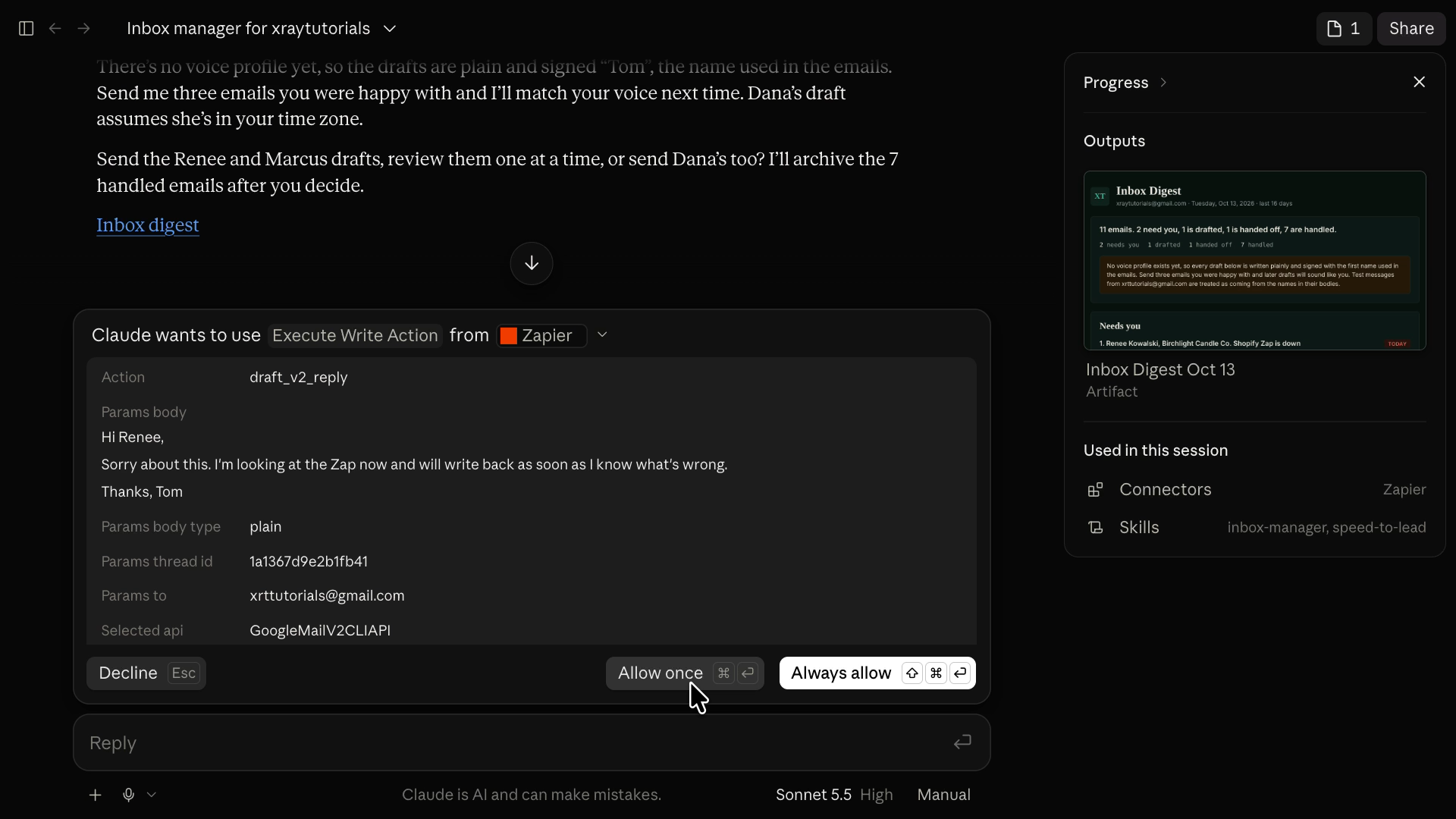
Those are all write actions, so Claude stops for approval before each one. Each prompt shows exactly what Claude wants to do; click Allow once on every action that looks right.
A couple of minutes later, Claude showed a summary of everything it did.
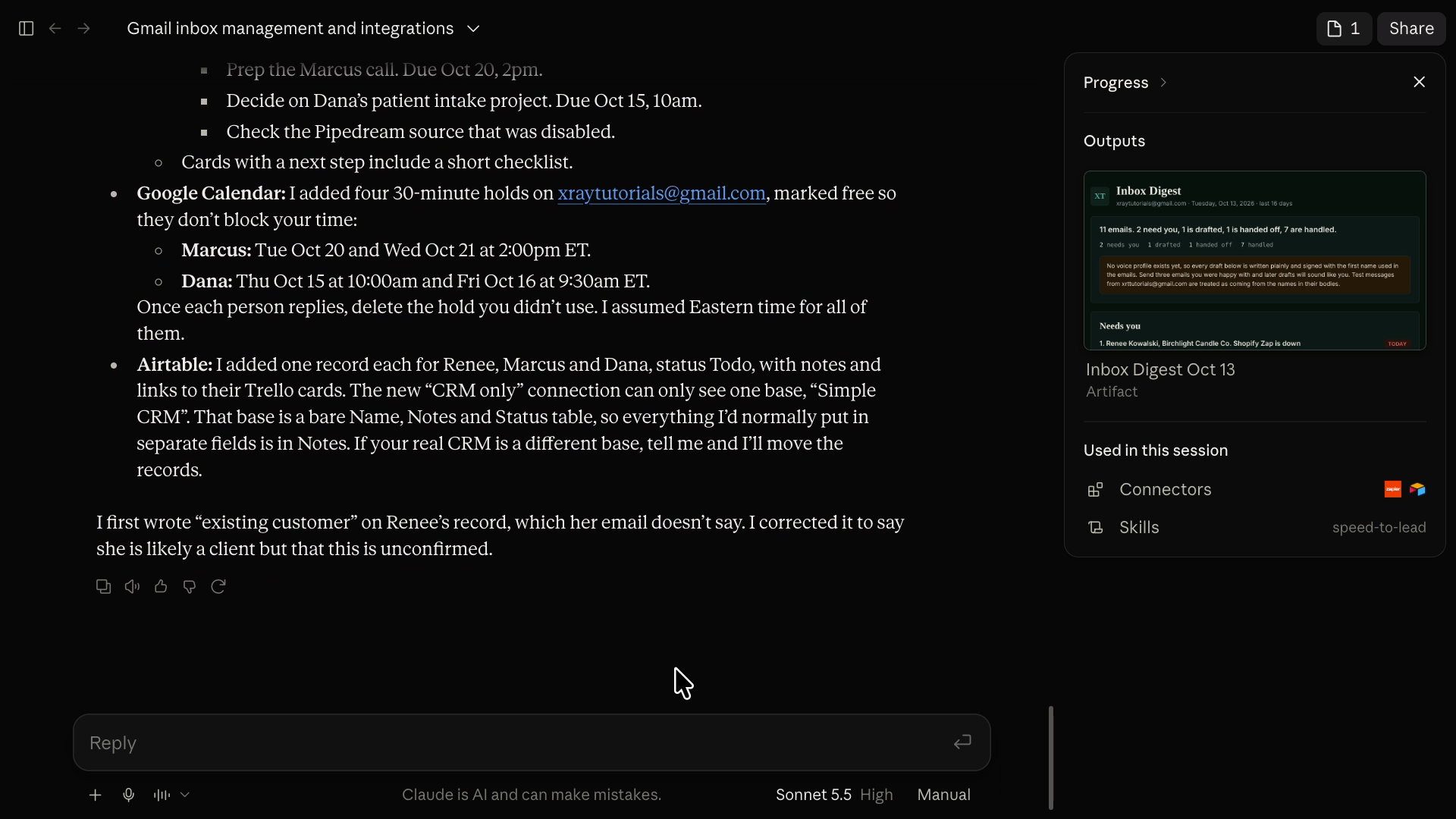
Trello had new tasks, Gmail had three drafts ready for a quick review and a few edits before sending, the calendar had holds for each meeting (including alternate times), and the CRM had a new record for each contact.
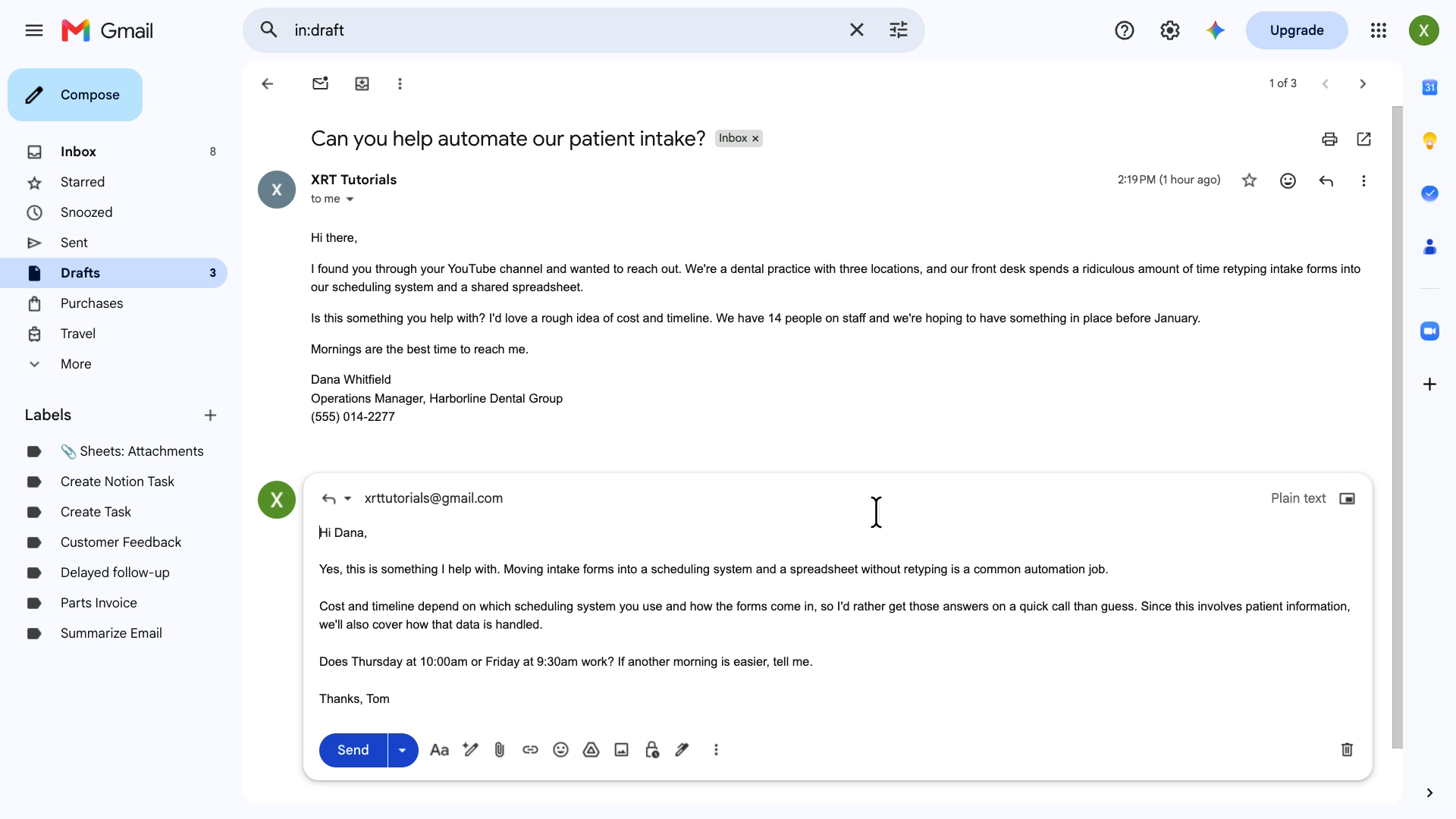
Nothing went out without a person signing off, and nobody copied a single line between apps.
If you want that to happen every time, add the second request to the skill's instructions. Claude then handles the follow-through as part of the same run, without you having to ask.
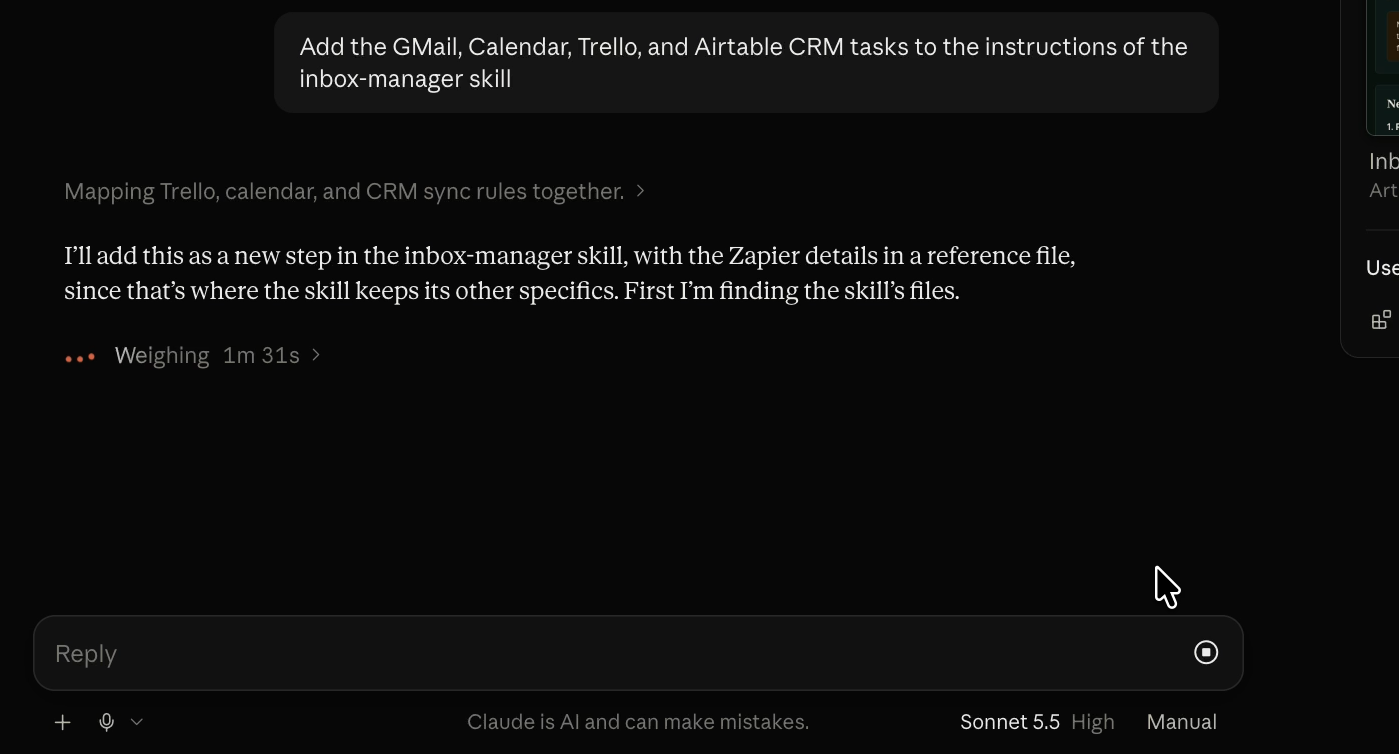
Save your edited version as a separate skill. When the Small Business plugin updates, a separate skill keeps your custom instructions intact.
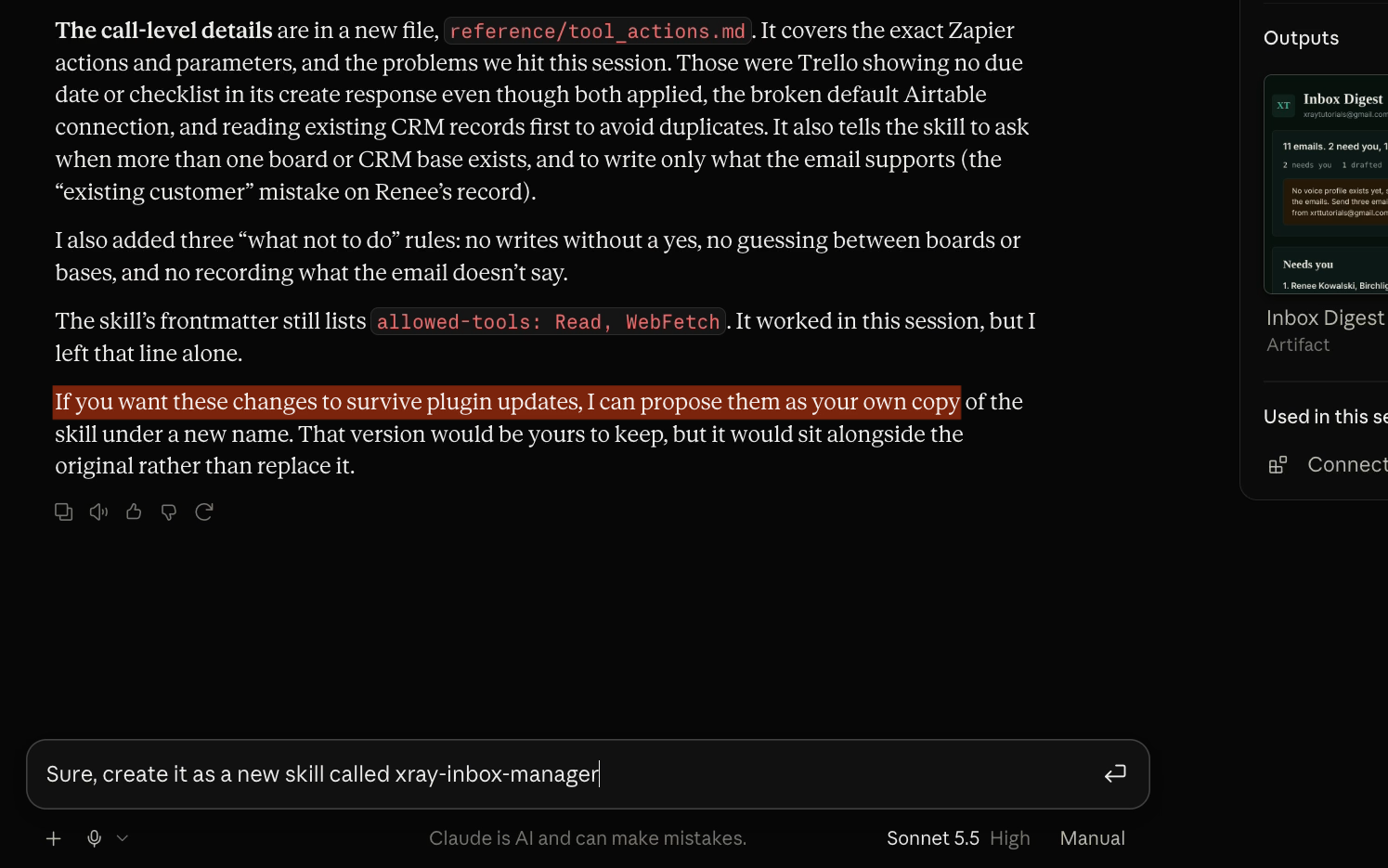
Inbox manager is one skill out of a full set, and the others follow the same shape.
• Outreach composer: drafts your first email to a lead and every follow-up, then logs each touch in your CRM through Zapier. Nothing goes out until you approve it.
• Business pulse: pulls from your books, payments, and pipeline, then gives you one page with the numbers, what moved this week, and the one thing that needs your attention.
The jobs change, and the shape stays the same. Claude does the thinking, Zapier does the doing, and you make the calls.
Everything so far happened because we asked for it. That's the right way to start, because a new task still needs you to work out what the job actually is and build trust in the system doing it.
But an assistant you have to remember to ask is still a chore. Once a request proves itself, save it as a scheduled task in Claude, and it runs on its own at the time and frequency you set. Scheduled tasks need a Claude Pro subscription or higher.
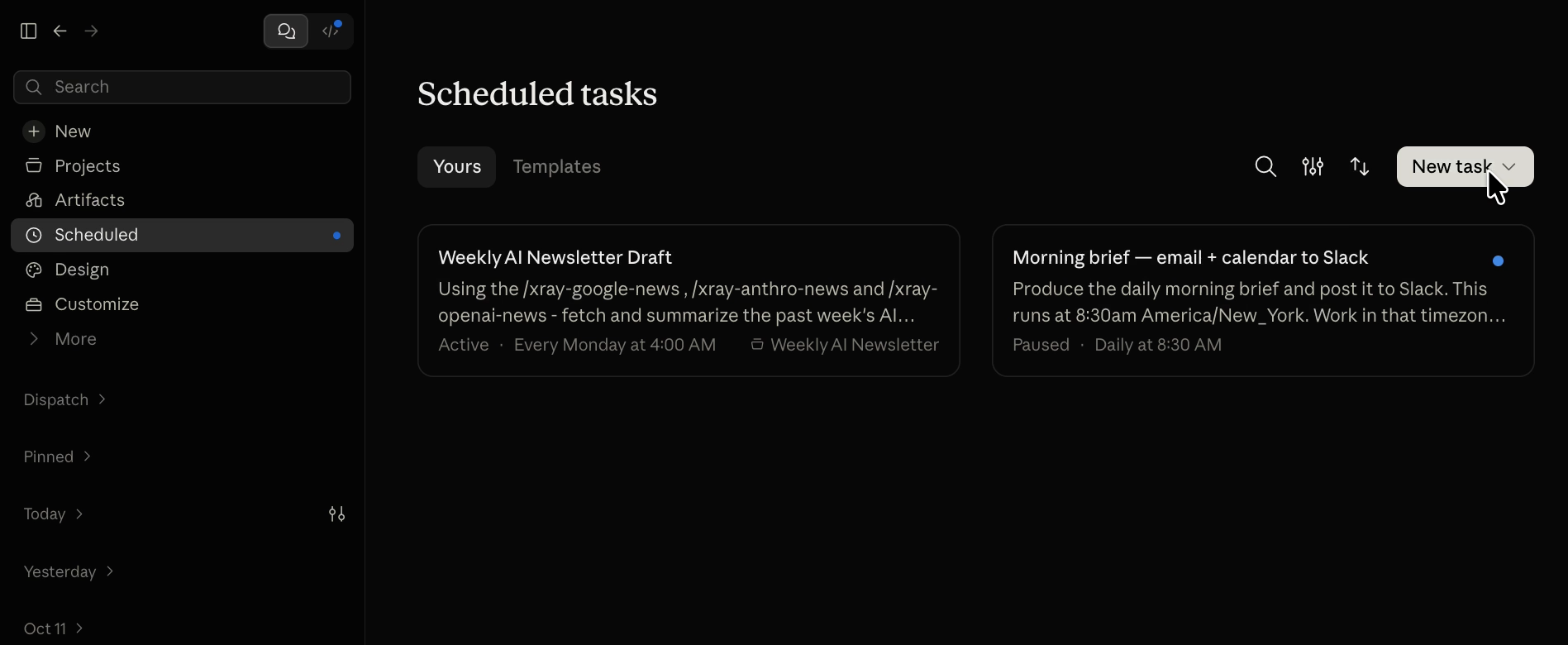
Look closely at the workflow, too. Many workflows only need AI's judgment on a few specific steps, and everything else happens the same way every time.
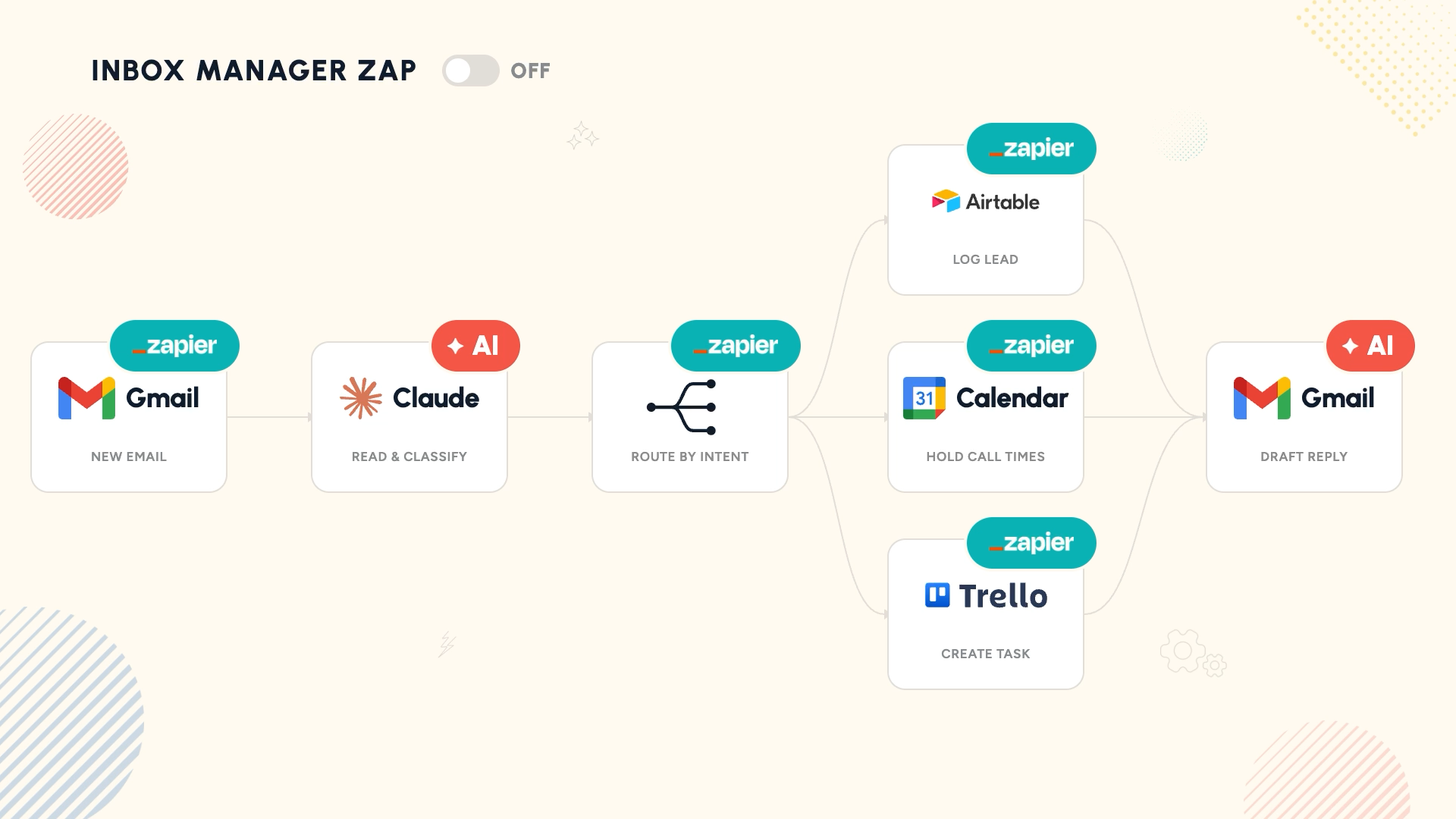
Those workflows belong in a Zap. Every consistent, repetitive step runs as a normal Zap step, with AI added only where it's needed. That's faster, cheaper, and more reliable than asking AI to handle every step, and the Zap runs on a schedule or whenever something happens in one of your apps.
New to building Zaps? Start with our Zapier beginner's guide. Either way, the rule holds: Claude handles the judgment, automation handles the repetition, and you step in only when something actually needs you.
Connecting the tools takes minutes. Deciding which steps need judgment, which belong in a Zap, and which need a person's sign-off is the harder part, and it's the work we do every day at XRAY.
Reserve time with an XRAY expert and build it with us one on one. There's no retainer, so you book the time you need and learn the build while you do it.
If you want your whole team working this way, our training can qualify for grant reimbursement. Find out more at grants.xray.tech.
• Plugin: add Claude for Small Business to get ready-made skills for running a business.
• Connector: add the Zapier connector to Claude and sign in. It runs on any Zapier plan, including the free trial.
• Access: connect only the apps you need in Zapier, and narrow access further wherever the app allows it.
• Permissions: let Claude read freely, set every write to need approval, and have Claude archive instead of delete.
• Run: start with inbox manager, then ask Claude to carry the work into Gmail, Trello, your calendar, and your CRM.
• Automate: save requests that prove themselves as scheduled tasks, and move the fixed steps into Zaps.
Your job isn't to answer every email. It's to decide what happens next, and let Claude and Zapier handle the rest.