
If you use ChatGPT, Claude, or Gemini, your chats can potentially be used to train the next version of the model, and that includes paid plans.
ChatGPT and Gemini switch training on by default. Claude asks you once, in a prompt that's easy to click past without reading.
But the training itself isn't the part to worry about. The bigger problem is that allowing it keeps your conversations on the provider's servers much longer, up to five years in Claude's case.
Every year your chats sit on someone else's server is another year they're exposed if that company gets hacked.
The fix is one setting in each app. Here's exactly where to find it in all three, plus the one tradeoff Gemini forces you to make.
Before you start clicking, check which plan you're on. ChatGPT Business, Enterprise, and Edu plans don't train on your data by default, and the same goes for the business and education plans from Claude and Gemini.
Personal accounts are where this setting matters, and that includes the paid ones. ChatGPT Plus and Pro, Claude Pro and Max, and Google AI Pro all follow the same rules as a free account, so paying for a personal plan doesn't automatically buy you business-grade privacy.
ChatGPT takes three clicks to get to the right setting.
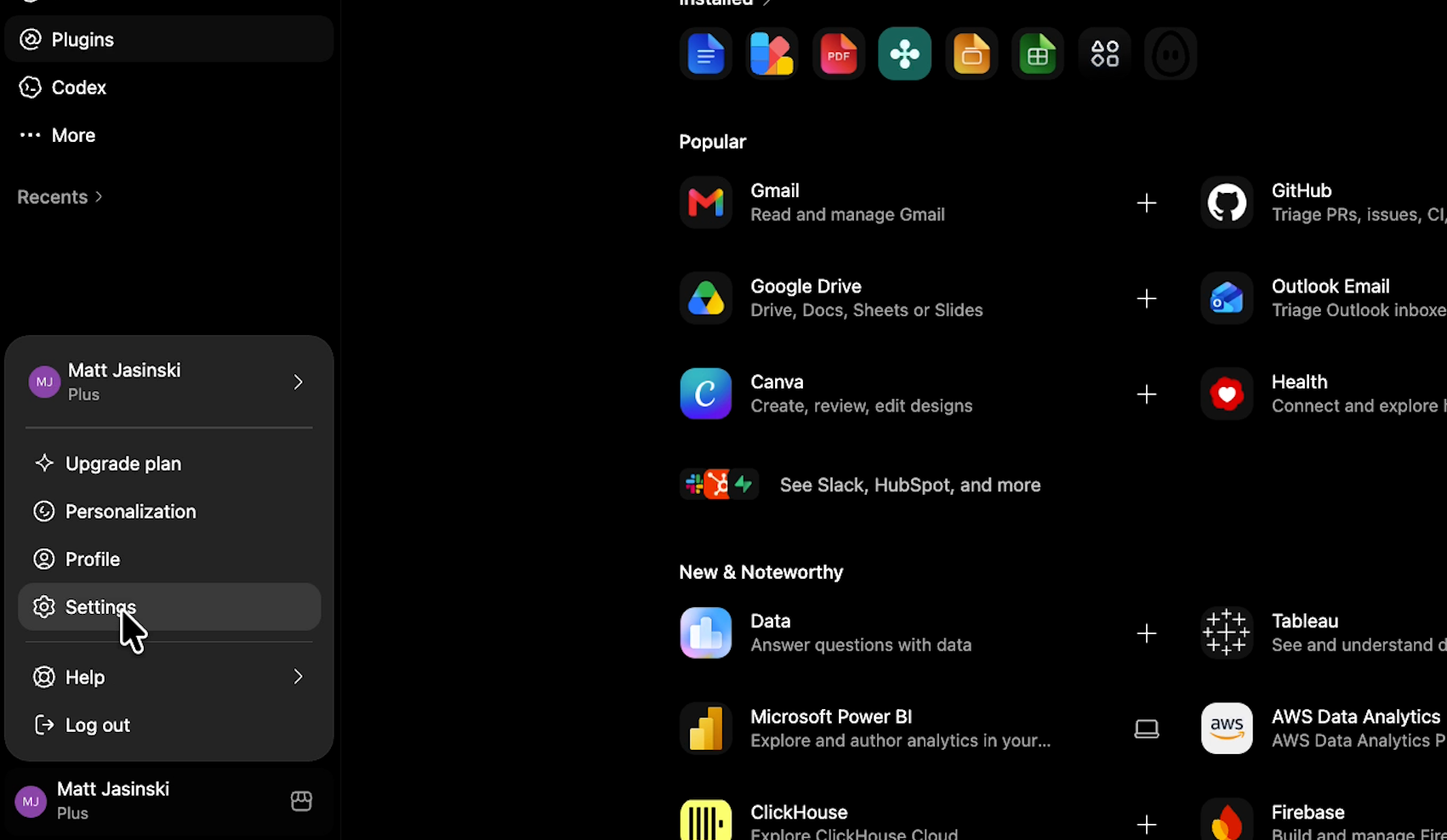
1. Open Settings. Click your profile icon in the bottom-left corner of the screen, then select Settings.
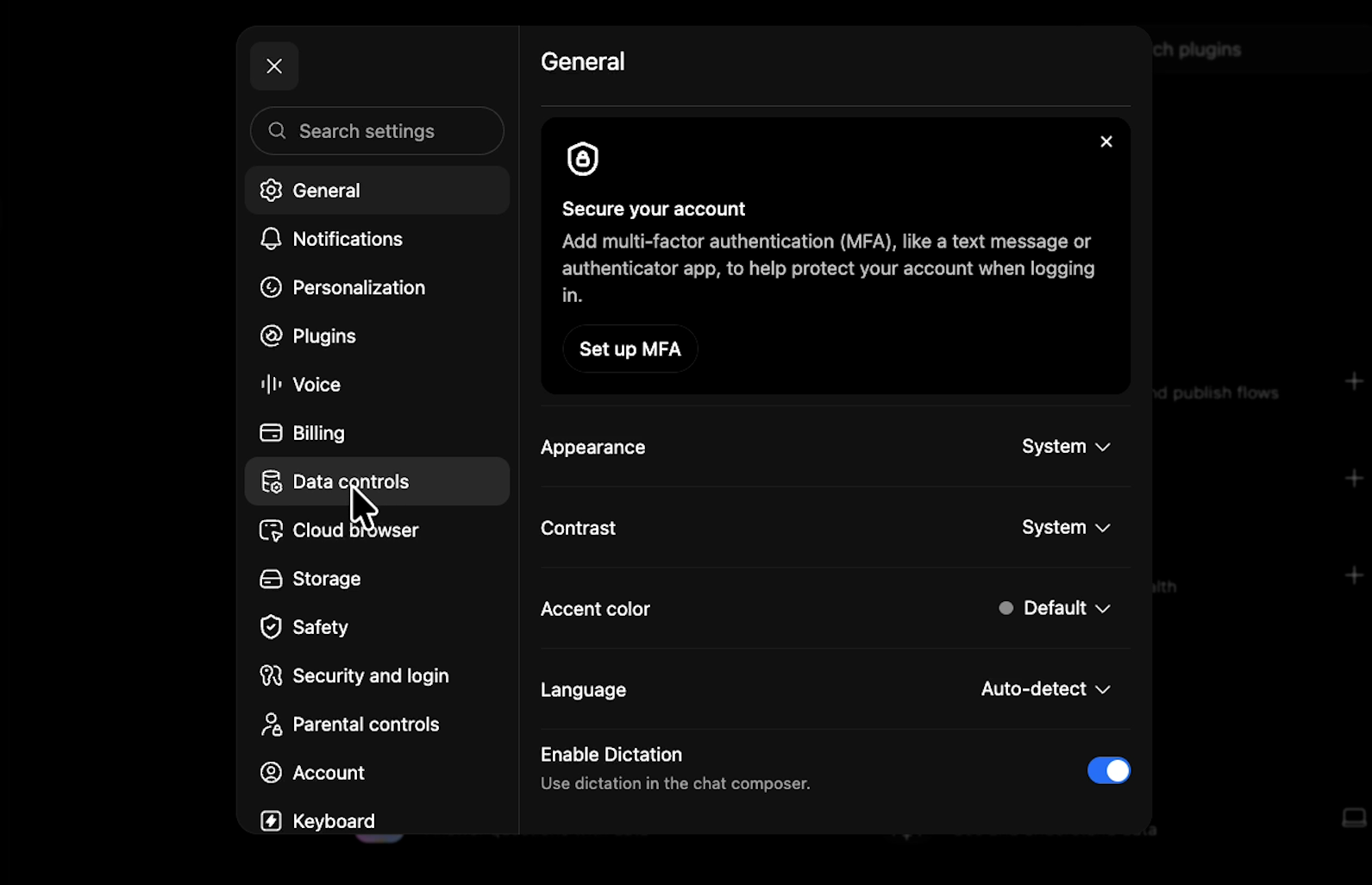
2. Go to Data controls. Select Data controls from the left sidebar.
3. Turn off training. Find Improve the model for everyone at the top of the Data controls menu, switch the toggle off, and click Done.
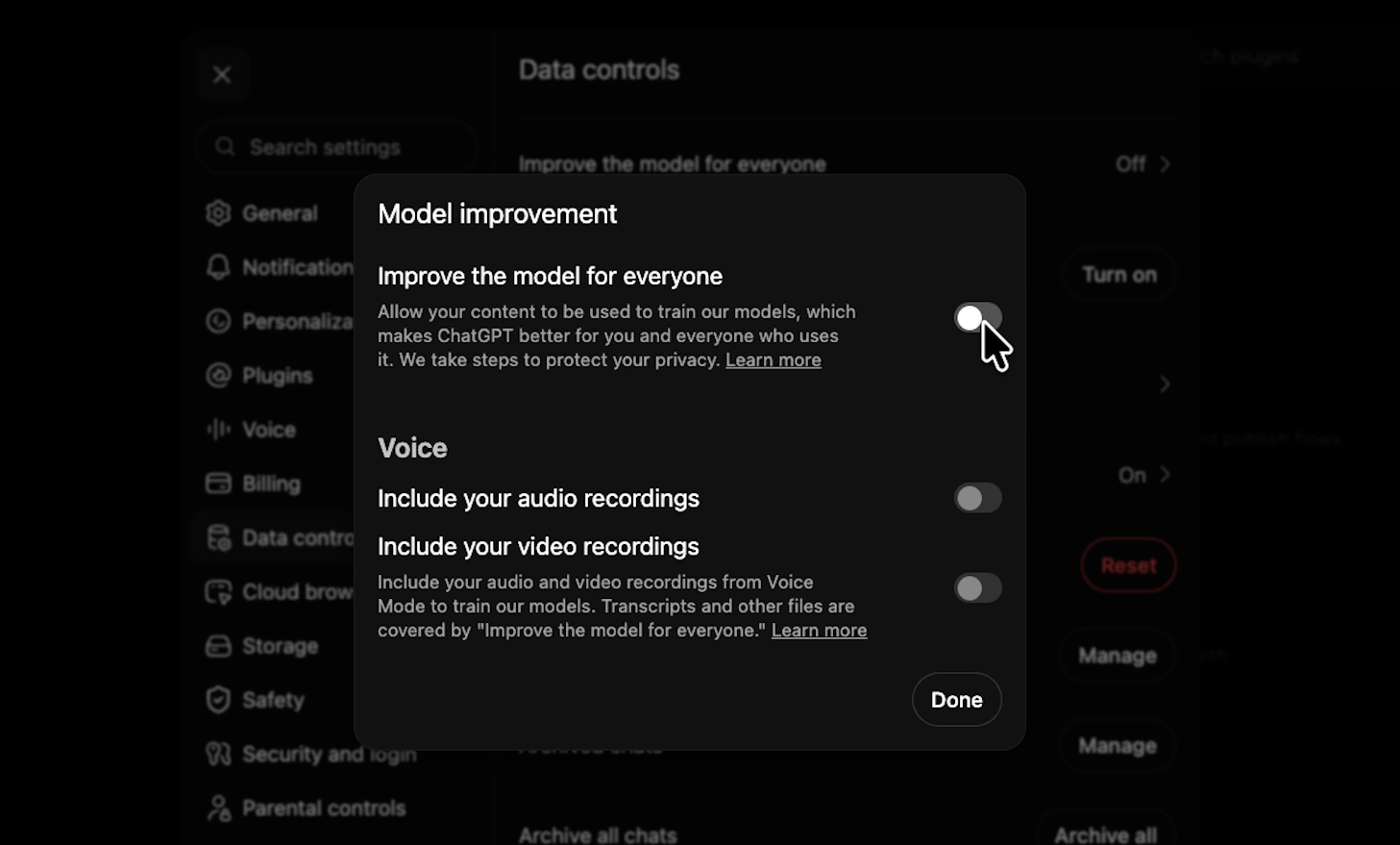
Your chat history stays exactly where it is, and the only change is that your new conversations won't be used for training.
Claude keeps its training setting on the Privacy page, next to a location setting worth checking while you're there.
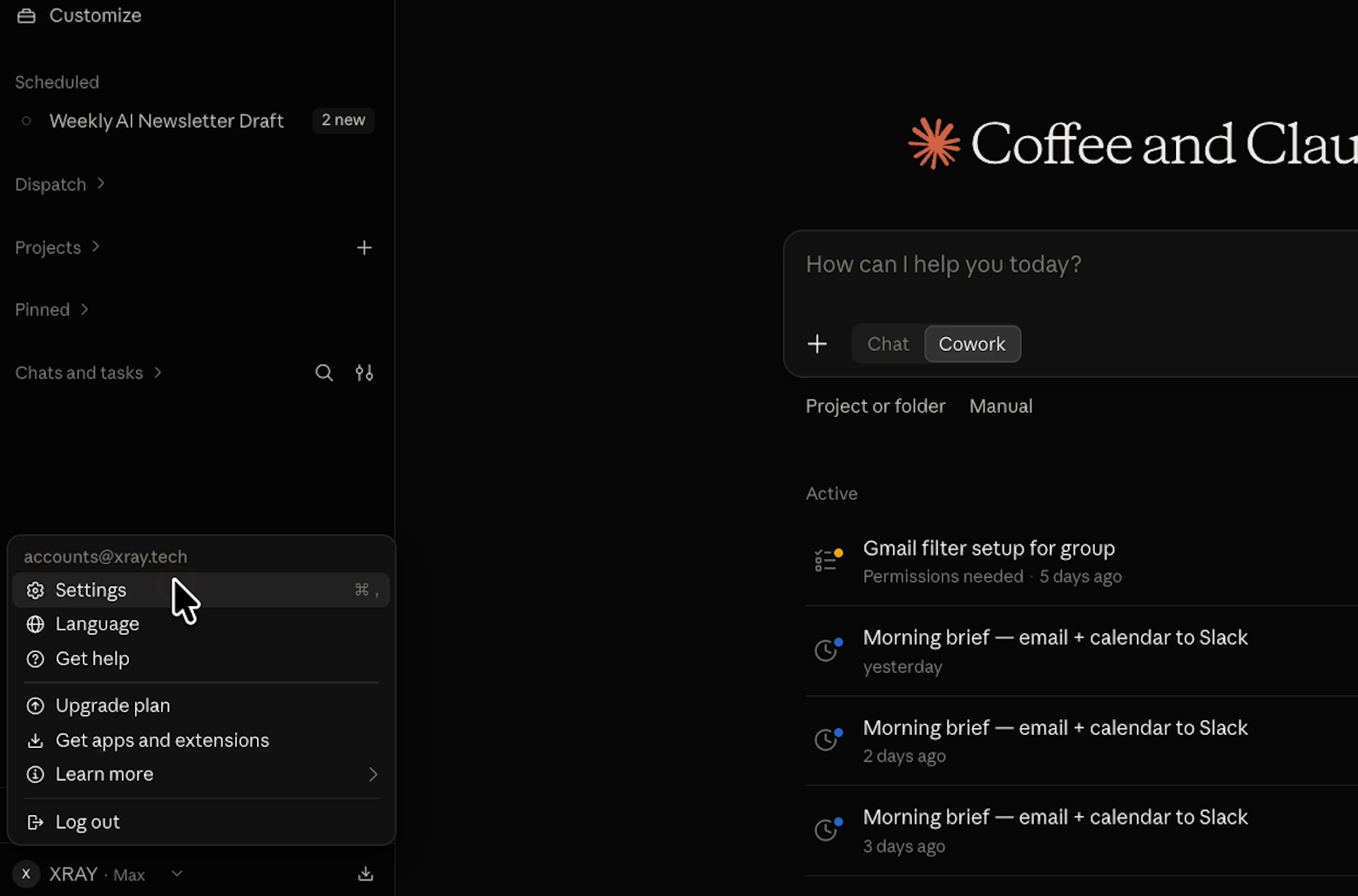
Open Settings. Click your profile name in the bottom-left corner to expand the main menu, then select Settings.
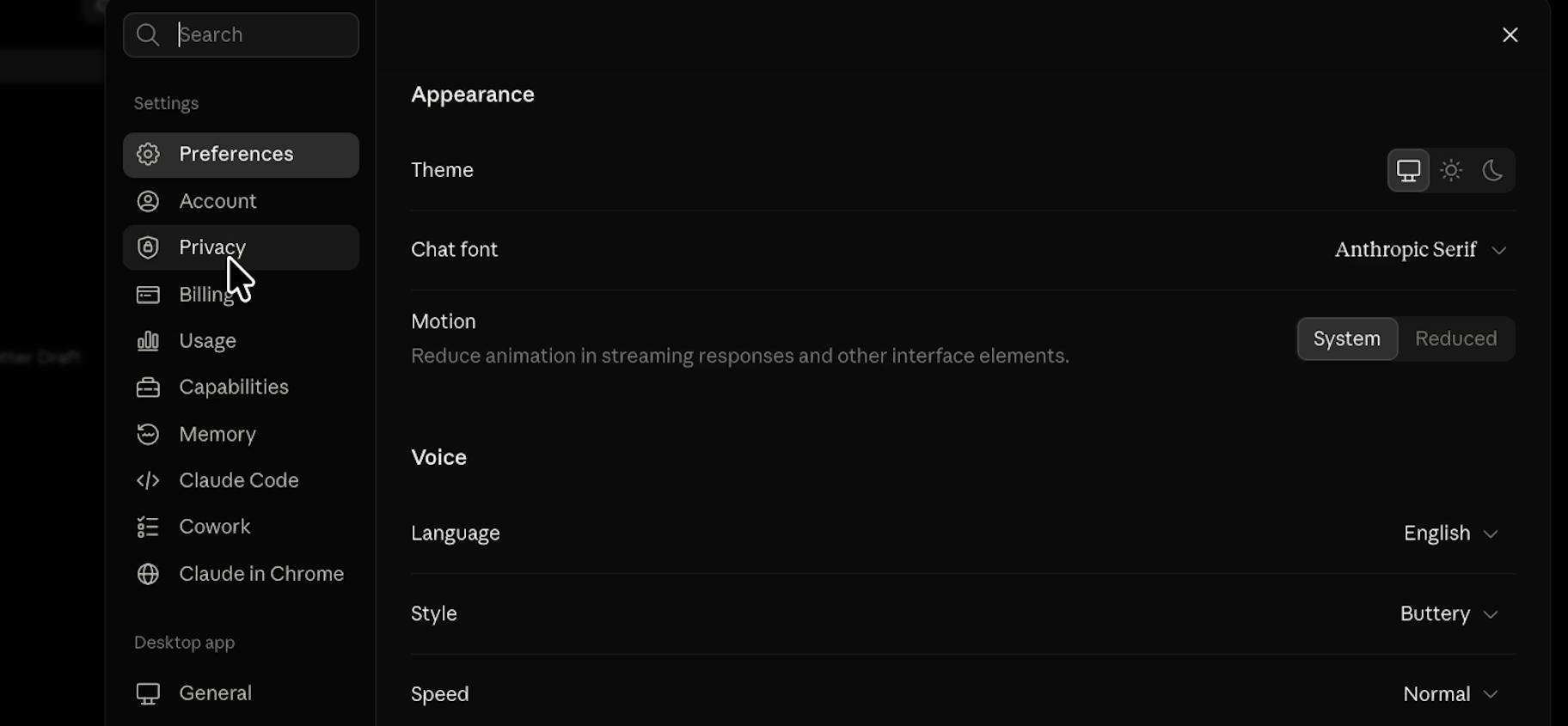
Go to Privacy. Choose Privacy from the left-hand navigation list.
Turn off training. Under the Preferences header, find Help improve AI models and switch the toggle off.
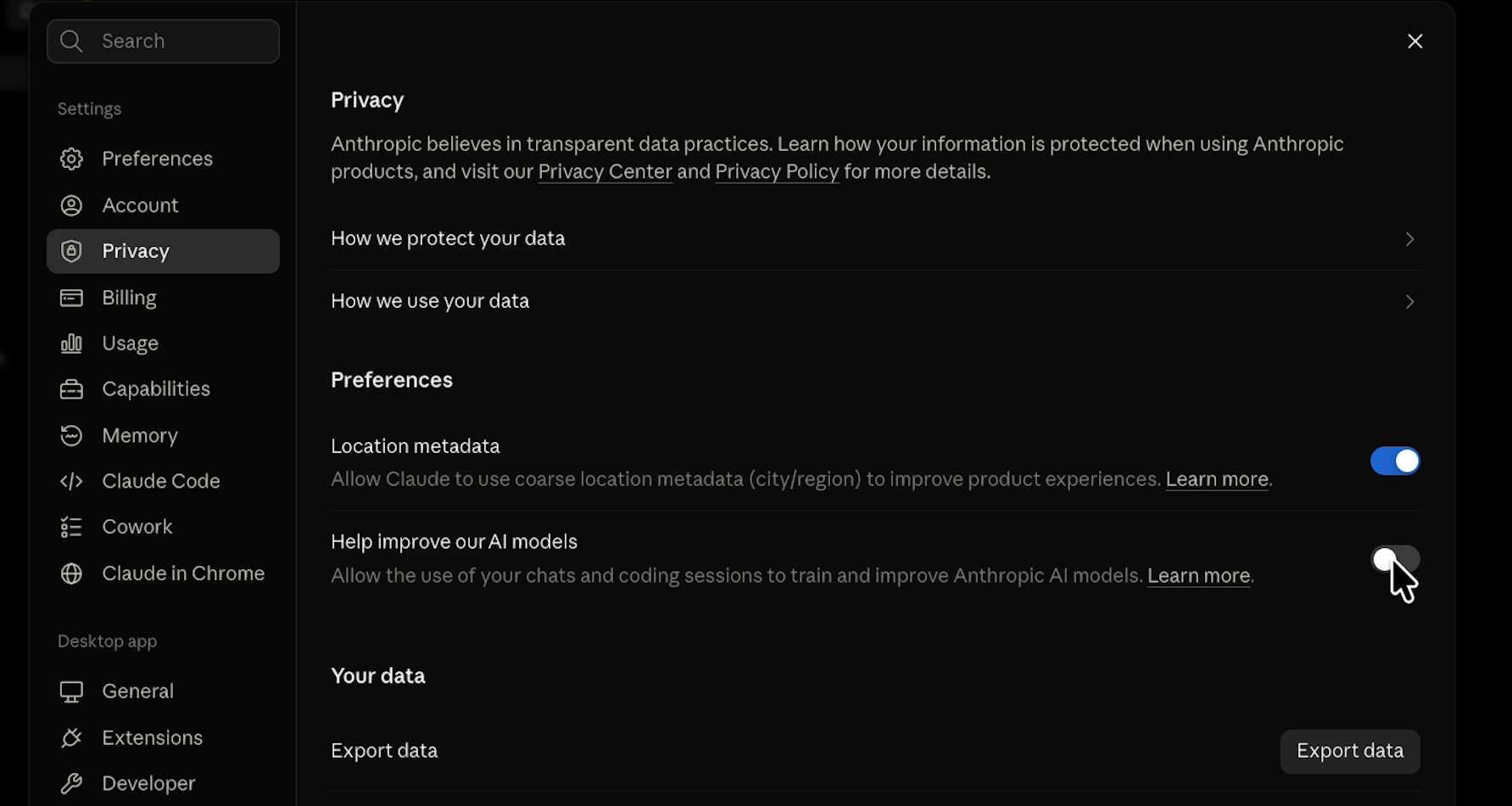
Directly above that toggle is Location metadata. If you don't want Claude using your general location, switch that off too. Just like with ChatGPT, you keep your full chat history either way.
Gemini calls its setting Keep activity, and switching it off takes one extra confirmation step.
Open Activity settings. Click the gear icon (Settings) next to your profile name in the bottom-left area, then click Activity at the top of the menu.
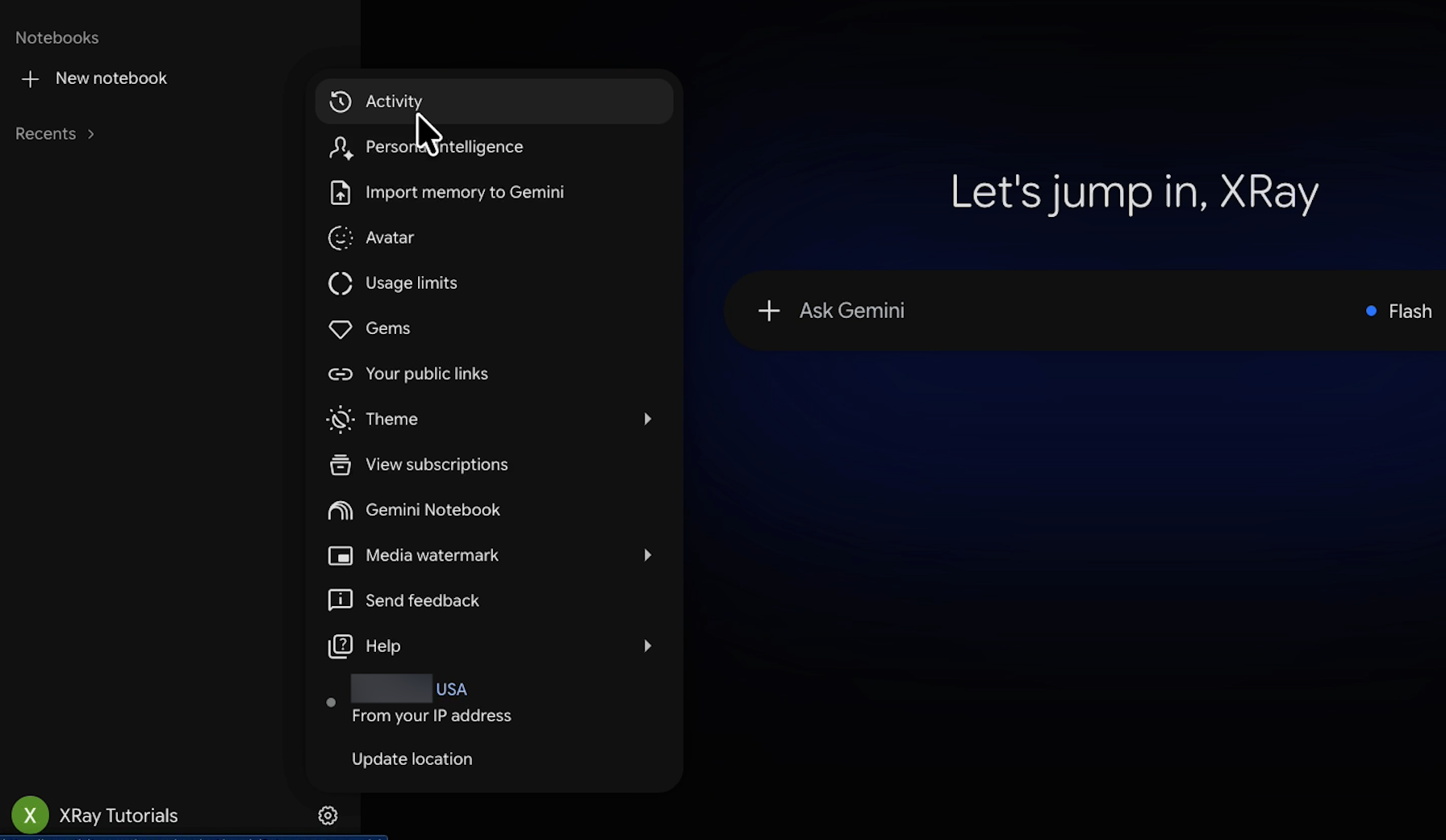
This will open up a new page with options for keeping or deleting your activity, and a brief explanation of how it all works.
Select the Keep activity dropdown and choose “Off”.
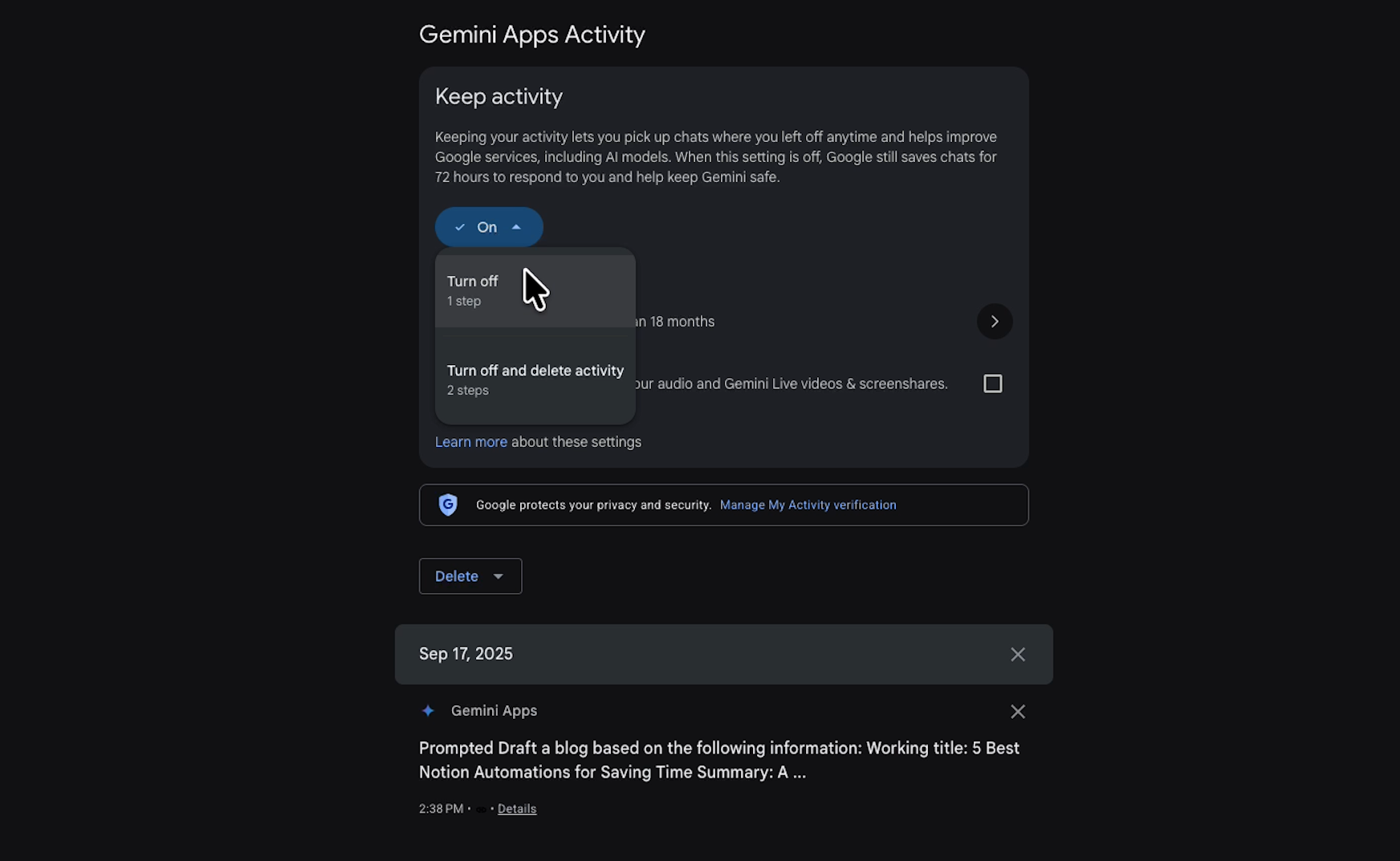
Confirm it. Select Turn off, or Turn off and delete activity if you also want to clear your existing history, then click Got it in the confirmation popup.
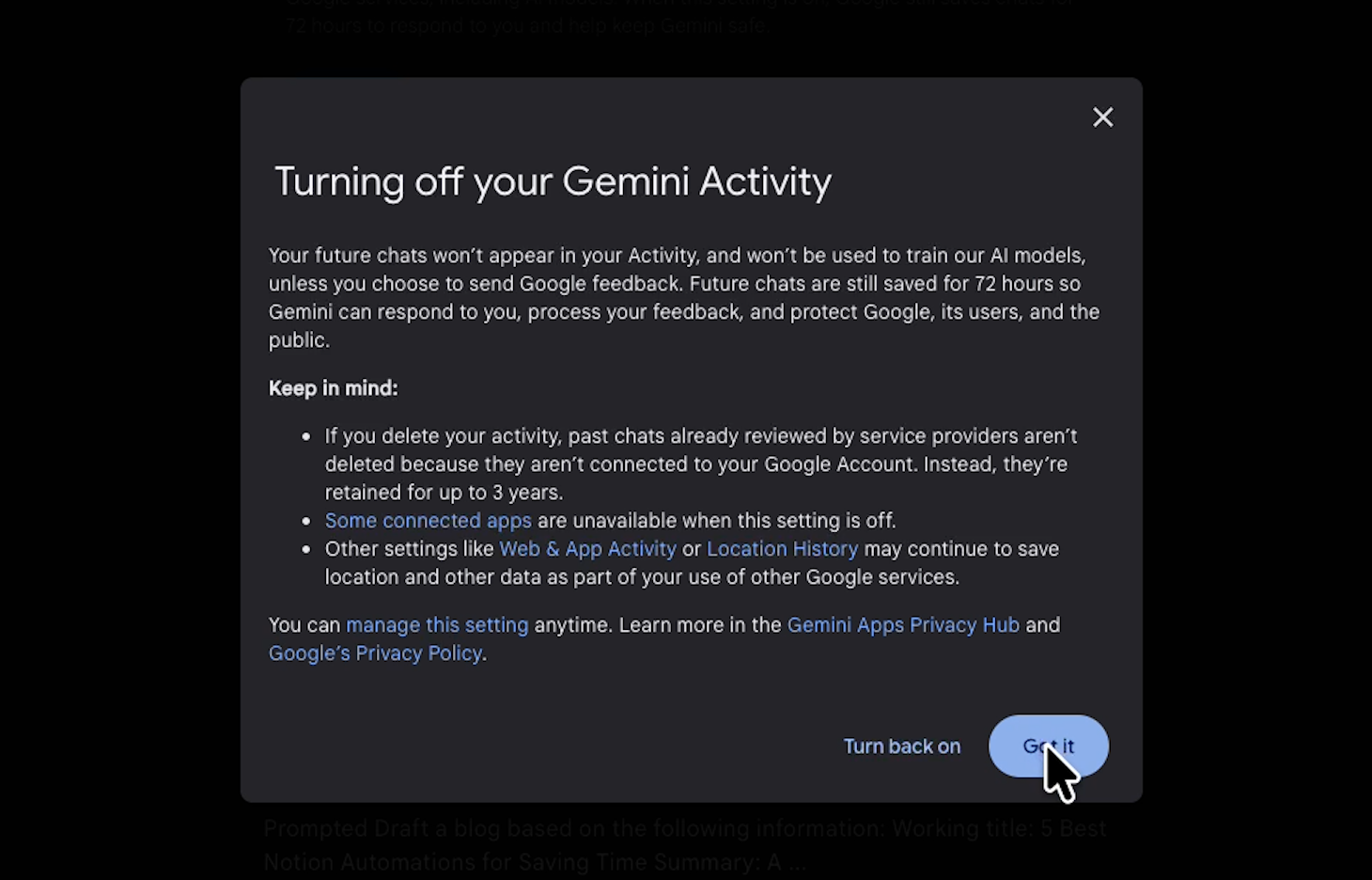
Turning off Keep activity stops Google from using your future chats to train its models.
Here's the catch: Gemini ties training and chat history together, so it also stops saving your conversations. New chats are permanently removed after 72 hours.
That's a real tradeoff. If you like going back to old chats to pick up where you left off, you'll lose that, and you'll have to decide whether the privacy is worth the inconvenience.
Gemini's approach points to the bigger issue, and it applies to all three platforms. The question isn't only whether your chats get used for training. It's how long they get stored.
Leaving training on doesn't mean your chats will get repeated to another user. Training data is stripped of details that identify you, and the odds of your exact conversation showing up in someone else's answer are very low.
Retention is a different story. When you let an AI provider train on your chats, it keeps them a lot longer: in Claude, that's up to five years with training on and 30 days with it off. That gap matters if your provider ever gets hit by a data leak or a hack. Five years of your conversations is a lot more to expose than one month.
In Claude and Gemini, clicking thumbs up or thumbs down on a response sends that conversation back to the company as feedback, even if you've turned training off.
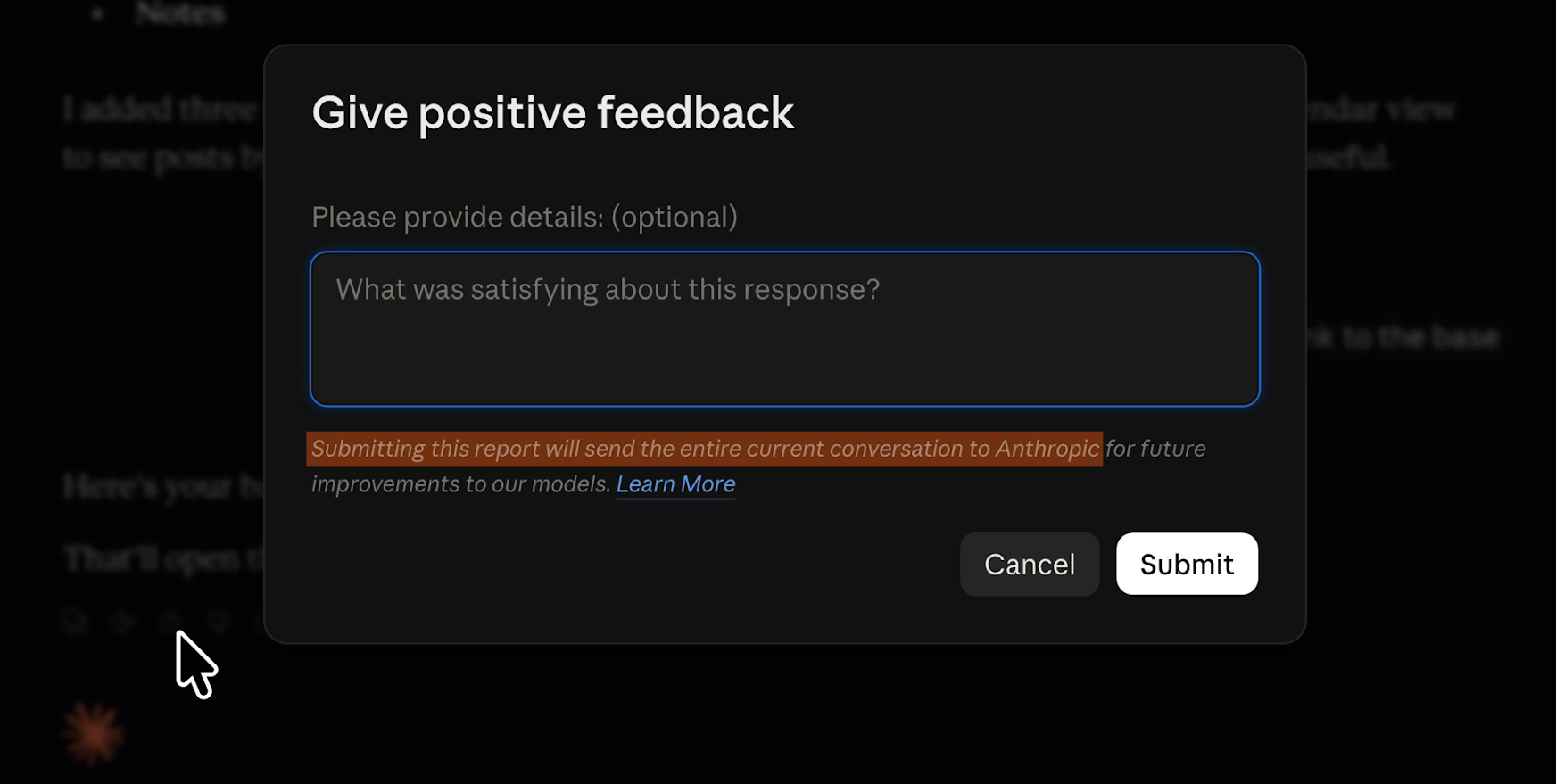
Claude can keep a rated conversation for up to five years, and Gemini can keep it for up to three.
ChatGPT handles this differently. In the current version of the app, when you turn training off, the rating buttons disappear, so you can't send that feedback by accident.
File uploads don't always follow the same rules as the chats they came from, and each provider handles them a little differently.
ChatGPT: Deleting a chat doesn't delete the files you uploaded in it. Those files stay in your Library until you delete them separately.
Gemini: Your files go with your chats, so if Keep activity is off, your uploads are removed after 72 hours along with the conversation.
Claude: Anthropic treats uploads as part of the chat, and deleted chats are removed from its servers within 30 days. Files you add to a project stay until you delete the project.
Turn training off, skip the rating buttons on anything you wouldn't want stored for years, and delete your files along with your chats. The less time your data sits on someone else's server, the safer it is.
None of this is a reason to use AI less. You should be handing it more of your work every week, and setting these defaults once is what lets you do that without second-guessing every prompt.
Balancing convenience and productivity against security and privacy is one of the biggest challenges that comes with adopting AI at your company.
A personal toggle protects one account, while a team needs the right plan and a clear policy for which tool handles which data.
That's the kind of tricky AI implementation we help with at XRAY. Reserve time with one of our experts for one-on-one support, so you learn how it works while you build it. There's no retainer and no long-term commitment, so you book the time you need.