

Are you avoiding putting your laptop to sleep? You're not alone.
People are hustling through airports with their MacBooks cracked open. Somebody props a computer on a shelf at their kid's skating practice and glances at it between drills. These are real things that have happened, and they happen for one reason: nobody wants to interrupt an agent mid-job, and everyone assumes that closing the lid is what kills it.
It doesn't have to. A scheduled task in Claude runs at the time you pick, with no clicks for approval and no computer on anywhere. Here's how to build your first one, and how to configure it so it still does the right thing when nobody is watching.
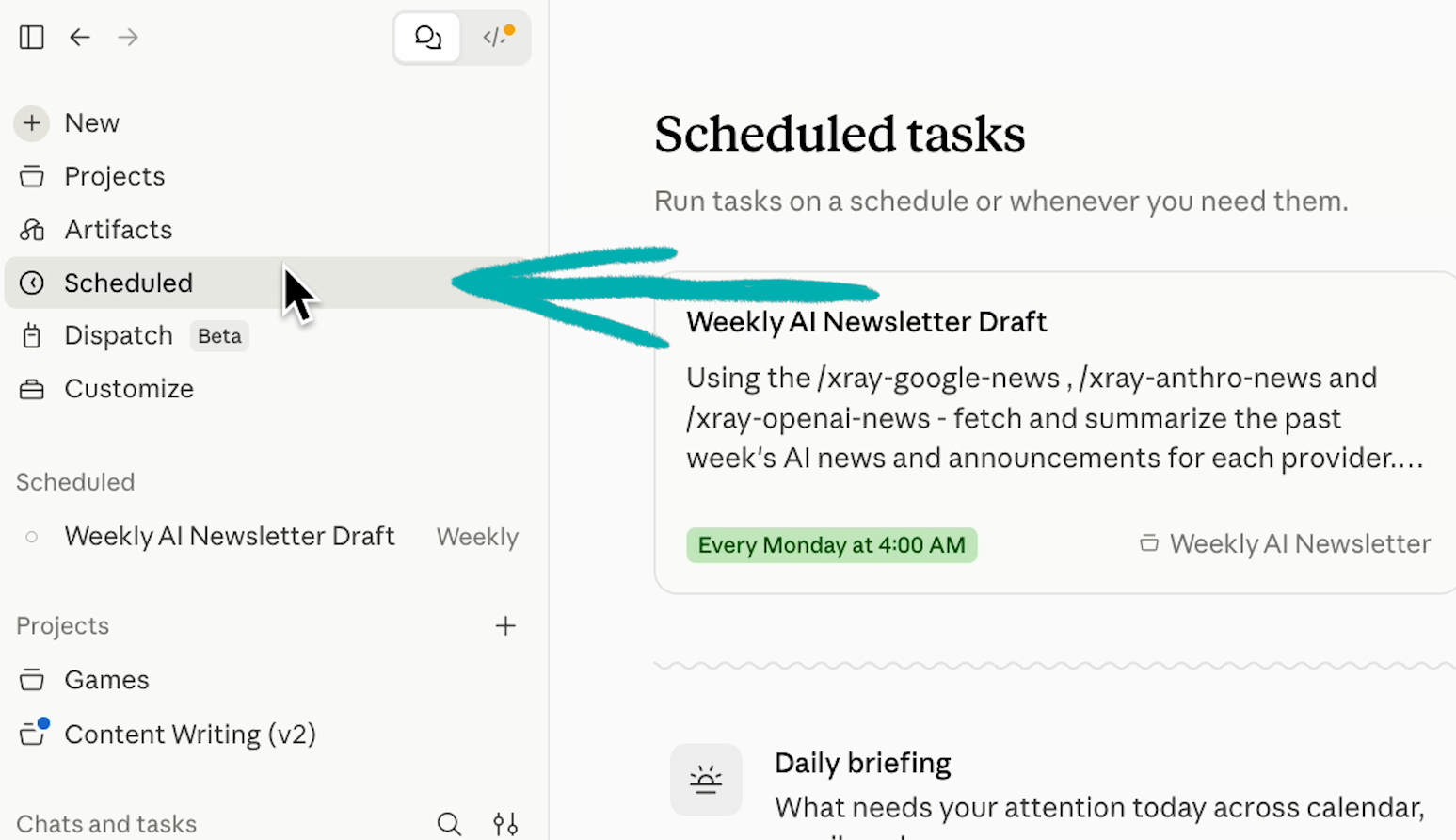
Scheduled tasks work on any paid Claude plan, so Pro, Max, Team, and Enterprise are all covered. You'll find them in chat and in Cowork, under Scheduled in the left sidebar.
Before you type anything, pick the right job. The instinct is to invent a brand new one for the scheduler, and that's backwards. Take something you have already run once, whose output you have already read, and schedule that.
The reason is simple. At 8:30 in the morning there is nobody at the keyboard to answer a clarifying question, so a prompt that needed one small nudge during testing will quietly produce garbage on a schedule.
Click Scheduled in the left sidebar, then New task in the upper-right corner.
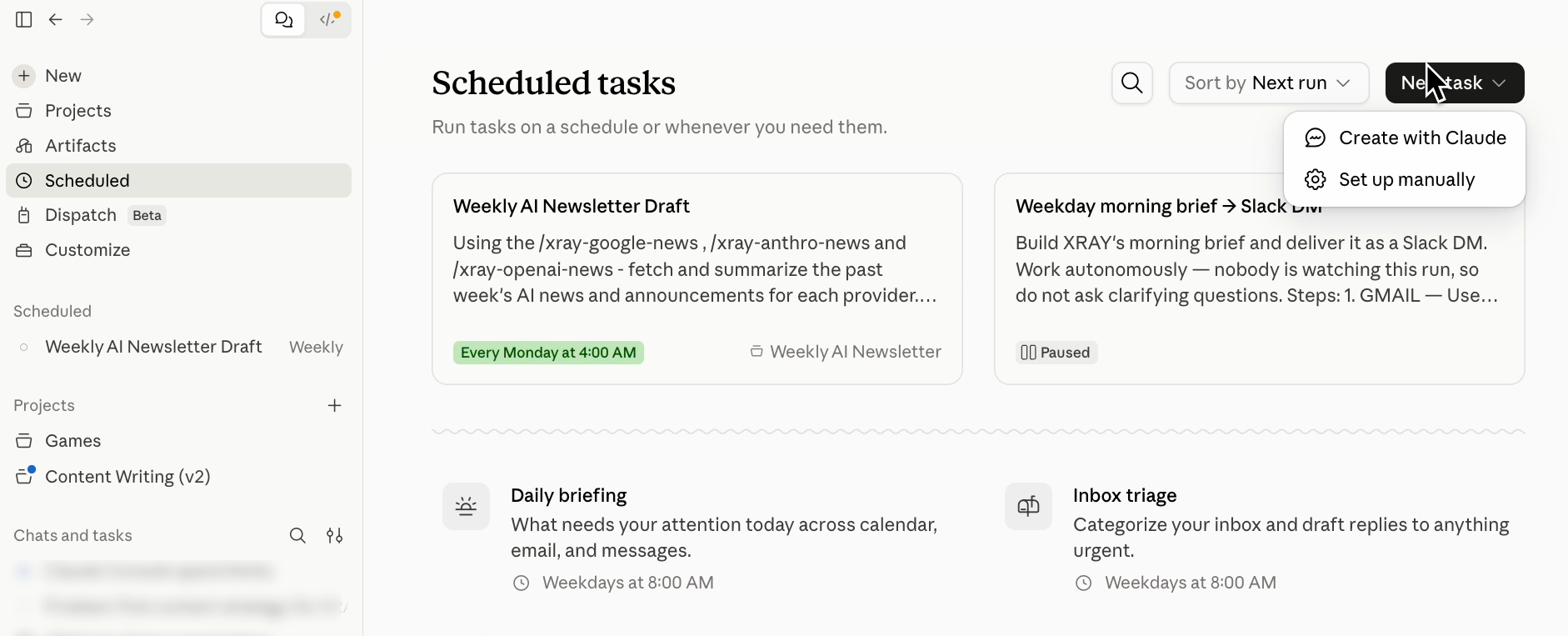
Two options appear. Set up manually drops you straight into a blank form, and Create with Claude opens a task that interviews you about what you want and builds the thing for you.
Take Create with Claude, because it produces a better first draft than you will from an empty box.
Type your request in the chat prompt and say three things: what the task should do, when it should run, and where the output should go.
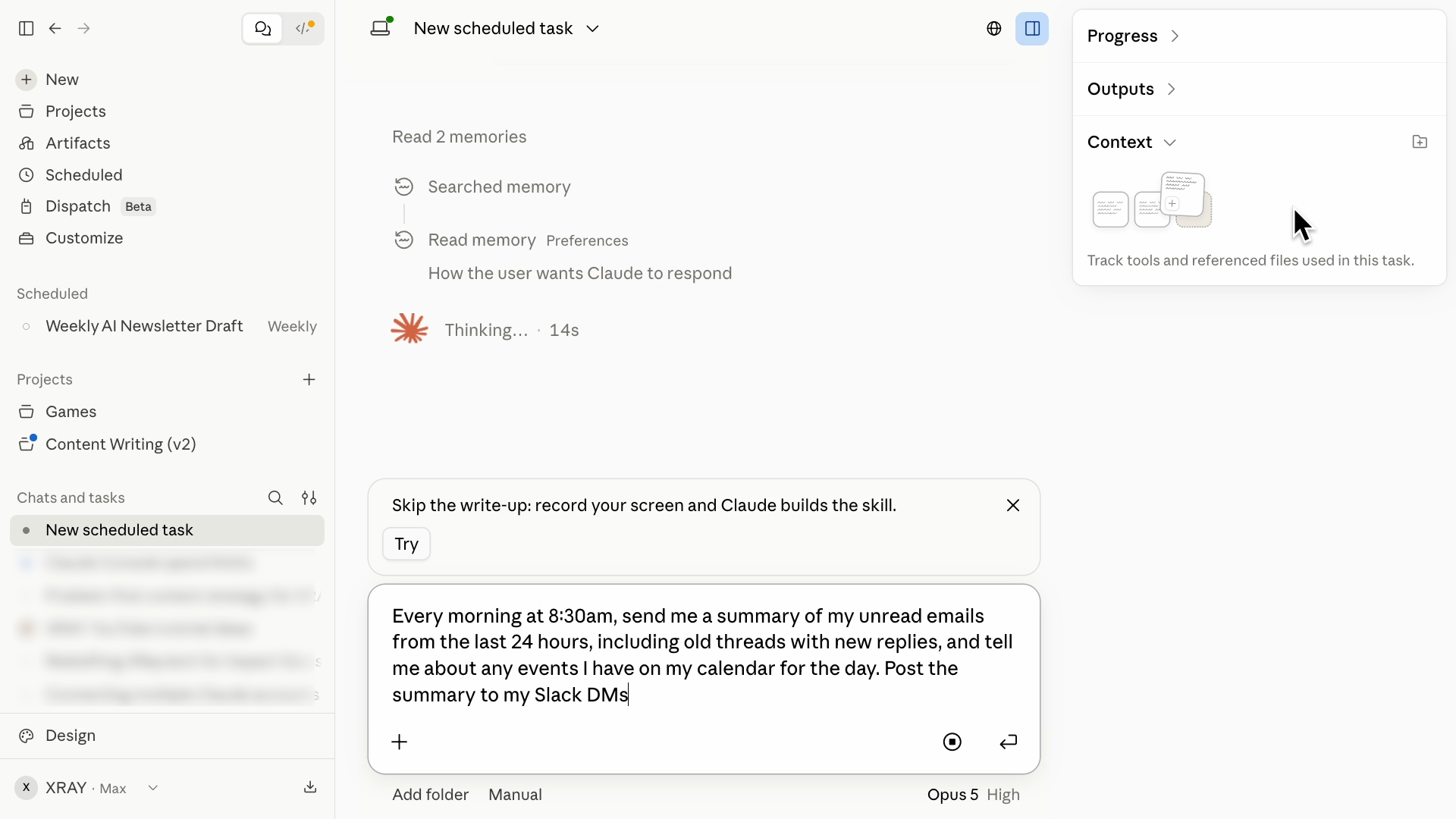
Ours was "Every morning at 8:30 AM, send me a summary of my unread emails from the last 24 hours, including old threads with new replies, and tell me about any events I have on my calendar for the day. Post the summary to my Slack DMs."
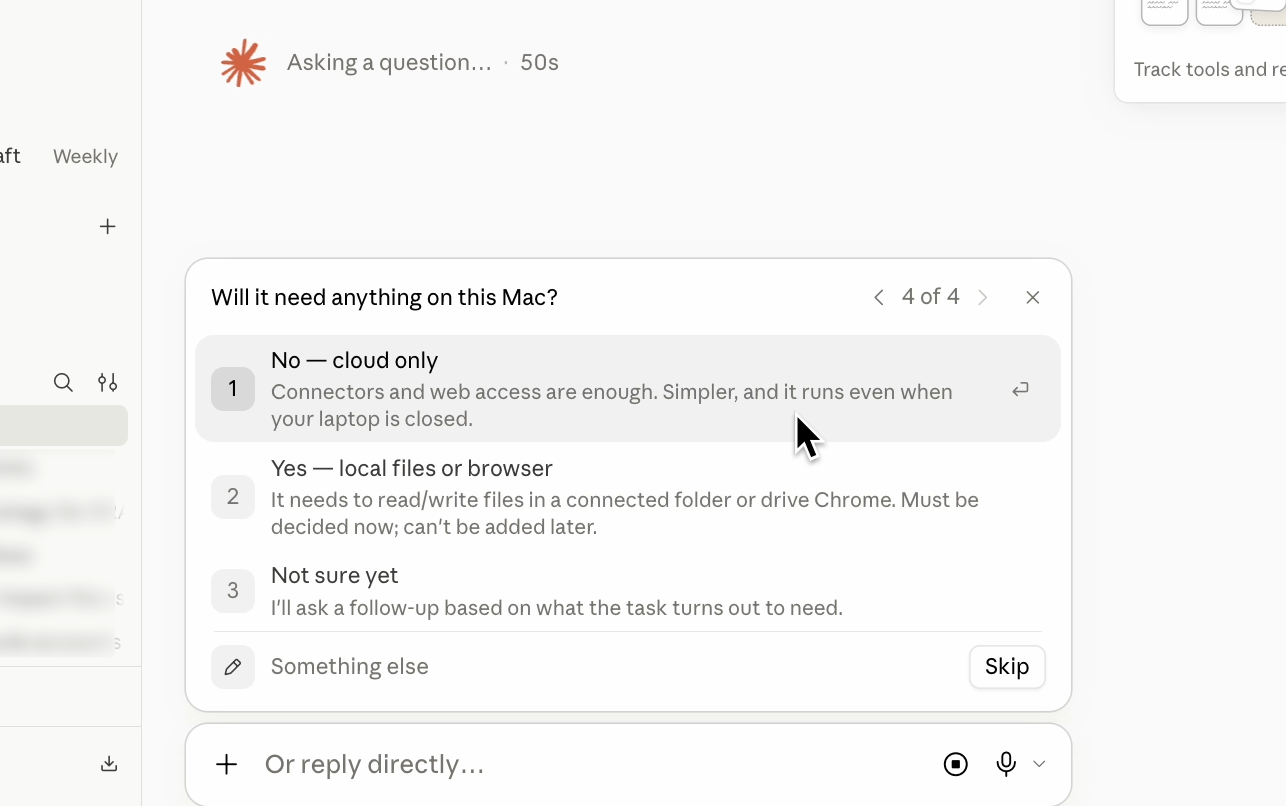
Claude comes back with a short set of setup questions. It confirms the task scope, asks for a frequency (every weekday, or daily including weekends), asks for an output location (posted to Slack, or session plus email), and asks for an execution type. Pick “cloud only” if the choice comes up, so the task runs on cloud servers instead of waiting around for your computer.
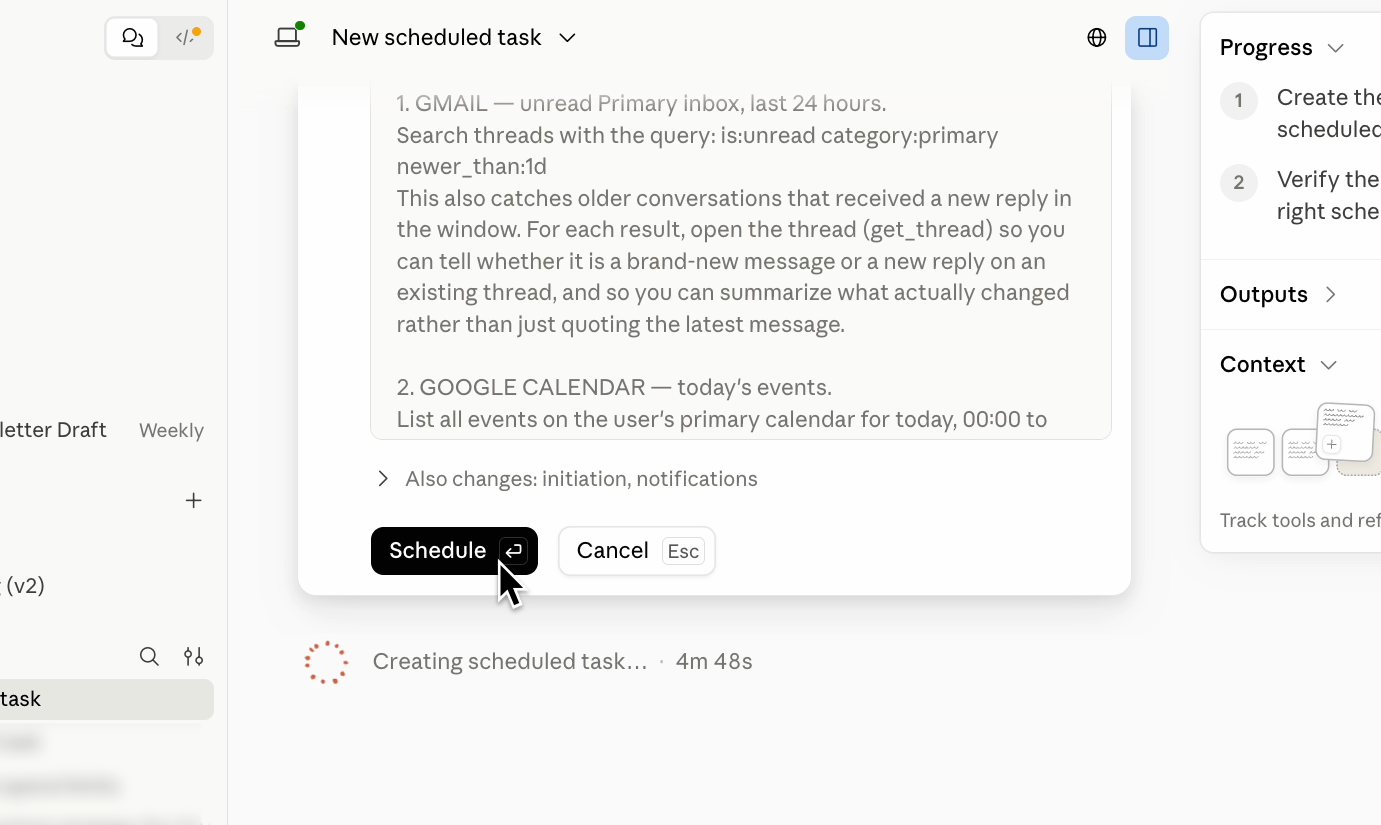
After a short wait Claude shows you its draft, and it will be noticeably more detailed than what you typed. Don't try to perfect it here. Click Schedule to create the task, because the next screen is where the real configuration happens.
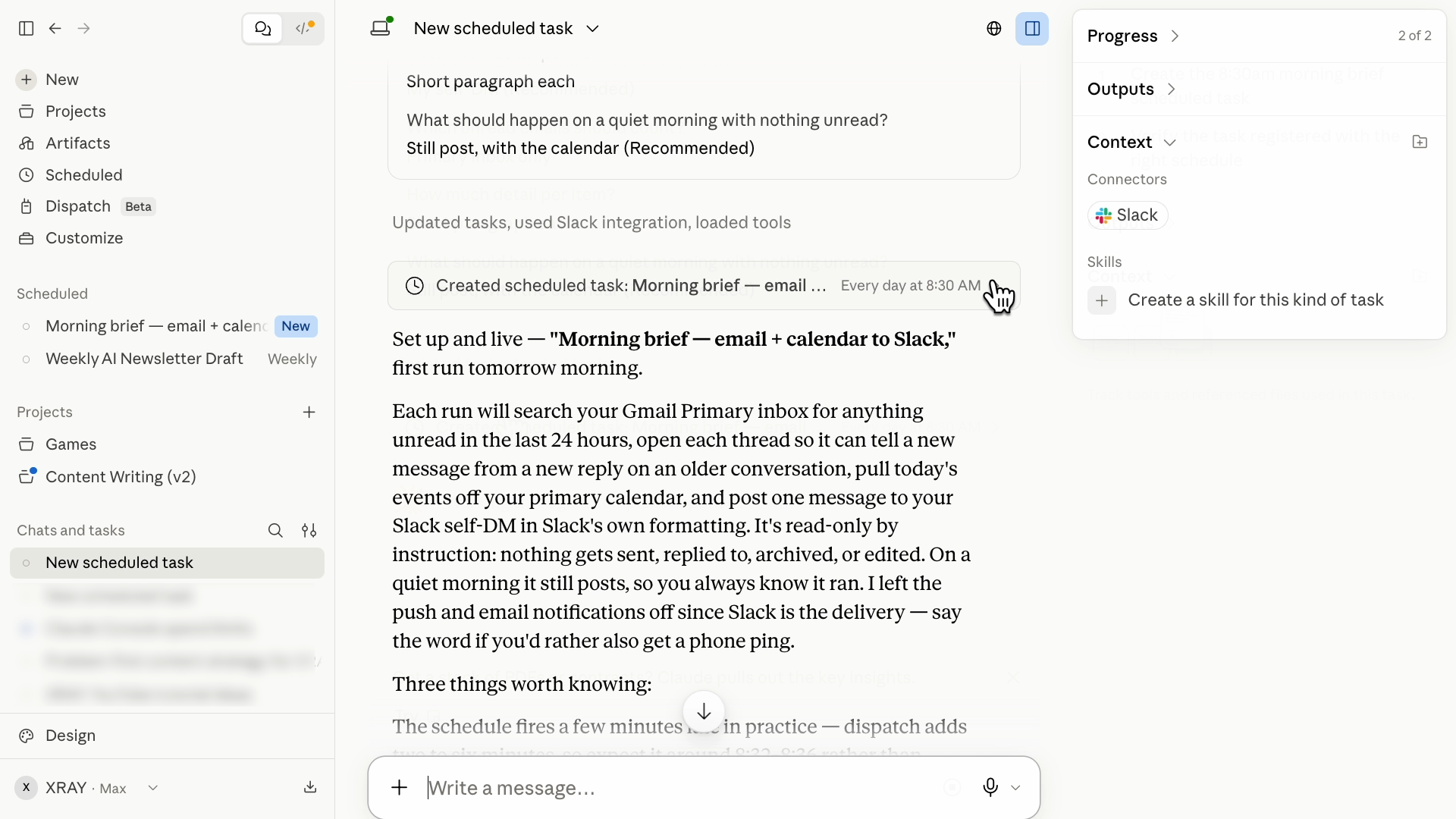
Click the task card, or go to Scheduled in the sidebar.
Then, click the pencil icon to open and edit the details.
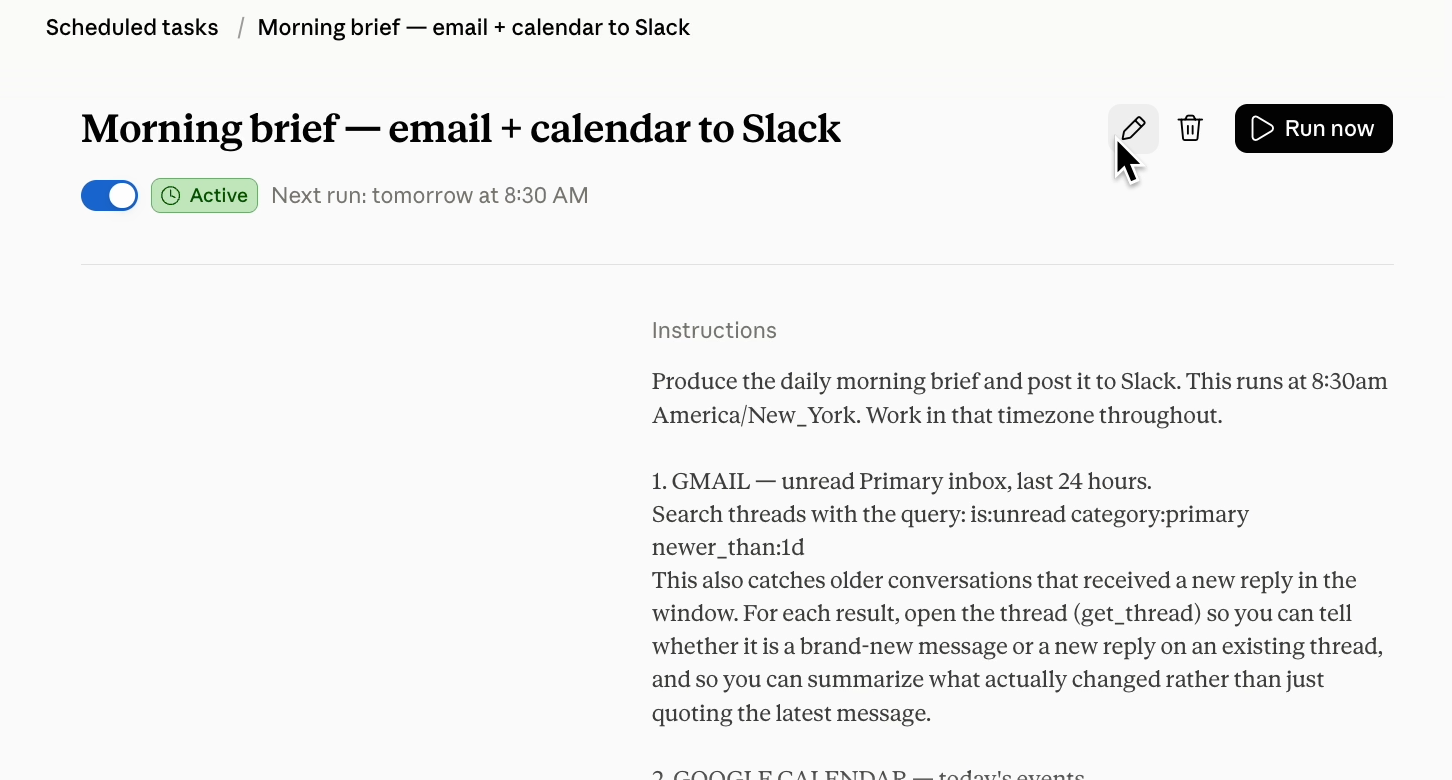
There are six things to set.
• Name. A clear label so you recognize it in a list six weeks from now.
• Instructions. The prompt Claude drafted for you, which you are about to sharpen.
• AI model. Pick the model that runs the task, such as Opus 5.
• Frequency and time. Hourly, Daily, Weekdays, or Weekly, plus the exact run time. Hourly is as fine-grained as it gets, so if you were hoping for every fifteen minutes, that isn't on the menu.
• Permissions. The approval mode, covered below.
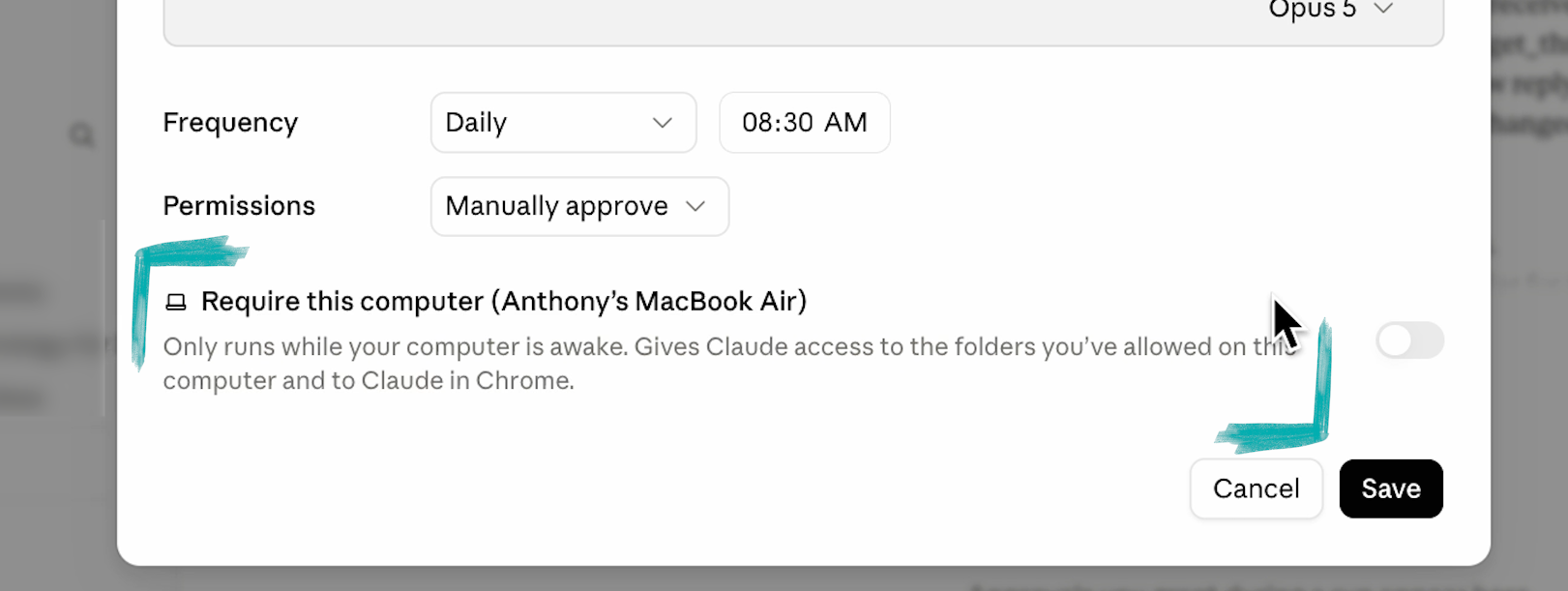
• Require this computer. Leave this toggle off.
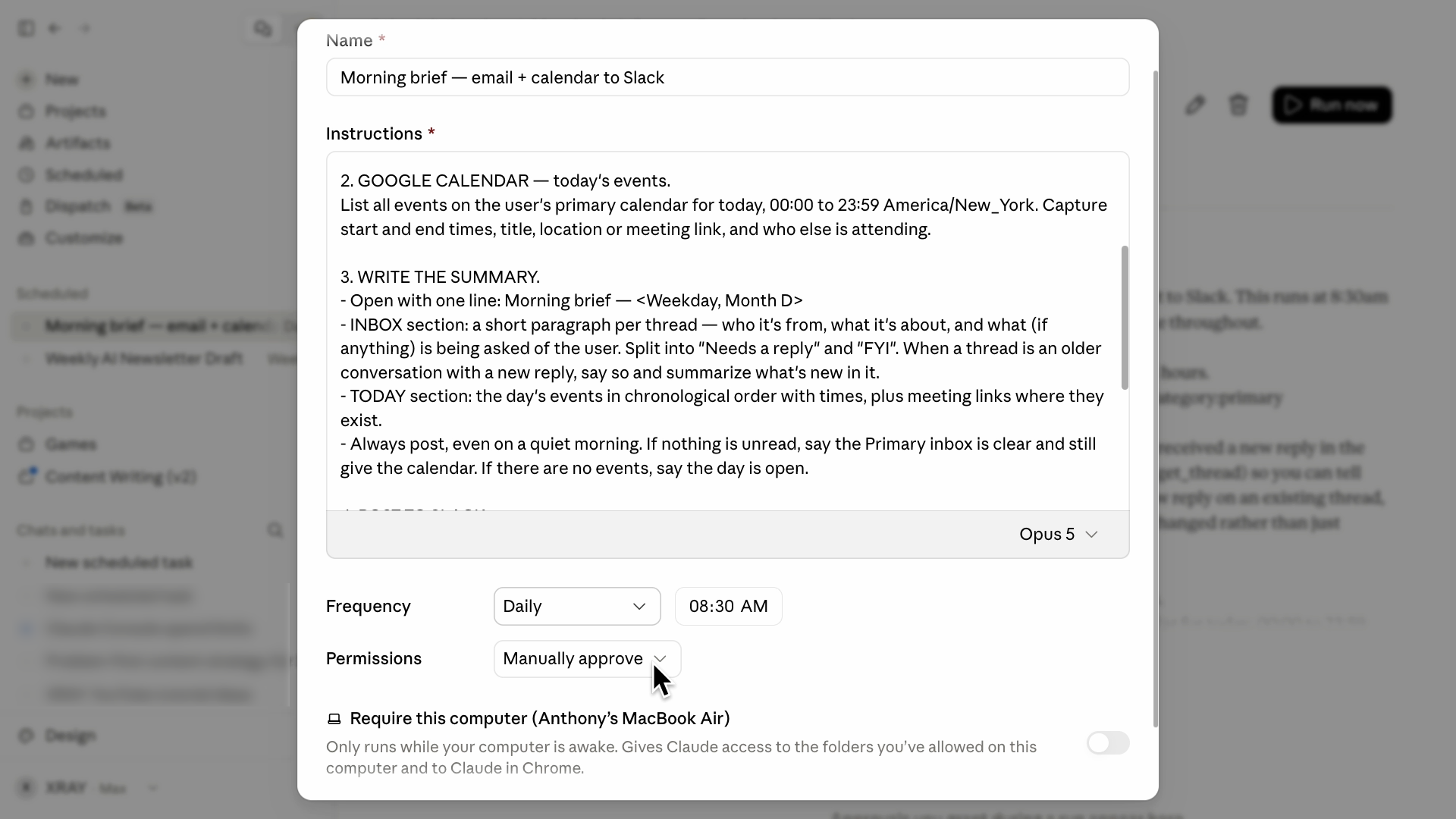
Read the instructions carefully and ask yourself one question: would a competent human need to ask you anything before starting?
Ours held up with one addition. I added "put the three most important items at the top," because I know what I actually want out of this and Claude had no way to guess.
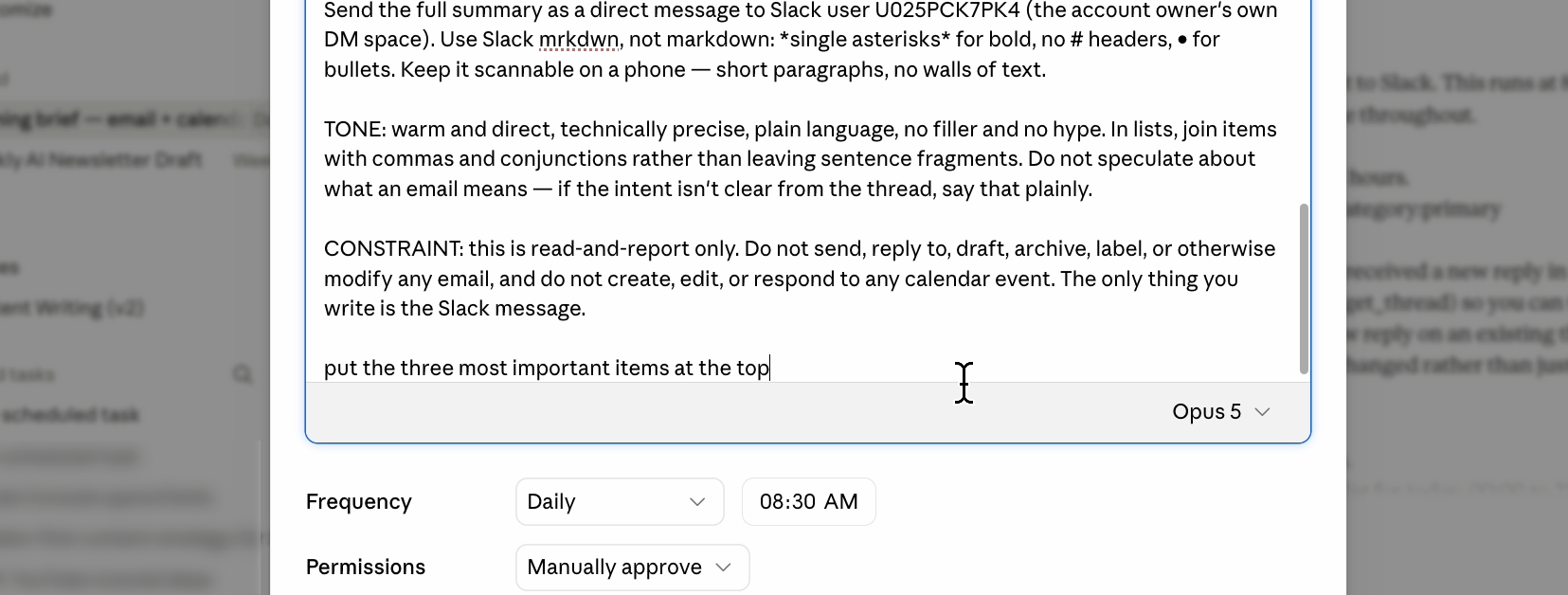
That "Require this computer" toggle deserves a second look, because it's a setting that can quietly breaks everything.
Turn it on and the task stops running in the cloud. It will need your current computer powered on with Claude open at the scheduled time. Leave it off and the task runs whether your laptop is in a bag or in a drawer.
Permissions decide what Claude can do on its own, and there are three settings.
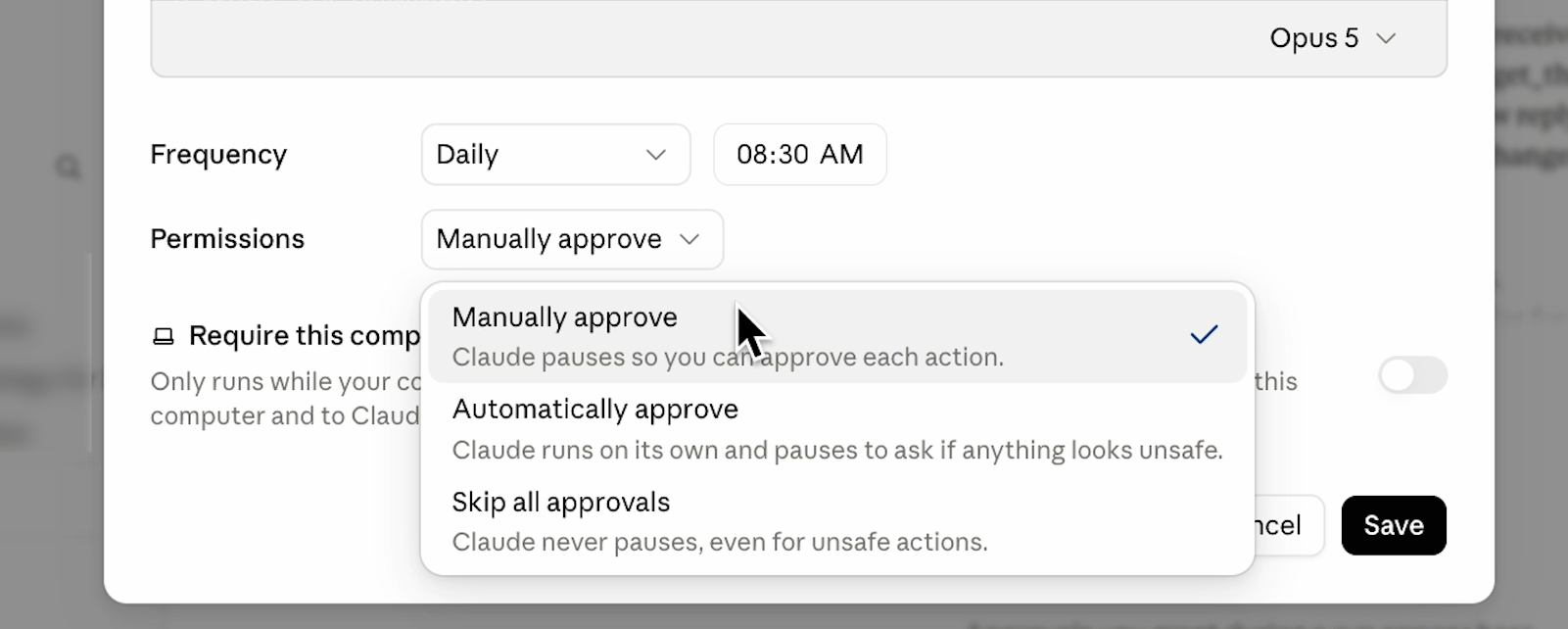
• Manually approve. Claude pauses and asks before it acts. You get a request and you pick Allow or Deny.
• Automatically approve. Claude keeps working without stopping to ask. It reviews each action for safety first, watching for things like prompt injection or an attempt to move your data somewhere it shouldn't go, and it blocks what it decides is unsafe.
• Skip all approvals. Claude doesn't pause at all, and nothing is checking its actions.
Manually approve sounds like the responsible pick. On an unattended task it's the mode most likely to leave you staring at nothing at 8:30 in the morning, because there's nobody sitting there to click Allow. Set an unattended task to Automatically approve.
You don't give up control by choosing Automatically approve, because there's a second layer of permissions underneath it.
Go to Customize, then Connectors, then pick the connector your task uses.
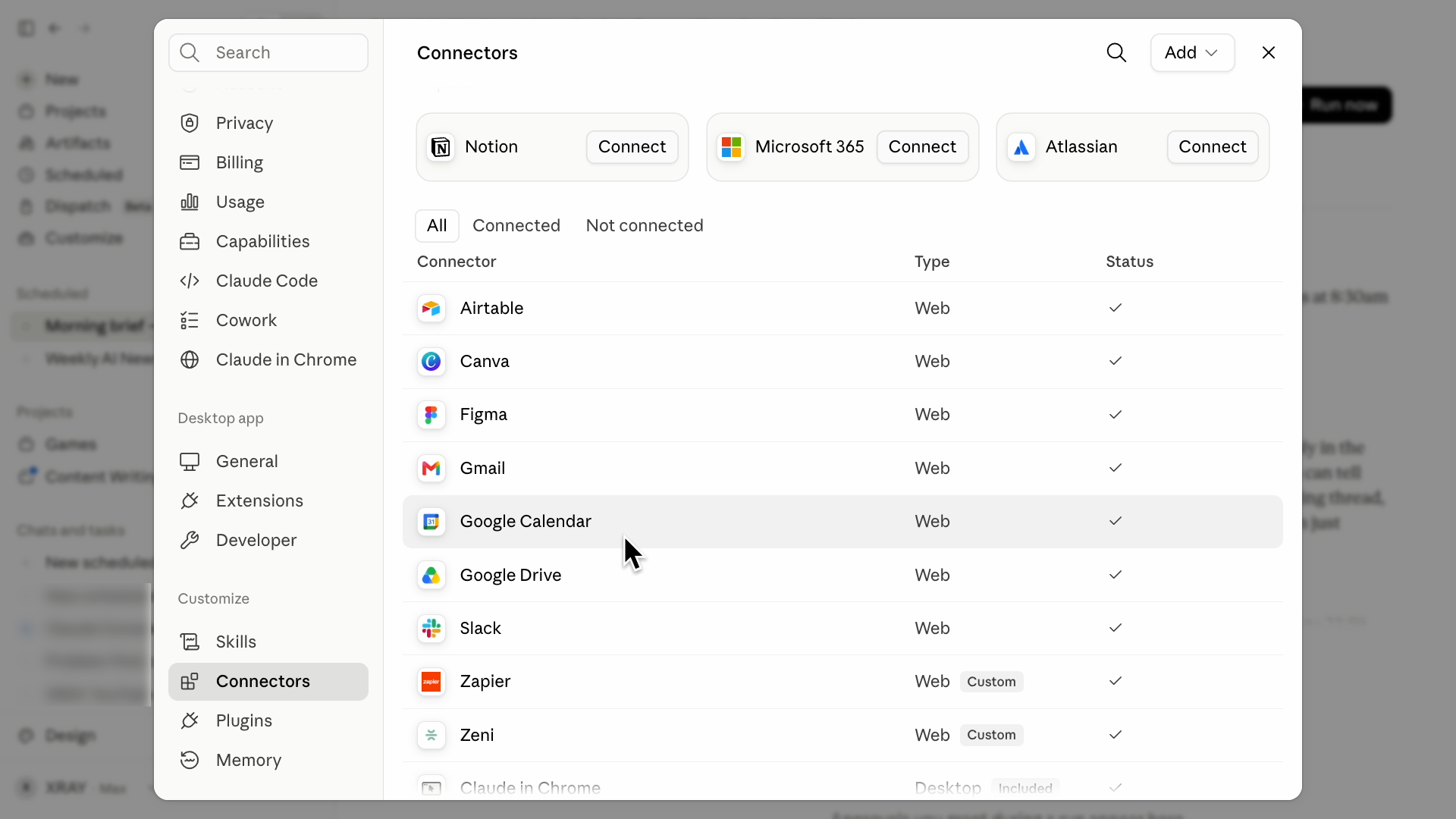
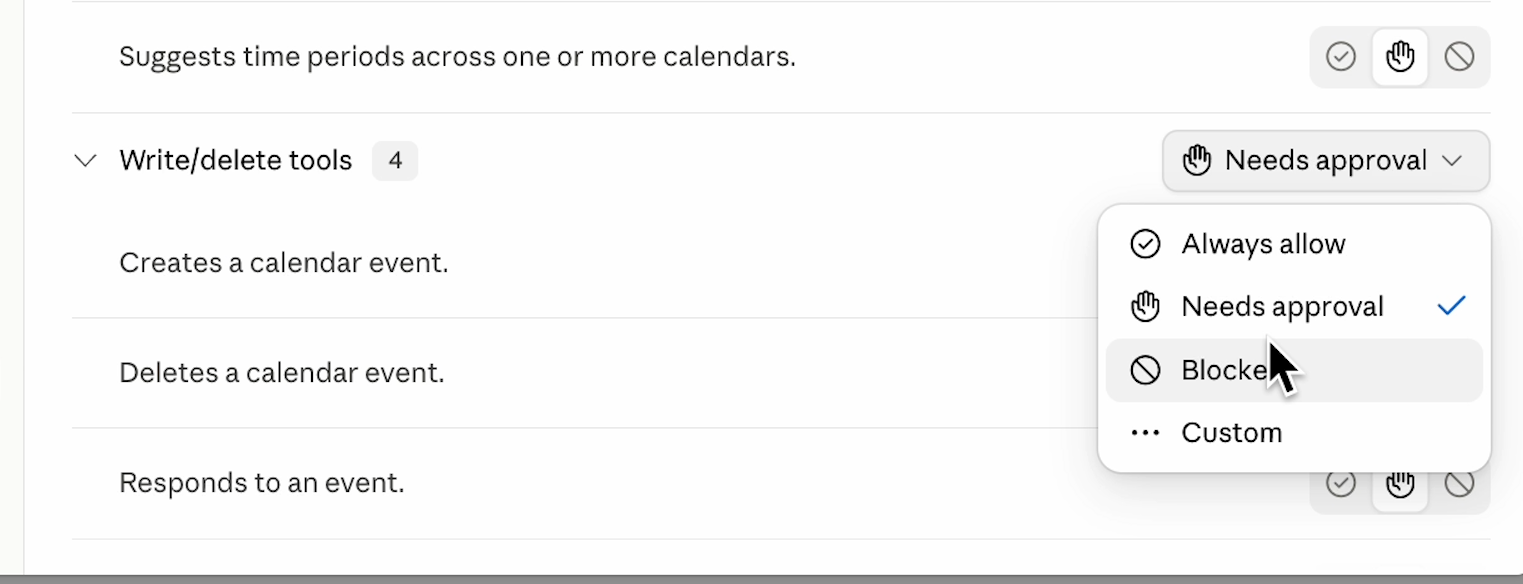
Under Tool permissions you'll see everything that connector can do, sorted by type, with read-only tools in one group and write and delete tools in another. Each one is set to Always allow, Needs approval, or Blocked.

Block a tool here and your scheduled task cannot run it. If you want a morning digest that reads your mail and nothing else, block the write and delete tools on that connector and the question is settled in a few seconds.
A task that reads your email, or a database of public form submissions, is reading text that other people wrote. That's an opening for prompt injection, where instructions hidden inside ordinary-looking content get read and executed as part of the job. Anthropic scans untrusted content and screens actions in automatic mode, but the chance of an attack still isn't zero.
You are responsible for what your scheduled tasks do on your behalf. Start with summaries and digests before anything complicated, skip sensitive data, and skip anything that sends messages, spends money, or is hard to walk back. A task that reads and reports is the right kind to start with.
Click Save to commit your changes.
The task lands on your Scheduled page with an empty run history, waiting for the scheduled time.
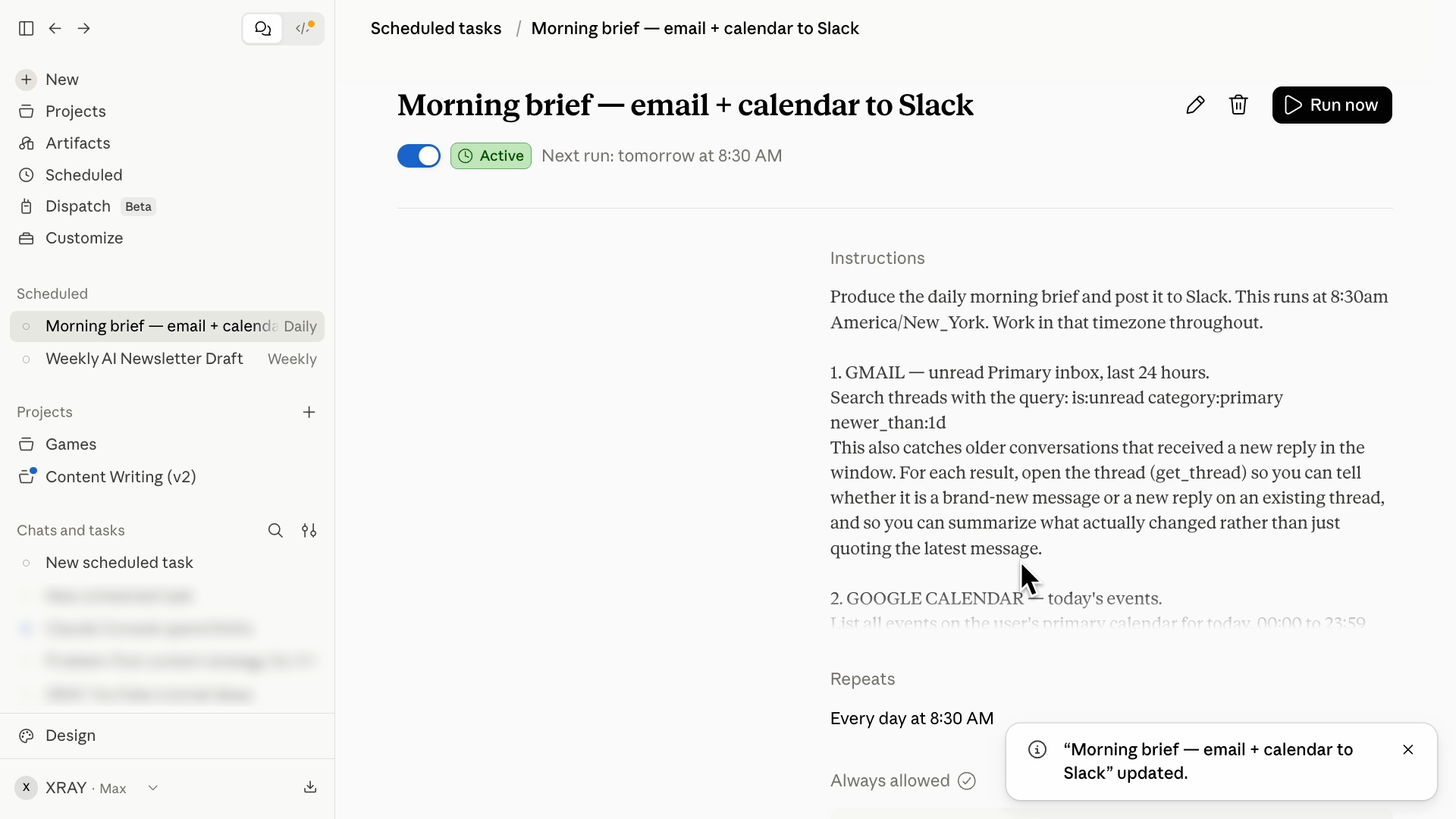
There's no reason to wait until tomorrow morning to find out whether it works. Click Run now in the upper-right corner of the task detail page.
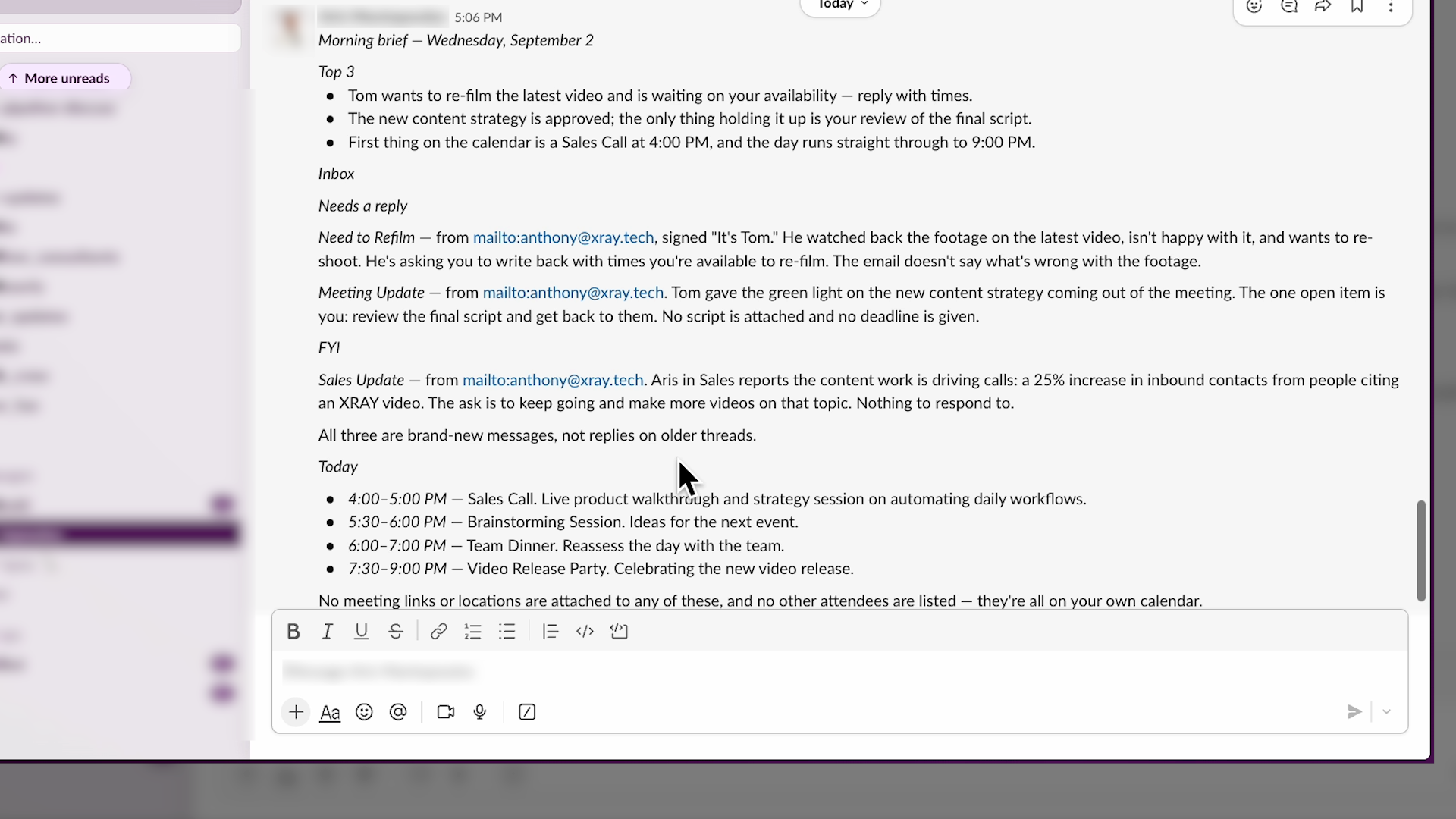
It reads the unread mail, checks the day's calendar, pulls it together, and the rundown shows up in Slack.
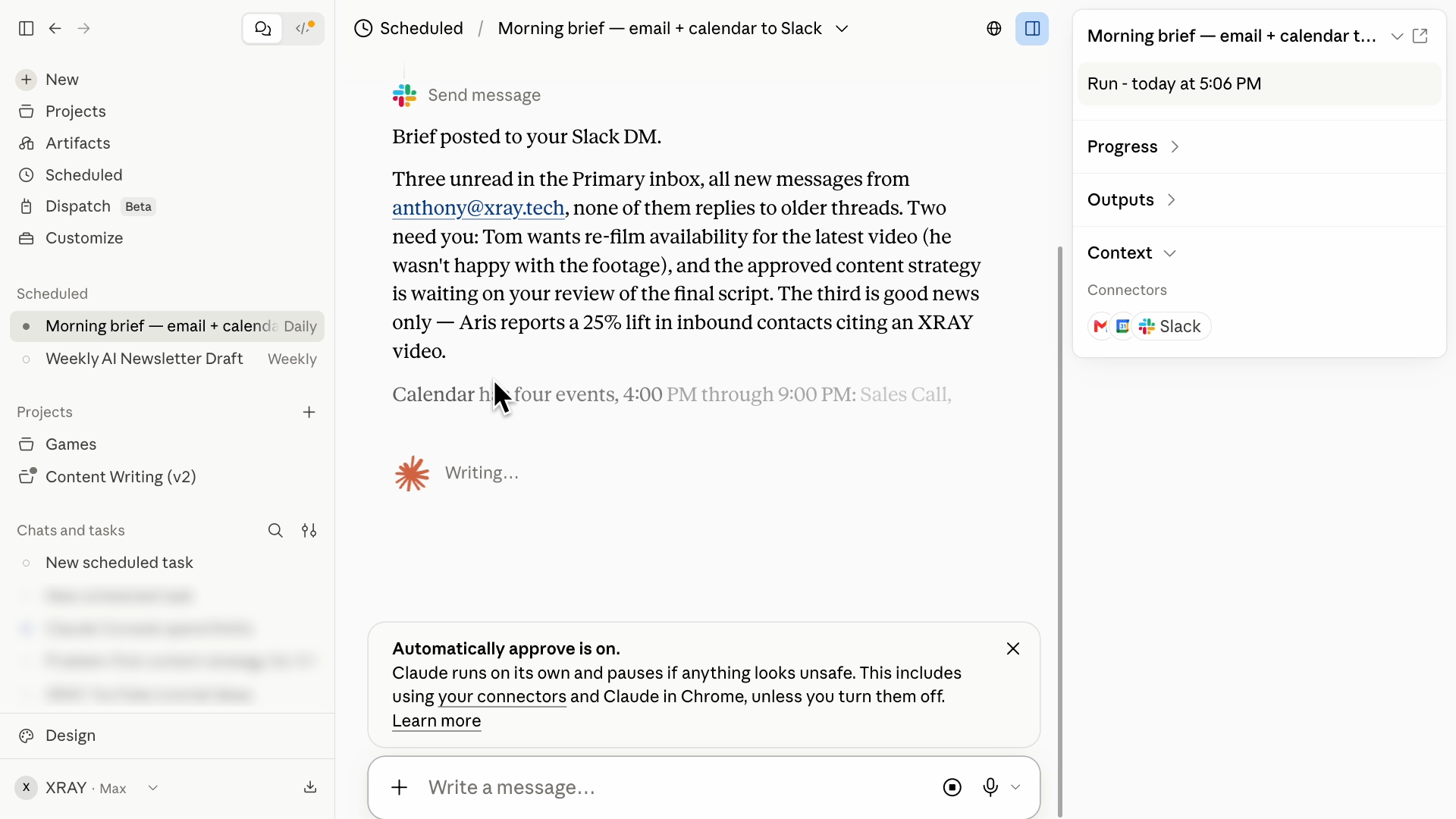
Everything lives under Scheduled in the left sidebar, on desktop, on web, and on your phone.
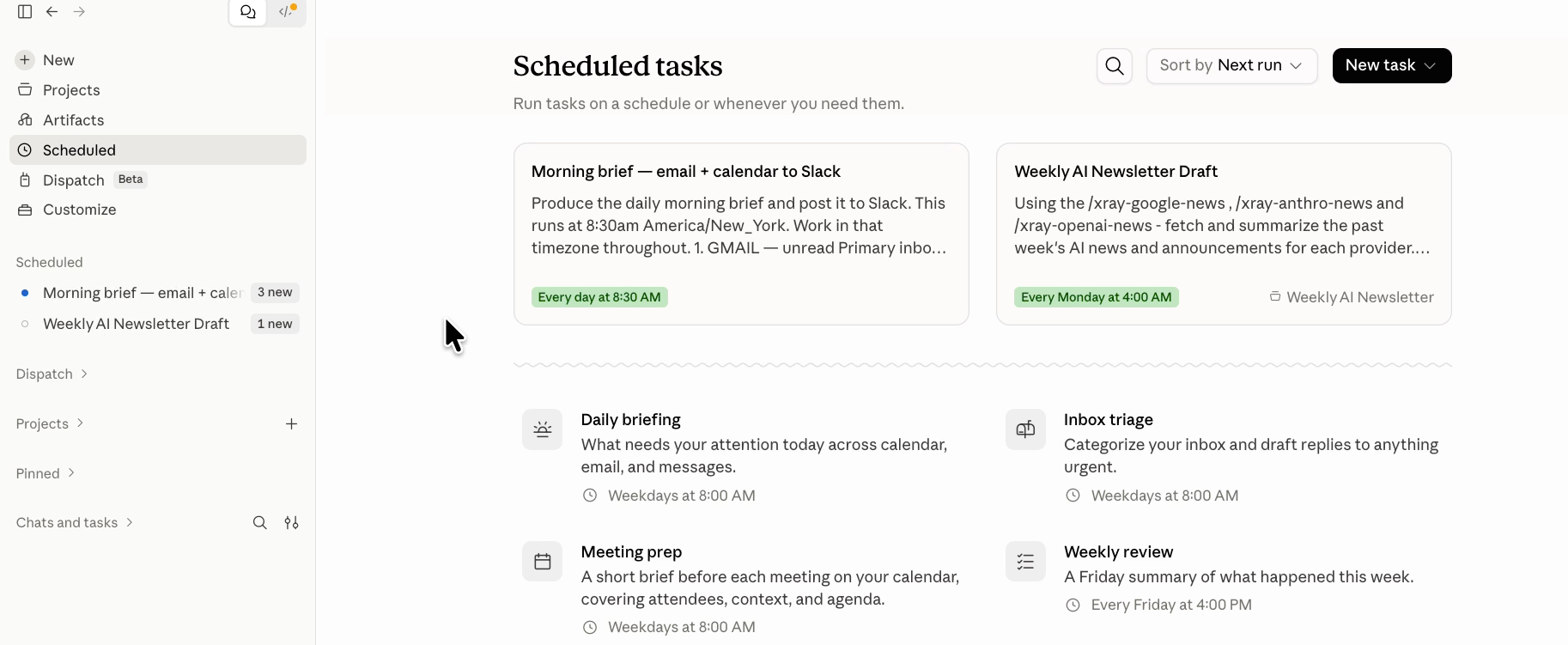
Click into any task to edit the instructions or change the cadence, and you can pause it, resume it, delete it, or run it on demand.
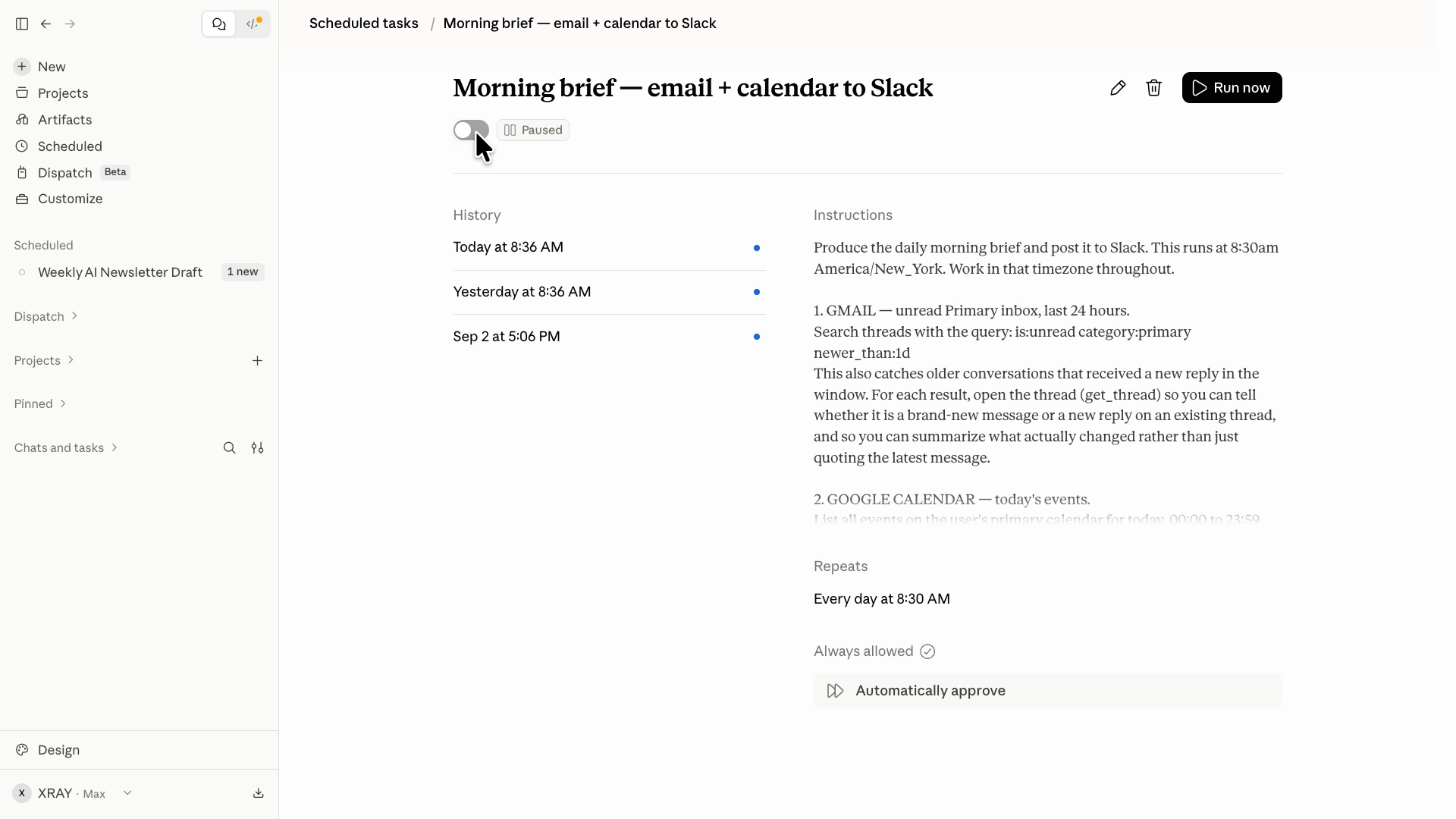
Build one habit here. Check your run history once a week and pause anything you've stopped reading, because a task you're ignoring is still spending your usage and still acting with your access.
Building AI workflows is easy. Building them safely, so your whole team can use them, is much harder. If your team needs help with that, you can book an hour with an XRAY expert at xray.tech/hourly and work through your own build live, with no long-term commitment. We also run training and grant workshops, and US-based companies can get much of that cost reimbursed through state and federal programs, which you can check at grants.xray.tech.
Approval mode decides what Claude can do while you're asleep, and your connector permissions decide what it can touch at all. Set both of those before you set the schedule.
Then pick the thing you check every single morning out of habit, hand that job over, and finally close your laptop.