
Want to use ChatGPT models in Zapier, Cursor, or other third-party tools? You need an OpenAI API key. It's different from your regular ChatGPT subscription and takes about a minute to set up.
Here's how to do it.
Go to platform.openai.com and log in. If you don't have an account yet, create one now.

NOTE: This is not the same account as your ChatGPT login. The platform and ChatGPT are completely separate systems.
This means that the API platform doesn't require a monthly subscription to access, but it also means that your ChatGPT premium subscription doesn’t apply to the API platform.
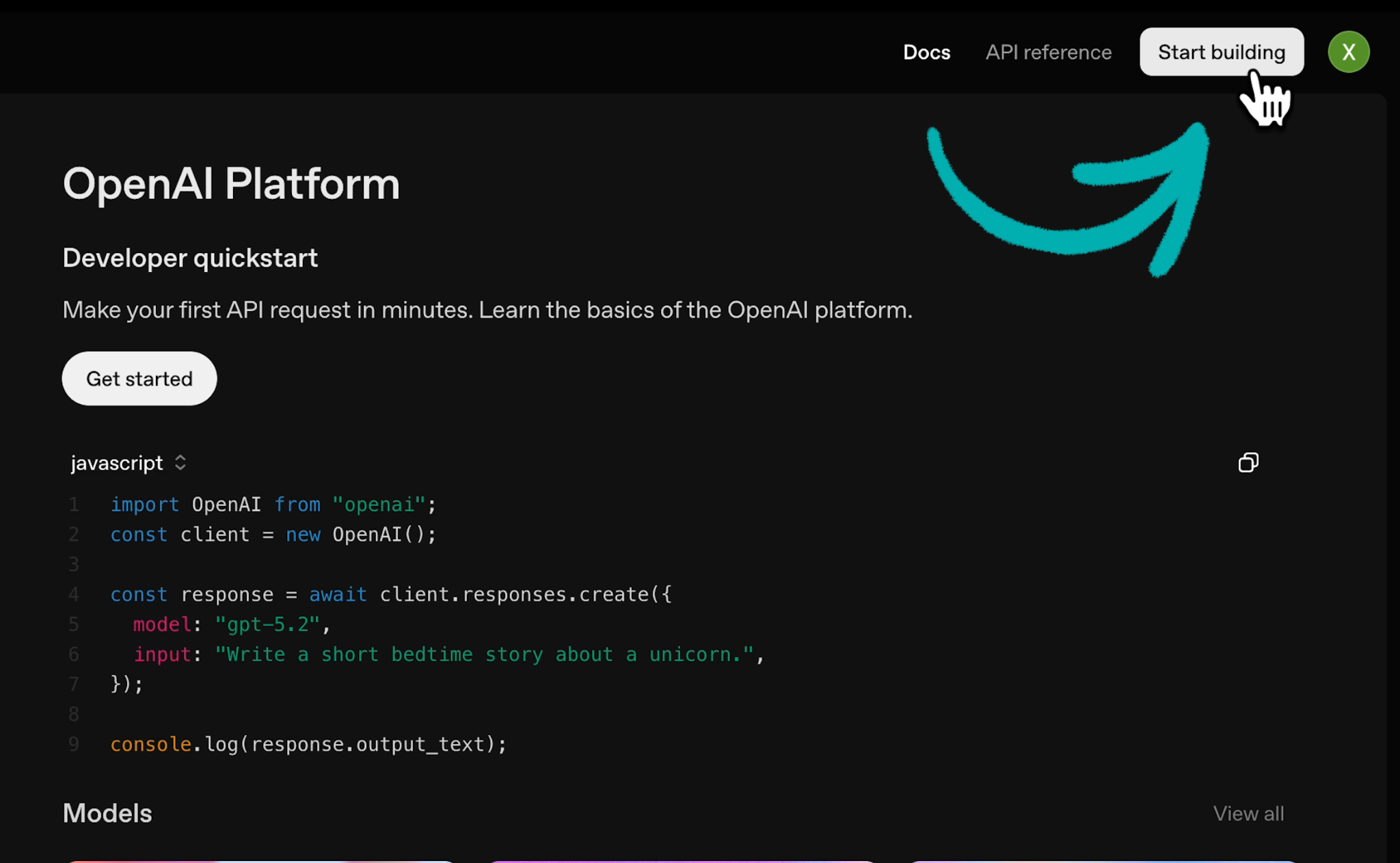
First-time users need to create an organization before generating API keys. Click "Start building" in the top right corner.
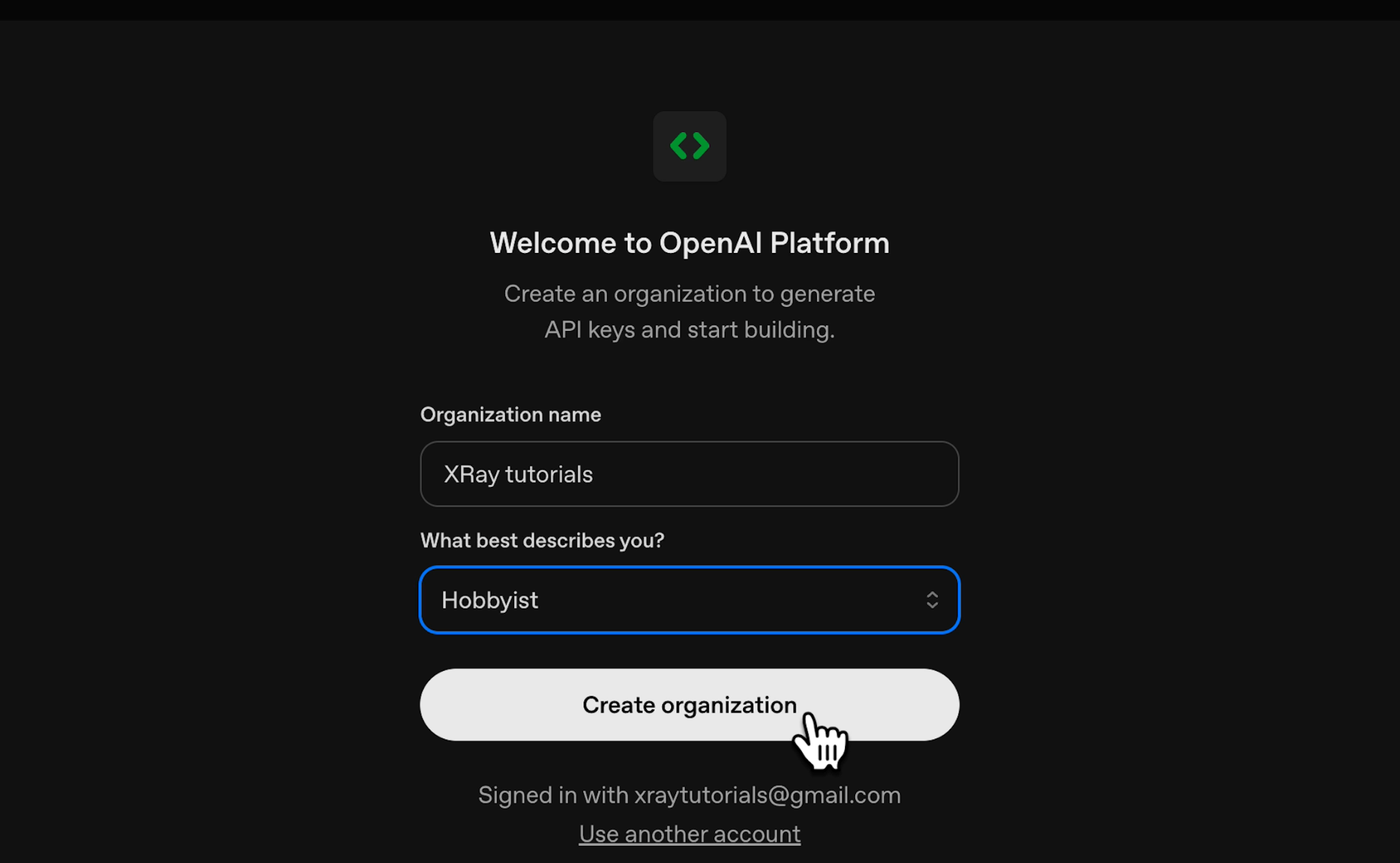
You'll need to:
• Choose an organization name
• Select the option that best describes you (Hobbyist, Engineer, Student, etc.)
• Click "Create Organization"
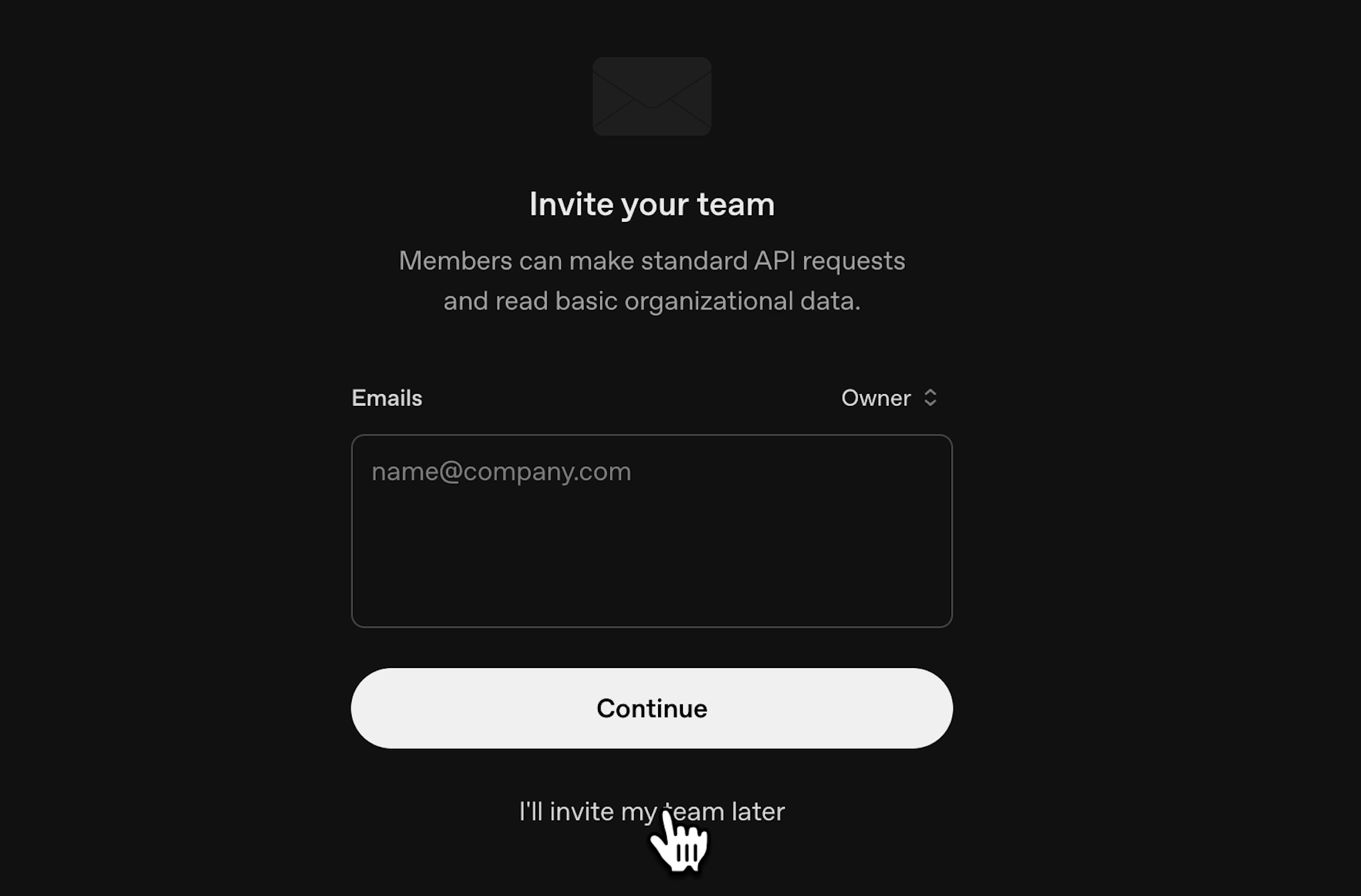
You’ll be prompted to invite team members, but you can skip this step for now.
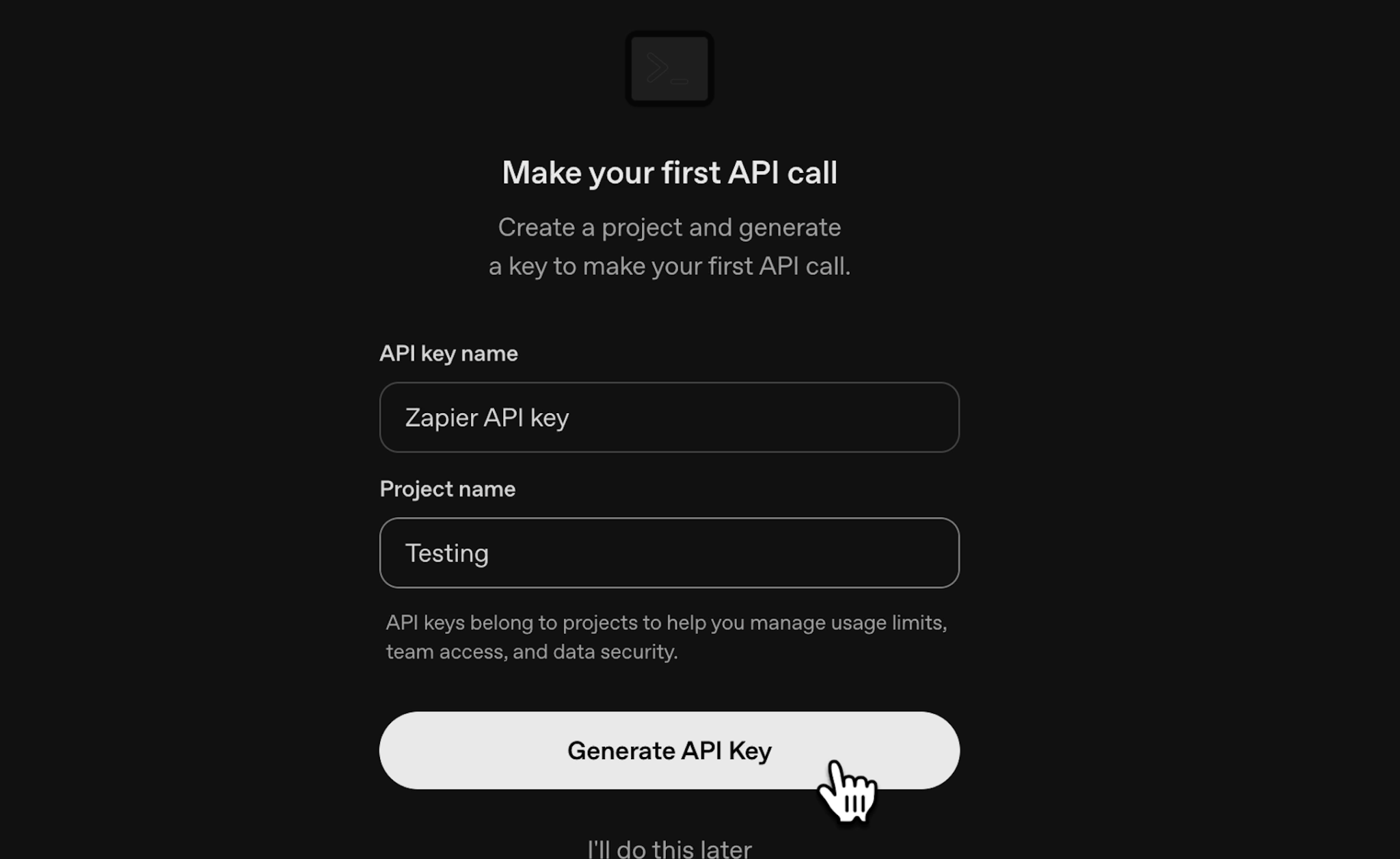
If you’re going through the first-time setup, you’ll be prompted to create your first key.
Give your API key a descriptive name based on how you'll use it. Something like "Zapier API Key" or "Cursor Integration" works well.
Every API key needs to belong to a project inside your organization. You can create a new project or use the default one. For testing, just call it "Testing" and click "Generate API Key."
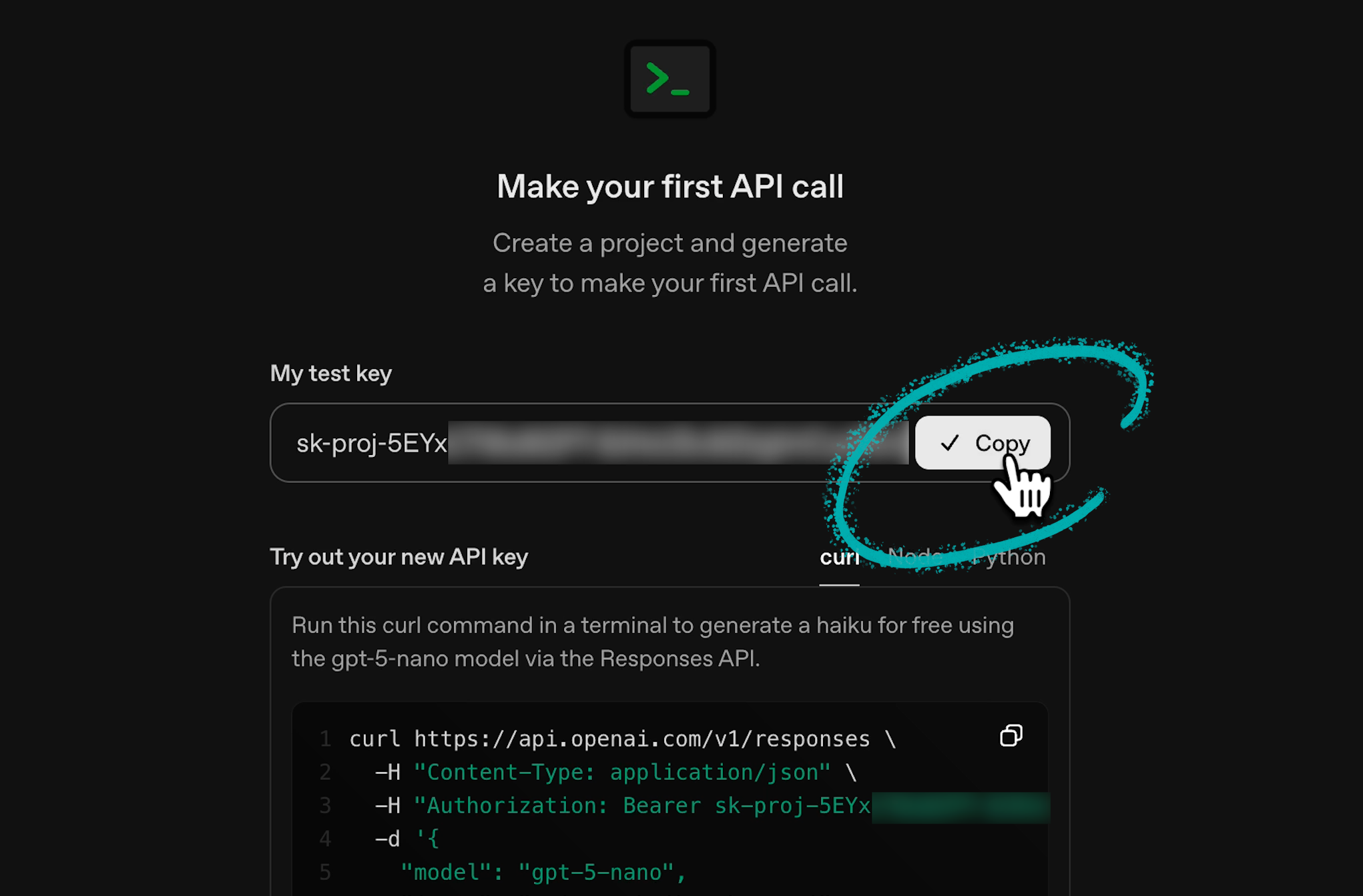
Copy the key immediately, and paste it into Zapier, Cursor, or whatever third-party tool you're connecting to OpenAI. You won't be able to see it again once you close the dialog.
Before you can actually use your API keys, you need to add a payment method and credits. Click "Billing" in the left menu and add a payment method.
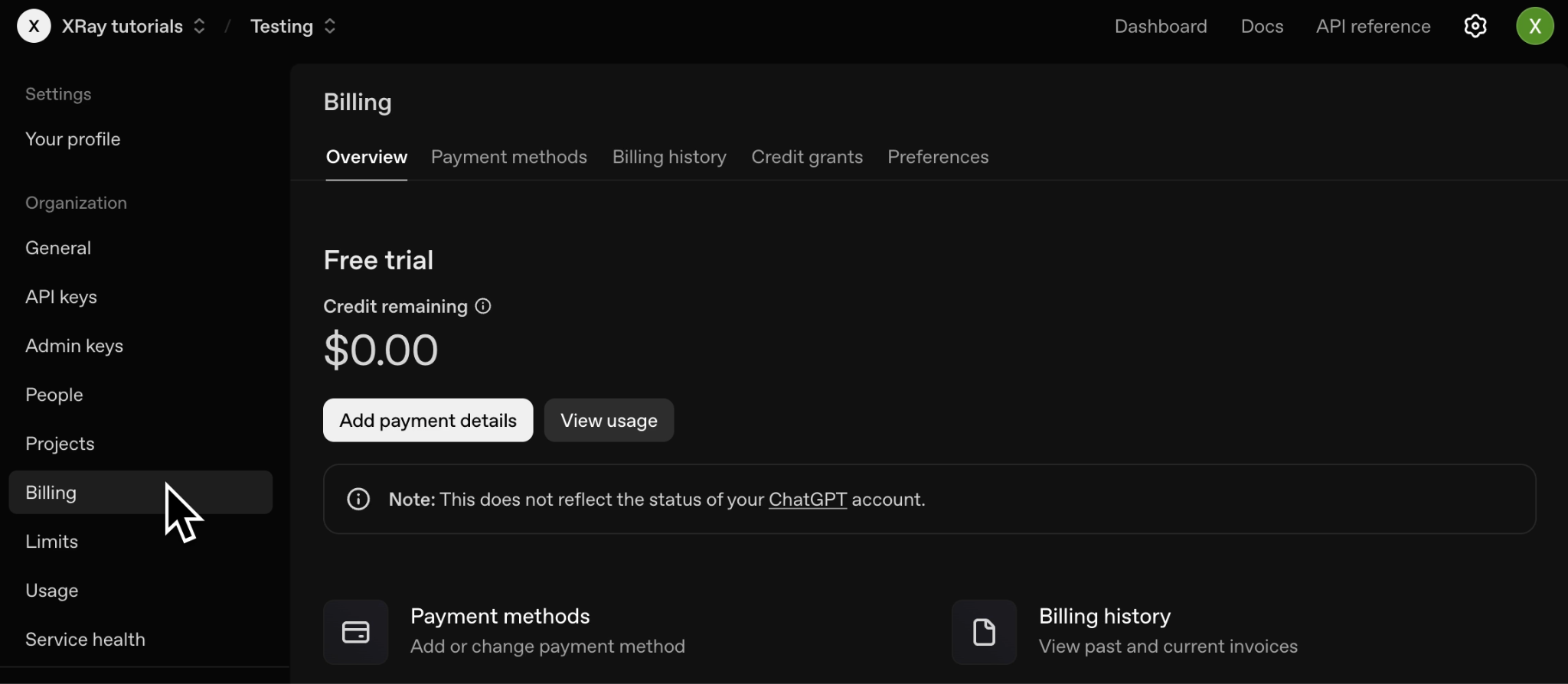
We’d recommend starting with a small amount like $5. Each prompt costs only a few cents, and many will be fractions of pennies.
OpenAI’s API pricing varies by model and is based on tokens. One token equals about four characters. An average prompt might cost 2-5 cents depending on which model you're using and how long your input and output are.
For testing and small projects, $5 will last a long time.
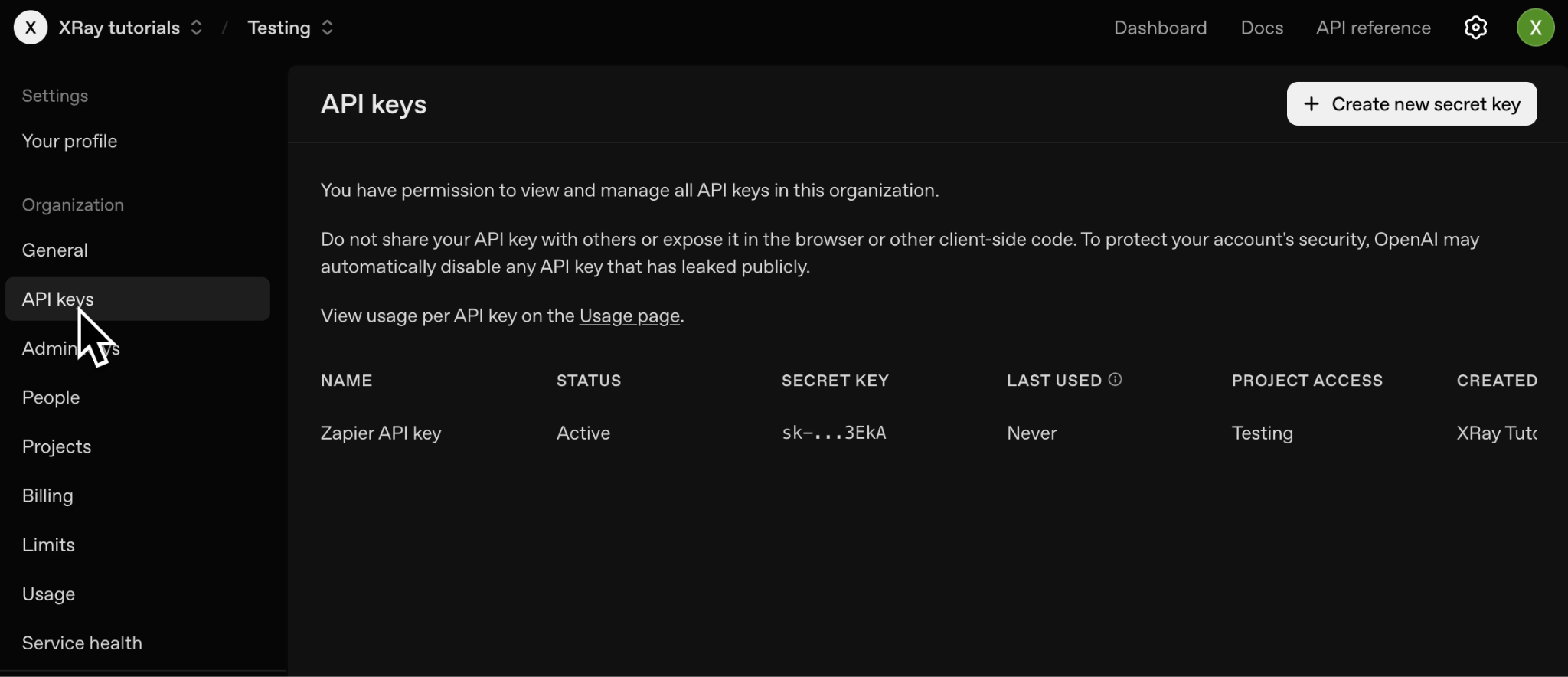
After your initial setup, you can create additional API keys any time. Go to Settings (Gear icon).

Then click “API Keys” in the left menu.
Here you'll see all the API keys you’ve created so far.
Click "Create New API Key" in the top right to generate another one.
Remember: once you close the dialog after creating a key, you can't copy it again. You can edit permissions later, but you can't access the copyable text. But don’t worry; if you lose a key, you can always create a new one.
With an API key, you can connect ChatGPT models to thousands of automation tools and development environments. Build custom chatbots, automate content workflows, or integrate AI into your applications.
The API gives you access to the same models you use in ChatGPT, plus additional controls over temperature, token limits, and model selection.
Setting up the API key is just the first step. The real work is building something useful with it.
XRAY Hourly matches builders like you with vetted experts for one-on-one collaborative sessions. We'll help you get your project up and running and show you how it all works at the same time.
There's no long-term commitment. Just schedule as much time as you need on a flexible hourly basis.
Go to hourly.xray.tech to get started.