
Every time you click through Notion to find one date, one status, or one owner, you're doing a lookup that could be automated.
ChatGPT can now read and write directly in your Notion workspace.
Ask it a question about one of your databases and it finds the answer, or ask it to build a tracker or log a task and it handles that too, without you copying, pasting, or opening a single page.
It won't cost you anything, either. The Notion plugin works on ChatGPT's free plan with a free Notion account.
Setup takes a couple of minutes, but you'll want to take a moment to adjust the permissions, because this connection lets ChatGPT create and change things in your workspace.
We'll connect Notion first, then set it up so ChatGPT checks with you before it builds or edits anything.
1. In ChatGPT, click Plugins in the left sidebar.

2. Search for Notion. Click the + beside the result labeled Notion AI · Create docs, tasks, databases.

3. A Connect Notion dialog summarizes the permissions and data sharing involved. Review it, then click Continue to Notion.

4. On the Connect with Notion MCP screen, check the workspace under Select workspace. If you belong to more than one, this is where you decide which one ChatGPT can reach.

5. Click Continue.
ChatGPT sends you back to the chat with a Notion plugin installed confirmation. We were already signed in to Notion, so we skipped the login step. If you aren't, Notion asks you to sign in before the authorization screen.
That workspace choice matters more than it looks. The authorization screen explains that ChatGPT acts with your access level and respects your existing page and database permissions, so it can reach anything your Notion account can reach, including your workspace's users and their email addresses. If a workspace holds anything you don't want ChatGPT reading, don't connect that workspace.
Click Plugins again and select Notion.
The detail page describes what the plugin can do, like searching workspace content, creating and updating pages, and managing tasks.
It also lists the five skills that come with it, including a database designer, meeting intelligence, and a weekly project digest, which are how ChatGPT finds, reads, and builds things inside your workspace.

Click Manage, confirm your account appears under Connected accounts, then open Permission.
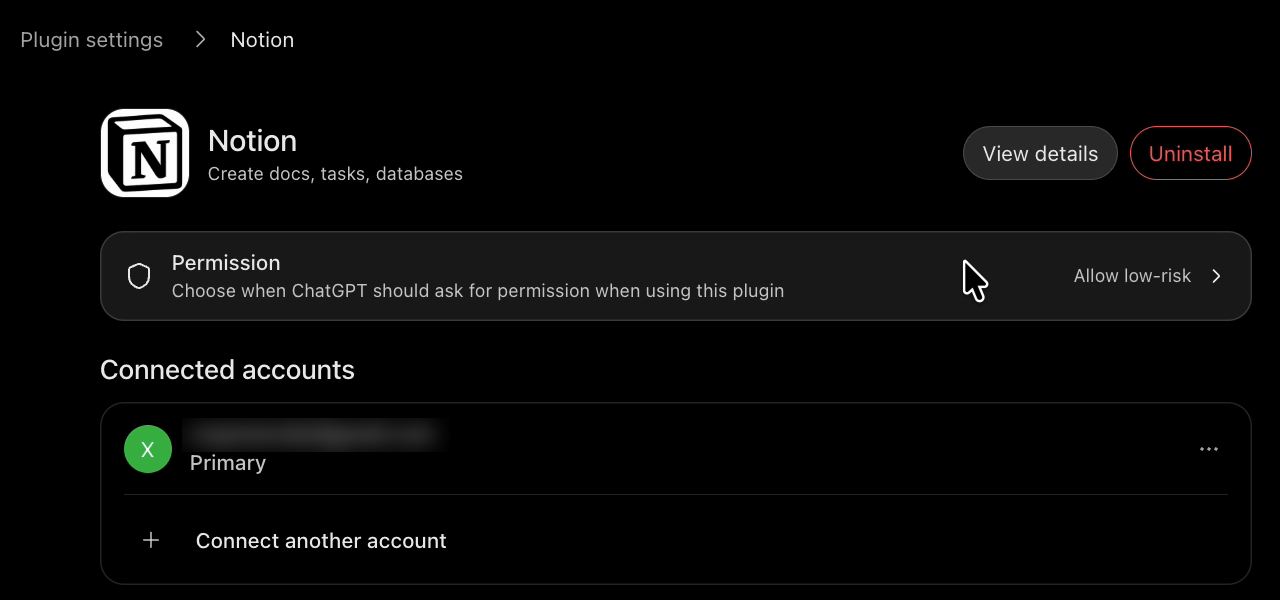
You get four options, and each one applies to every Notion tool at once. A "tool" here means any single action in Notion, like searching page content or creating a database.
• Always ask: ChatGPT asks before it reads anything or makes any change.
• Allow read-only tools: ChatGPT reads on its own, but asks before it makes changes.
• Allow low-risk tools: ChatGPT approves low-risk tools automatically and can deny sensitive ones. This is the default.
• Allow all tools: ChatGPT uses every tool without asking, and the menu flags this option as elevated risk.

Look closely at that default. Unless you change it, ChatGPT decides for itself which changes to your workspace count as low risk.
We recommend that you pick Allow read-only tools. ChatGPT can search and read your workspace whenever it needs to, but it has to stop and ask before it creates or changes anything.

Approving every change adds a click to each write request, like updating a page or creating a new database. In exchange, nothing lands in your workspace that you haven't seen first.
Read-only still means ChatGPT sees everything your account can see. That's why the workspace choice comes first, and why the permission setting is about controlling changes, not hiding data.
With Notion connected and permissions set, you can now use Notion in any conversation with ChatGPT.
Open a new chat, click the + beside the prompt field, and select Notion. You can also just mention Notion in your prompt, and ChatGPT will usually pick the plugin on its own.

As an example, we'll start with a read test.
We pointed it at our shot list, the database where we track every video we film, with this prompt: "Take a look at my shot list database in Notion. What video(s) did we film on April 23rd, 2026?"
ChatGPT searched the workspace and answered that we filmed two videos that day, one on Claude Design and one on Claude Dispatch. It also flagged a third video listed for that day, part 3 of our Make beginner's guide, that had no recorded takes.

We opened the April 23, 2026 Shot List page in Notion to check. The same three videos were there, and the Make guide had its scenes planned but no takes logged. ChatGPT read the database correctly and caught the gap, and since every step was a read, it never had to ask permission.

Now for a write test.
In a new chat with Notion selected, we asked: "Create a new Task Management database in Notion. Keep it simple - just basic fields for the task, project, due date, and other key info. No fluff."
Creating a database is a change, so ChatGPT stopped and showed an approval card asking Allow ChatGPT to use Notion?, with the action listed as Create Notion database.
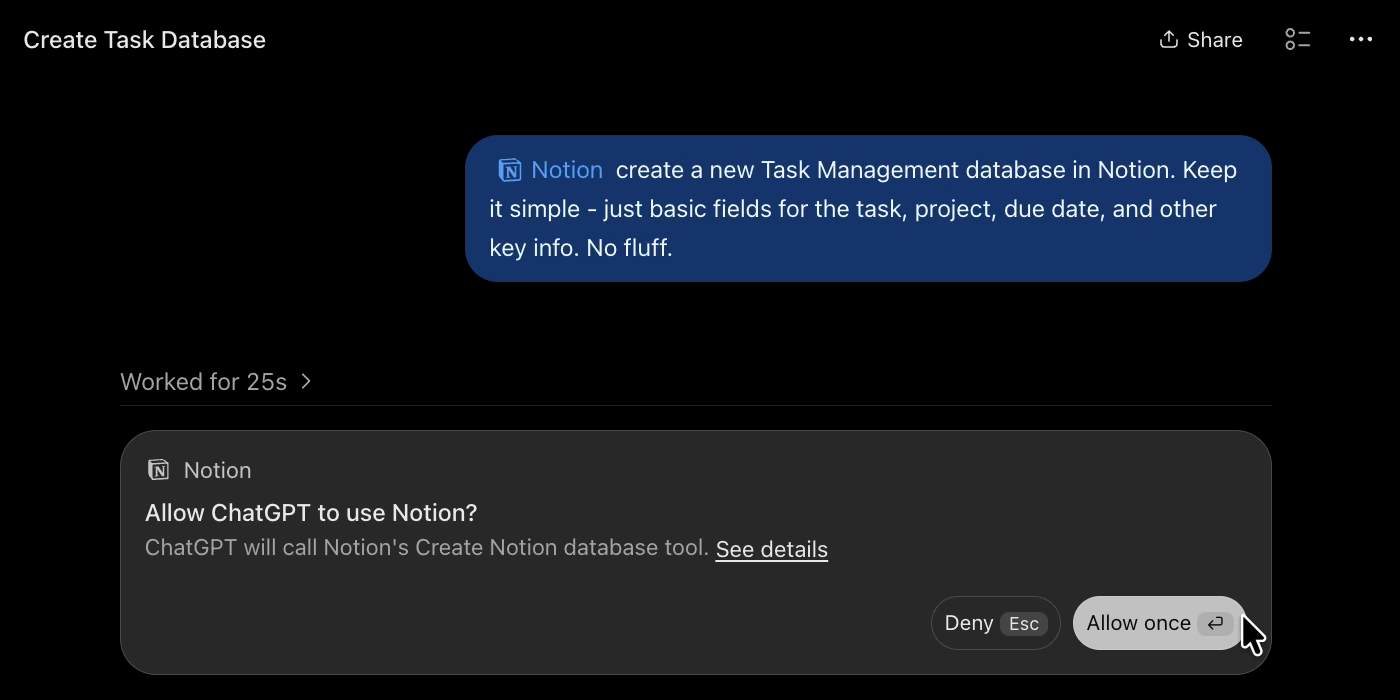
Click See details before you approve. It shows the tool ChatGPT wants to use and the full request it's about to send to Notion. Ours included:
• Title: Task Management
• Fields: Task, Project, Status, Due Date, Assignee, Priority, and Notes
• Status options: To do, In progress, and Done
• Priority options: Low, Medium, and High

The request will be written as code, so if you're ever unsure of what the actual edit is, just copy and paste the code into another conversation.
That's the oversight you want from any AI working in your tools. You know exactly what it's going to do before it does it.
Everything looked right, so we closed the details and clicked Allow once. A moment later, ChatGPT confirmed the database was created and shared a Task Management link. Opening it in Notion showed the new database with every column in place, empty and ready for data.
In the same chat, we asked ChatGPT to put something in it: "Create a Notion task for me to film a tutorial about connecting ChatGPT to Notion. Due next Friday, project is Content."
Adding a row is another change, so the approval card came back, this time for Create pages in Markdown. We clicked Allow once.
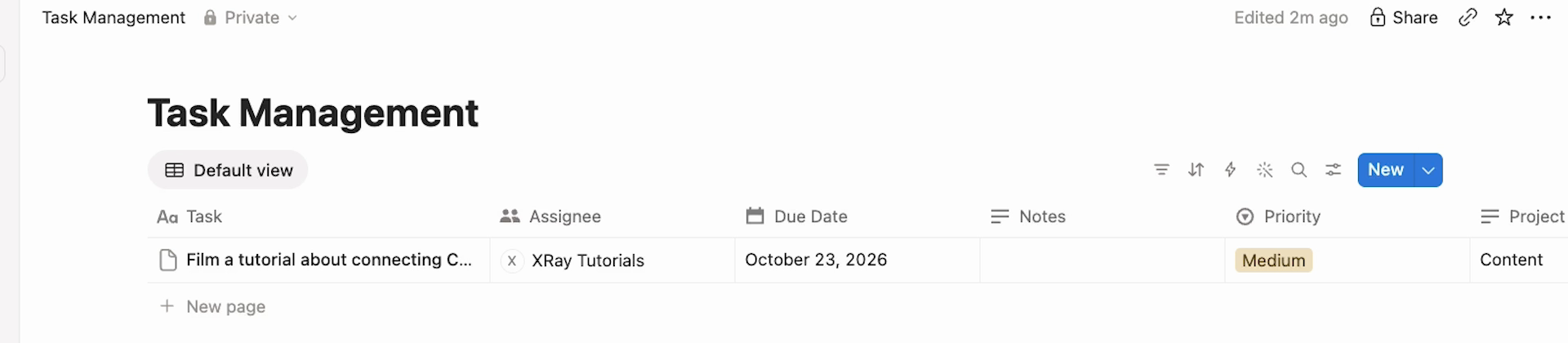
ChatGPT confirmed the task with the project set to Content, the status set to To do, and a due date of Friday, October 23, 2026. It worked out the actual date of "next Friday" on its own.

Back in Notion, the new row was already in the database, with XRAY Tutorials as the assignee and a Medium priority. One sentence in a chat, and the task was logged with every field filled in.
Getting ChatGPT into Notion takes a few clicks. Deciding which jobs it can run on its own, and which still need a person to approve them, takes a lot more thought – especially once a whole team shares the workspace.
That's the work we do at XRAY. We build AI workflows that keep people in the loop where it counts, so you get the speed without losing track of what the AI is changing.
Reserve time with an XRAY expert and work through your own setup one on one. There's no retainer, so you book the time you need.
• Cost: free, on ChatGPT's free plan with a free Notion account.
• Connect: click Plugins, search for Notion, click +, and click Continue to Notion.
• Authorize: confirm the right workspace under Select workspace, then click Continue.
• Restrict: open Plugins > Notion > Manage > Permission and switch from the default to Allow read-only tools.
• Use: select Notion from the + menu in a new chat, or mention Notion in your prompt.
• Approve: click See details on every change request before you click Allow once.
Now pick one database you dig through or update by hand every week, and hand that job to ChatGPT. Your job is to decide what goes into Notion, not to type it in yourself.