AI chatbots have revolutionized how we work with data, but constantly switching between chat windows and your Notion workspace isn't ideal. What if your AI could automatically tap into your company's information and produce results directly alongside your data? That's exactly what Notion's AI autofill properties deliver.
In this guide, we'll explore how to leverage AI autofills in your Notion databases, covering both the built-in prompts and custom options to help you get the most out of this powerful feature.
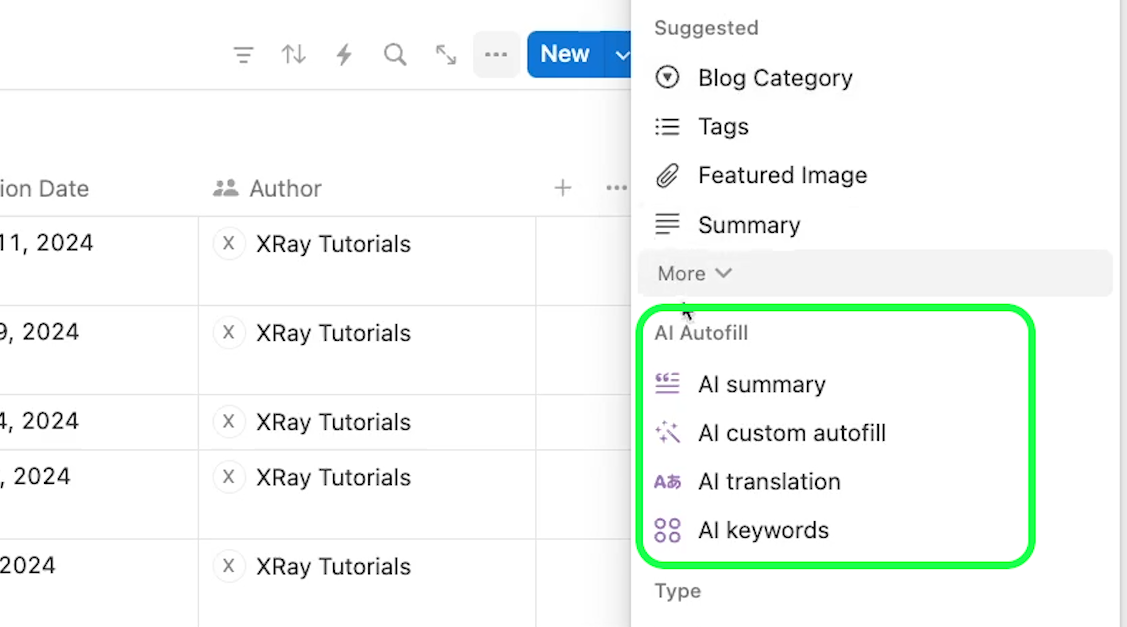
To add an AI autofill to your Notion database, simply open your database and create a new property. After the "Suggested" section, you'll find a set of "AI Autofill" options, including three premade choices (summary, translation, and keywords) and the option to write custom autofills.
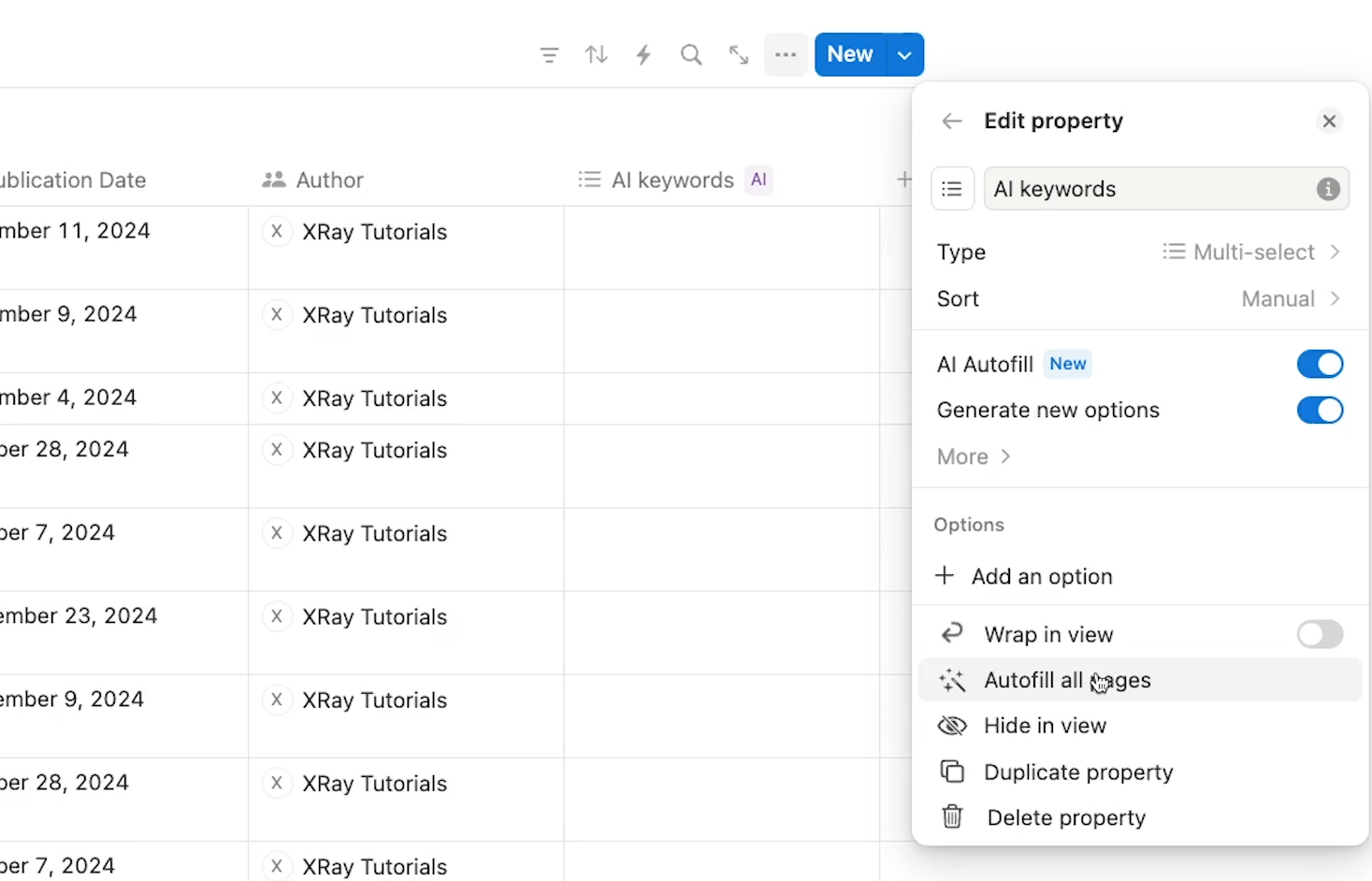
The keywords option creates a multi-select property with AI autofill enabled. This feature analyzes the content of all other properties in your database to generate relevant tags automatically.
Notably, the AI will reuse relevant existing options in the multi-select field. This will prevent the creation of redundant tags with similar meanings. For instance, in the screenshot below, you can see multiple blogs in our database tagged with “Zapier Automation”.
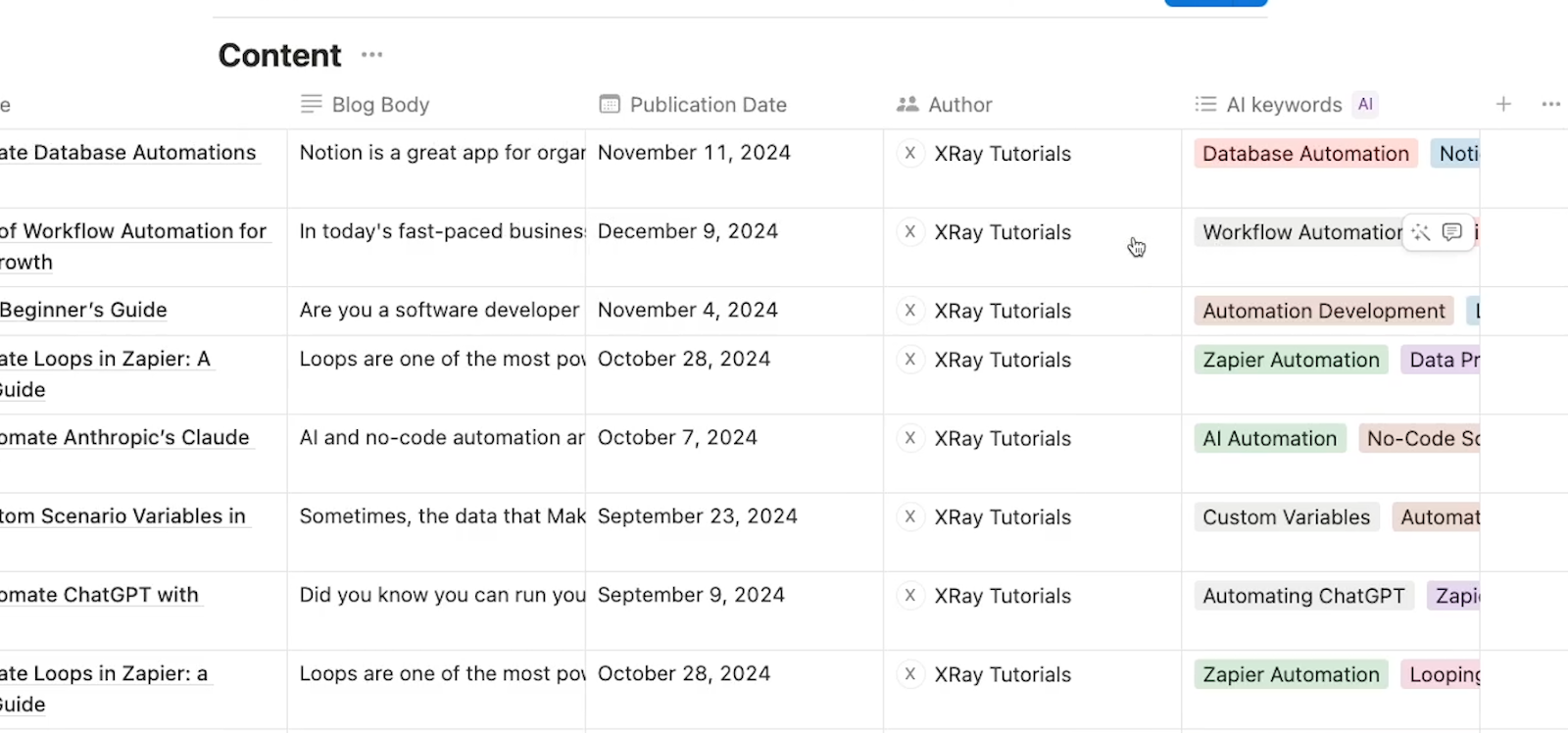
To use this feature effectively:
1. Enable "generate new options" to allow AI to create new tags
2. Click "Autofill all pages" to generate tags for every entry
3. Use the magic wand "update" button to generate additional results at any time
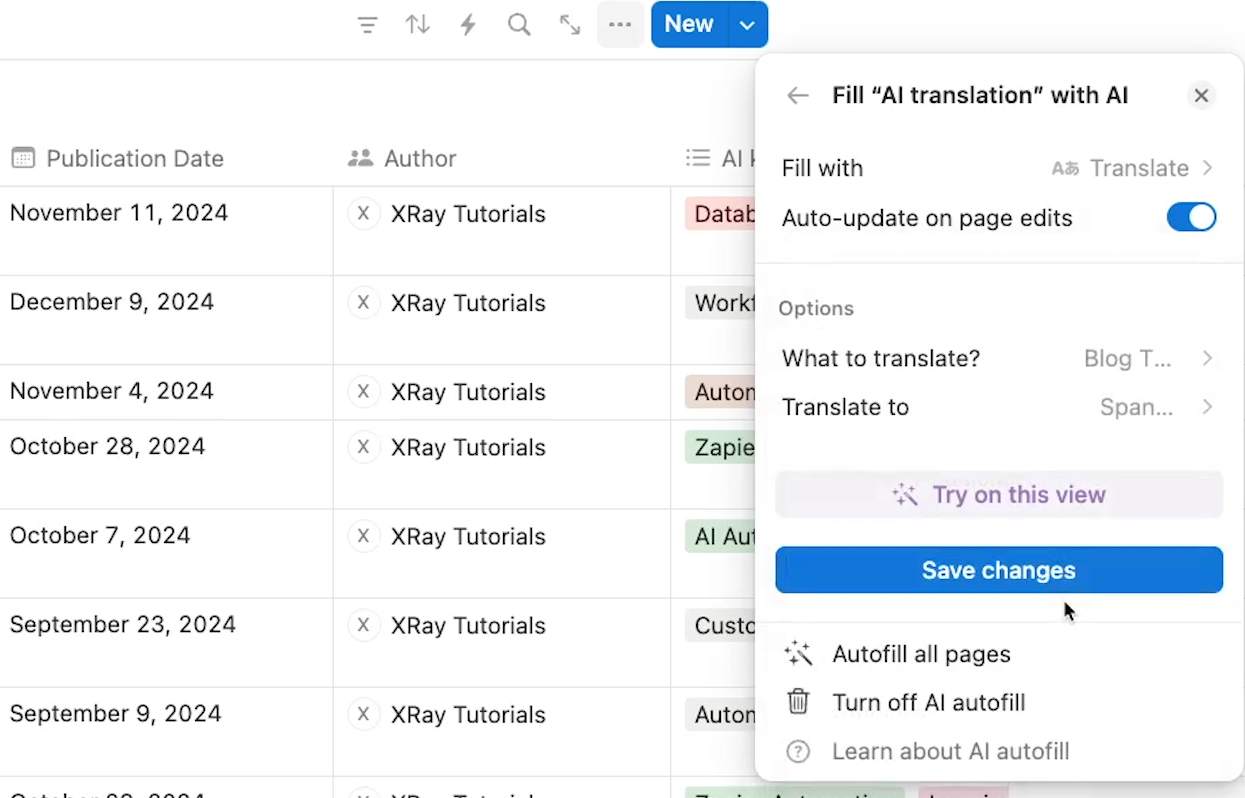
The translate option allows you to convert text from one or more properties into different languages. While you can select multiple properties for translation, the results will all appear in a single property, separated by bold headings. To keep your data organized and cleanly structured, we’d generally recommend translating just one property at a time.
To set up a translation autofill:
• Choose the property you want to translate
• Select a target language
• Generate results
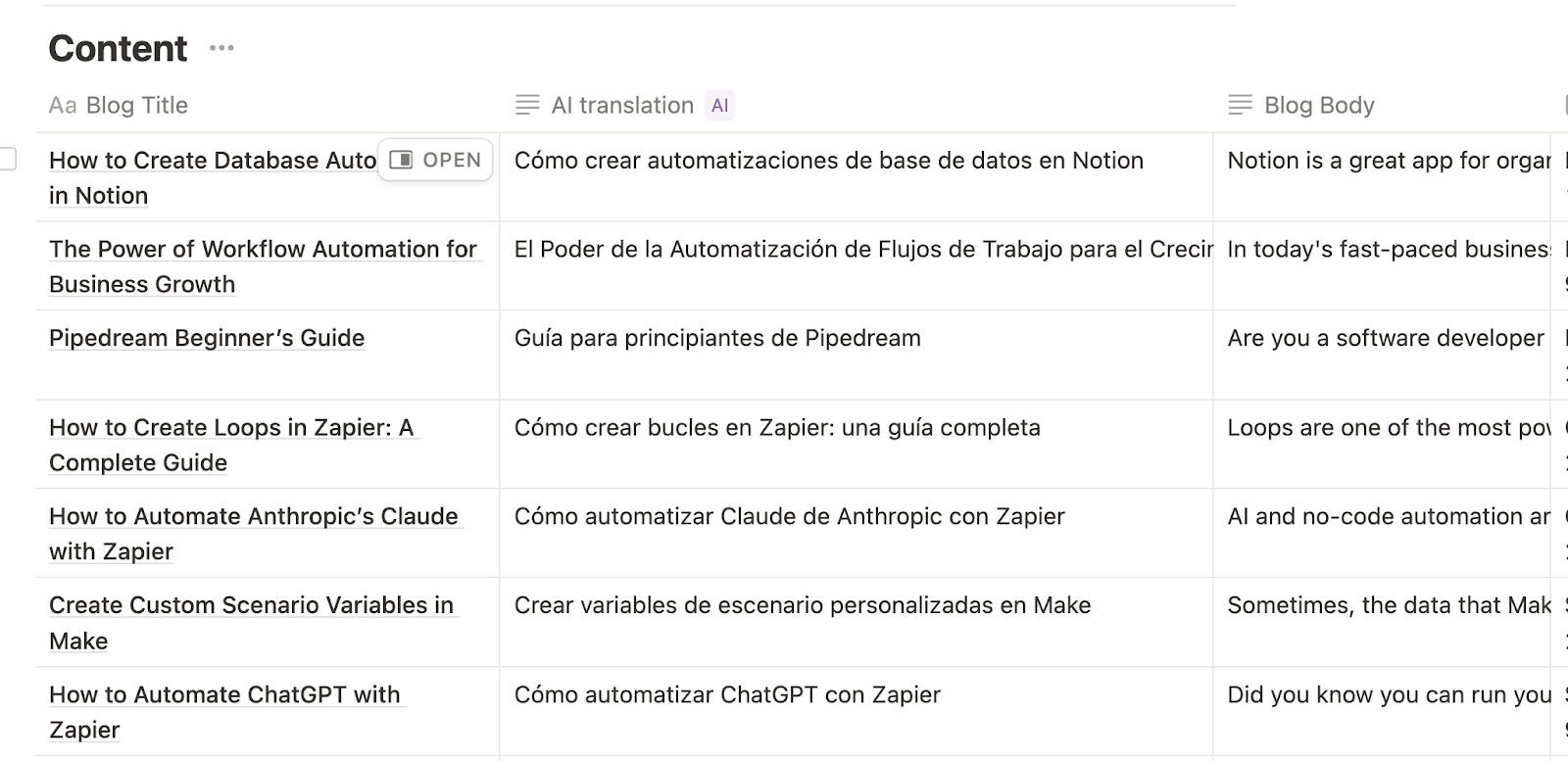
In our tests with the translation autofill, the translations often came across as a bit mechanic and overly literal, but seem to be quite accurate overall.
The summary autofill condenses all properties on a page into a few concise sentences. It's particularly useful for distilling data-heavy entries into actionable takeaways.
There’s very little to configure with a summary autofill. Your only choice is to decide whether or not the property should autofill whenever a page is edited.
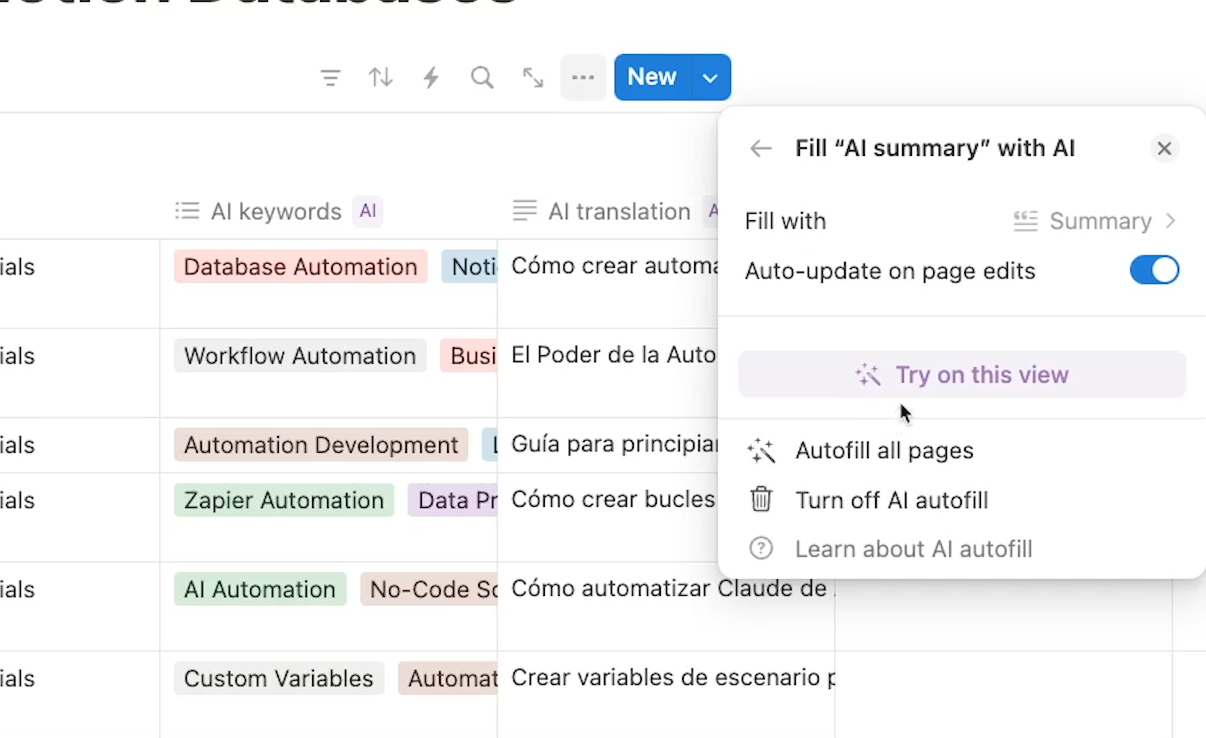
In our tests, the summary autofill tended to provide generic and inconsistent summaries. For instance, in our blog database, some summaries were written as descriptions of the blog post, beginning with “This blog”, or “This guide”.
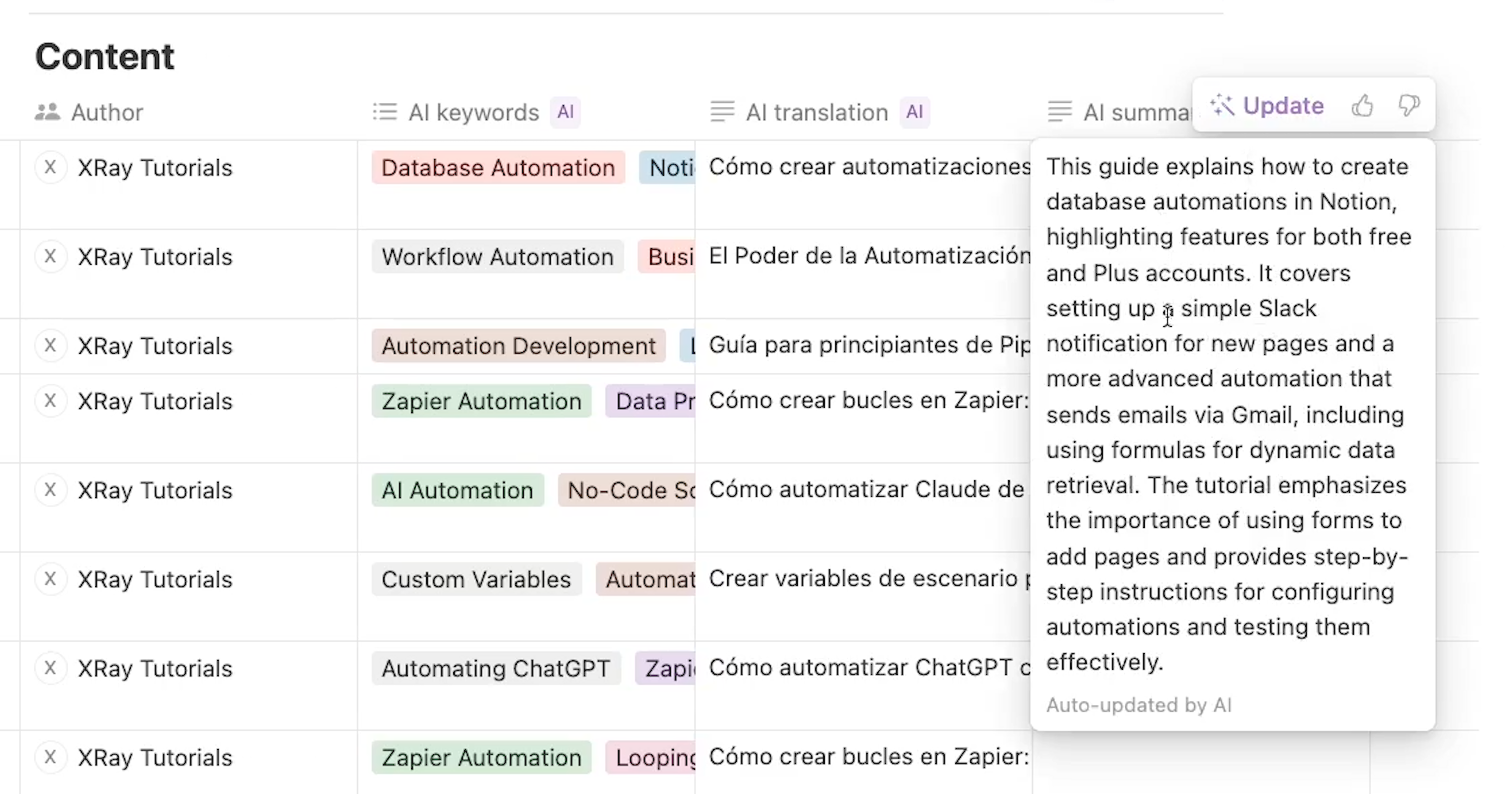
However, others were simply shorter versions of the blogs themselves.

If you want to create more consistent summaries for a specific context, you can use a custom autofill instead.
For more specialized tasks, Notion allows you to create custom AI autofill prompts. Here's how:
1. Create a new property
2. Choose "AI custom autofill"
3. Write your prompt in "What to generate?"
4. Reference specific properties you want the AI to consider
For example, you might create a prompt like:
"Write a description of the blog to use as an SEO meta tag. Base the summary on the 'Blog body' property. The description should be about 160 characters."
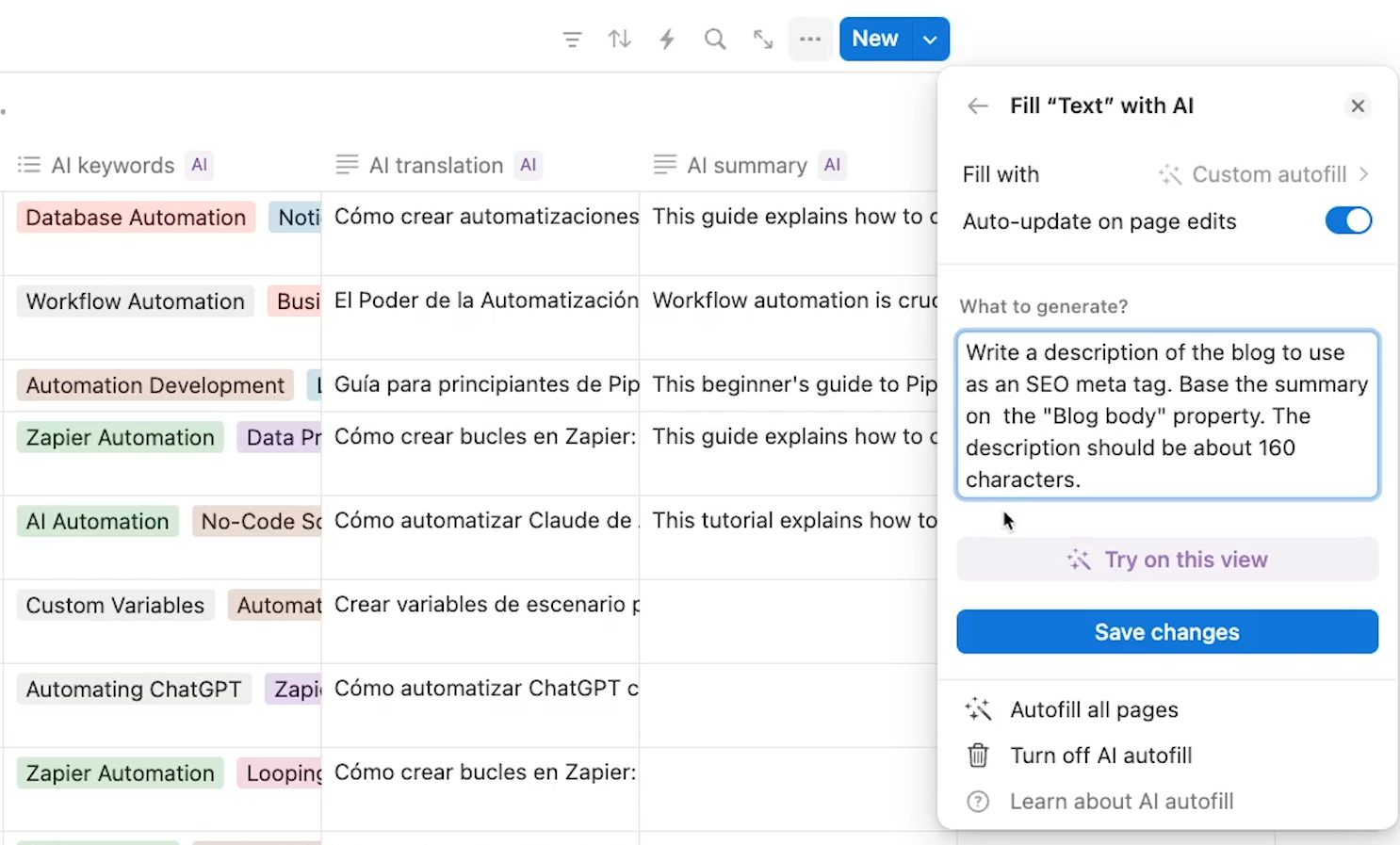
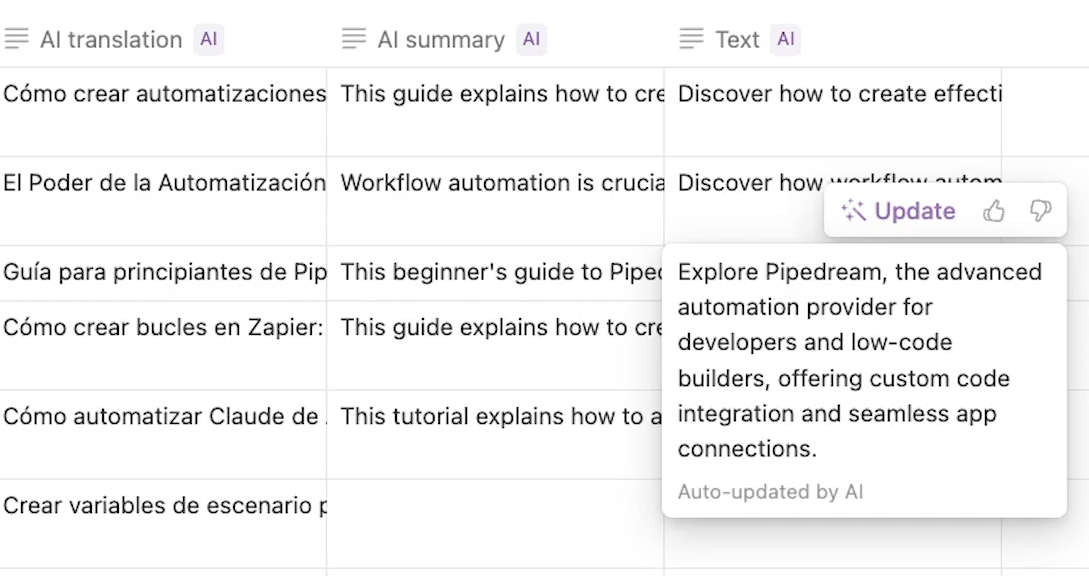
The resulting output creates consistent summaries that are well-suited to being SEO meta descriptions. Each summary is framed with a call to action, and advertises the contents of the blog to the reader.
Unfortunately, there’s no option to directly insert properties as variables in your prompt. You can find this sort of functionality in Airtable AI, which allows you to reference specific fields in your custom prompts.

Mentioning specific properties in the prompt seems to work pretty well, but it would be nice to see similar options in Notion to ensure that the AI looks at relevant fields – and ignores the rest.
Notion's built-in AI properties streamline the process of interpreting and transforming your company's data. For quick results on common tasks, use the prebuilt options. For specialized needs, craft custom prompts that align with your specific requirements.
Remember that these tools are meant to enhance your workflow, not replace human oversight. Always review AI-generated content to ensure it meets your standards and makes sense in context.
By effectively utilizing AI autofills, you can automate routine tasks, maintain consistency across your database, and free up time for more strategic work. Whether you're managing content, organizing research, or streamlining workflows, Notion's AI capabilities can help you work smarter, not harder.
If you’d like to learn more about streamlining your everyday work with AI and automation, be sure to check out the other posts on our blog or our YouTube channel. You can also follow XRAY on Twitter, Facebook, or LinkedIn.