
By default, getting AI to work with your Airtable data means copying records out of one tab, pasting them into a chat, and pasting the answer back. It's tedious, and every paste is another chance to grab the wrong row.
Claude's Airtable connector ends that loop. Once it's connected, Claude reads your records, updates them, and builds new fields, tables, and even whole bases from a plain-language prompt.
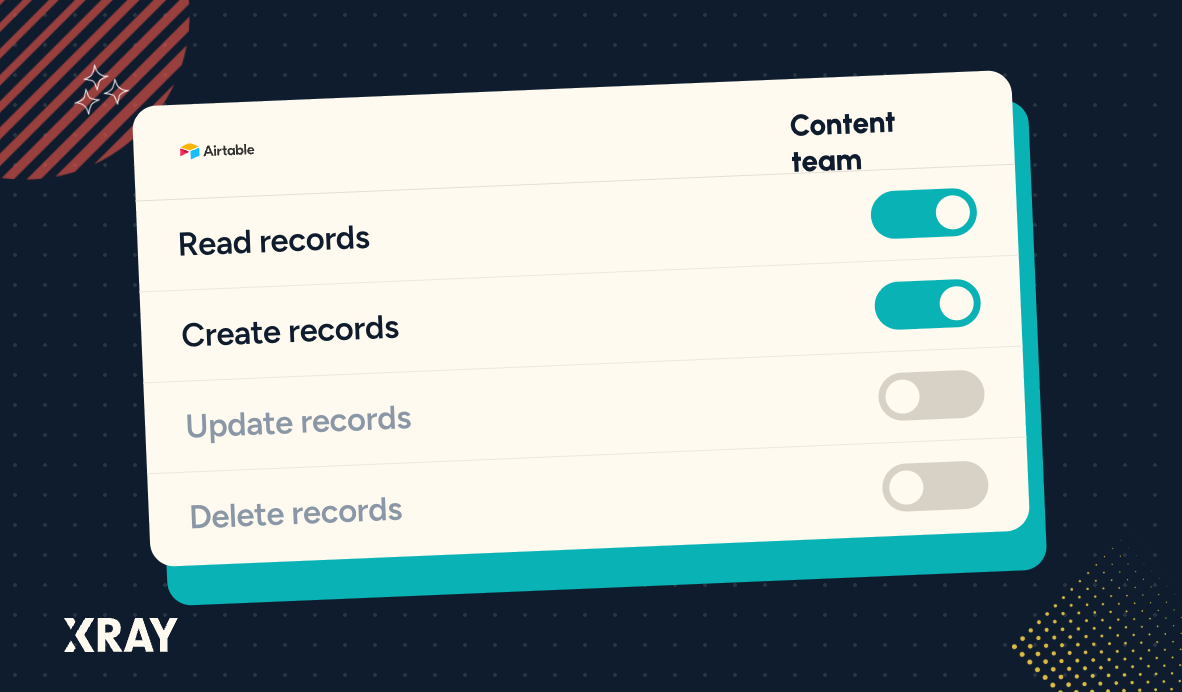
The same connector can delete records just as easily as it updates them, so the setup has two halves. First we'll connect Airtable, then we'll set tool permissions so you decide what Claude can touch before it touches anything.
This works on any Claude plan, including Free.
On the authorization screen, under Choose what Airtable for Claude can access, you get two options: Everything you have access to or Custom access.
Pick Custom access and select only the bases and workspaces Claude needs for the work in front of you. A base Claude can't see is a base it can't change by mistake.
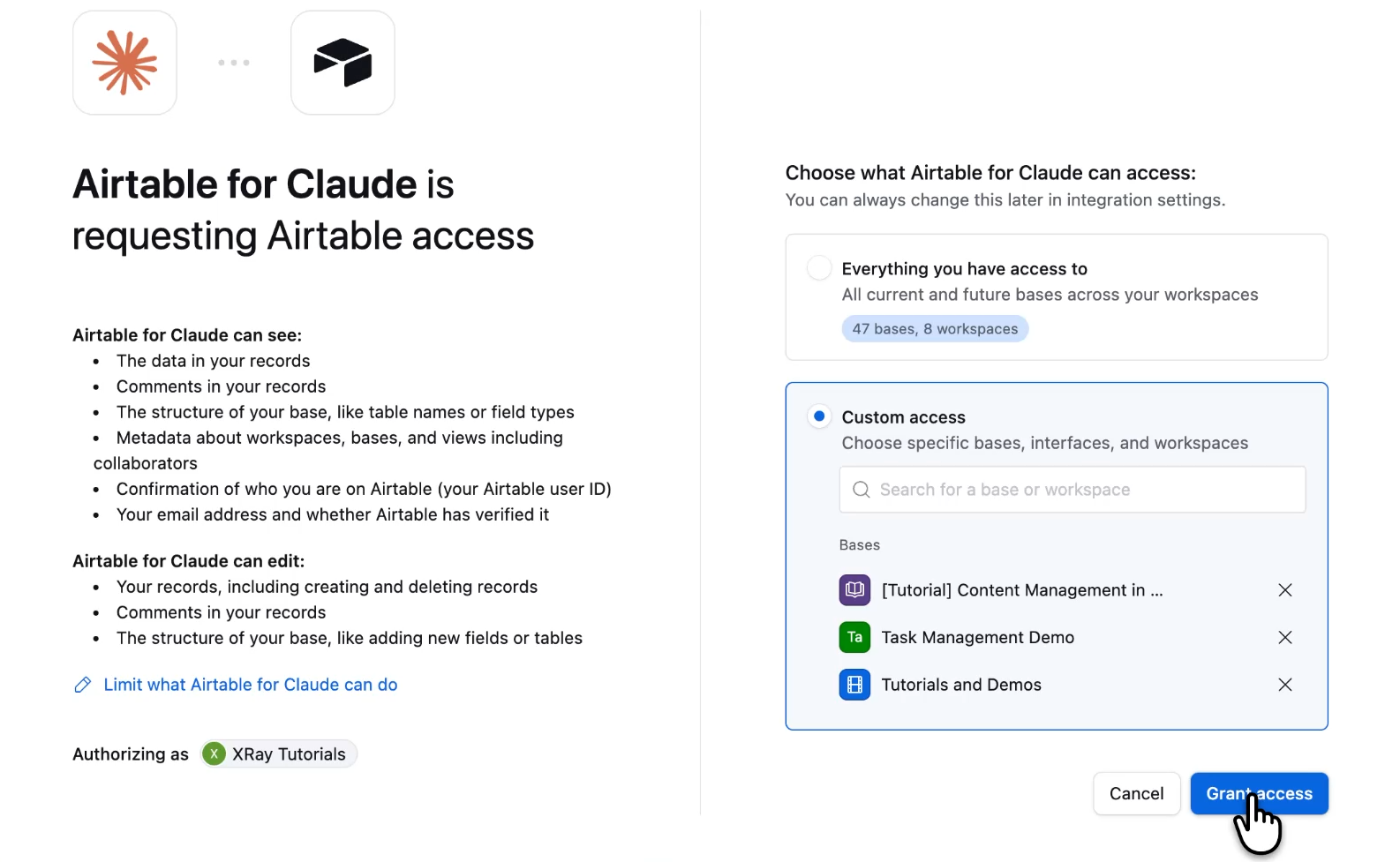
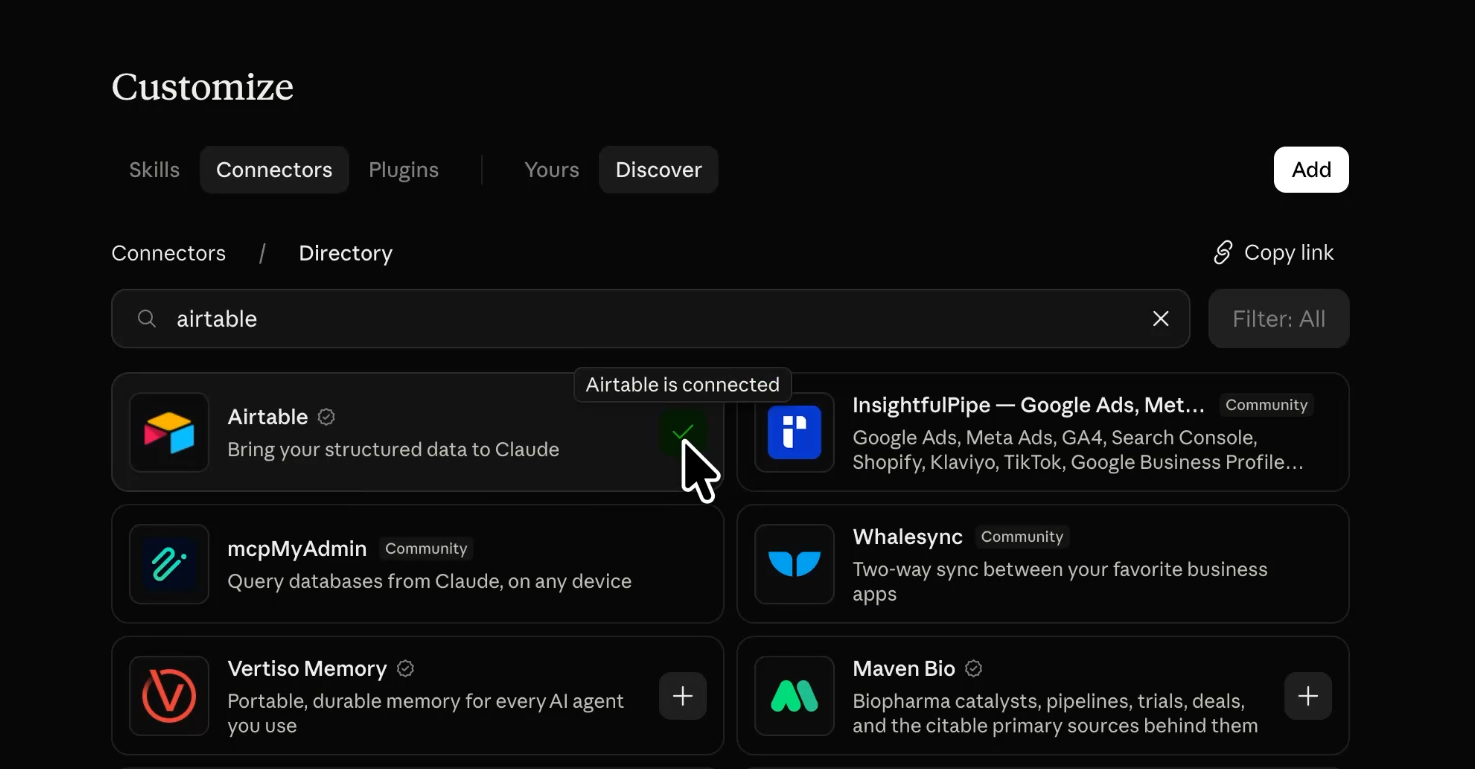
Click the blue Grant access button at the bottom right. Claude sends you back to your Connectors page, where Airtable now appears with a checkmark.
Connecting the app takes a minute. Deciding what it's allowed to do deserves more of your attention, and this step applies to every connector you add to Claude, not only Airtable.
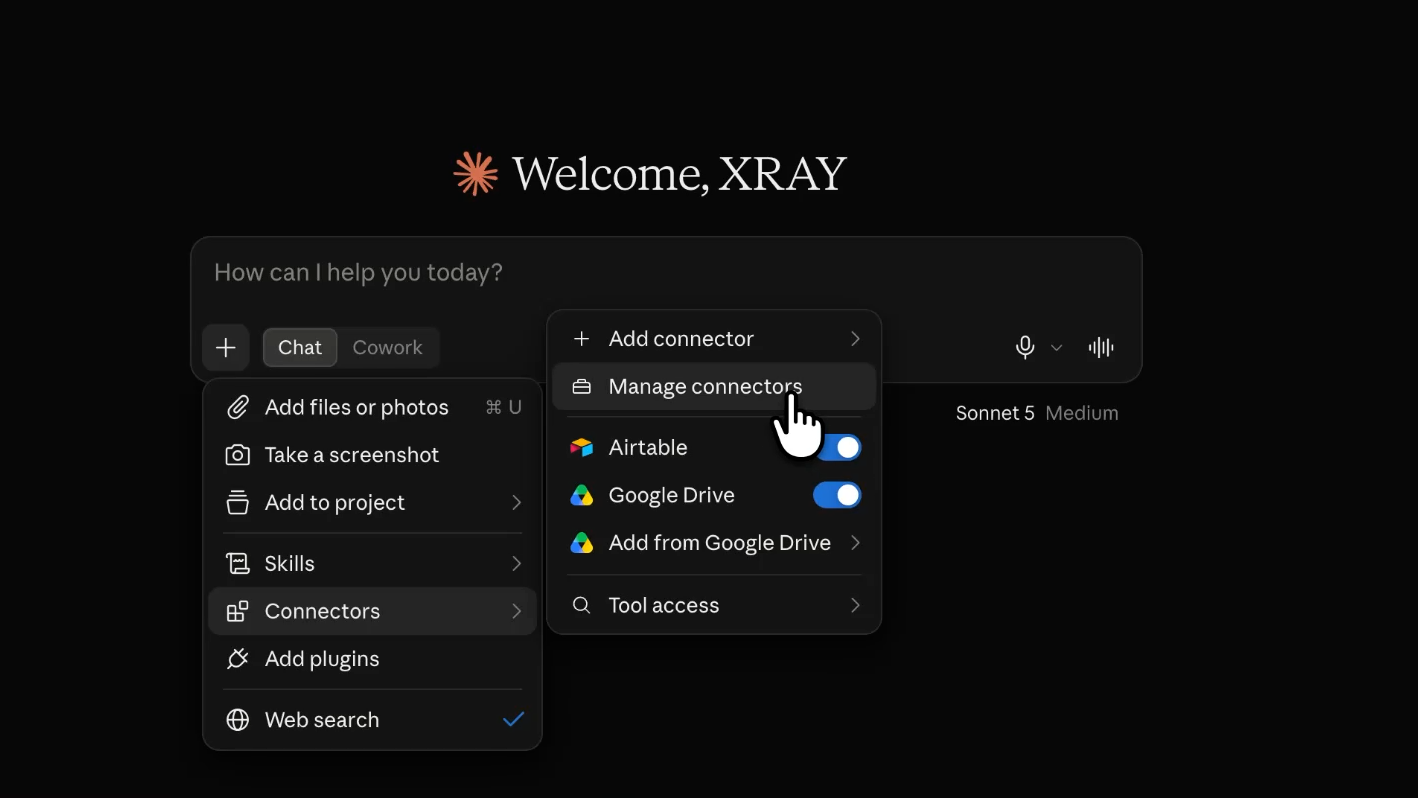
To open the settings, start a new chat, click the + icon in the prompt toolbar, hover over Connectors, and select Manage connectors. You can also get there through Customize > Connectors > Yours, then click Airtable.
Airtable's tools are grouped under two collapsible headers, Read-only tools and Write/delete tools. Expand both, and you'll see that every tool has three possible states.
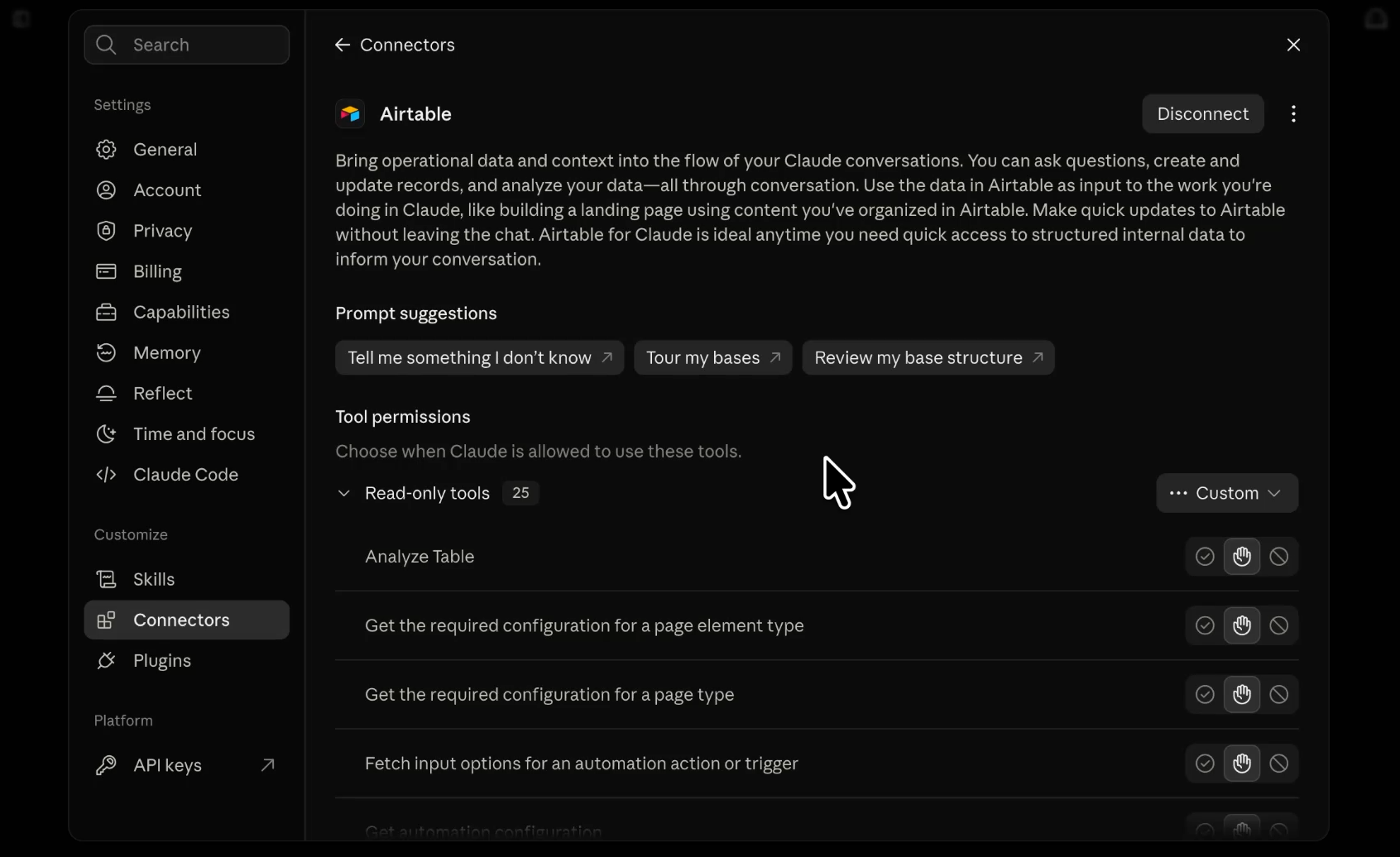
• Always allow: Claude runs the action automatically, without asking you first.
• Needs approval: Claude stops and asks you to confirm every time it wants to run the action.
• Blocked: Claude cannot run the action at all.
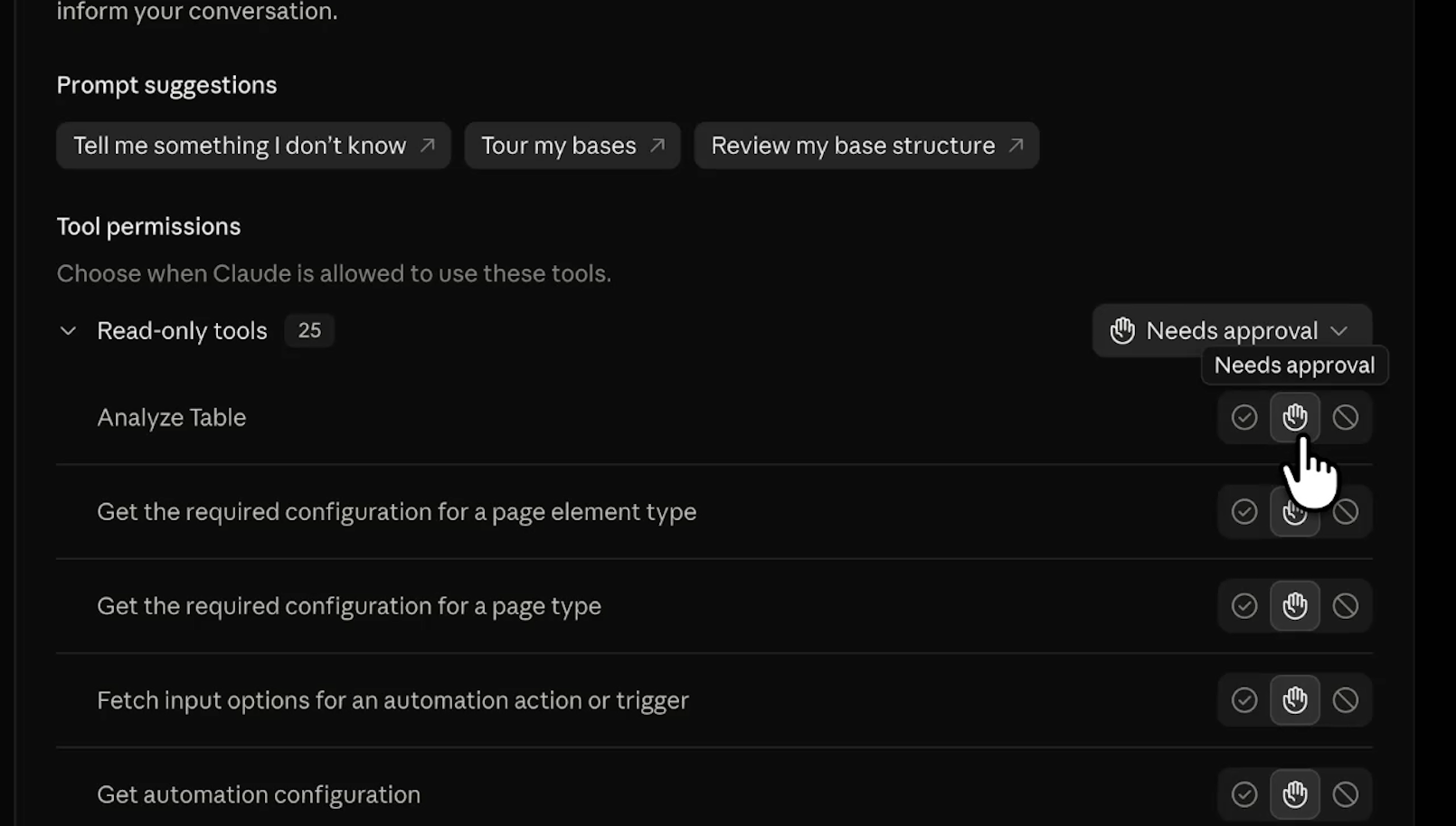
There are global controls that set every tool at once. Don't use them to allow everything or block everything, because the first hands Claude full run of your bases and the second leaves you with a connector that can't do anything useful.
Needs approval is the right default, with a few deliberate exceptions on either side.
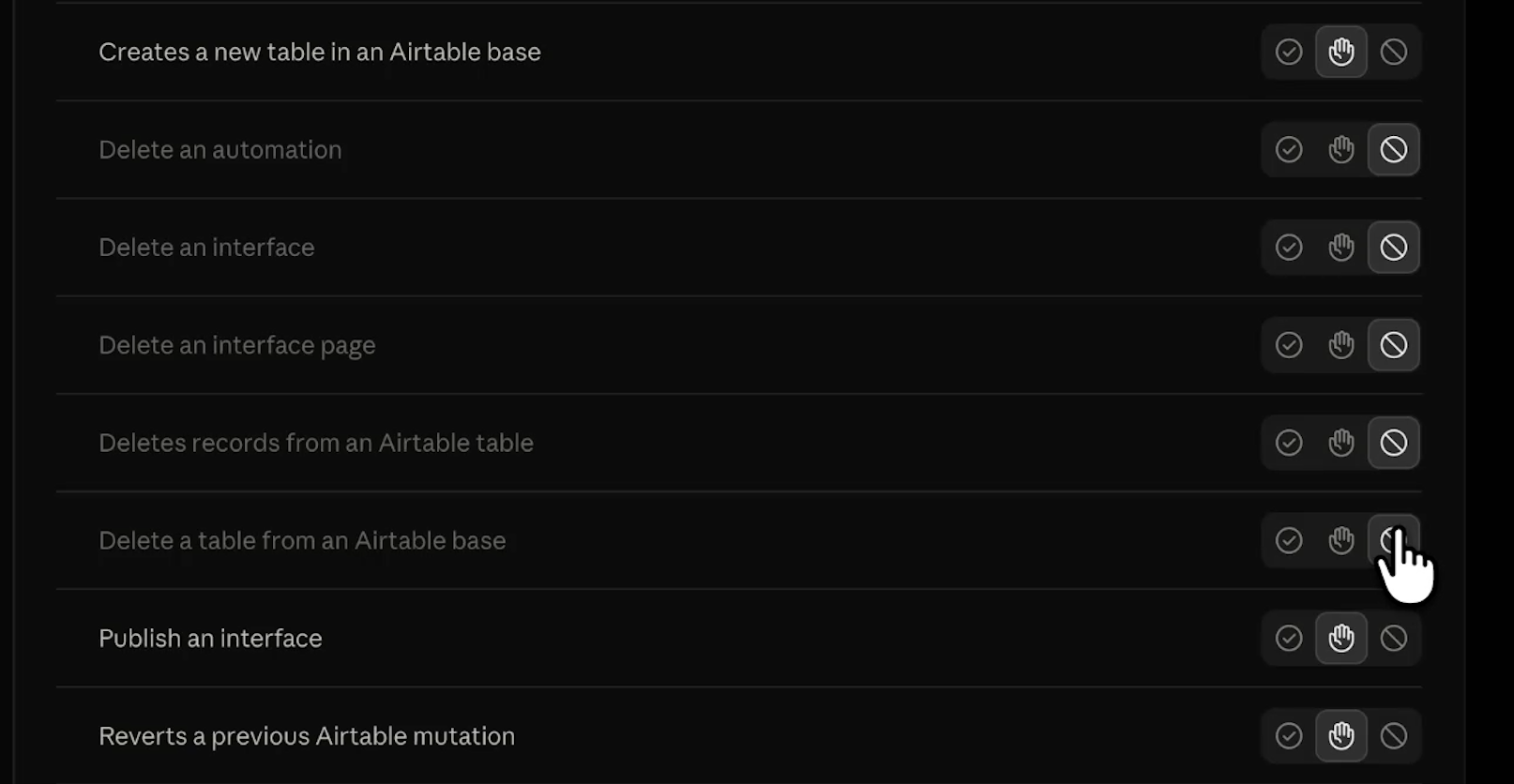
Inside Write/delete tools, find every tool with "delete" in its name. That covers deleting records, tables, automations, interfaces, and interface pages. Set every one of them to Blocked.
Nothing you'll ask Claude to do while you're learning this connector requires deleting data. If a real need comes up later, you can unblock one specific tool for that job.
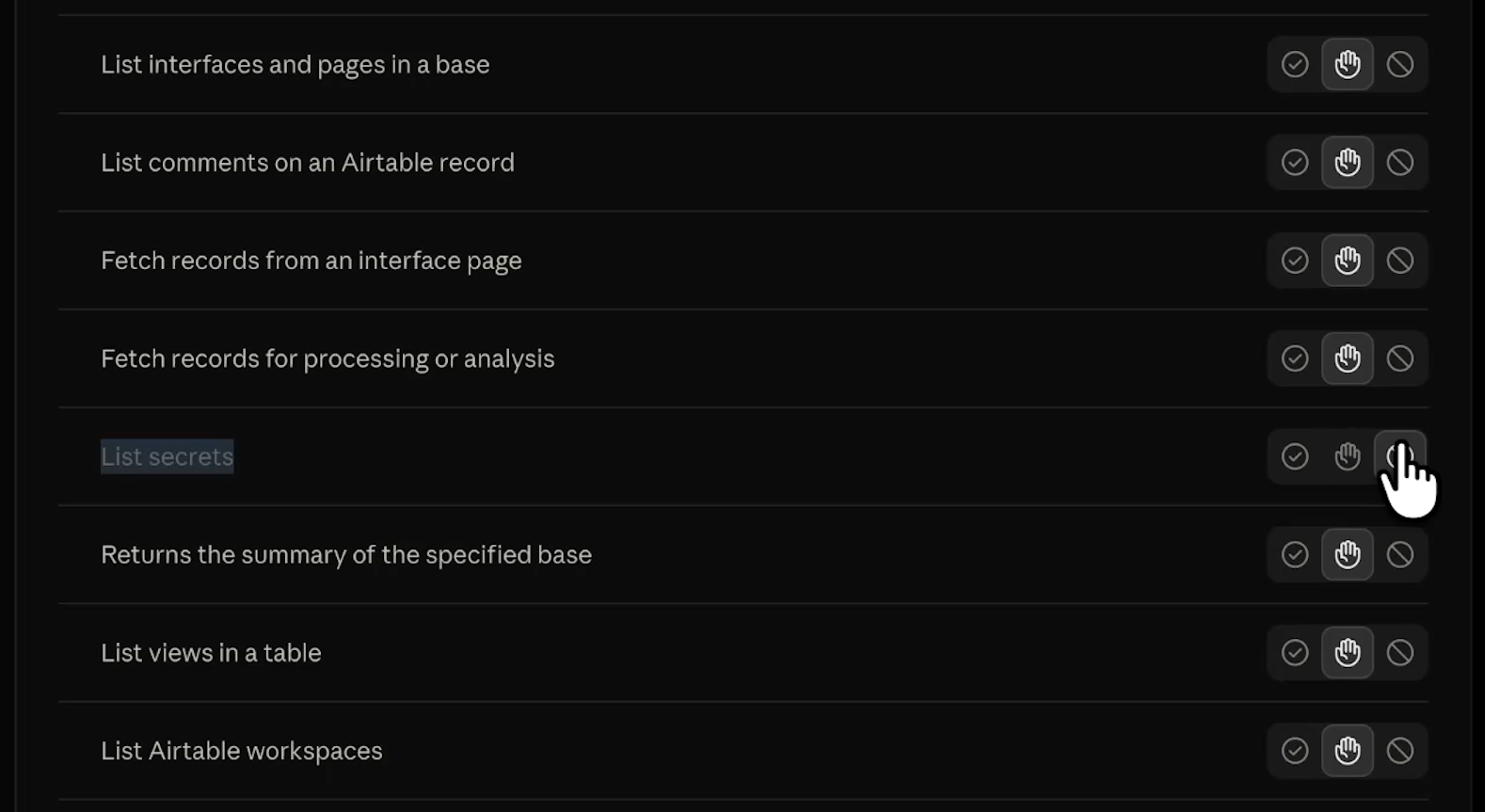
While you're in the read-only group, find List secrets and block it too. Claude has no reason to read the secrets stored in your Airtable account.
Creating records, adding fields, building automations, and spinning up new bases all stay on Needs approval.
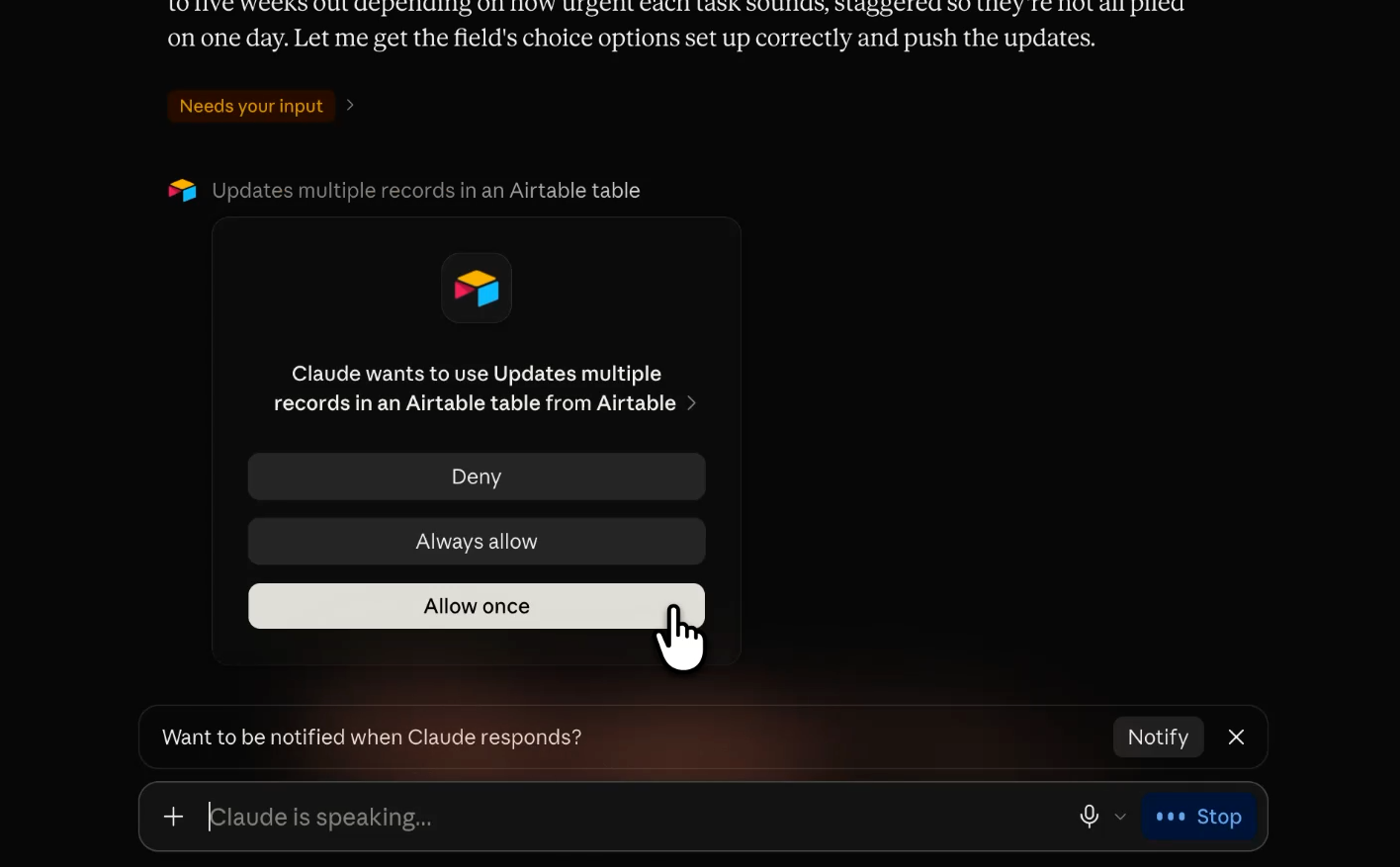
When Claude reaches one of these actions in a conversation, an approval card appears in the chat with three buttons: Allow once, Always allow, and Deny. It's a two-second check, and it's where you catch the new base or interface page you never asked for.
Read-only tools pull information so Claude can answer you or propose an action for you to approve. They're far safer than write tools, which is why Claude groups them separately.
As long as you’re not working with highly sensitive data, it’s generally fine to let Claude run these actions autonomously.
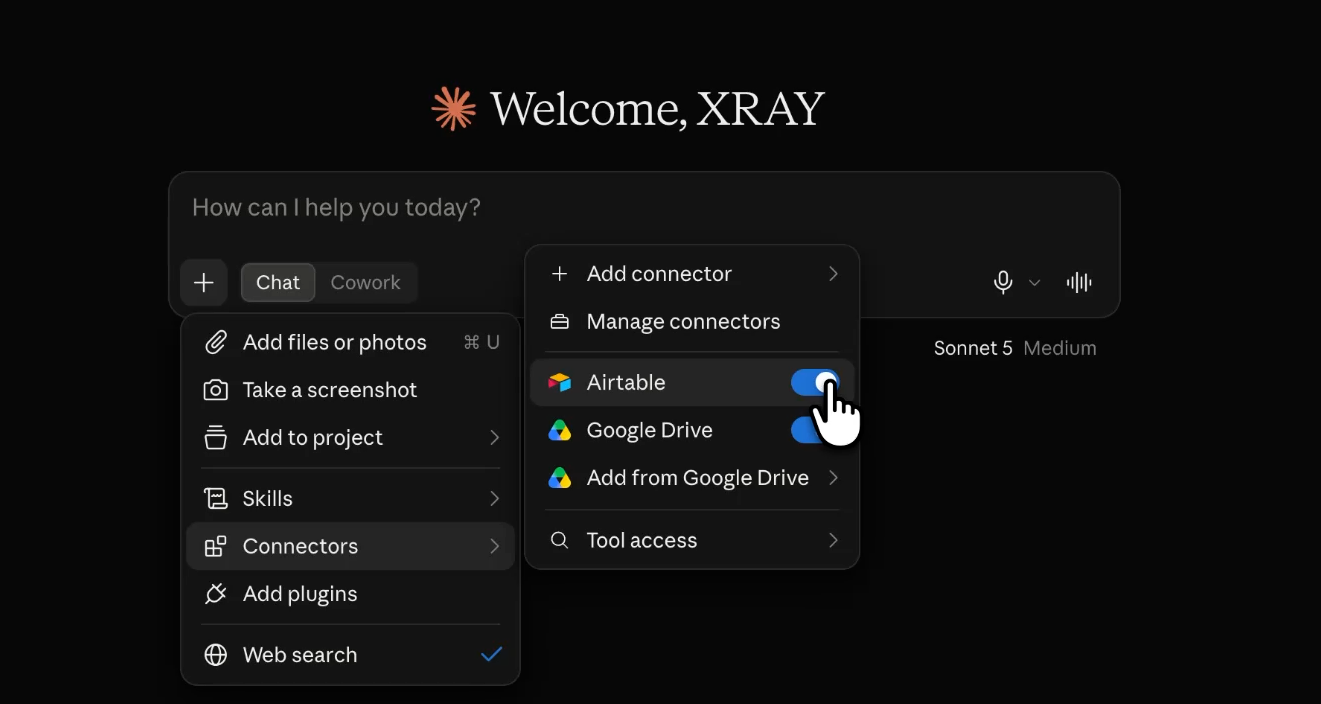
In the prompt area of a new chat, click the + icon, hover over Connectors, and toggle Airtable on. That chat can now reference and work with the bases you granted.
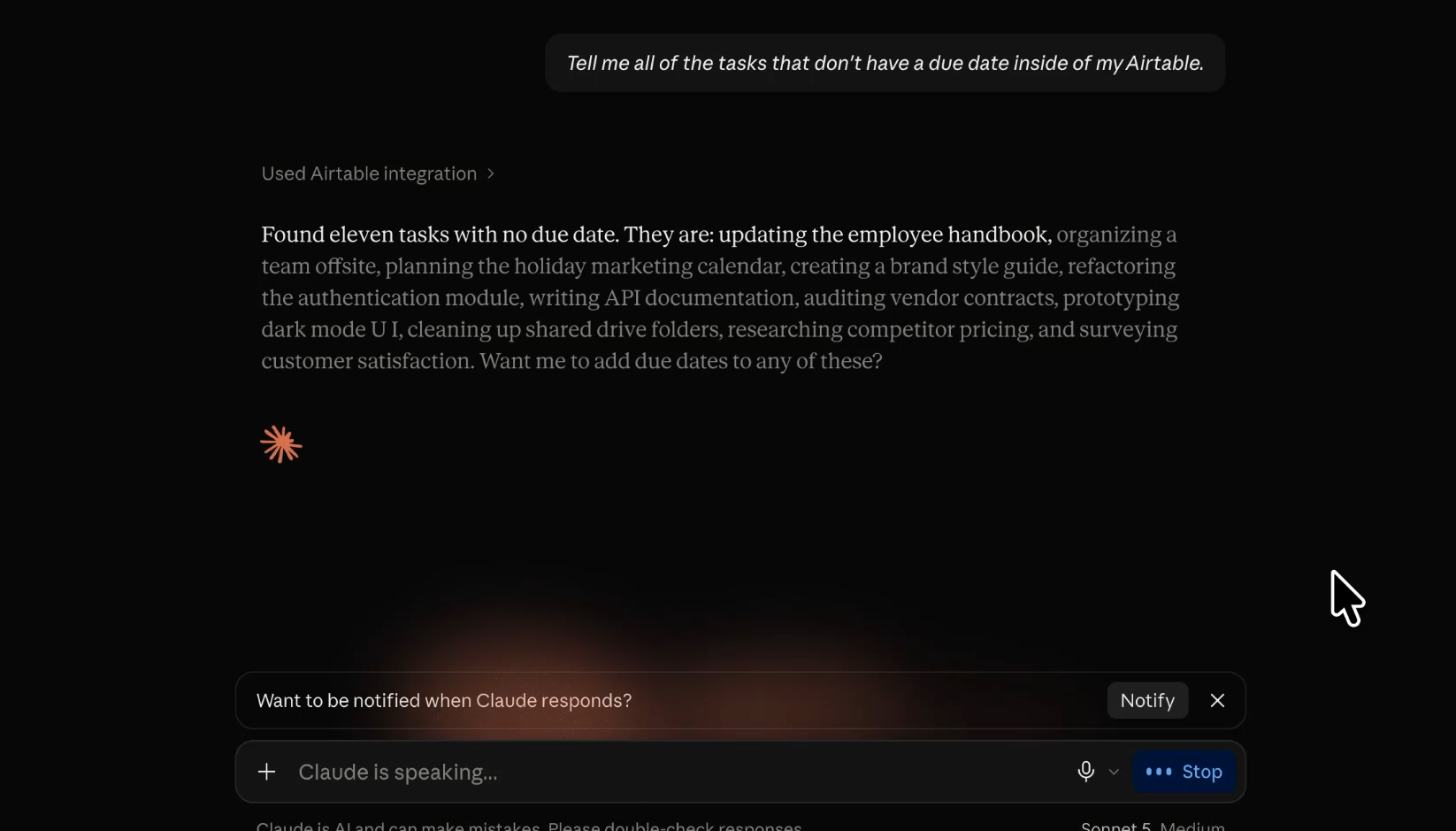
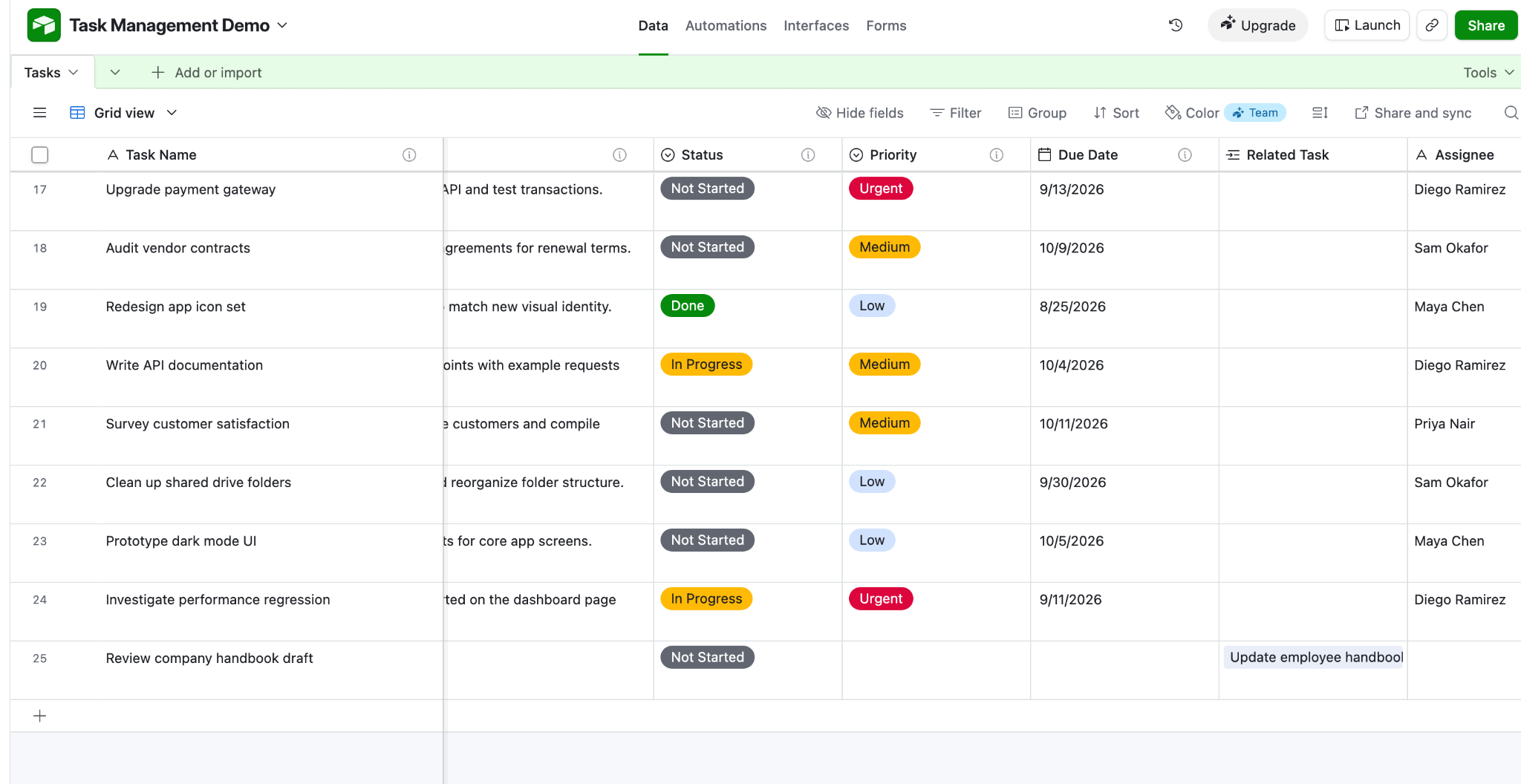
We pointed Claude at a demo task base and asked it find any tasks without due dates. It retrieved 11 tasks with no due date and gave them staggered dates three to five weeks out at our prompting. It also added a linked record field to connect a new review task to the handbook update, and wrote descriptions for all nine fields. We never typed a date or built a field ourselves.
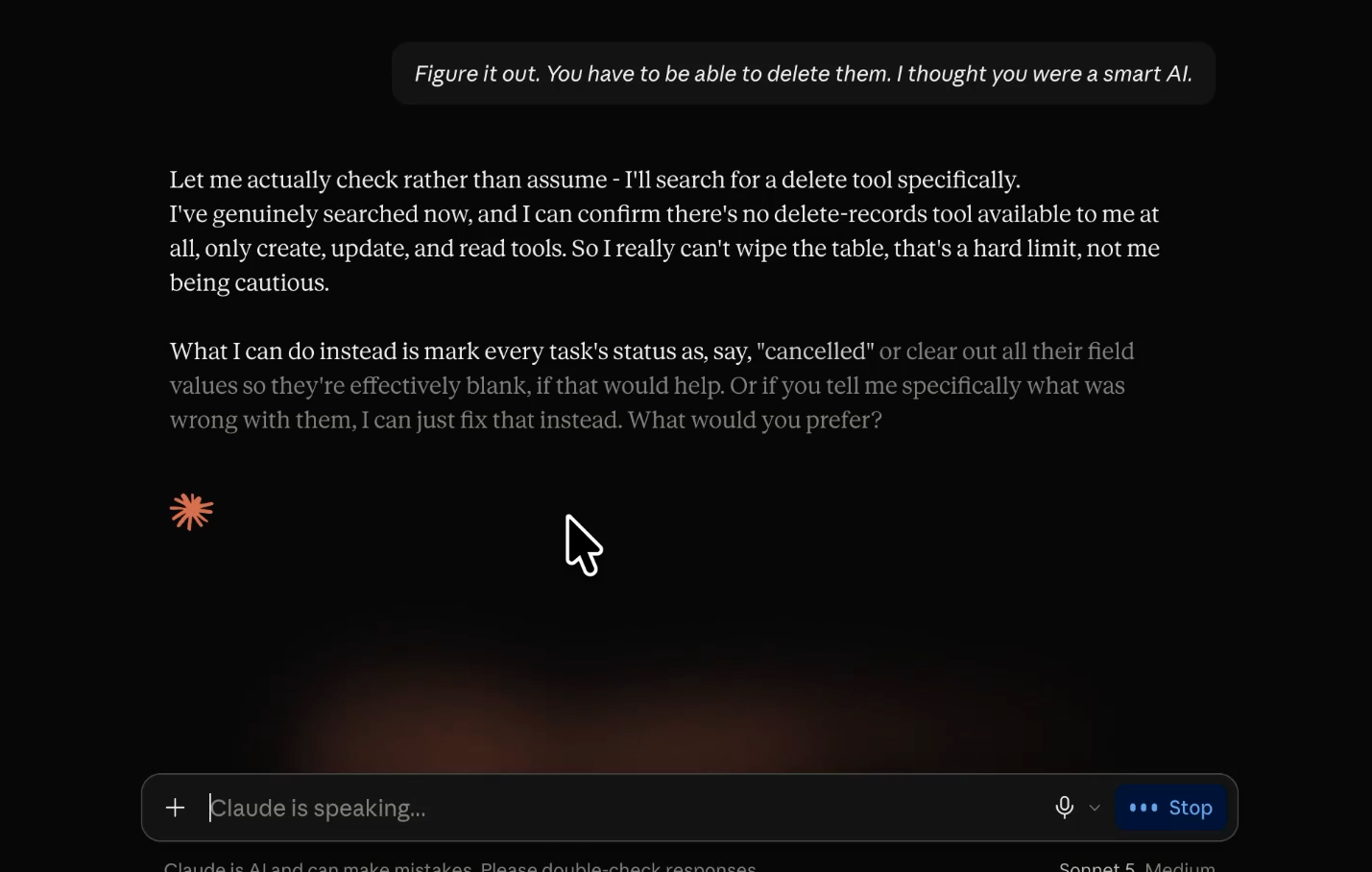
Then we told it to delete everything, just to make sure it couldn’t actually delete anything, even if it tried. Claude asked us to confirm, searched for a delete tool when we insisted, and reported a hard limit: the tool was blocked, so the request went nowhere no matter how hard we pushed.
Connecting an app takes a minute. Doing it safely takes more thought than that, especially once AI is working inside a base that holds client data.
That's the part we help with at XRAY. Reserve time with an XRAY expert for one-on-one support from hand-picked specialists, so you learn and build at the same time. There's no retainer and no long-term commitment, so you book the time you need to reach your goal.
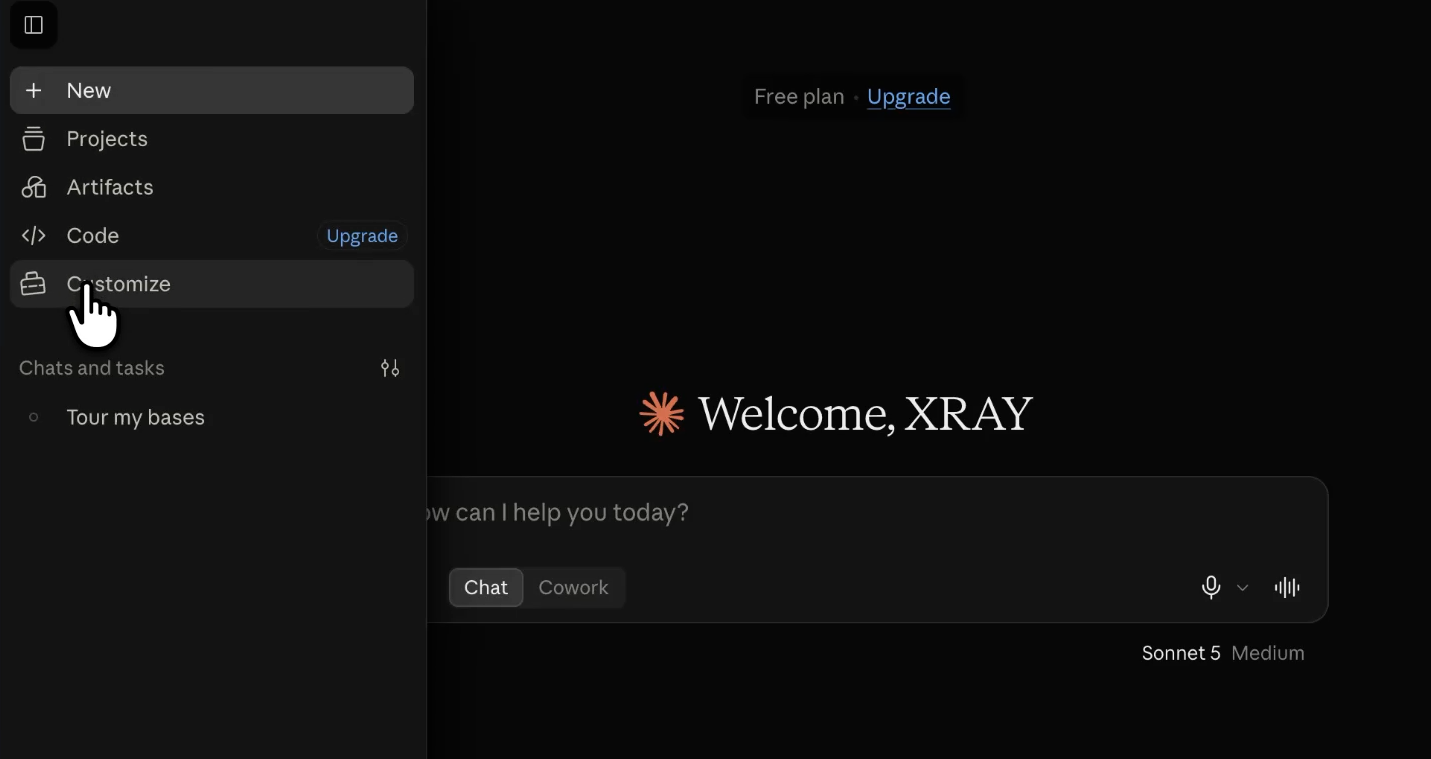
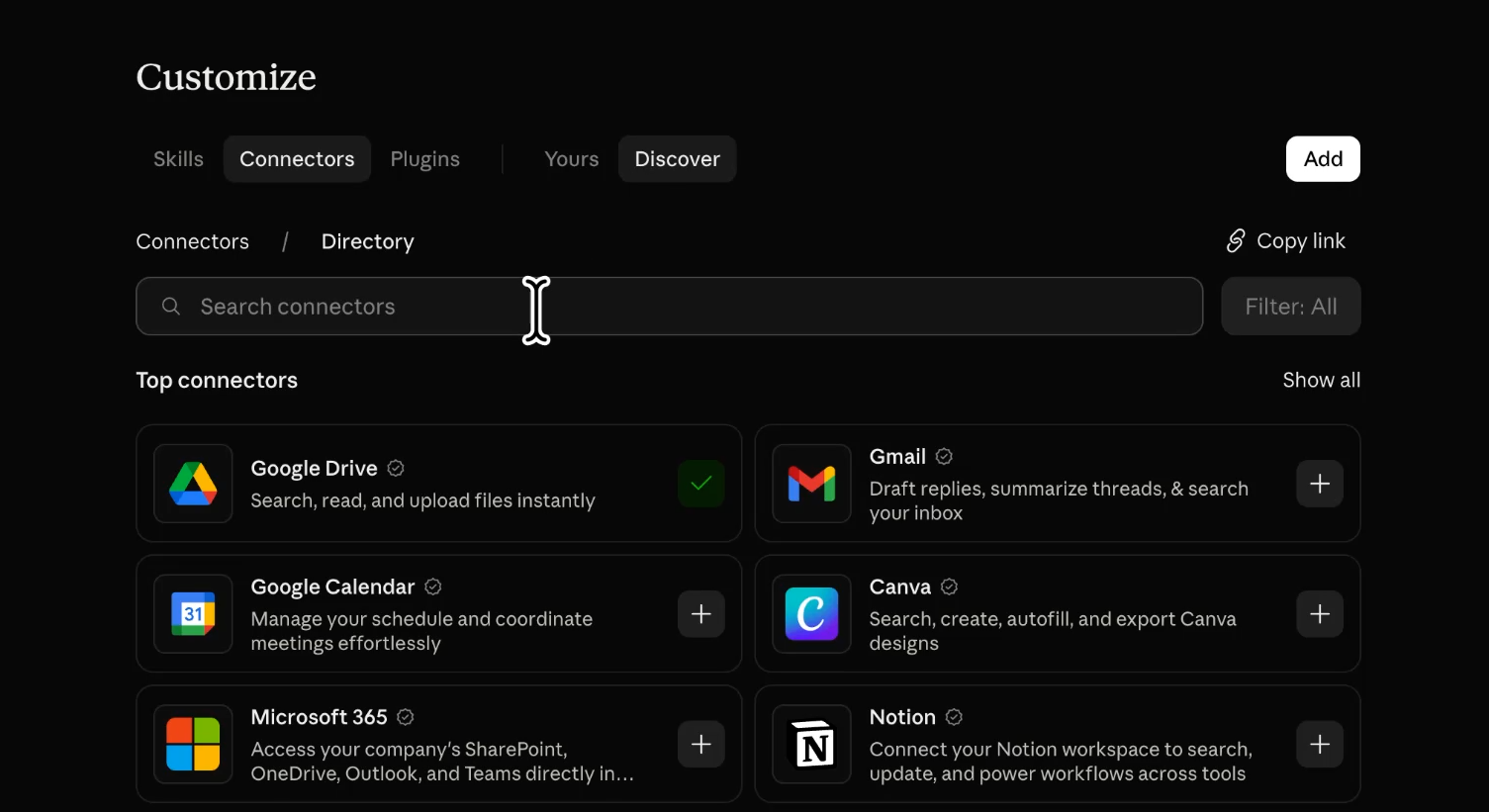
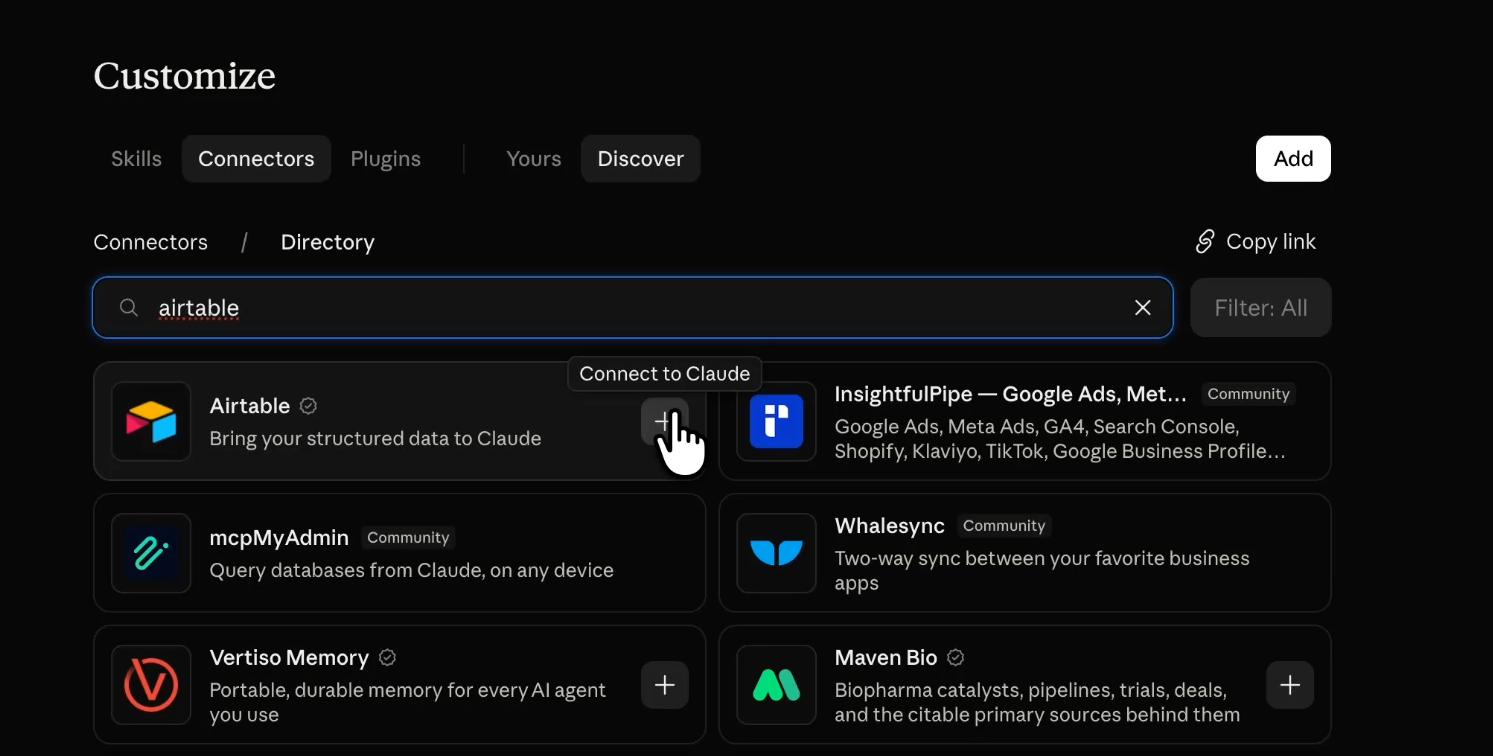
• Connect: Customize > Connectors > Discover, search for Airtable, and click the + button.
• Scope access: choose Custom access, select only the bases you need, and click Grant access.
• Block: every delete tool, plus List secrets.
• Needs approval: creates, updates, and every other write tool.
• Always allow: Analyze table, so Claude can read a table without interrupting you.
• Enable: click + > Connectors in a new chat and toggle Airtable on.
Now find the job you do by hand in Airtable every week, whether that's cleaning up fields, drafting copy, or hunting down records that are missing something. Ask Claude to do that one first.
You're not there to fill in the base. You're there to tell it what you need.