

Right now, there are a bunch of open Dependabot pull requests sitting in your repo. Some of them have merge conflicts. None of them moves until somebody reads it.
That somebody doesn't have to be you.
Claude Code Routines are saved Claude Code sessions that run on their own, in the cloud, on a schedule or a trigger you pick. Your laptop can be shut, and nobody has to click approve.
We built one to clear our Dependabot backlog every Thursday, and this is exactly how it's configured, including the two settings that decide whether a routine is safe to leave running.
Dependabot watches the dependencies in your code and opens a pull request every time one of them ships a new version. It's useful, and it's relentless.
In our repo it had four PRs waiting, two of which conflicted with work the team had already merged. Most of those changes are version numbers, but some have broader implications for how the app behaves, which is why you can't approve them blind.
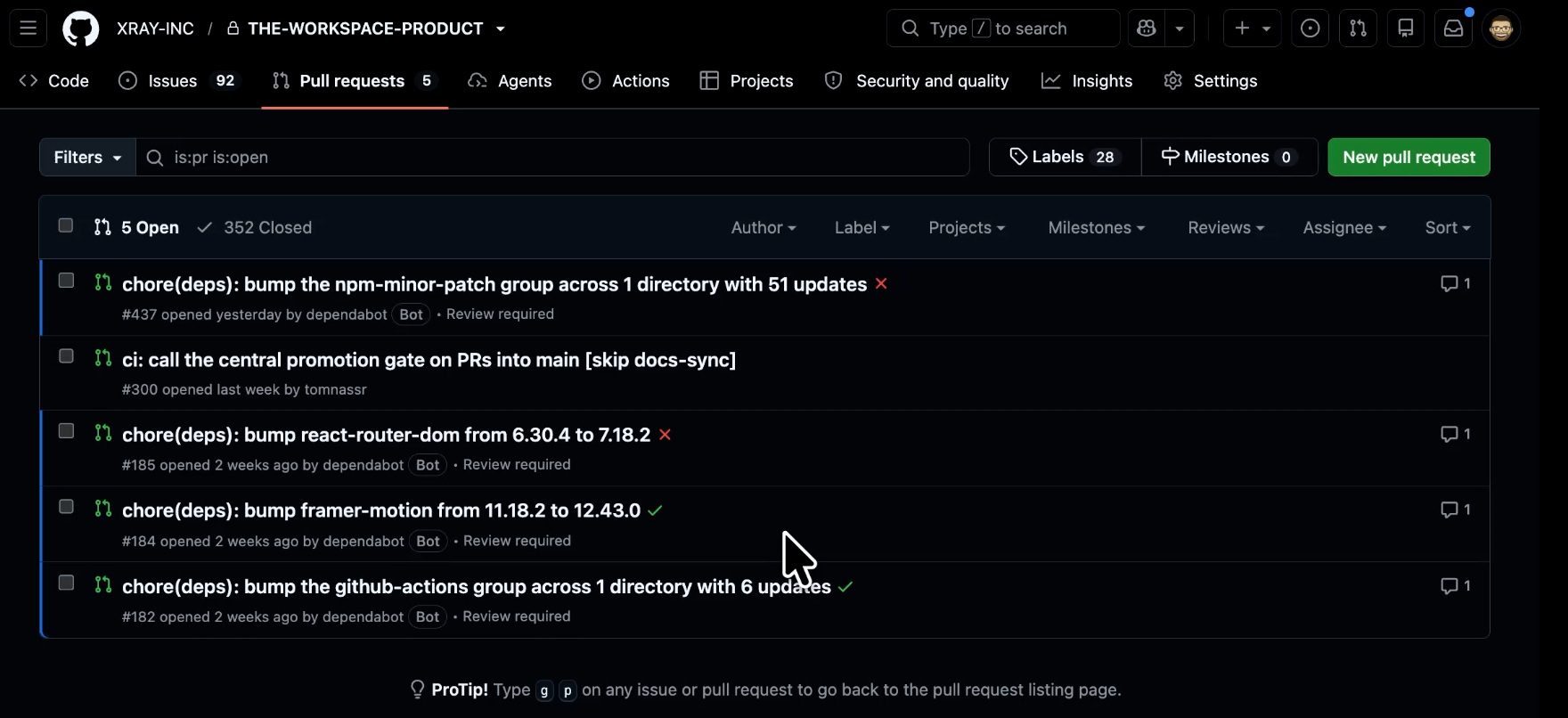
The work splits cleanly in two. Reading each PR, resolving the conflicts, and closing out the ones that got superseded is queue clearing. Deciding whether a large or risky update belongs in your codebase is judgment.
A routine should take care of the first pile and hand you the second one.
Routines need a Claude Pro subscription or higher, and they live on the Claude Code side of the app rather than in normal chat. Click the code icon in the top navigation to get there.
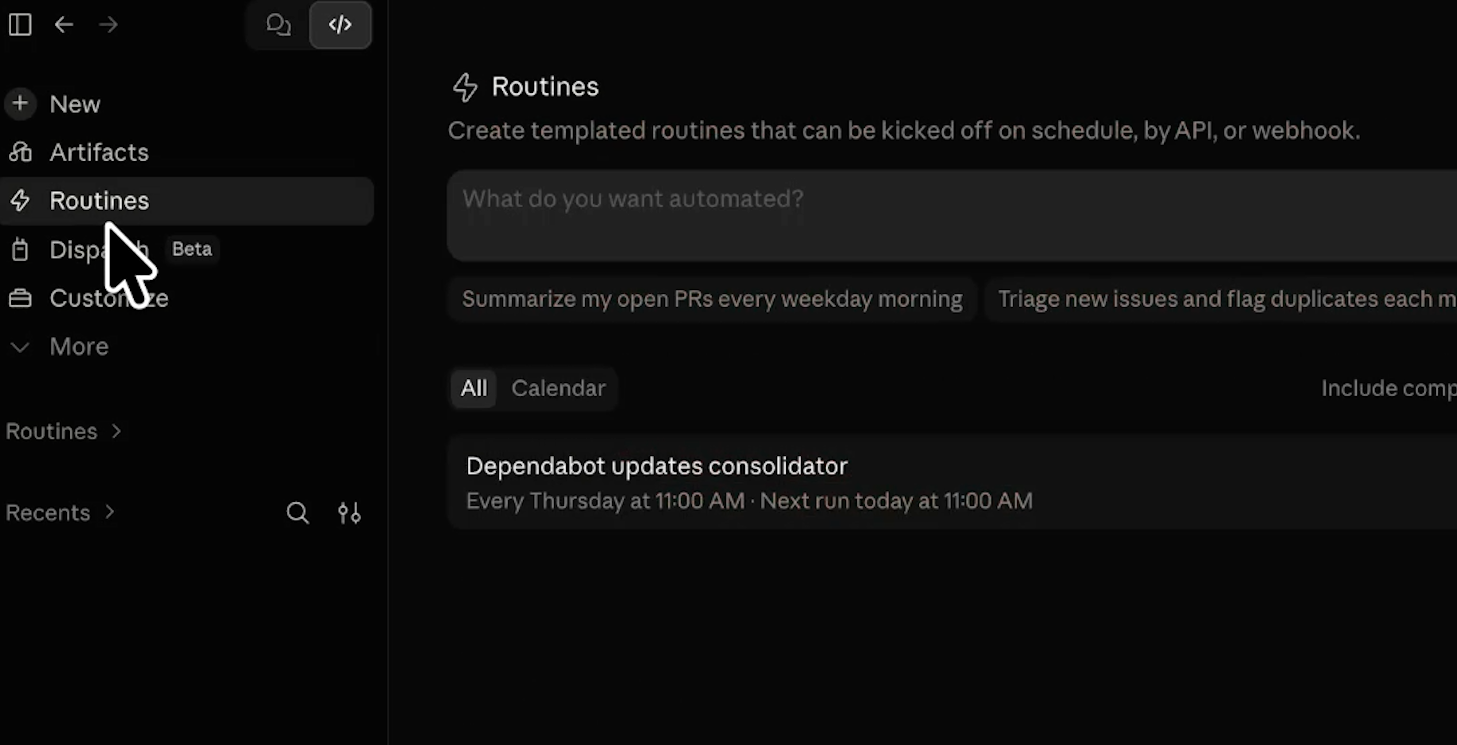
Then look for Routines in the left sidebar. On some accounts it sits under More until you use it once.
The first field asks what you want automated. Write it in plain language and click Draft routine. This works the same way skills do: you give it a loose description, and it returns structured, step-by-step instructions.
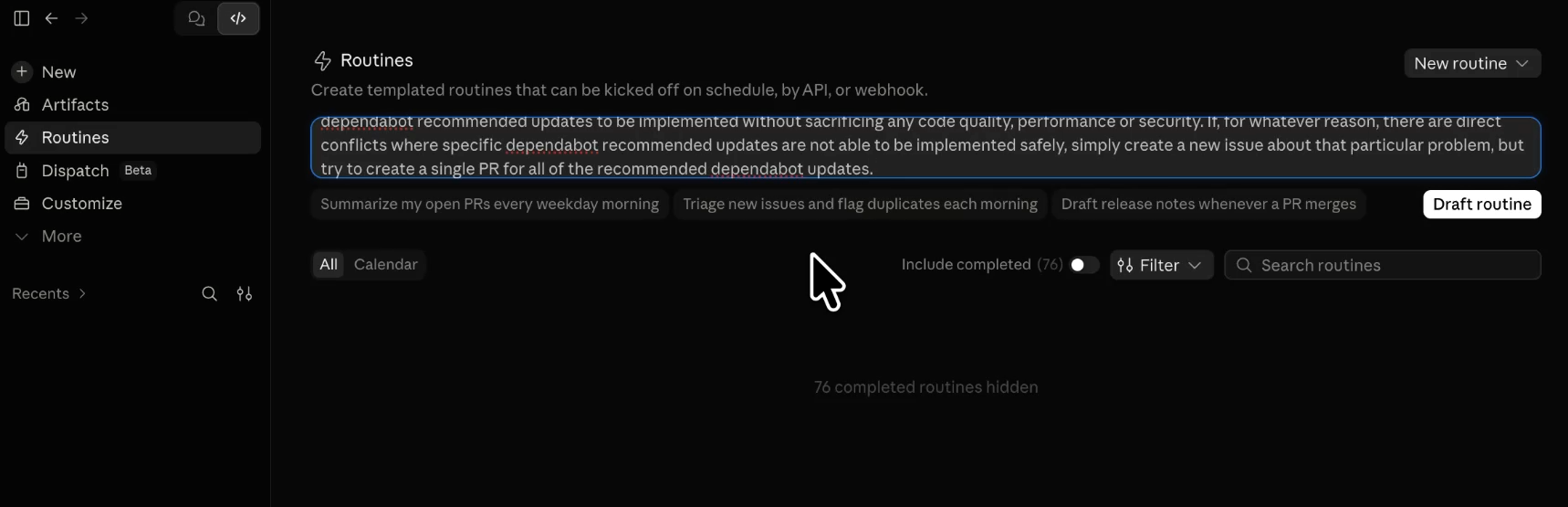
Our prompt asked Claude to review all the open Dependabot pull requests and merge them wherever possible without changing the functionality, stability, or security of the app. For any update that can't be safely implemented, we want it to open a separate GitHub issue instead of forcing it through.
When your prompt is finished, click “Draft routine” to have Claude begin setting up the routine.
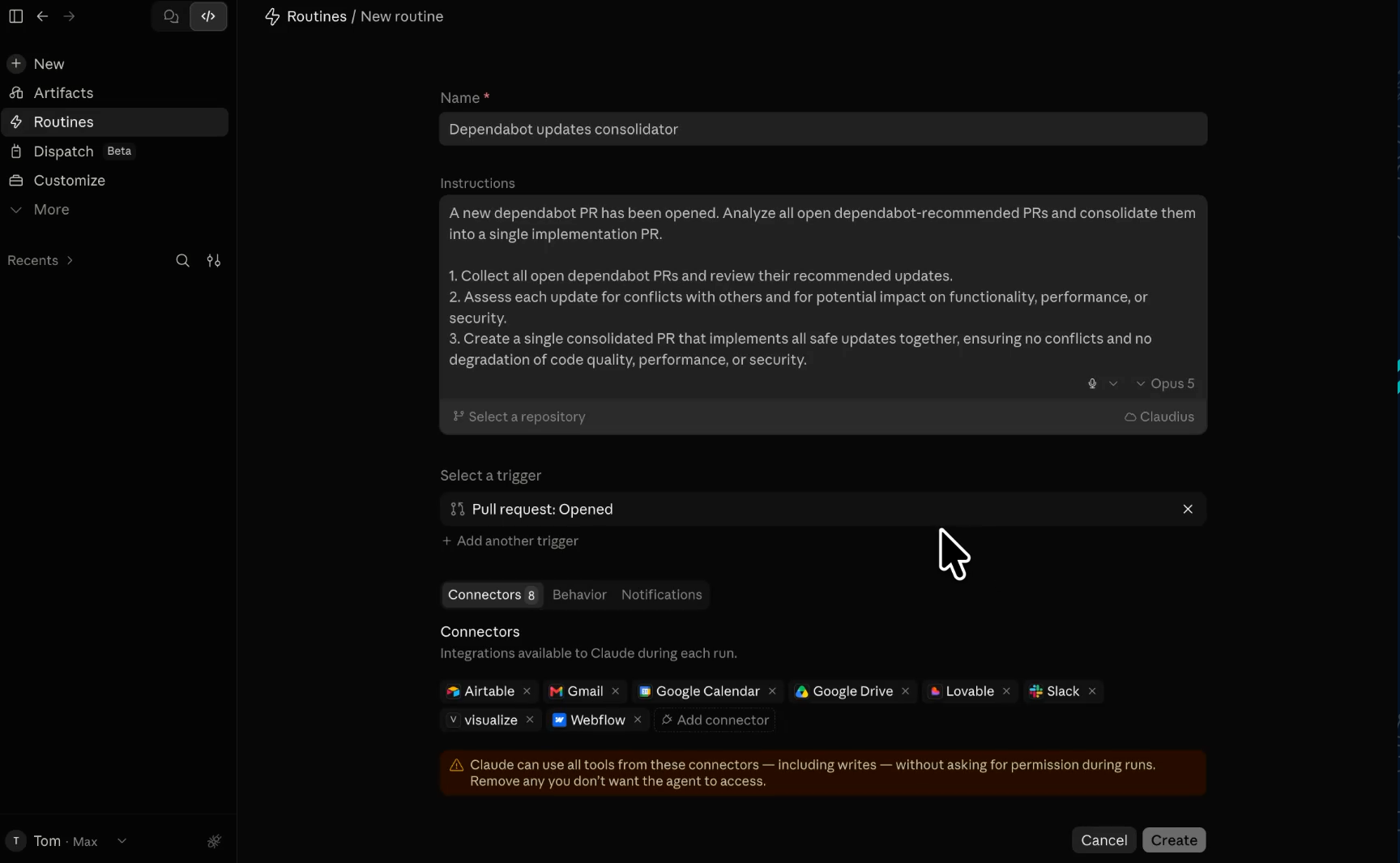
Claude will expand your prompt into precise, detailed instructions which you can edit however you want.
—
If you’d like to copy our initial prompt, or the final revised instructions for the routine, go to resources.xray.tech. When you sign up for our free newsletter, you’ll be able to access those templates, as well as resources for our future tutorials.
—
Next, you can select the Github repository you want the routine to work with, and the cloud environment for the routine to run in. In our example, we’re using a custom environment named “Claudius”.
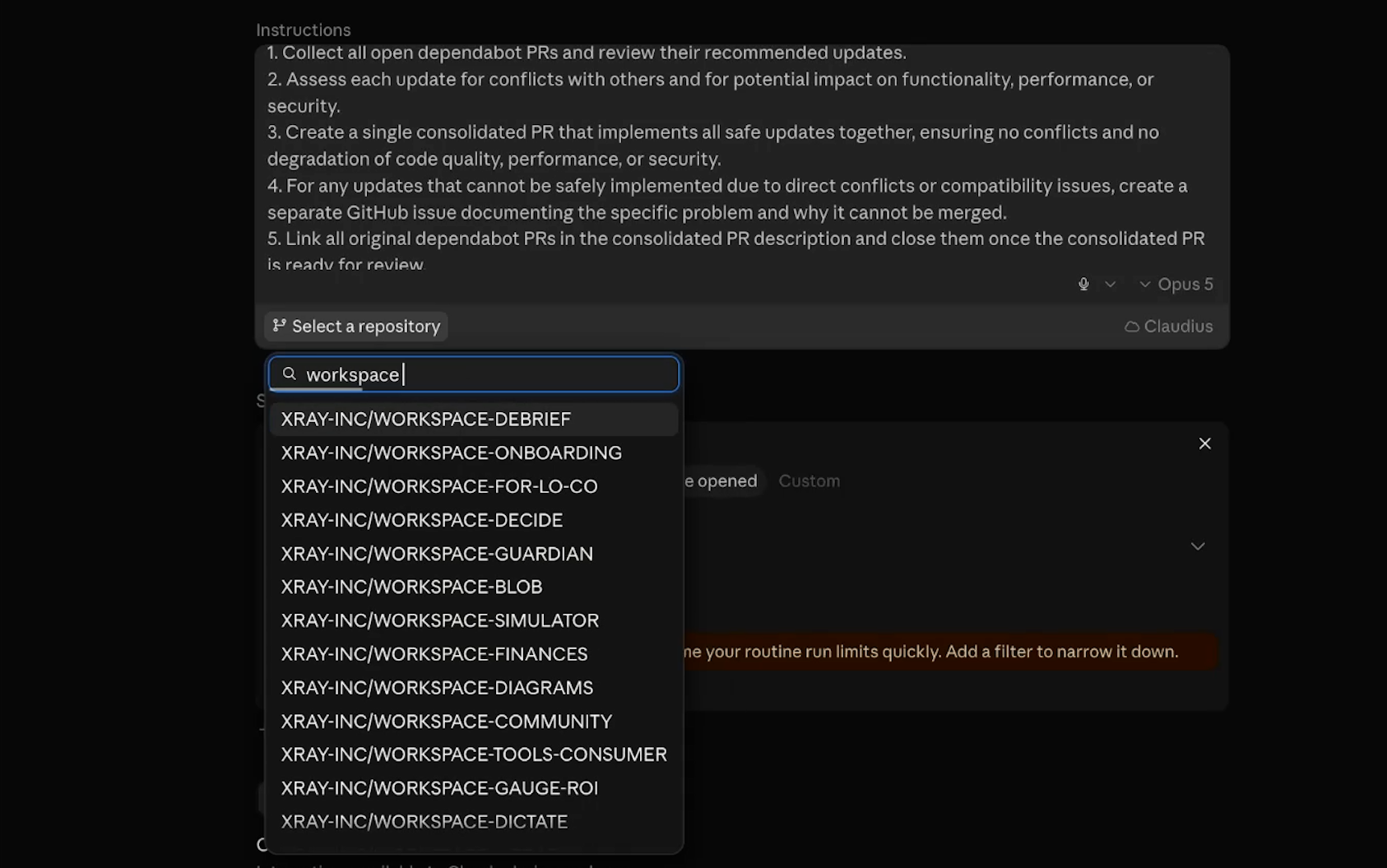
Routines fire three ways.
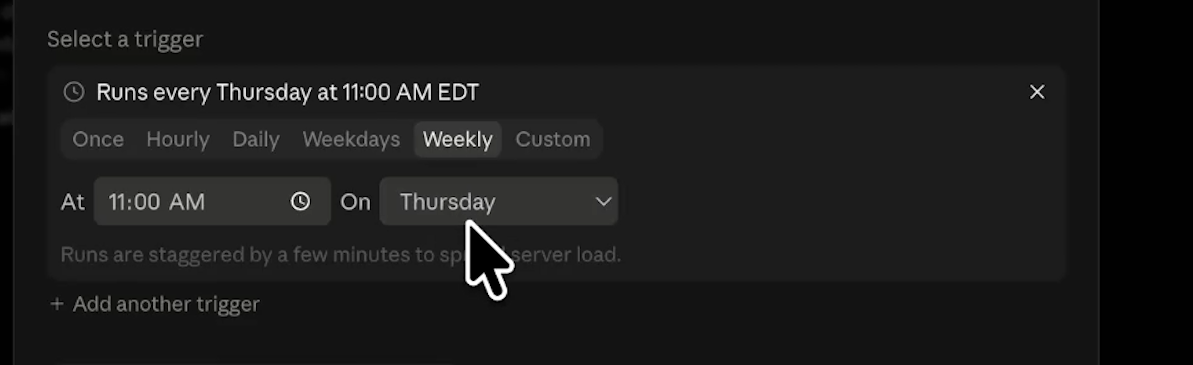
With a schedule, your routine runs once hourly, daily, on weekdays, weekly, or on a custom cadence.
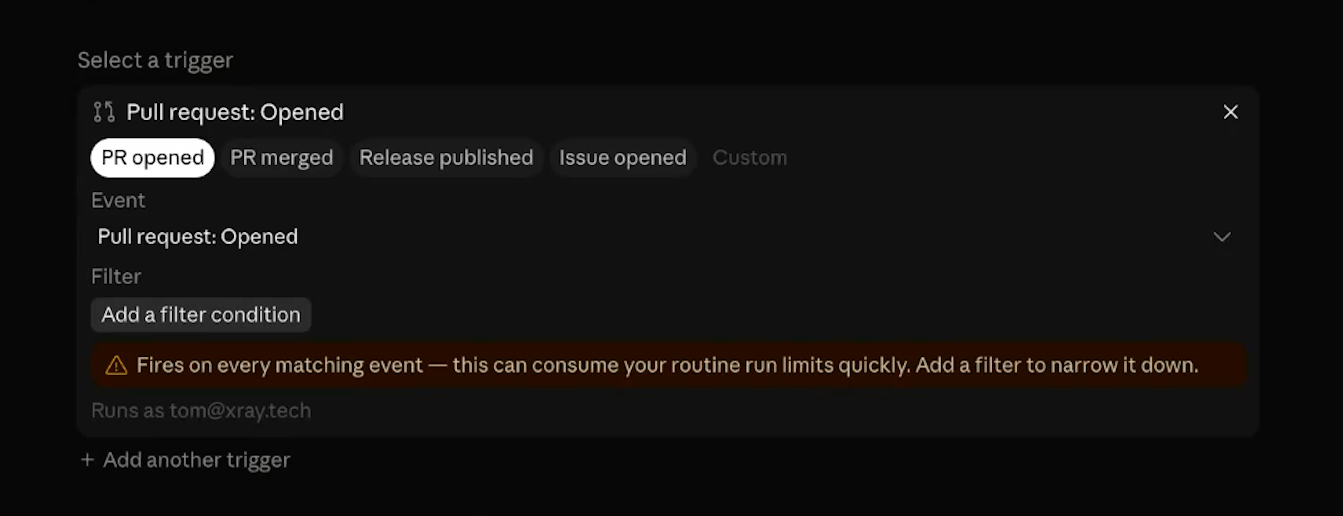
GitHub events run routines when a PR opens, a PR merges, a release publishes, or an issue opens, with filter conditions on author, base branch, title, labels, and draft status.
There's also an API endpoint to trigger the routine from your own code.
The obvious build here is a GitHub event: PR opened, where the author is Dependabot. We set it up that way first and changed it before saving, because the whole point of this routine is consolidation and an event trigger fires once per pull request. You'd get four separate runs producing four separate PRs, which is the problem you started with.
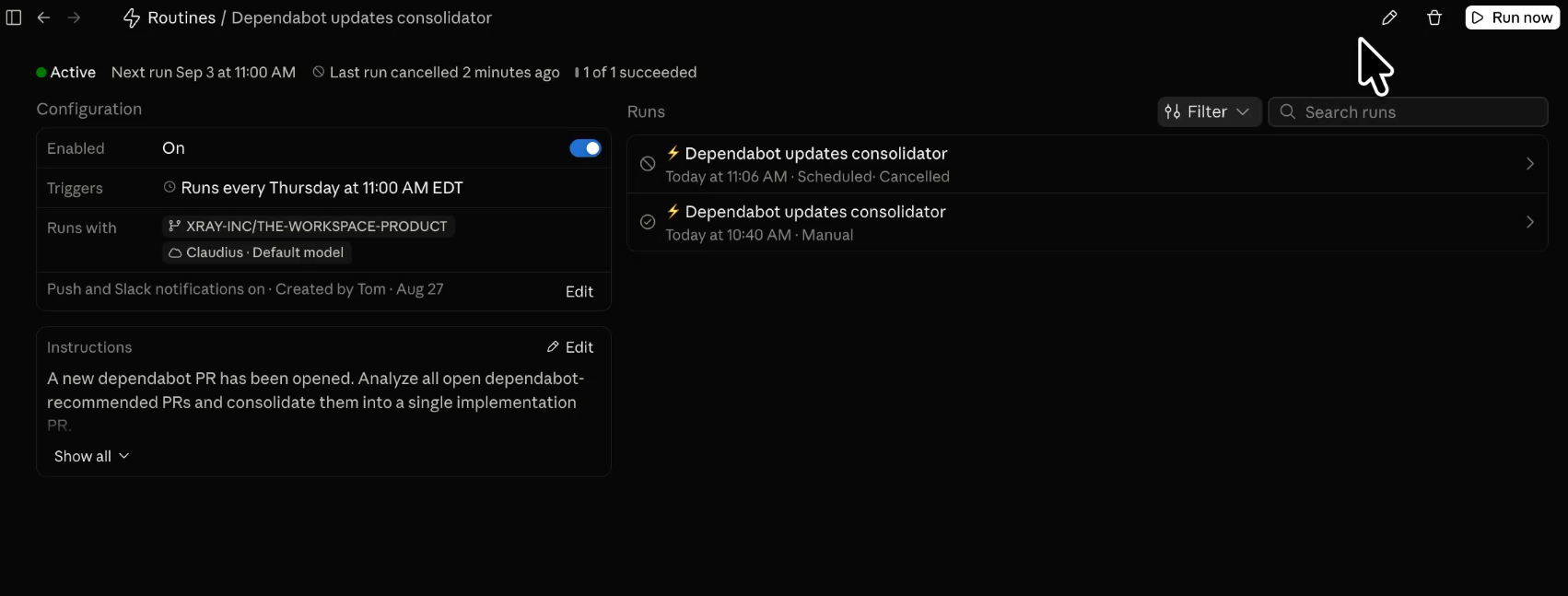
So it went on a weekly schedule instead, Thursday at 11am, and now it sees the whole queue at once.
Use event triggers for work that reacts to one thing. Use schedule triggers for work that batches many things. That distinction saves you a rebuild.
This is the section to slow down for.
Inside a routine, you cannot configure what a connector is allowed to do. Attach HubSpot and the routine gets every ability HubSpot exposes. Same with Notion, Google Drive, QuickBooks, Gmail, and any other app you connect.
Claude Routines will not ask before sending an email, pulling a database, or changing your data. It makes its own call about what the instructions require, and then it acts.
Even if you’ve set an action to “Blocked” in your Connector configuration, the action will be fully available to the Routine.
That isn't a bug. Routines are built to run unattended, so there's nobody there to answer a permission prompt at 11am on a Thursday. Which means the connector list is where your safety work happens, before you write a single line of the prompt.
By default, Claude will include all of your active connectors in each new routine, but it’s best to remove any apps that aren’t necessary for that specific workflow.
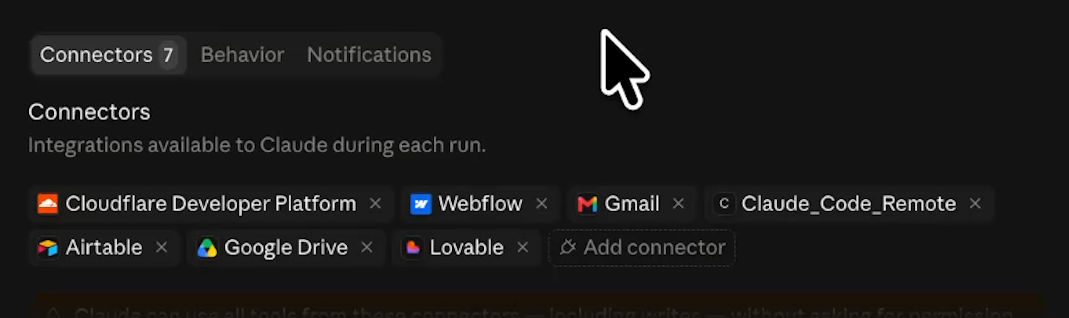
We stripped ours down to Slack and left everything else off. Airtable, Gmail, Calendar, and Drive have nothing to do with dependency updates, so they don't belong anywhere near this routine.
Note that GitHub isn't in that list at all, because the repository is the routine's working context and gets selected separately.
One more thing worth knowing. Everything a routine does carries your identity, so the commits, the pull requests, and the Slack messages all show up as you (or whichever account you’ve signed in with for the connector).
The Notifications tab sends a push notification, an email, or a Slack alert when a run finishes. Turn one on as a backstop.
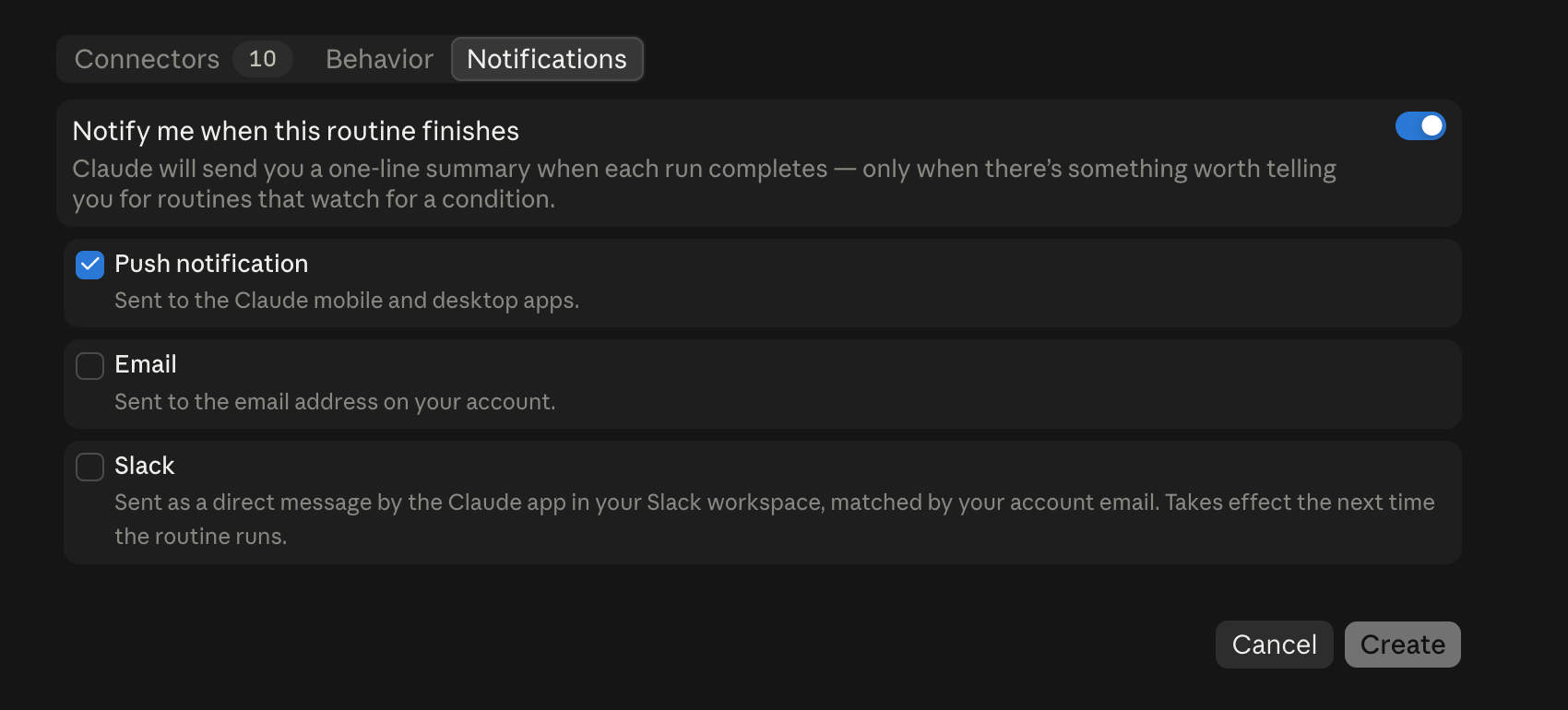
In the instructions panel, you can also ask the routine to send you an alert to any of your connected apps. You’ll just need to make sure that app is added to the routine.
Note that you’ll also need to include Slack as a connector to use the Slack notification feature.
The Behavior tab has one more switch worth flipping. Auto-fix pull requests lets Claude watch your CI results and review comments and push follow-up fixes on its own. That only makes sense if your test suite is real and running, which brings us to the actual safety mechanism here.
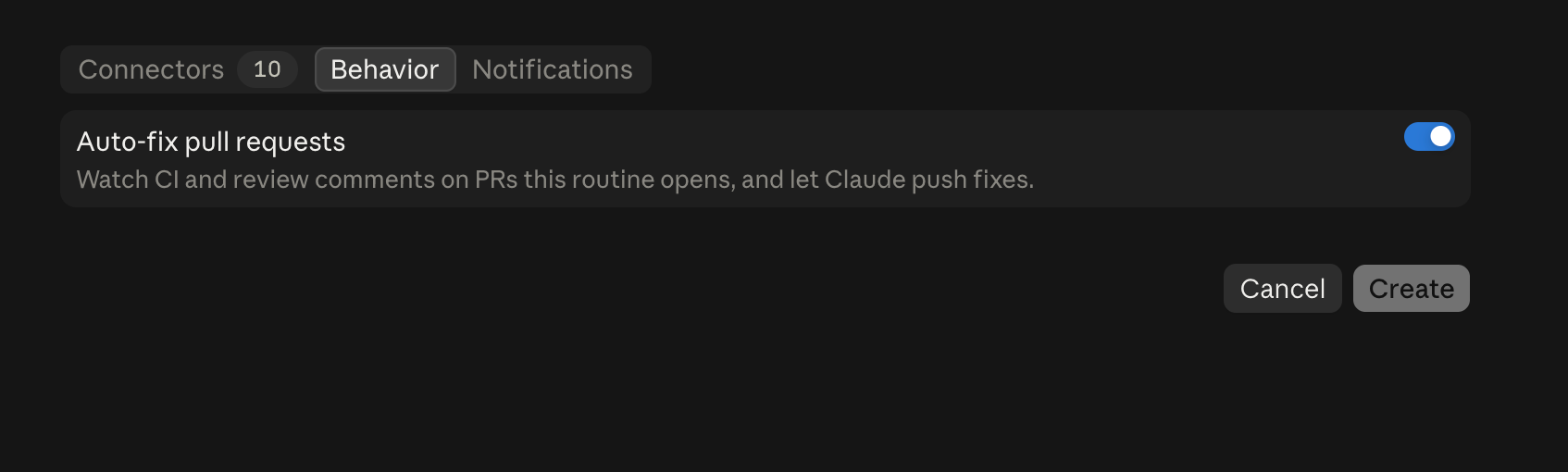
Your test suite in Github is what stands between a bad dependency and your codebase, not the prompt and not the model.
That's why this makes such a good first routine. The pull request is a real gate, the CI checks are a real gate, and the branch target is a third one. Point it at staging rather than main and the worst case is a rough PR nobody merges.
If your repo has no CI checks, build those before you build the routine. An automation with no gate is an automation you have to supervise, and supervising it is the job you were trying to hand off.
Save the routine, then click Run now to give it a test.
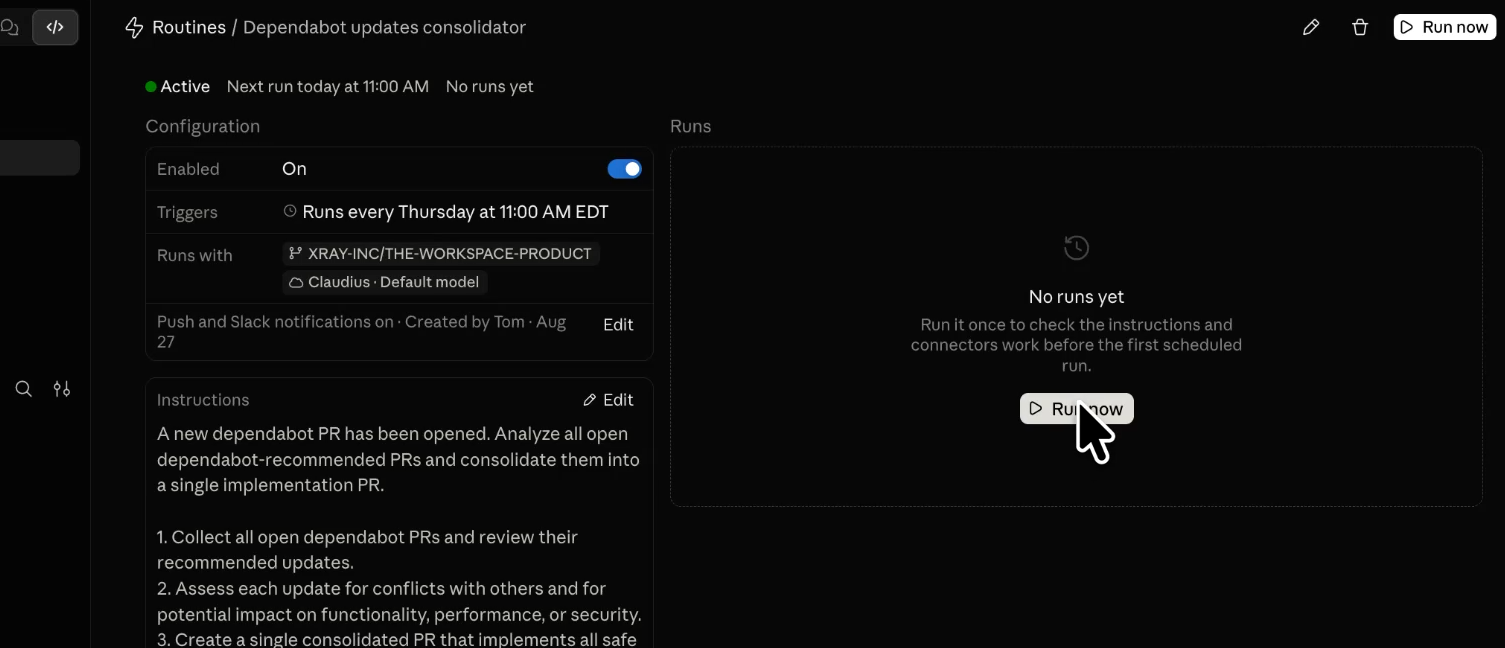
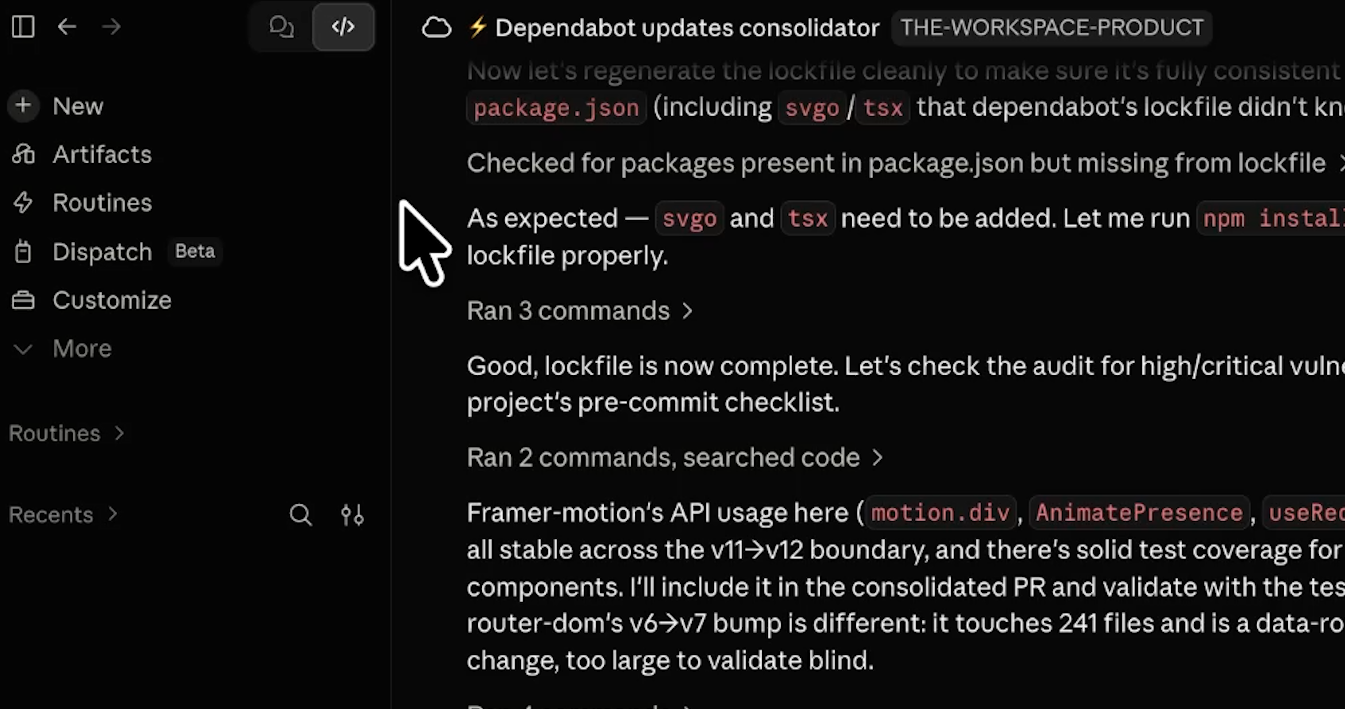
Click into the run while it's going. The log shows you the model's reasoning, the git commands it runs, and everything it outputs, which is the only way to see how it made its decisions.
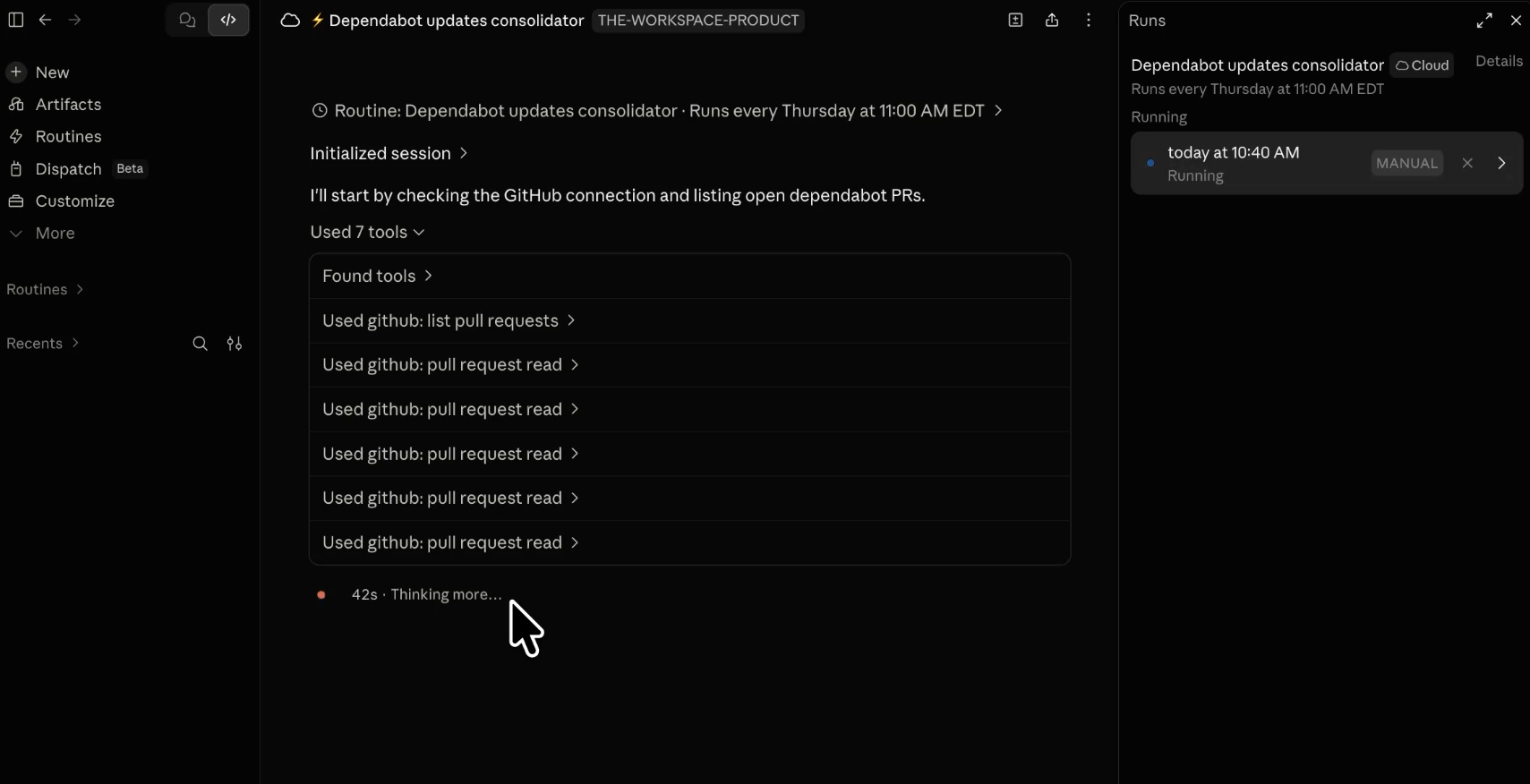
Ours found all four Dependabot PRs, merged three of them, closed all four, and opened a single new pull request against staging.
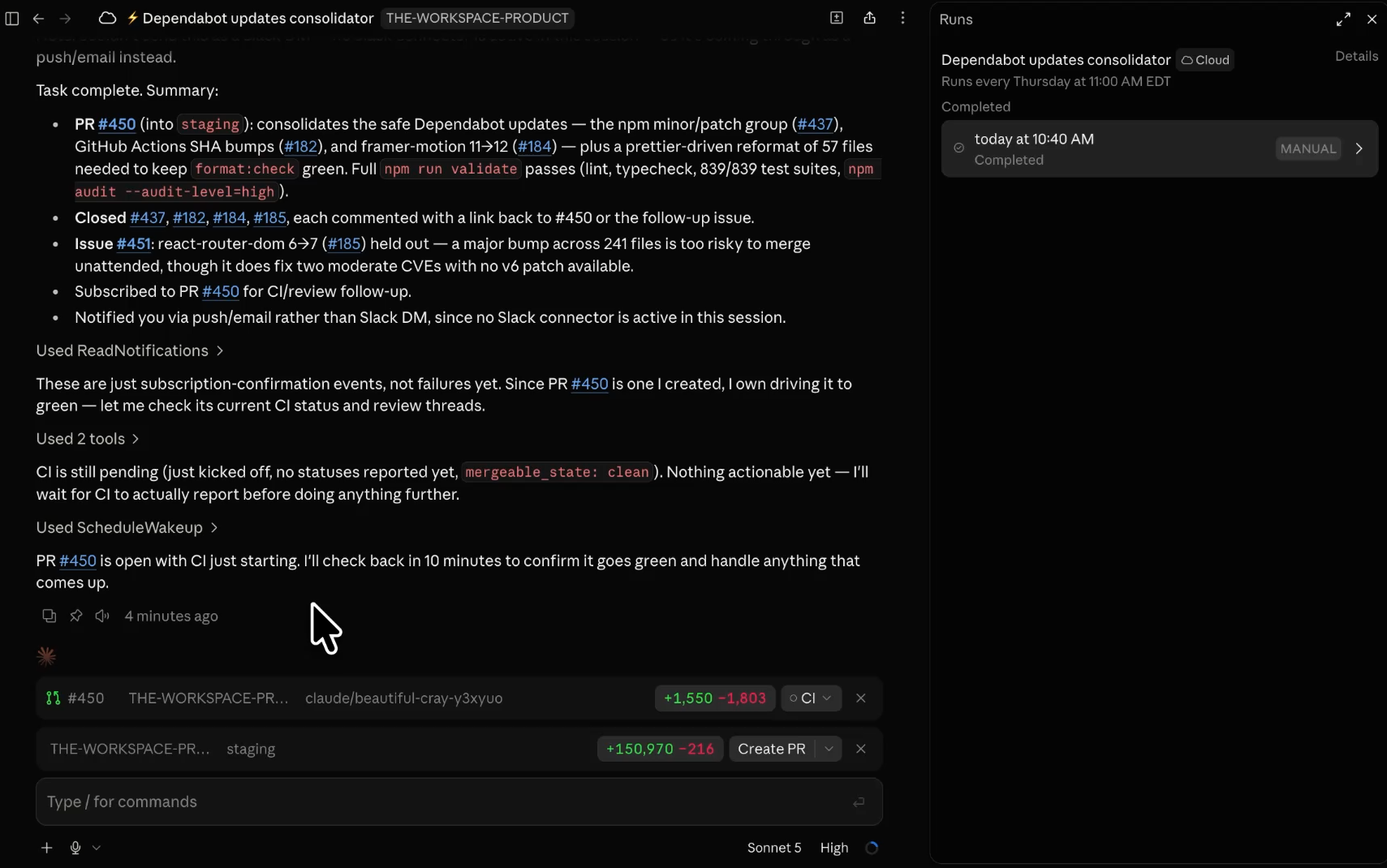
Over on GitHub, the other pull requests are gone and PR 450 is the only one left. Its description lists the three updates it included and the one it left out, with a clear reason why that one didn't make it.
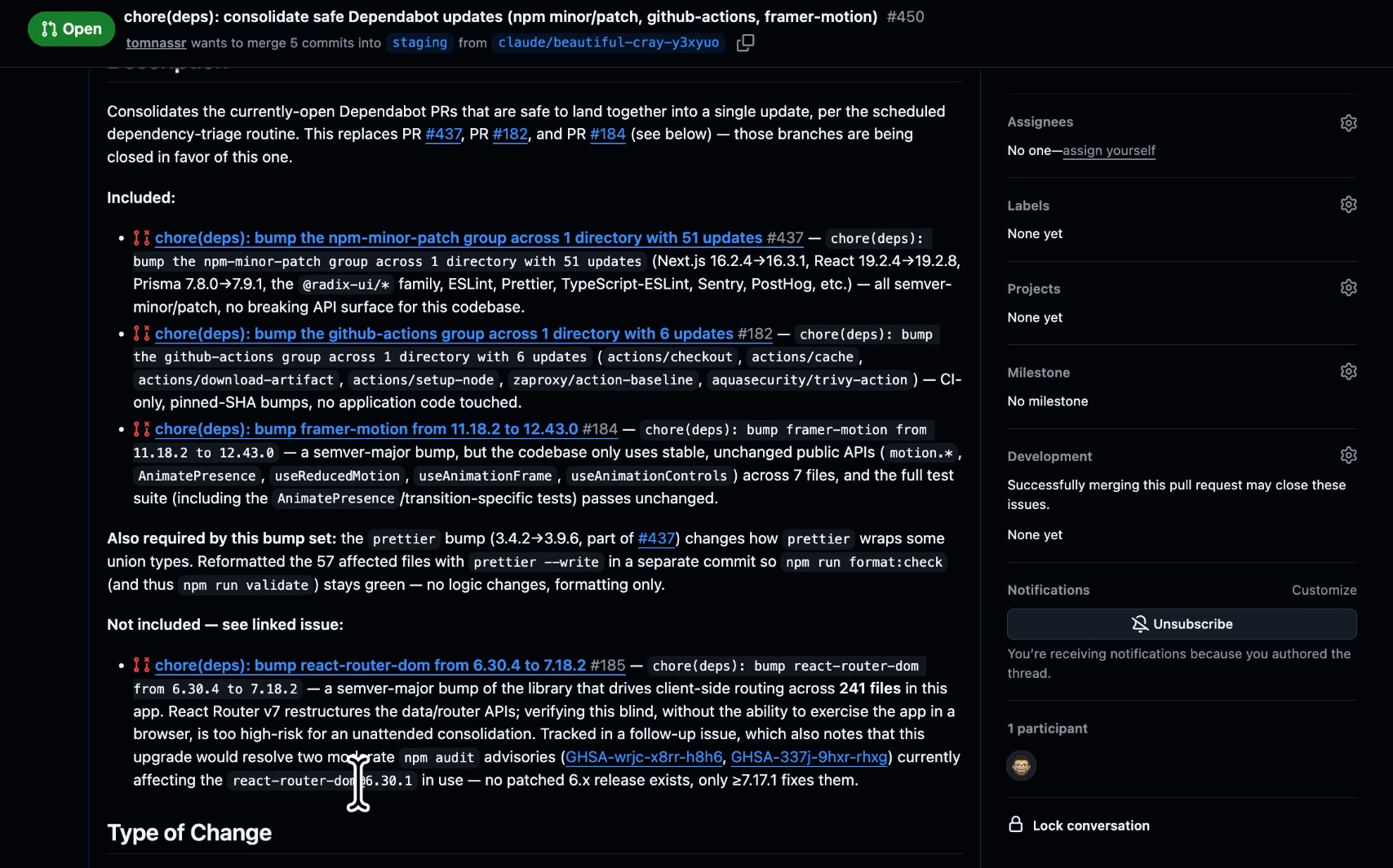
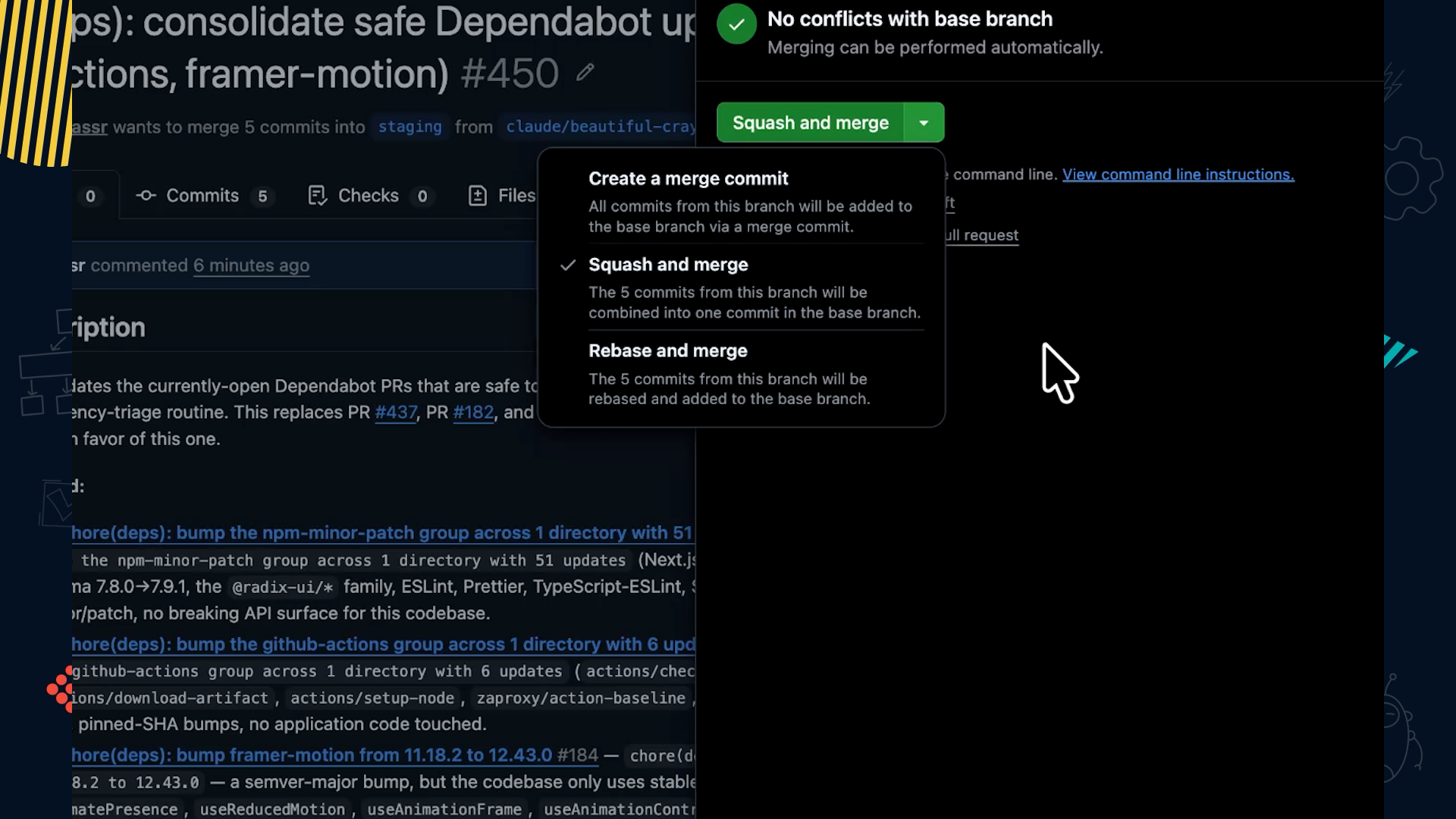
That PR changed 241 files. Big enough that nobody should wave it through, which is exactly the moment the routine hands the decision back to a person. It passed our CI checks and it targets staging rather than main, so we squashed and merged it there and left anything riskier for the engineering team to look at properly.
The routine cleared everything that could be cleared and handed back a short list of what actually needed a person.
It didn't make the risky call. It made the risky call visible.
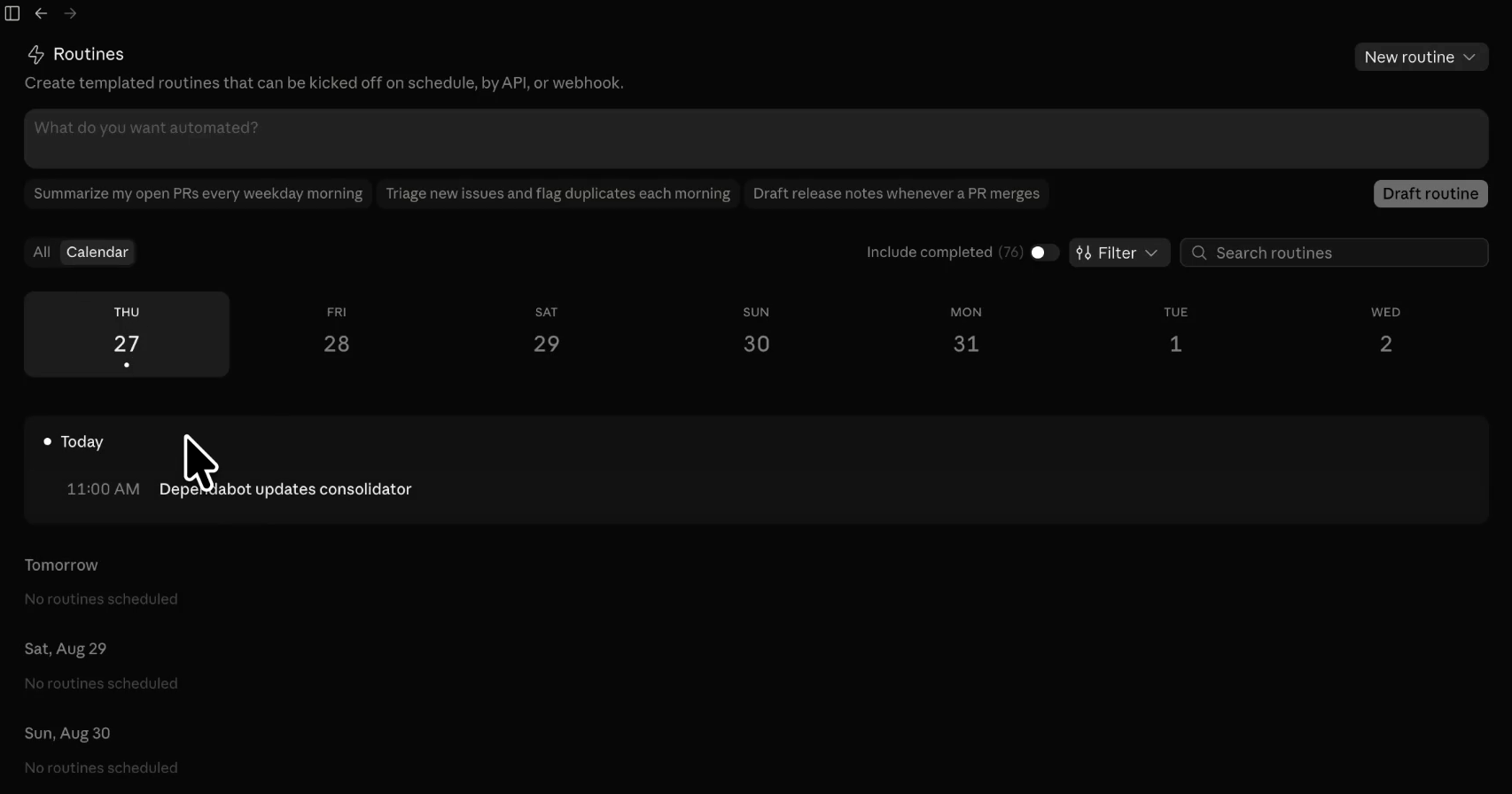
Every routine you build lives in the Routines menu. Switch between calendar and list view to see what's scheduled next, and click the pencil icon on any routine to edit the instructions or the trigger in place.
The Runs panel on the right keeps every session. Click into any one of them to see the full detail of that run.
• Routines run unattended. Cloud infrastructure, no approval prompts, no laptop required.
• Let Claude draft the instructions. Write the prompt loosely, then edit in the details it had no way to know.
• Match the trigger to the job. Events handle one thing at a time. Schedules batch a queue.
• The connector list is your permission model. You can't scope abilities inside a routine, so attach the fewest connectors that can finish the job.
• Tests and the pull request are the real controls. Turn on CI, target staging, and widen the scope once you trust what comes back.
• Pick a contained first job. Dependency bumps, documentation updates, and error messages cost you nothing when a run comes back rough.
• Read the first few runs closely. The Runs panel keeps every session, and the calendar and list views show what's scheduled next. Once you've read three good runs, stop reading them.
Reviewing a stack of version bumps was never the part of your week that needed your expertise. Deciding what to do about a 241-file update still is. Build the routine that separates those two piles, and spend Thursday on the second one.
Building AI workflows is straightforward. Building them safely is the hard part.
If your team is putting this kind of automation into production and you want a second set of eyes on it, go to xray.tech/hourly and book an hour with one of our experts. You bring the workflow you're stuck on, they help you fix the bugs and make it safe. One hour at a time, no retainer.
We also run training and workshops so your whole team learns to use AI well instead of learning the hard way. If you're a US-based company, a lot of that training is reimbursable through state and federal grant programs. Head to grants.xray.tech to see what you qualify for.