
ChatGPT can now browse the web like a human.
Agent Mode gives ChatGPT a virtual desktop where it can view websites, click buttons, download files, and interact with pages exactly as you would.
Regular ChatGPT can only read text. Agent Mode can see images, navigate sites, and handle tasks that require actual web interaction.
When regular ChatGPT browses the web, it only processes text. That's useful in many contexts, but it has its limitations.
Agent Mode opens a browser window and interacts with websites directly. It can see images, click links, download PDFs, fill out forms, and execute multi-step web tasks without you lifting a finger.
Here's a simple example.
If you ask regular ChatGPT to describe an image on a website, you'll get generic information about what might be there.
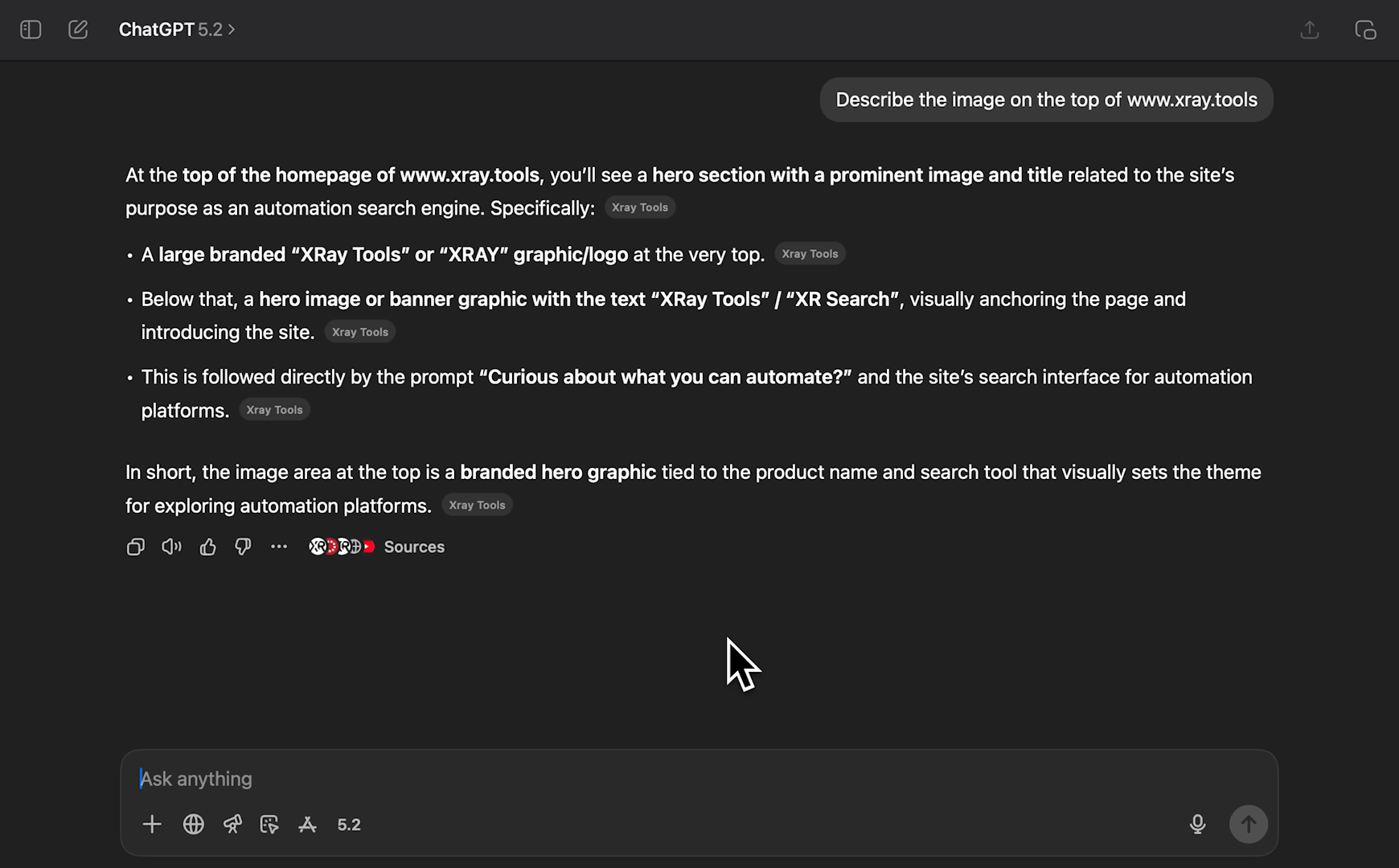
Ask Agent Mode the same question, and it opens the site, views the actual image, and accurately describes exactly what it sees.
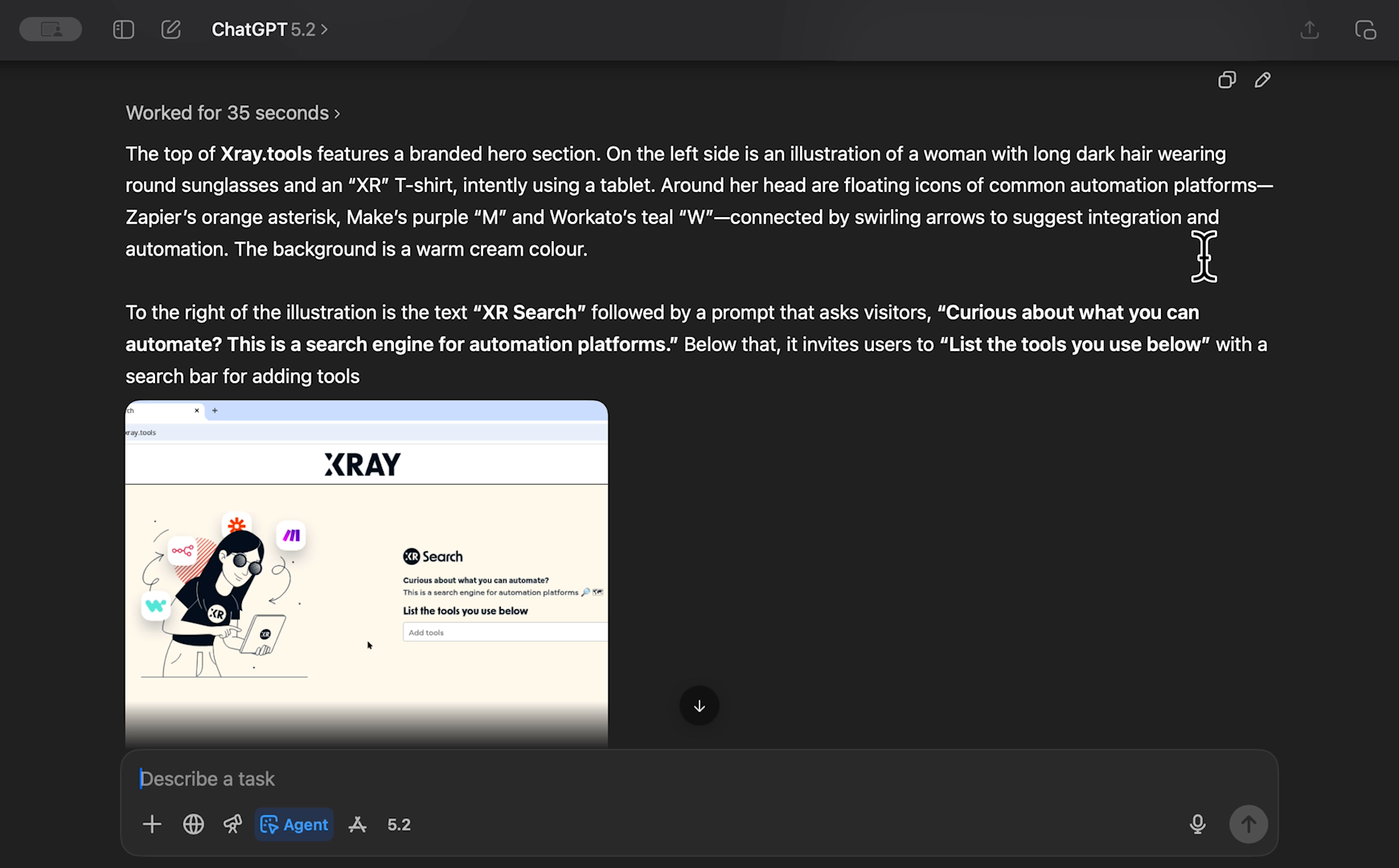
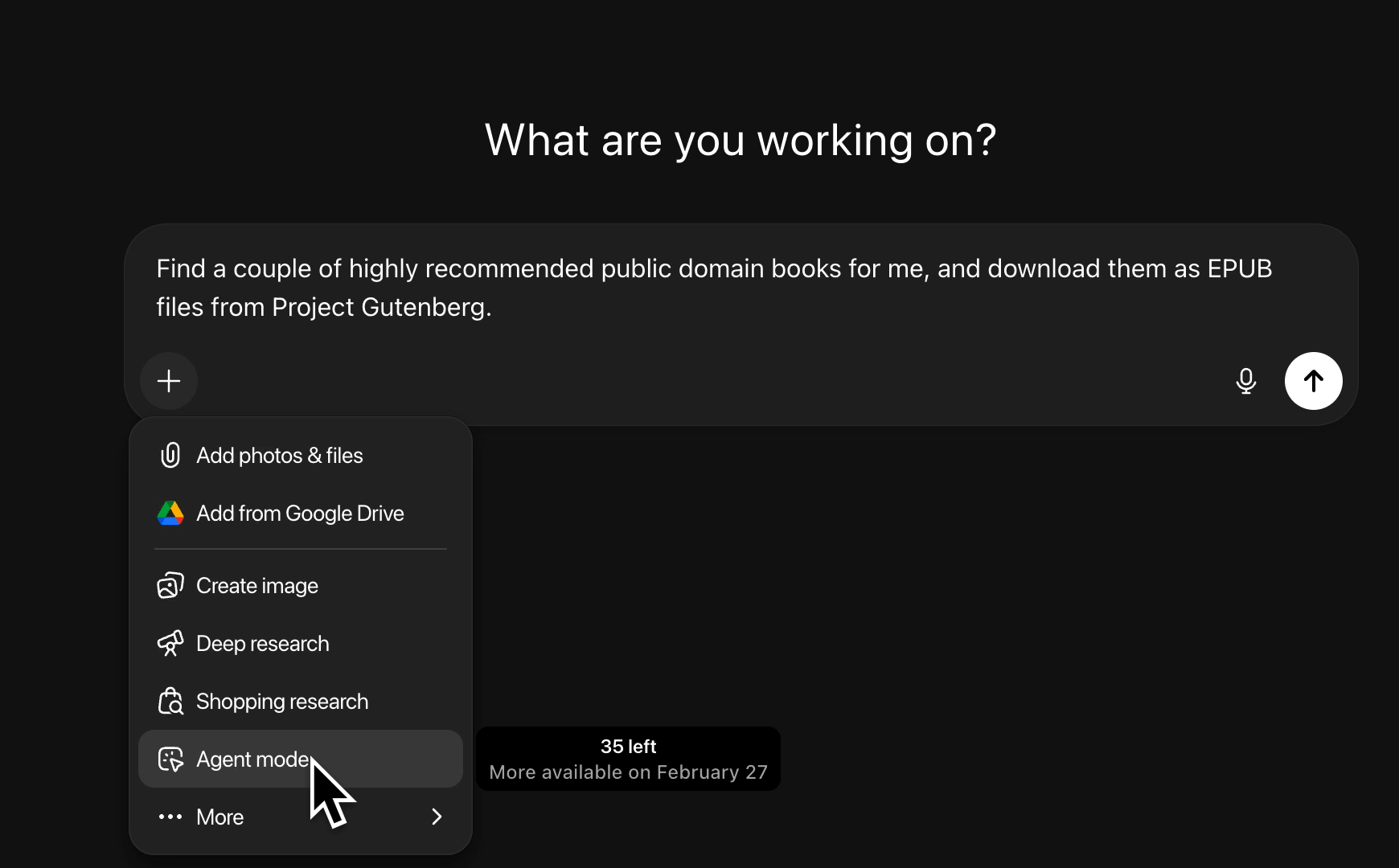
To access Agent Mode, click on the plus button next to the chat window. Then, select Agent Mode.
You'll see a browser window open when ChatGPT starts working. The tool navigates to sites, captures screenshots, and processes what's on screen. You can watch it work in real-time.
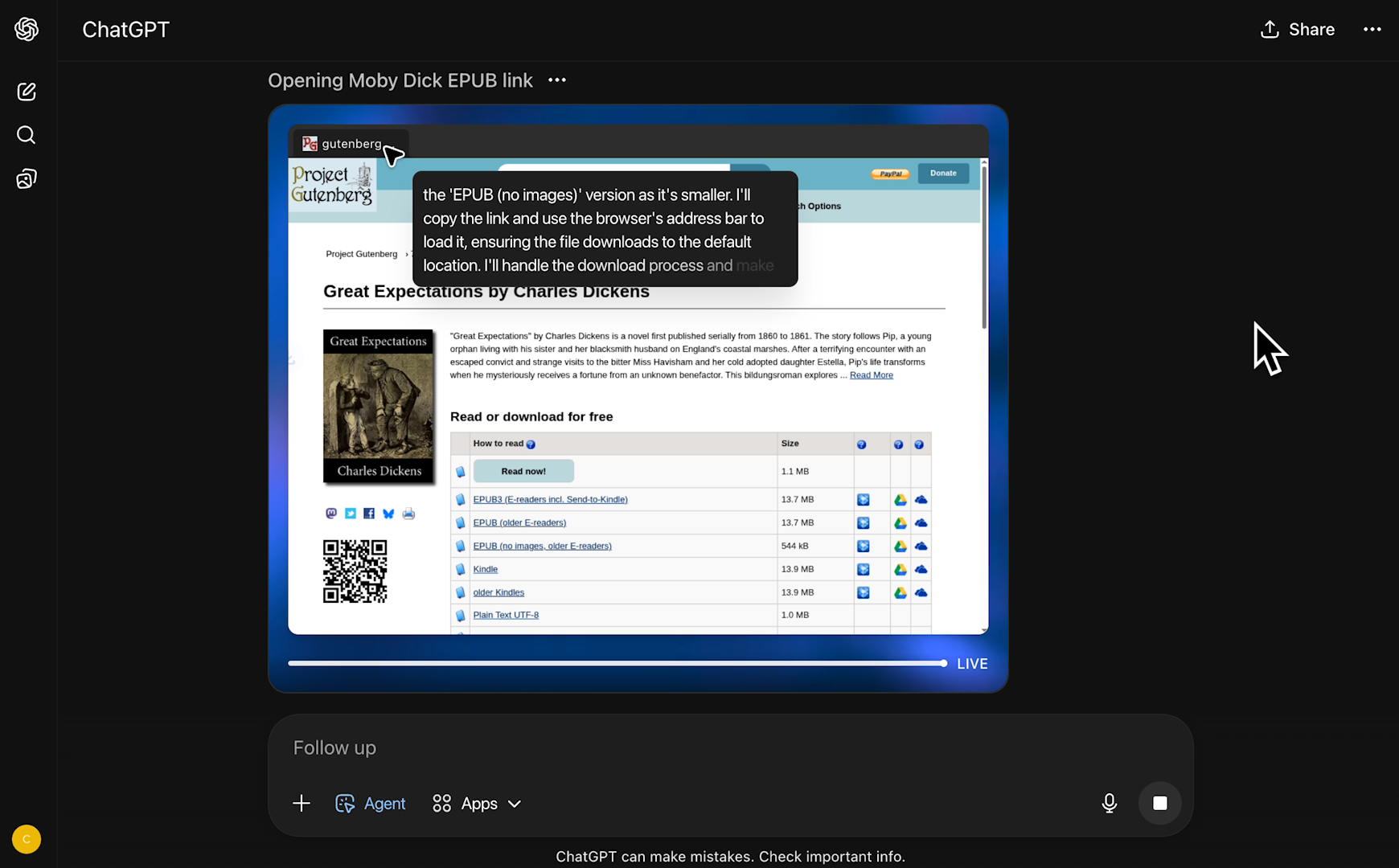
Agent Mode excels at research tasks that require web interaction.
Need to find and download specific documents? Agent Mode can search for them, navigate to the right pages, and download the files directly. In this XRAY video, you can see ChatGPT finding classic books on Project Gutenberg, downloading them as ePub files, and even renaming them appropriately.
This works for:
• Downloading forms or templates from websites
• Researching products across multiple sites
• Gathering information that requires clicking through pages
• Finding and saving resources from the web
• Comparing options that require viewing actual websites
Agent Mode requires a ChatGPT Plus subscription or higher. Free accounts or “ChatGPT Go” plan subscribers don't get access.
You also have rate limits. Check your remaining Agent Mode prompts by clicking the plus icon and scrolling to Agent Mode.
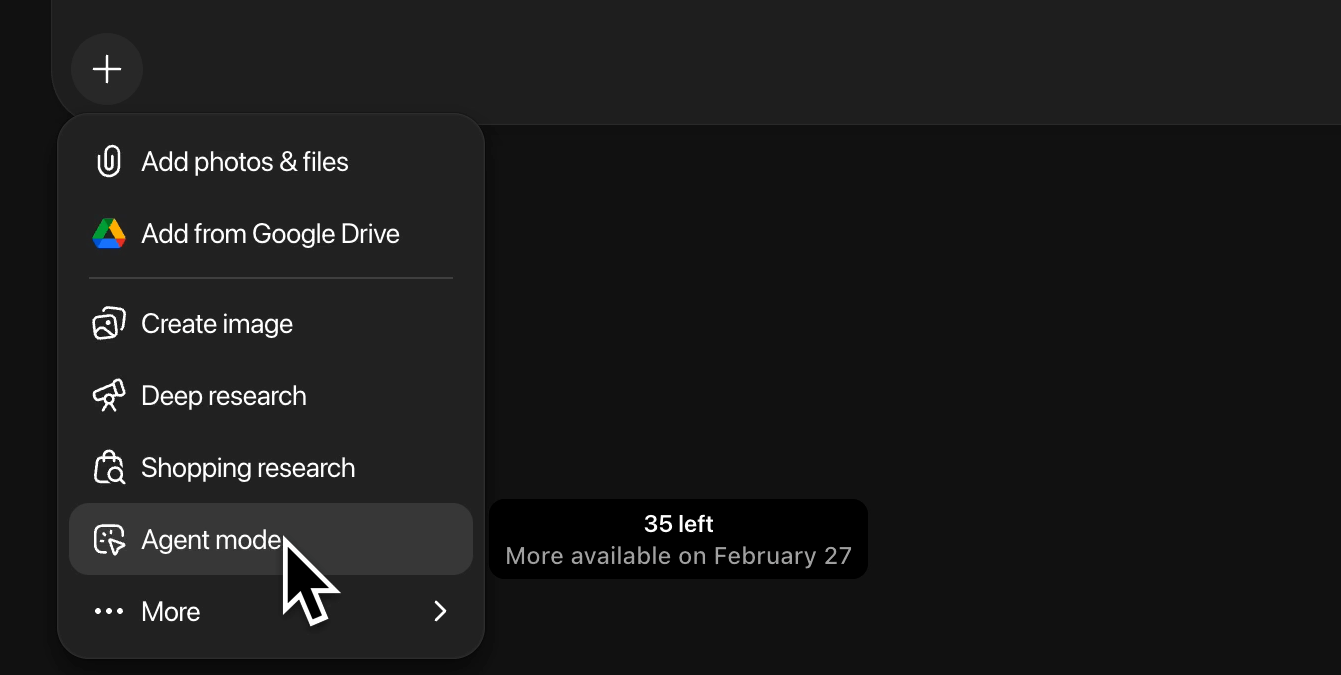
Your limit resets each month, so plan your tasks accordingly.
For complex research that requires dozens of Agent Mode calls, you might hit your limit. Save this feature for tasks that genuinely need web interaction rather than simple text processing.
Agent Mode represents a shift in how you should approach web-based tasks. Your job isn't to manually click through dozens of websites, download files one by one, or copy information from page to page. Your job is to define what you need and let AI tools handle the execution.
This is workflow automation at its simplest. One prompt replaces ten minutes of manual browsing.
XRAY Hourly offers flexible consulting for teams ready to integrate AI and automation into their daily work. We'll help you identify which tasks Agent Mode (and other AI tools) can handle, then show you exactly how to implement them.
Book a session at hourly.xray.tech and start automating this week.