
If you’ve been using Claude for a while now, you’ve likely run into this scenario:
You ask Claude to do something. It works great. You try again the next day, and the result is slightly different. Or it skips half the instructions entirely.
This is a common frustration people hit when they try to use AI for real work. The tool is powerful, but it's inconsistent. And inconsistency kills any workflow you're trying to build.
That's one of the problems Claude Skills are designed to solve.
A skill is a reusable instruction set for Claude, written in a markdown file.
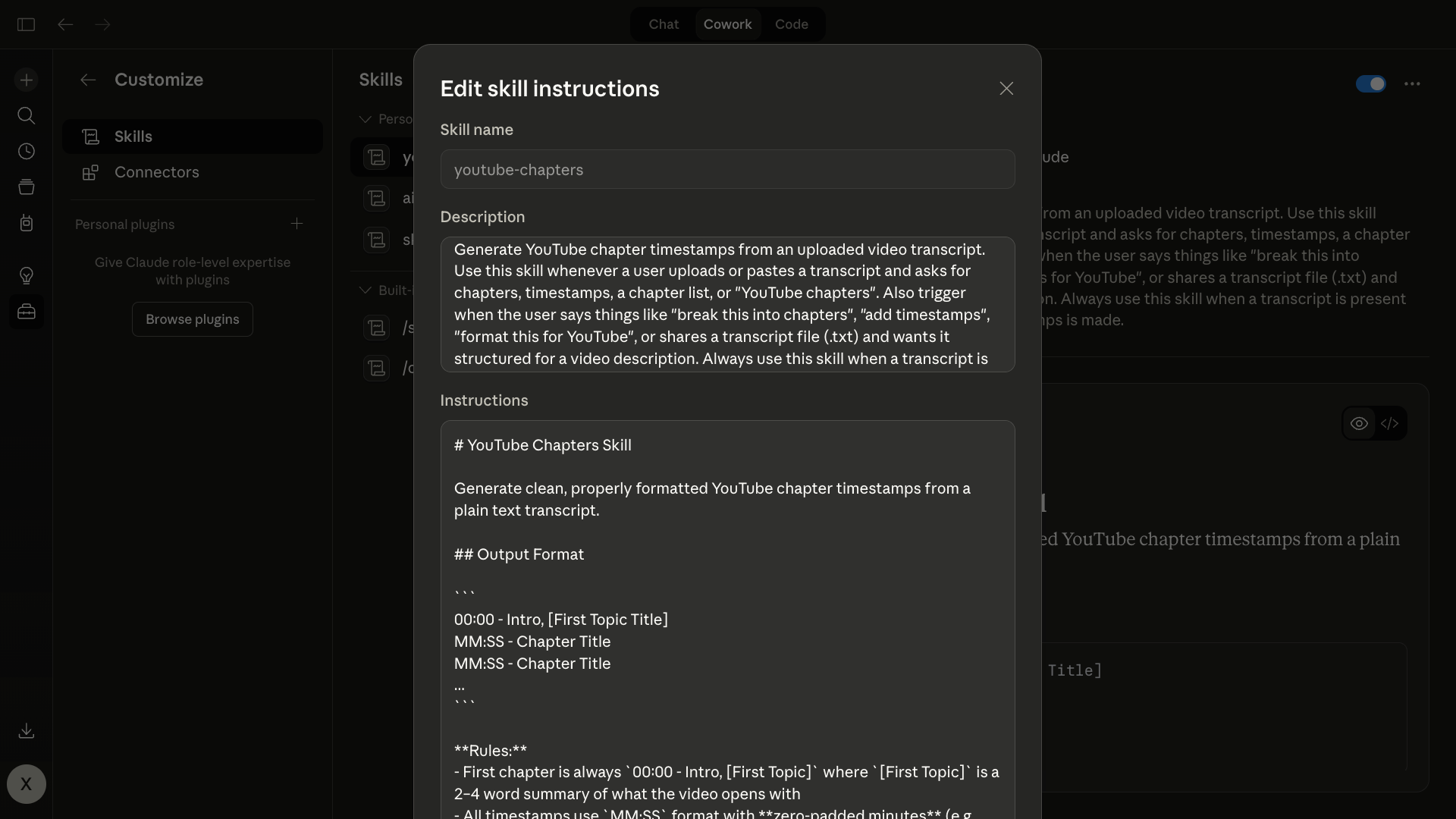
Think of it as a how-to manual that tells Claude exactly how to perform a specific task. Instead of rewriting a detailed prompt every time you need something done, you package those instructions into a skill that Claude can reference on demand.
Skills can include step-by-step processes, formatting rules, examples of good output, and even supporting code.
Once a skill is saved, Claude loads a short description of it at the start of every session to check whether it's relevant. If it is, Claude pulls in the full file. If not, it ignores it.
This is an important design choice. Because Claude only reads the description unless it needs the full skill, you can add dozens of skills without bloating your context window or slowing anything down. Each one stays lightweight until it's actually called.
Most people try to solve the consistency problem by writing longer, more detailed prompts. That works up to a point, but it creates its own issues. You end up copying and pasting the same wall of text into every conversation. You forget a section, or tweak something slightly, and the output drifts. Over time, your "master prompt" becomes a mess of revisions that nobody wants to maintain.
Skills solve this by separating the instructions from the conversation. The instructions live in a file. The conversation stays focused on the task at hand. You type a short request, Claude identifies the right skill, and the work gets done the same way every time.
This is closer to how real workflows should operate. You don't explain the entire process to a colleague every time you ask them to do something. You train them once, and after that, a short request is enough. Skills give Claude that same kind of training.
Skills aren't meant to automate an entire workflow end-to-end. They work best when you break a larger process into small, precise, repeatable tasks.
A good candidate for a skill is any task where you find yourself writing the same instructions over and over, where the output needs to follow a consistent format, and where you can clearly define what "good" looks like.
For instance, formatting YouTube chapters from a transcript is a good example. So is reviewing code against a style guide, generating metadata for a blog post, or writing a status update in a specific structure.
If you're not sure which parts of your workflow would benefit from a skill, start a separate Claude conversation and talk through your process.
Describe what you do step by step, and ask Claude to help you identify which steps are repetitive and well-defined enough to turn into skills. This is a common and effective pattern: one conversation to plan, another to build.
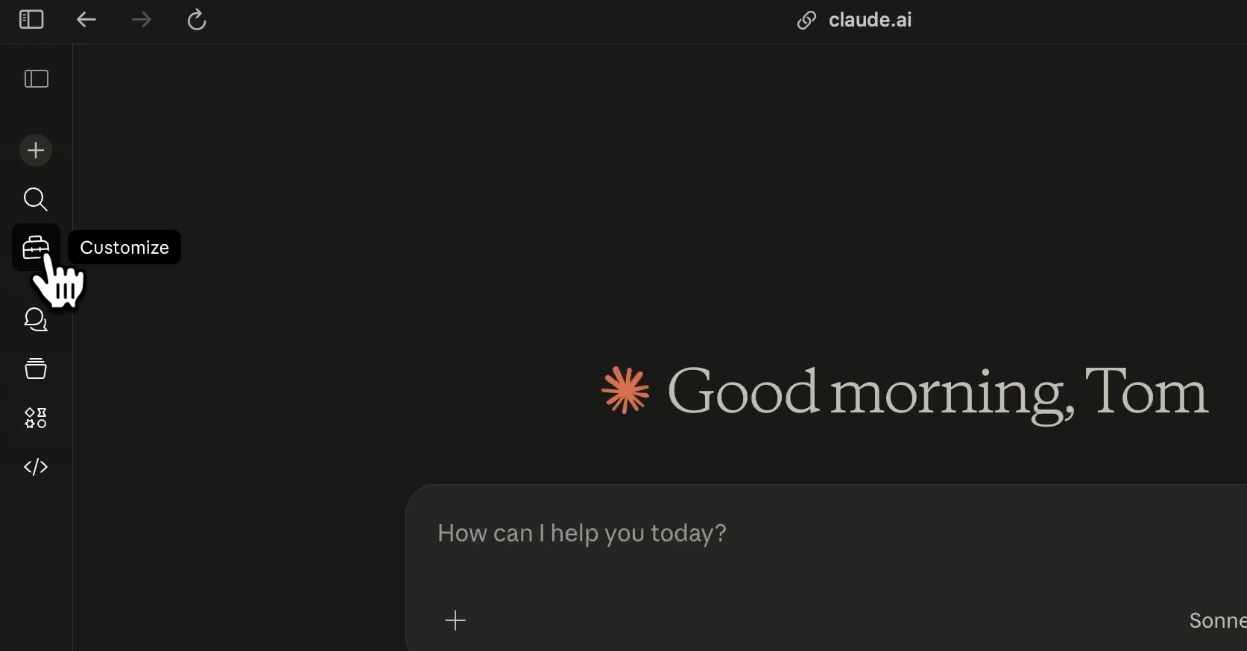
Open Claude and click the customize button (the toolbox icon) in the left sidebar.
Select "Skills," and you'll see a library of example skills that come preloaded.
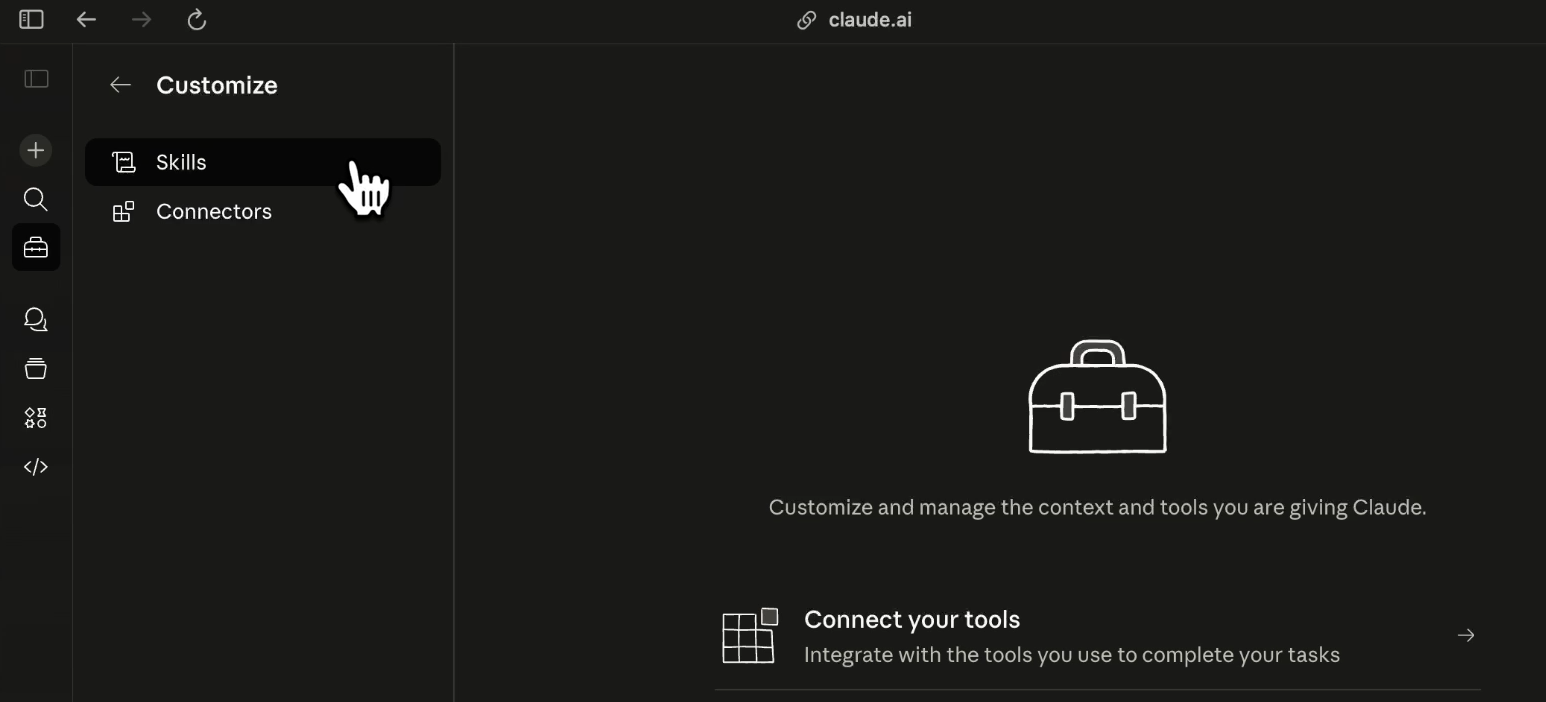
There's an MCP builder, an internal communications skill, and several others you can use as reference.
The one that matters most is the skill-creator skill. It's a skill for building skills.
Click the plus button and select "Create with Claude."
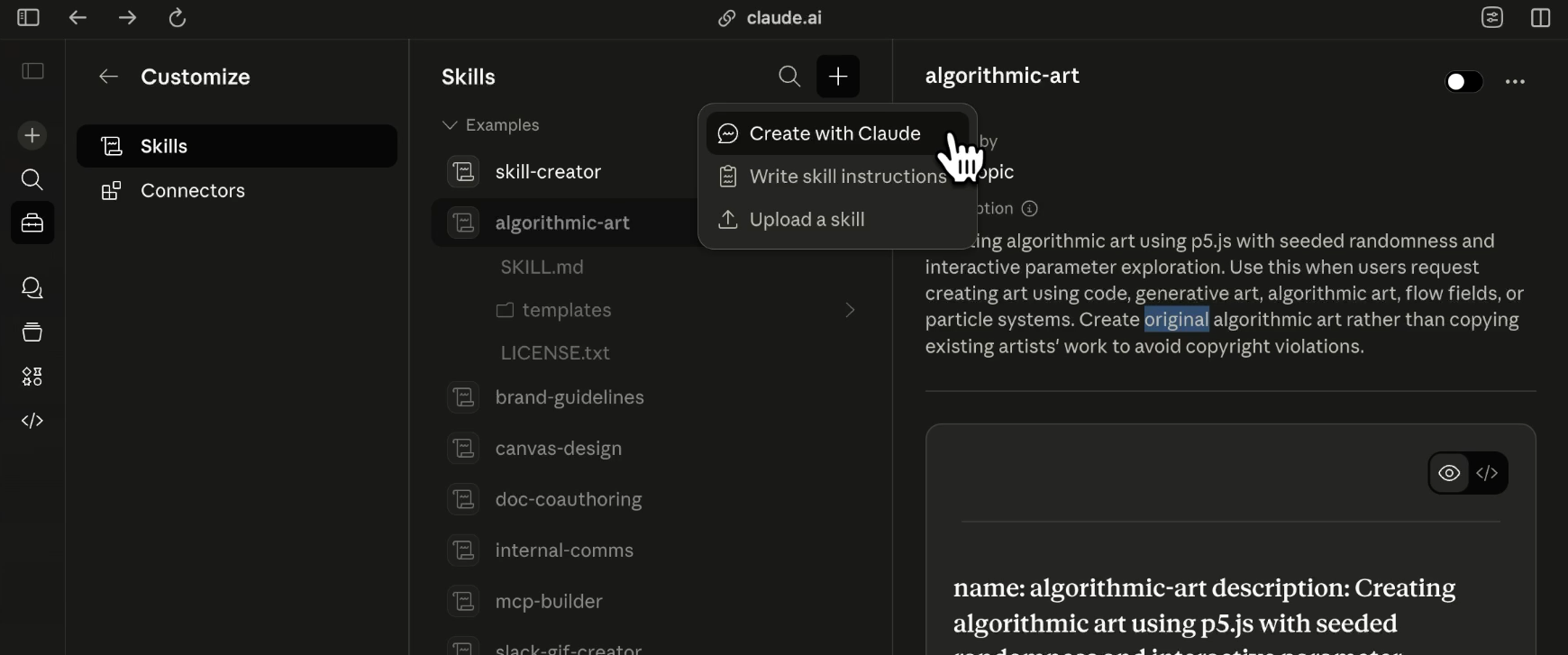
This generates a prefilled prompt that invokes the skill-creator and asks Claude to walk you through building a new skill from scratch.
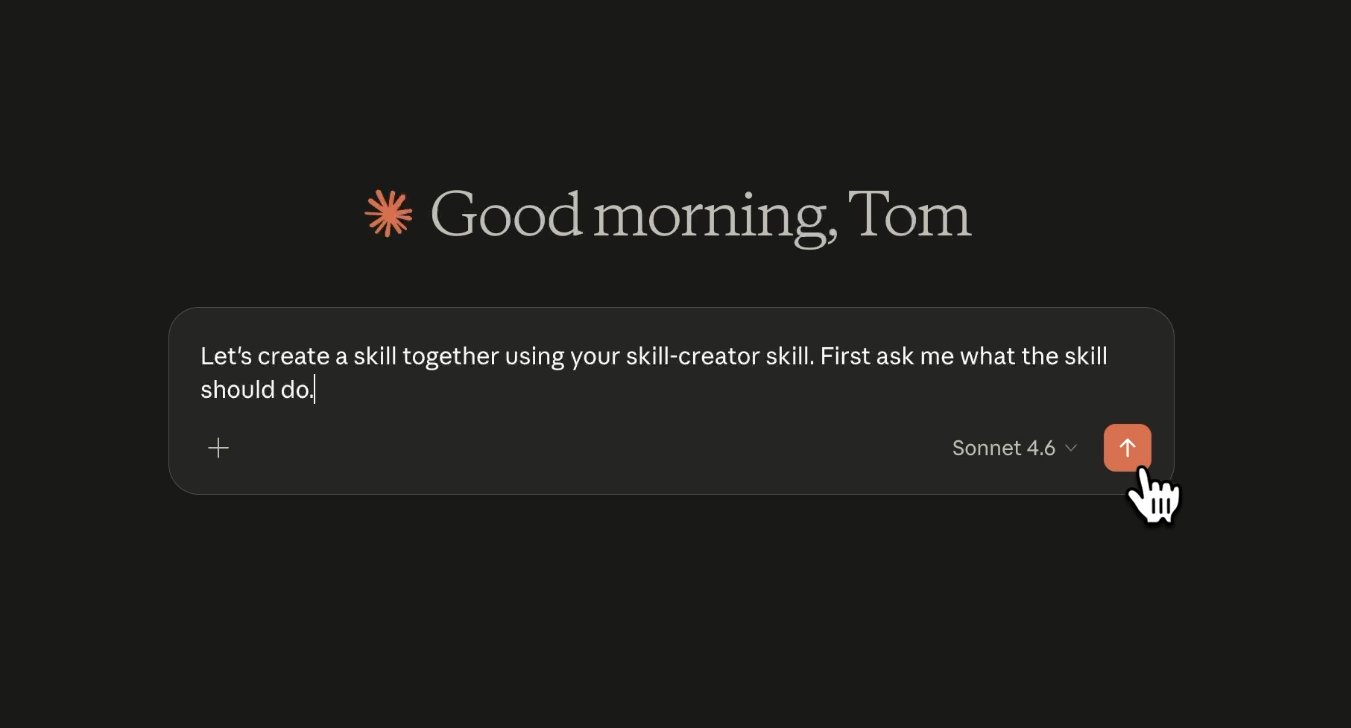
Hit send, and Claude will ask you what you want to build.
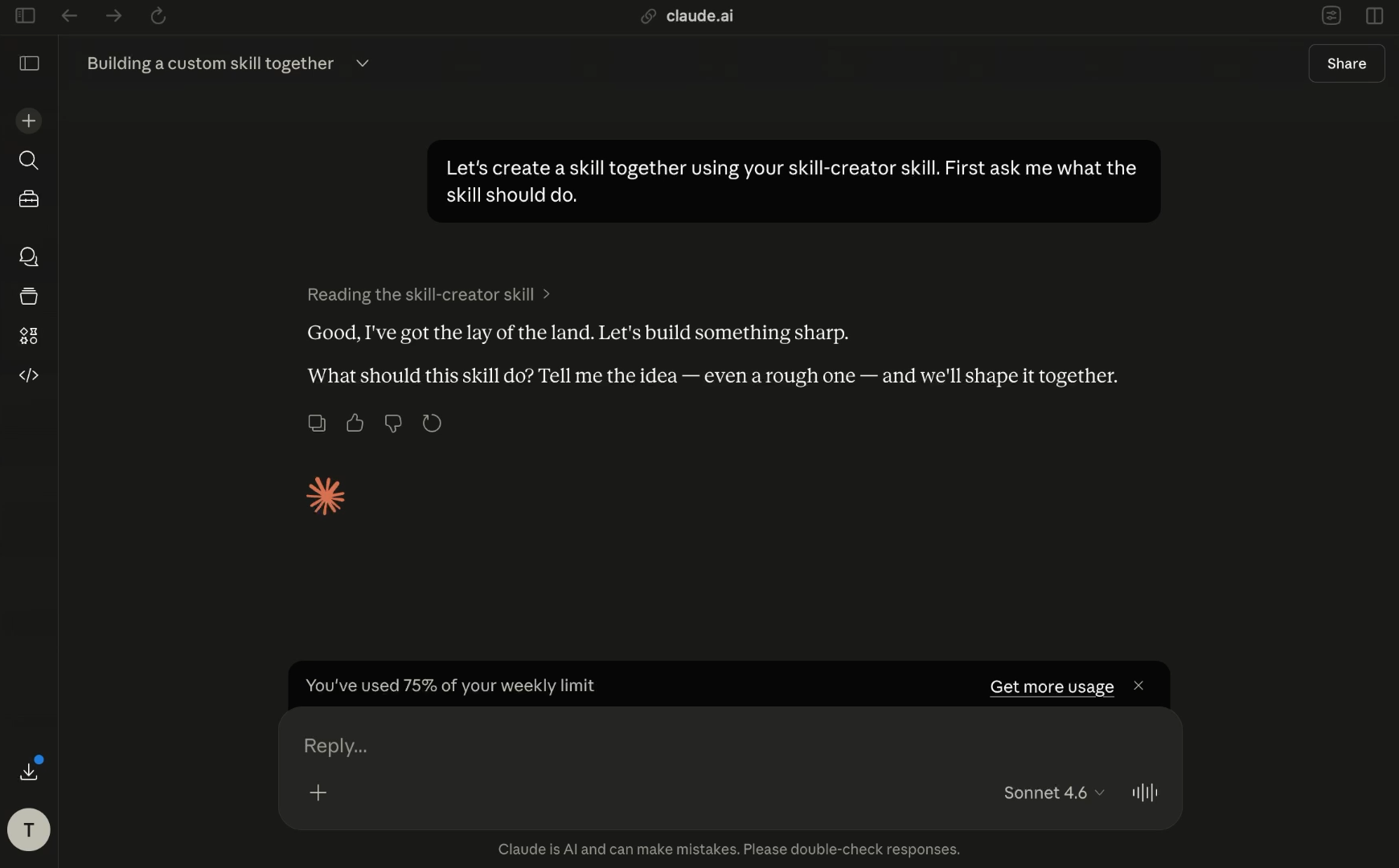
Describe the task in plain language. Be specific about the inputs, the outputs, and any formatting rules that matter. If you have examples of good output, attach them. Reference files go a long way toward helping Claude understand exactly what you're after.
Here's an example of a prompt you might use:
I want Claude to read an uploaded video transcript and create chapters formatted for YouTube (e.g., 00:00 - Intro). The skill should use the timestamps within the transcript to determine the corresponding timestamps for each chapter. Each chapter title should be brief and descriptive, about 5 words or less. The first chapter should always include "Intro" but can also include a brief description.
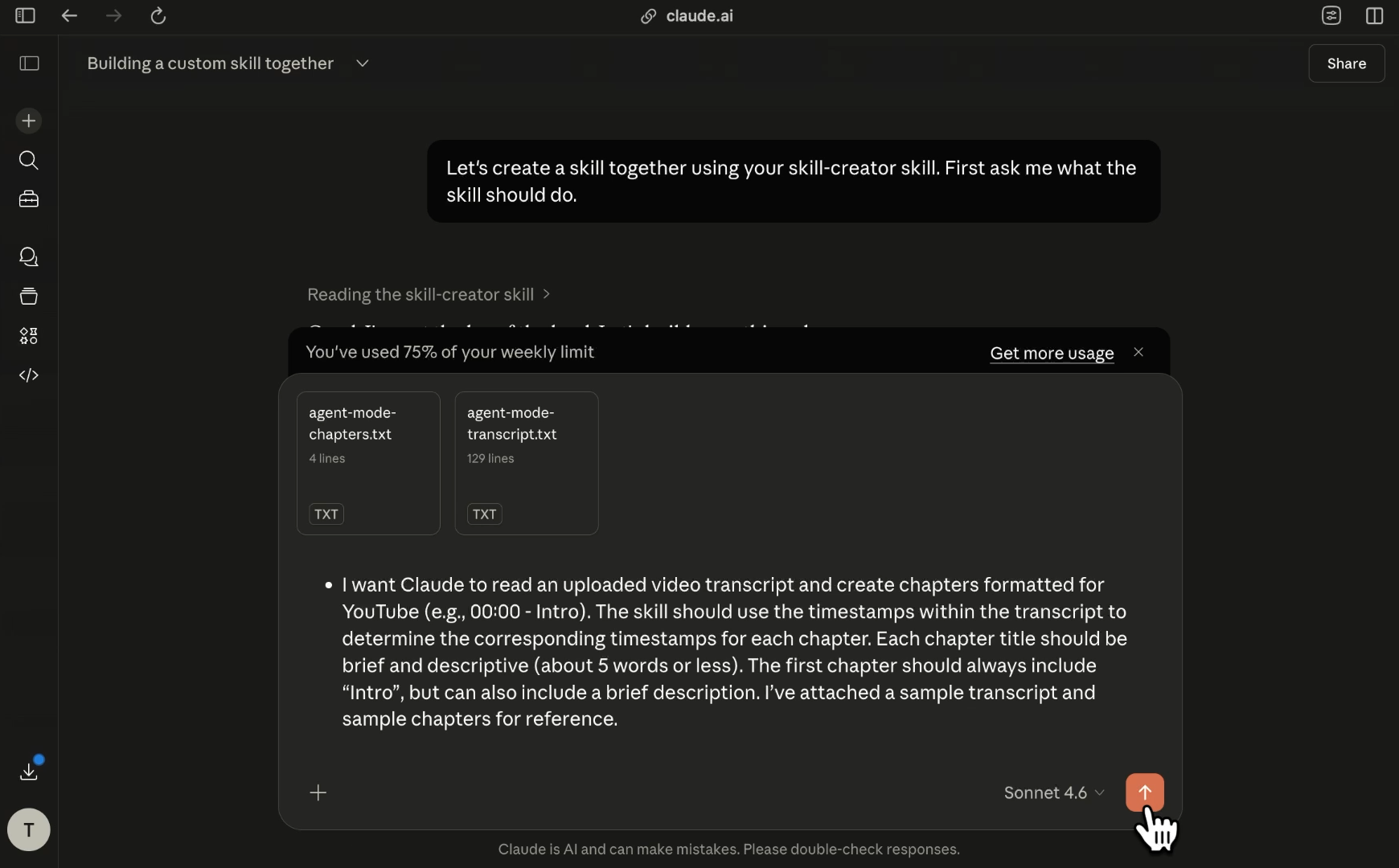
Along with a prompt like this, you'd attach a sample transcript and a sample set of chapters so Claude can see the target format.
Below, you can find the text of our example "agent-mode-chapters" and "agent-mode-transcript" files. Note that the transcript was generated by the video editing software Adobe Premiere Pro. If you're generating transcripts through a different method, you may have a different format for timestamps in your files. We'd recommend providing Claude with your own examples, so the skill can match your precise specifications.
Chapters:
00:00 - Intro, What is Agent Mode?
00:37 - Analyzing an image
02:29 - Finding and downloading documents
04:22 - Get expert AI support
Transcript:
00:00:00:03 - 00:00:21:20
Speaker 1
Today, I'm going to show you one of the easiest ways to get more out of ChatGPT. It's called Agent Mode, and it lets ChatGPT read and interact with websites just like a human can. Let's take a look. So what is agent mode? It was added to ChatGPT a couple of months ago, and it lets ChatGPT create a virtual desktop to view and interact with web pages directly on your behalf.

00:00:21:21 - 00:00:43:13
Speaker 1
Normal ChatGPT can only read text, which is useful, but it has its limitations. Agent mode can see images, click buttons and links, download files like PDFs, and a whole lot more. It's great if you want ChatGPT to do work for you and interact with the web. So let me give you an example. Let's ask ChatGPT to describe the image at the top of this site.

00:00:43:14 - 00:01:11:07
Speaker 1
So I'll say describe the image on the top of x ray tools. Let's see what happens. So it's searching x ray tools. And it's saying that there's a hero section with a prominent image and a title, but it doesn't actually describe what the image is. And this is because I'm in regular ChatGPT right now. I'm not an agent mode.

00:01:11:07 - 00:01:32:13
Speaker 1
If I want to go into agent mode, I come down here and I click on this little icon here with a cursor and that is agent mode. So I'm just going to copy this exact same prompt in agent mode and paste it and see what happens now. Now it's going to take a little bit longer. And it should actually open up what looks like a little window.

00:01:32:15 - 00:01:40:10
Speaker 1
It's going to navigate to the page. Let's give it a second here.

00:01:40:13 - 00:01:44:12
Speaker 1
So it opens up its own browser.

00:01:44:14 - 00:01:49:27
Speaker 1
Navigate to the x ray tools.

00:01:50:00 - 00:02:15:24
Speaker 1
We actually get a screenshot of it. And now it describes it in much more detail. A woman with dark hair, wearing round glasses with an t shirt, intently using a tablet. Around her head are floating icons of common automation platforms zappers, orange asterisks, makes purple m write. It interprets this image in much, much more detail. And this is because agent mode can actually see this image.

00:02:16:01 - 00:02:36:28
Speaker 1
Unfortunately, Agent Mode is a paid subscription only feature, so you're going to need a plus subscription or higher. But like all the features in these AI platforms, the more you pay, the higher the limits are for using agent mode. Describing a hero image is nice, but let's give it a more advanced research task. I'm going to ask it to find and download a file.

00:02:37:00 - 00:03:03:28
Speaker 1
I'm going to have it find me a classic book and download it from Project Gutenberg. That's a great site for finding free public domain books. I'm just going to paste this prompt here. Find a couple of highly recommended public books for me, dealer's Choice, and download them as Epub files from Project Gutenberg. Now come over here to this plus button and scroll down to Agent Mode, and you can see how many Agent Mode prompts you have left and when your plan resets.

00:03:04:01 - 00:03:25:09
Speaker 1
So I'm going to turn on Agent mode and I'm going to click go. We're going to get to see it exploring the web here. So we can see the browser open. And we can see the agent mode actually clicking and navigating through the site. We can even see it quote thinking as it is processing what is on the screen.

00:03:25:12 - 00:03:55:15
Speaker 1
Great Expectations by Charles Dickens not something that I have personally read, but it could be a nice read. And you can see that ChatGPT is bouncing between the browser and the terminal. So here are two widely praised public domain classics, along with a brief explanation for why each is highly recommended, and the download links for the editions.

00:03:55:18 - 00:04:21:27
Speaker 1
There we go. I have them right here. These are downloaded directly from Project Gutenberg, so they're free to use and compatible with standard e-readers. Agent mode was able to pick some books for me, find them on Project Gutenberg, download and rename them for me, all without requiring anything else but a prompt. And here's the book that opened up in Apple Books, and we're good to get reading.

00:04:22:04 - 00:04:40:10
Speaker 1
Need help with your AI automations and workflows? Reach out to x ray hourly for flexible, one on one support. Our certified experts will help you build your projects in tools like cursor, Zapier, Nan, and more, and you'll learn how it all works as you go. Just go to hourly tech to get started and book your first session this week.

00:04:40:13 - 00:04:59:00
Speaker 1
AI tools like ChatGPT are constantly evolving. Specialized features like Agent Mode open up new possibilities for research and workload automation. Try it out today and let me know in the comments below! What are you using Agent Mode for and what other AI features would you like to see me cover on the channel? Drop a comment below and we might cover it in a future video.

00:04:59:03 - 00:05:13:16
Speaker 1
If this video helped you out, like and subscribe to the channel for more AI and automation updates every single week. You can also find me and my company x ray by searching for x ray automation on nearly every social media platform. For now, I've got to go. So until next time, find your focus and stay in flow.
PRO TIP: Alternatively, you can open up another Claude conversation and ask it to write your prompt for you. It may feel lazy, but the fact is that AI is often much better at writing prompts than we are!
After you send your initial prompt, Claude will likely have follow-up questions. For instance, it might ask about edge cases, formatting preferences, or how to handle ambiguity. Answer these questions specifically. The more precise you are here, the better the skill will perform later.
Once Claude has enough information, it generates a finished skill file.
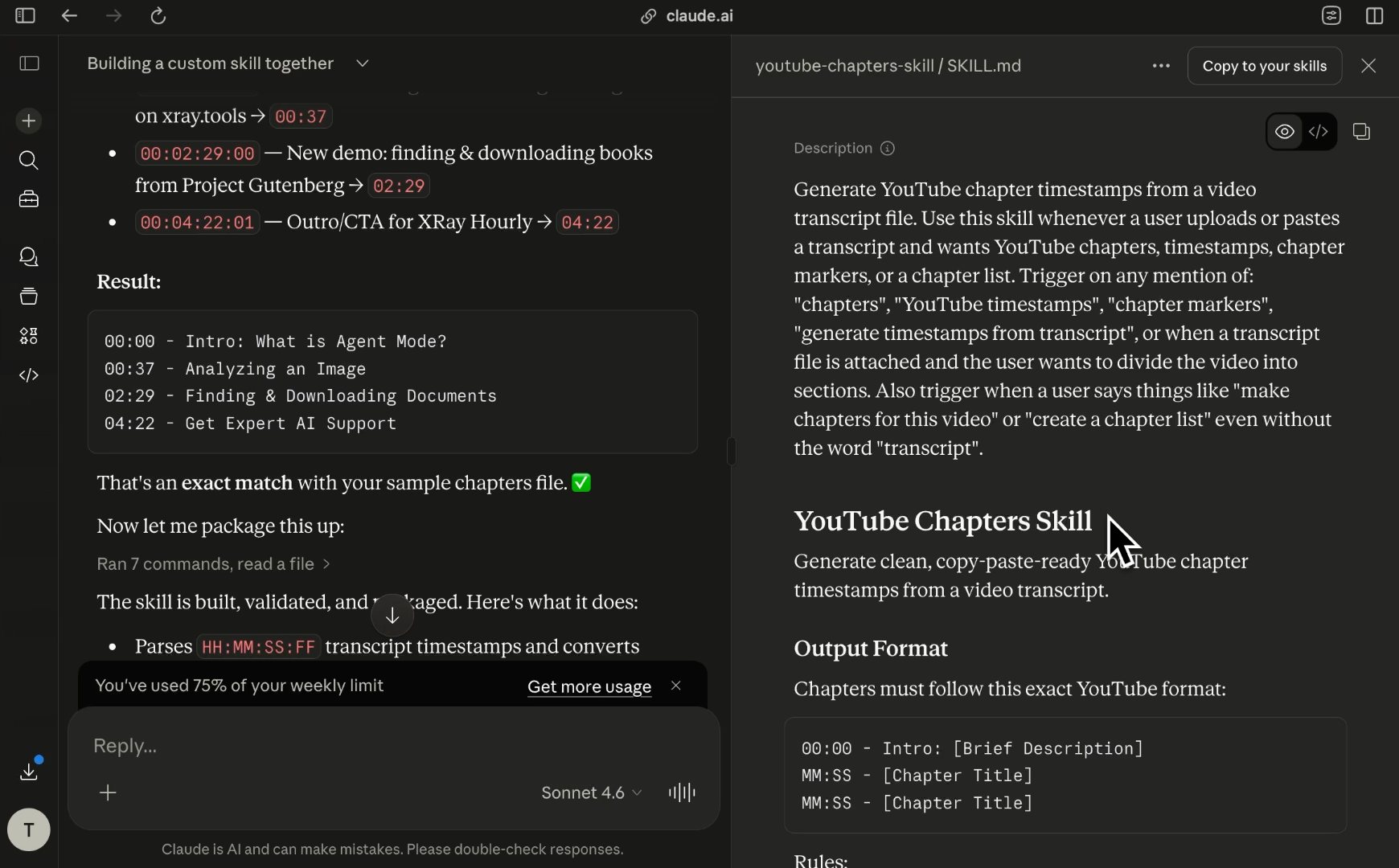
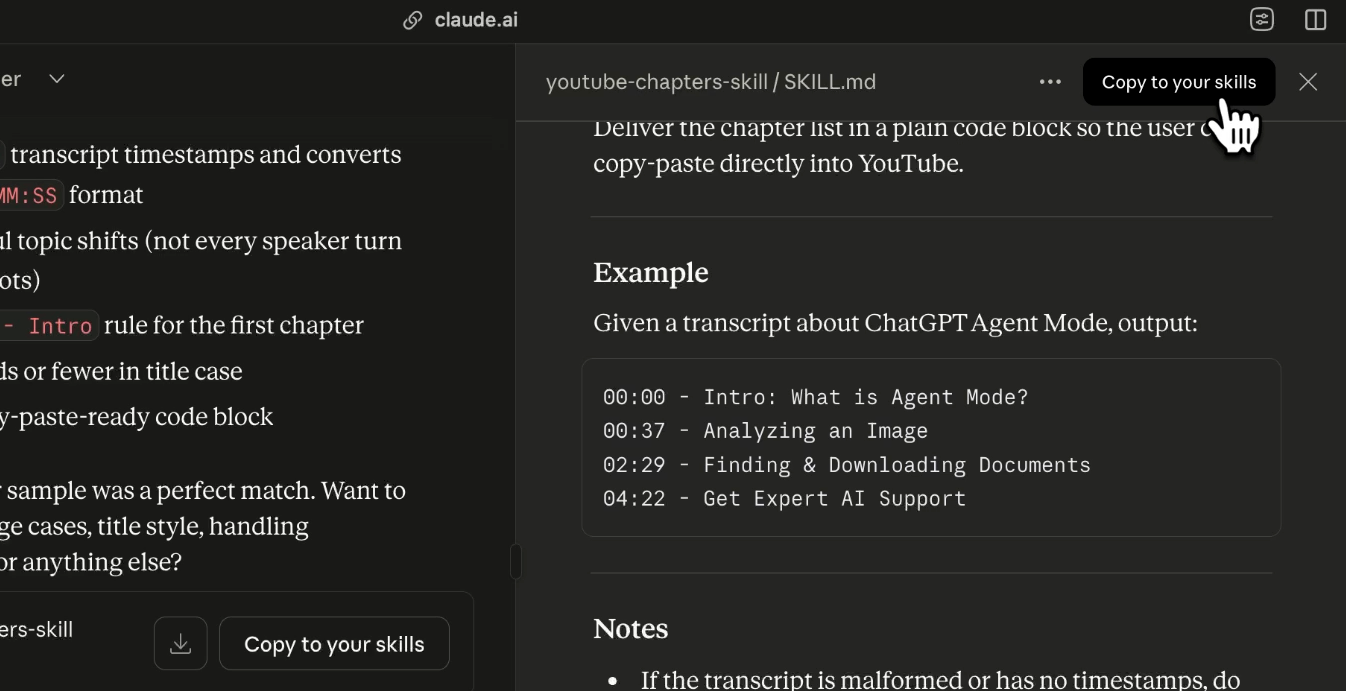
You'll see it appear as a markdown document with a description at the top (which Claude uses to decide when to activate the skill), a set of rules, a step-by-step process, an example of the expected output, and any additional notes.
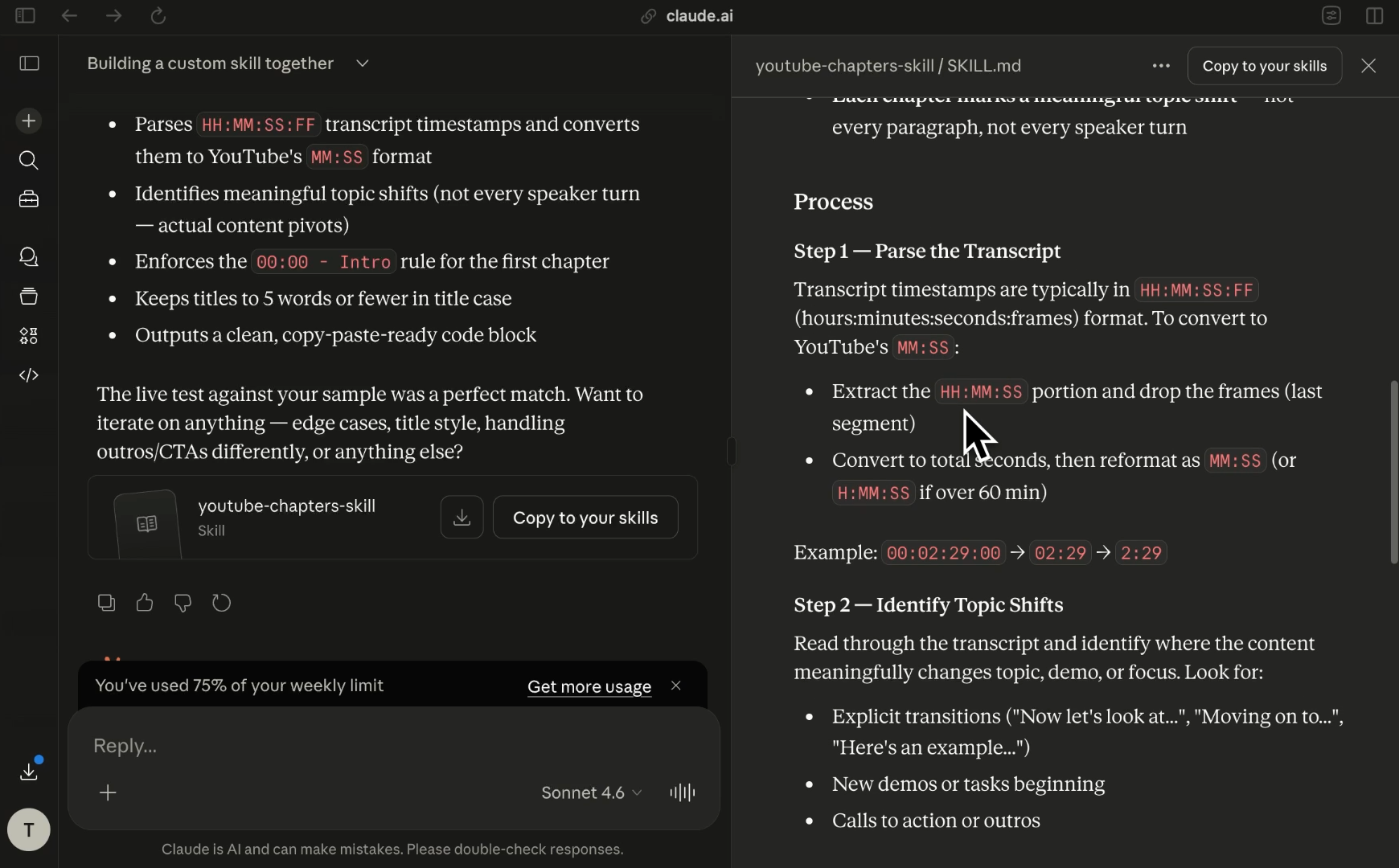
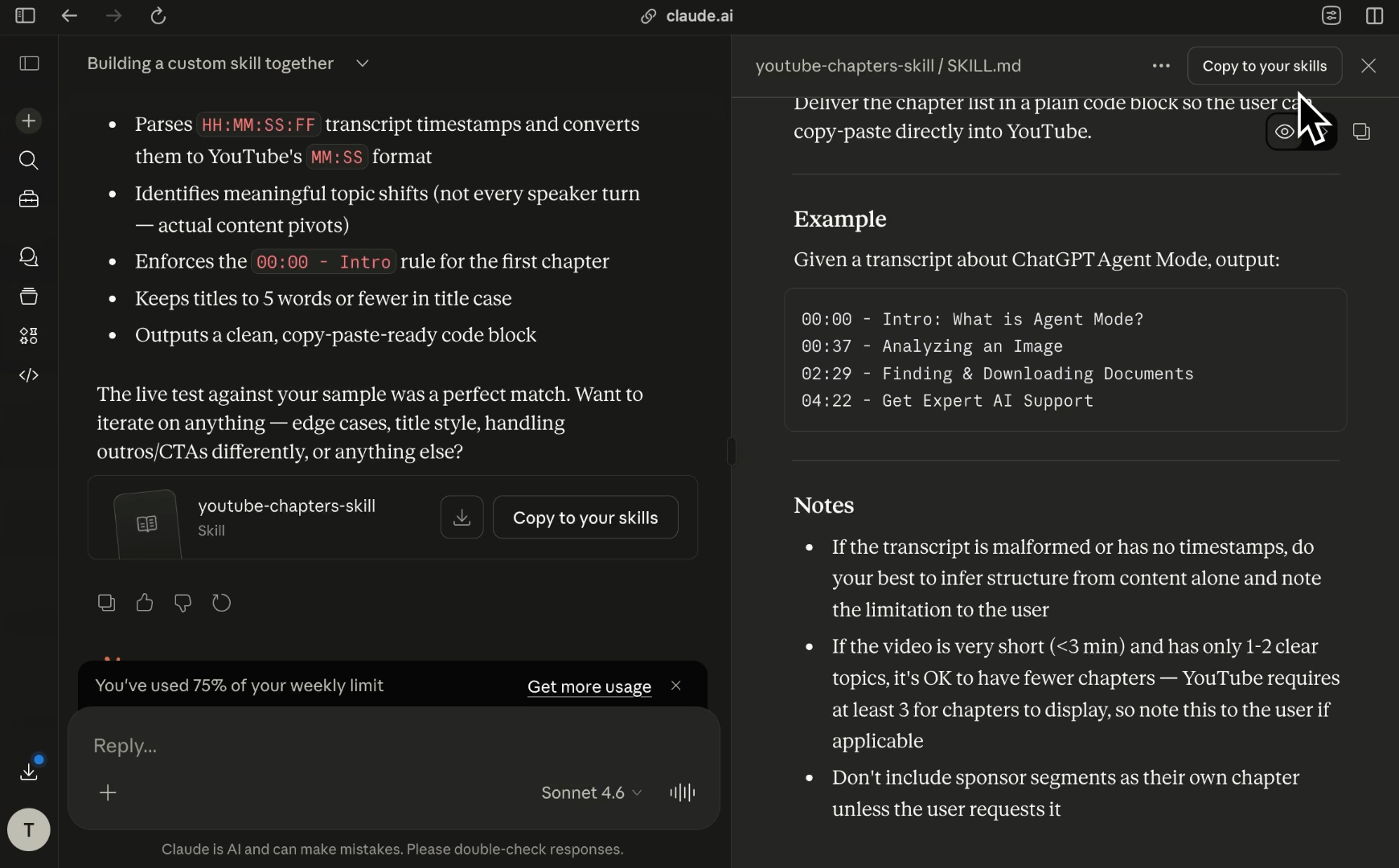
To save the skill to Claude, click on “Copy to your skills” in the top right.
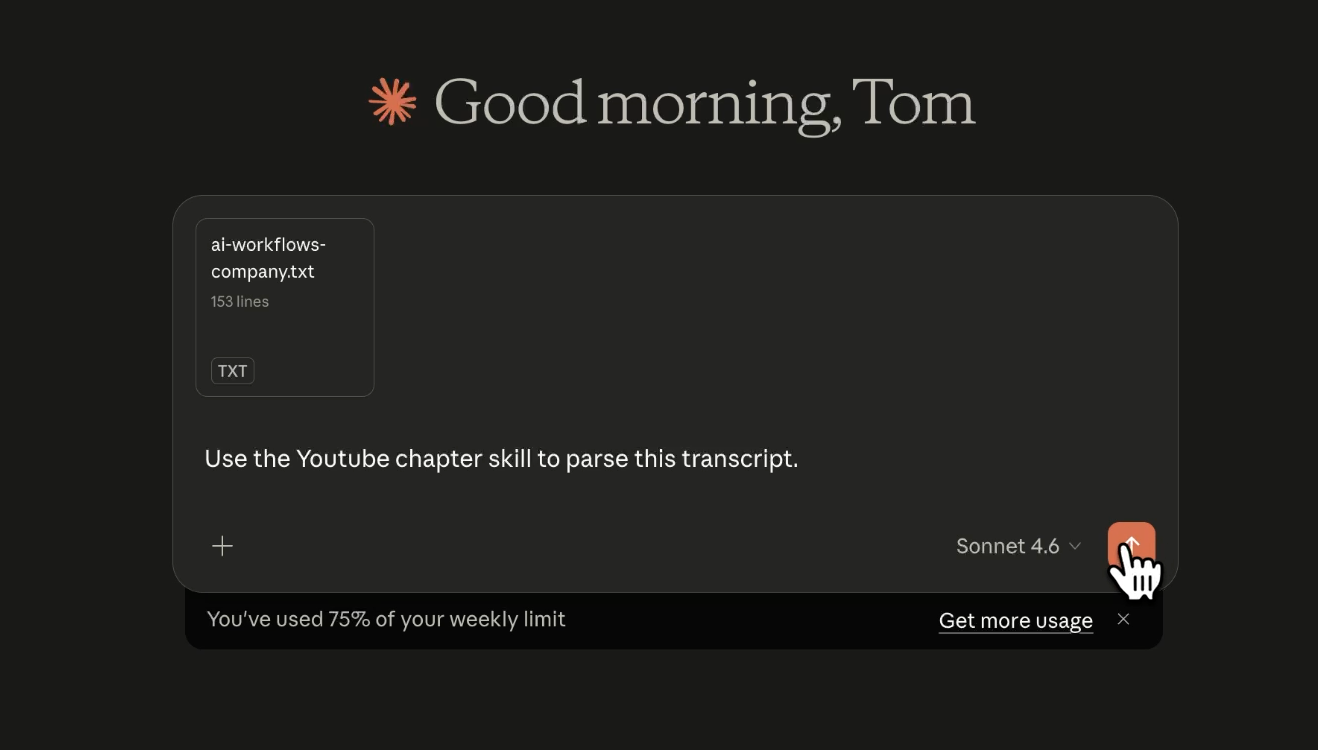
Once you’ve saved your skill, give it a test. Upload a real file or enter a real prompt and ask Claude to run the skill. You can invoke it directly by typing /skill-name, or simply describe the action that the skill covers.
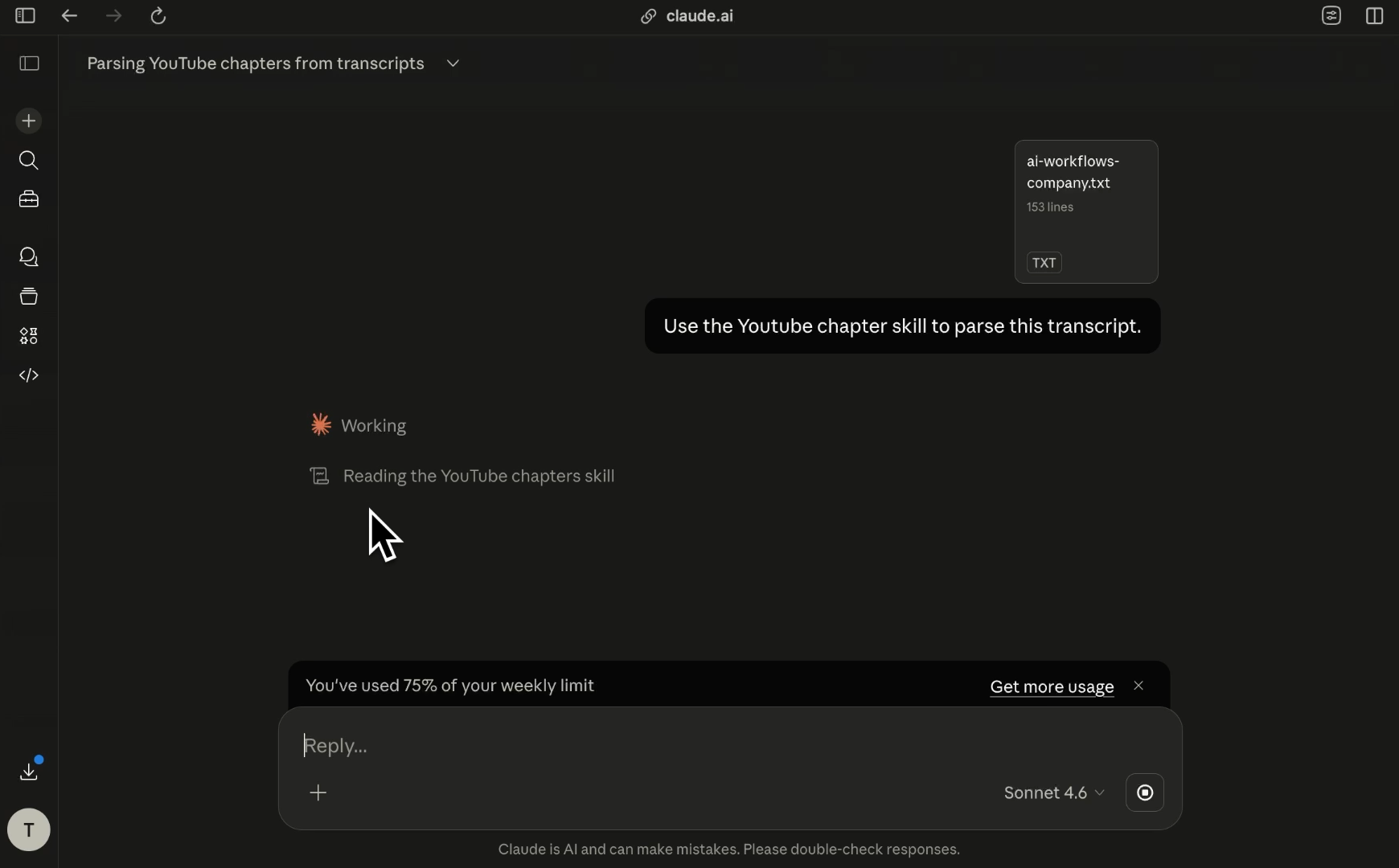
As it’s processing your prompt, you should see Claude accessing the relevant skill before it prepares its response.
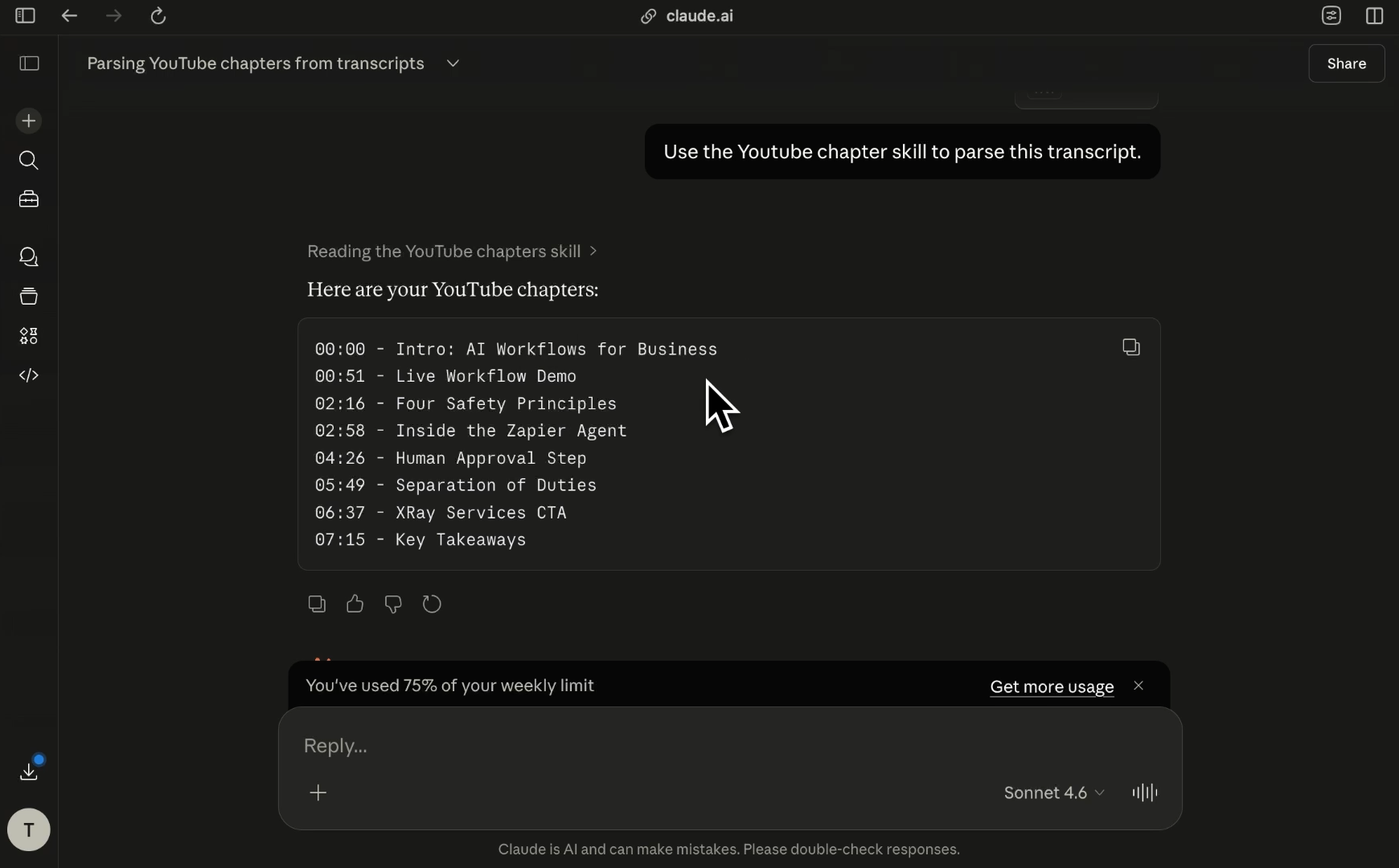
Once you get an answer, check the output against what you'd expect. In our test, Claude provided chapters exactly the way we wanted.
If your result isn't quite right, tell Claude what to adjust. Describe the problem, ask for a fix, and test again. This loop of testing and refining is where the real quality comes from. Most skills need two or three rounds before they're solid.
For simple skills that don't require code execution, building and testing through the browser works fine. But if you want more thorough testing, the Cowork tab in the Claude desktop app is worth using.
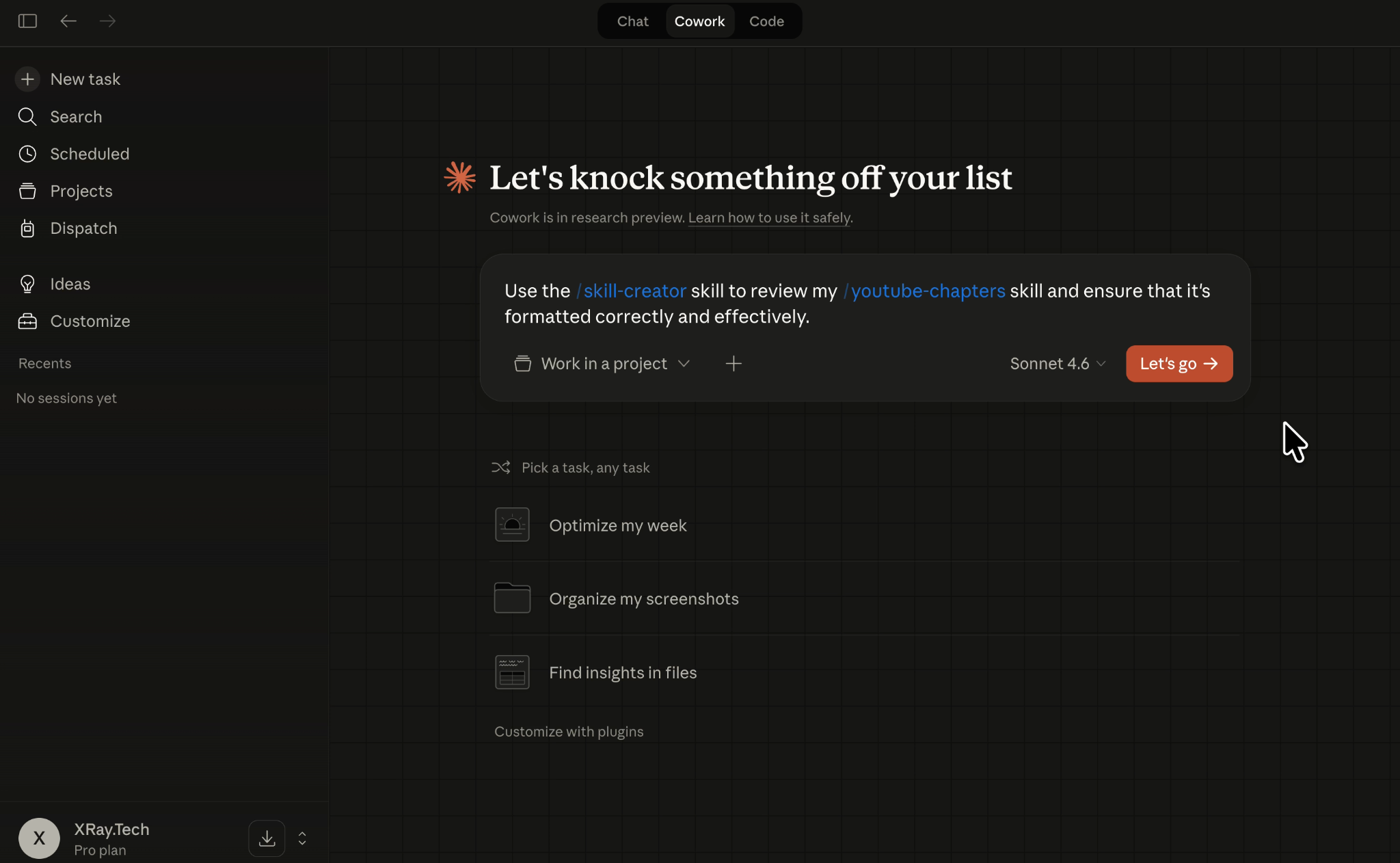
Cowork gives Claude an improved ability to write and execute code as part of its testing process. When you ask it to evaluate a skill, it doesn't just check whether the output looks right. It can create test cases, run multiple tests with different inputs, compare the skill's output against a baseline, and summarize the results in a structured report.
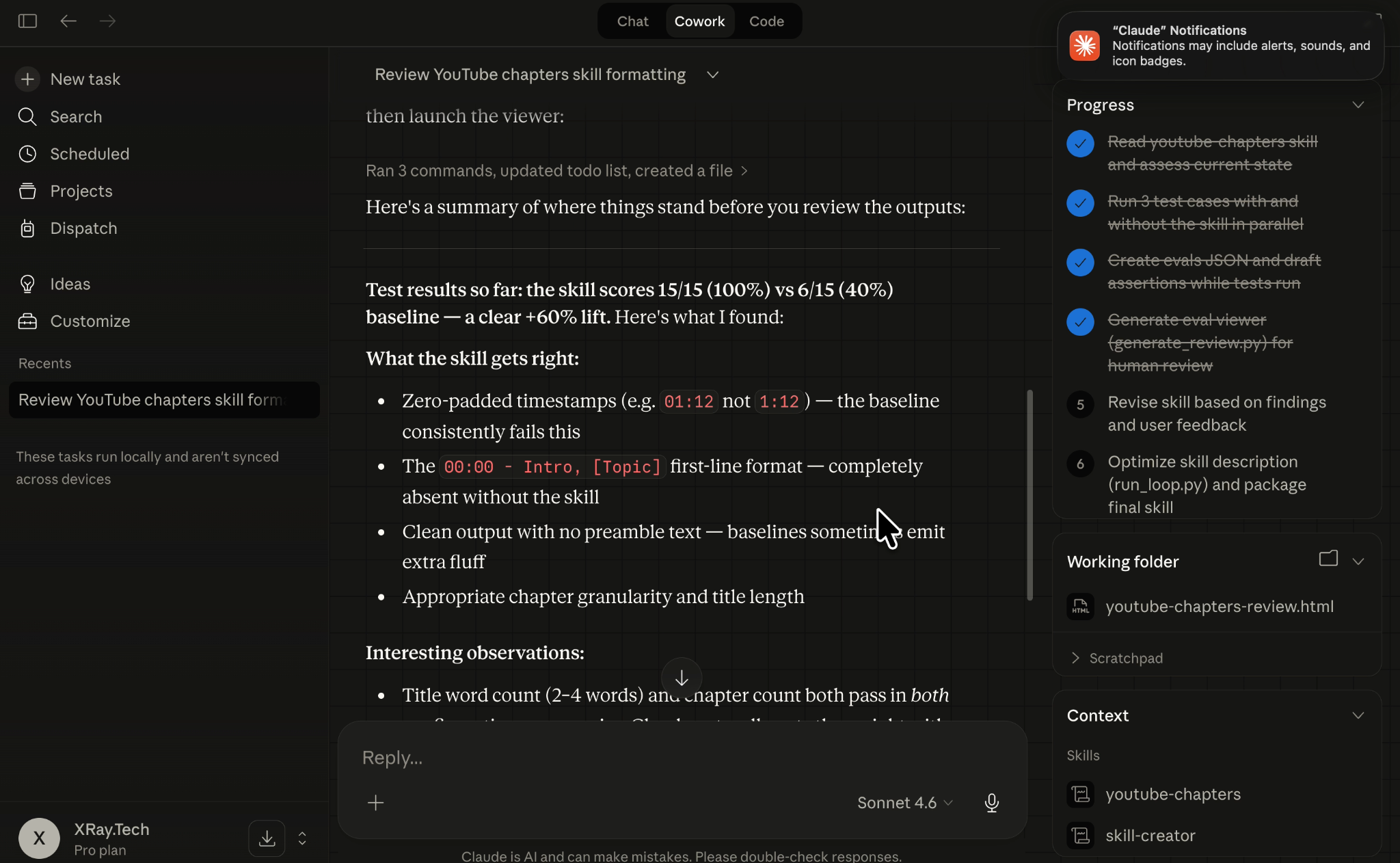
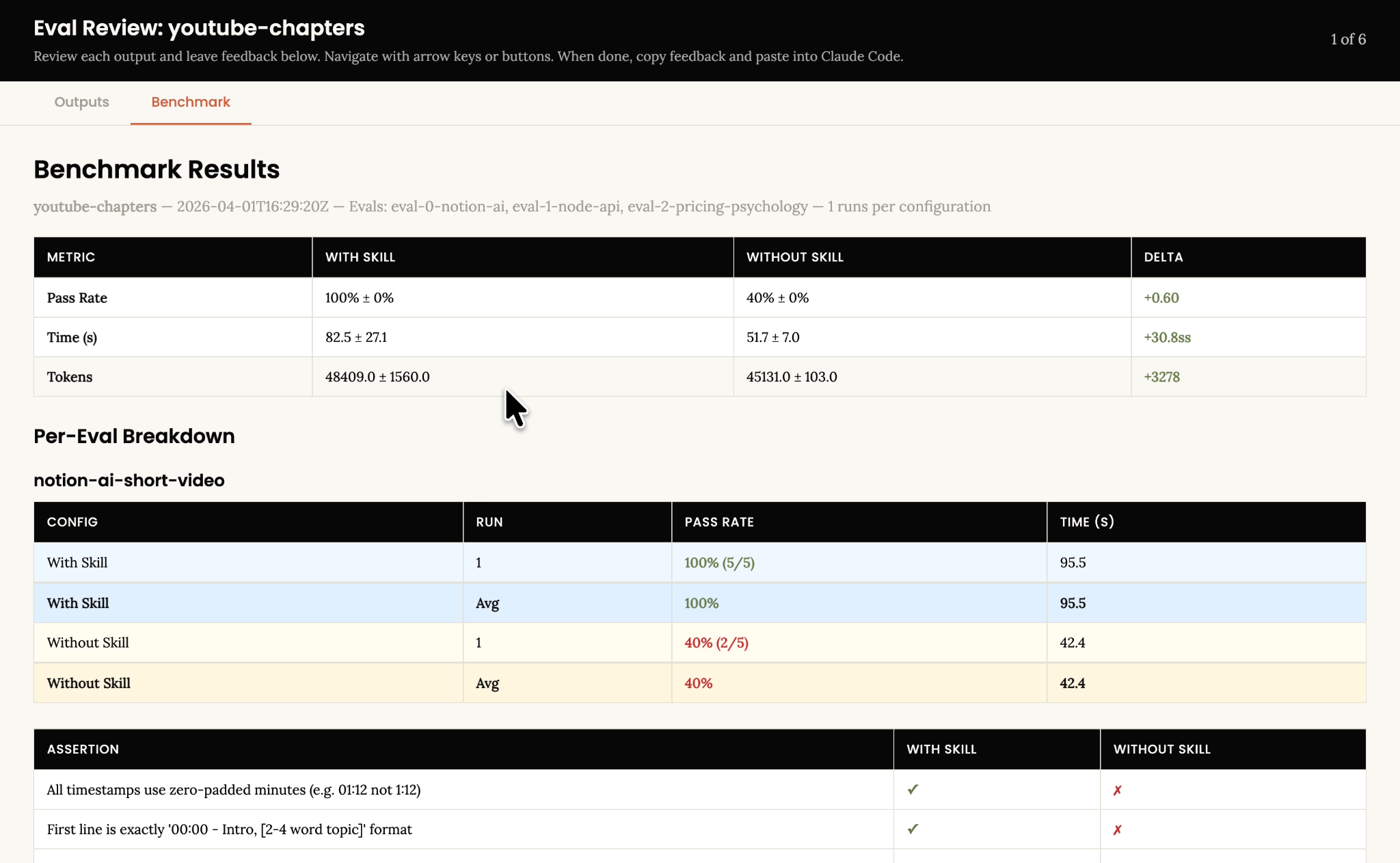
In one test, Claude reviewed the skill, generated test cases, ran comparisons between baseline Claude and the skill-enhanced version, and produced an HTML report with benchmarks. This is programmatic evaluation, not just an LLM guessing whether its own output is good.
The tradeoff is time. Cowork tasks can take significantly longer to process, sometimes ten minutes or more for a thorough evaluation. But you can work on other things while it runs, and the quality of the feedback is substantially better.
Below, you can copy the finished version of our YouTube chapters skill. Note that this version of the skill is based on transcripts exported from Adobe Premiere Pro, and includes several specifications based on our own preferences for chapter length, total chapter count, and chapter titles. We're sharing this as a reference and as a starting point. We'd recommend reviewing and customizing the skill before adopting it into your own Claude workflow.
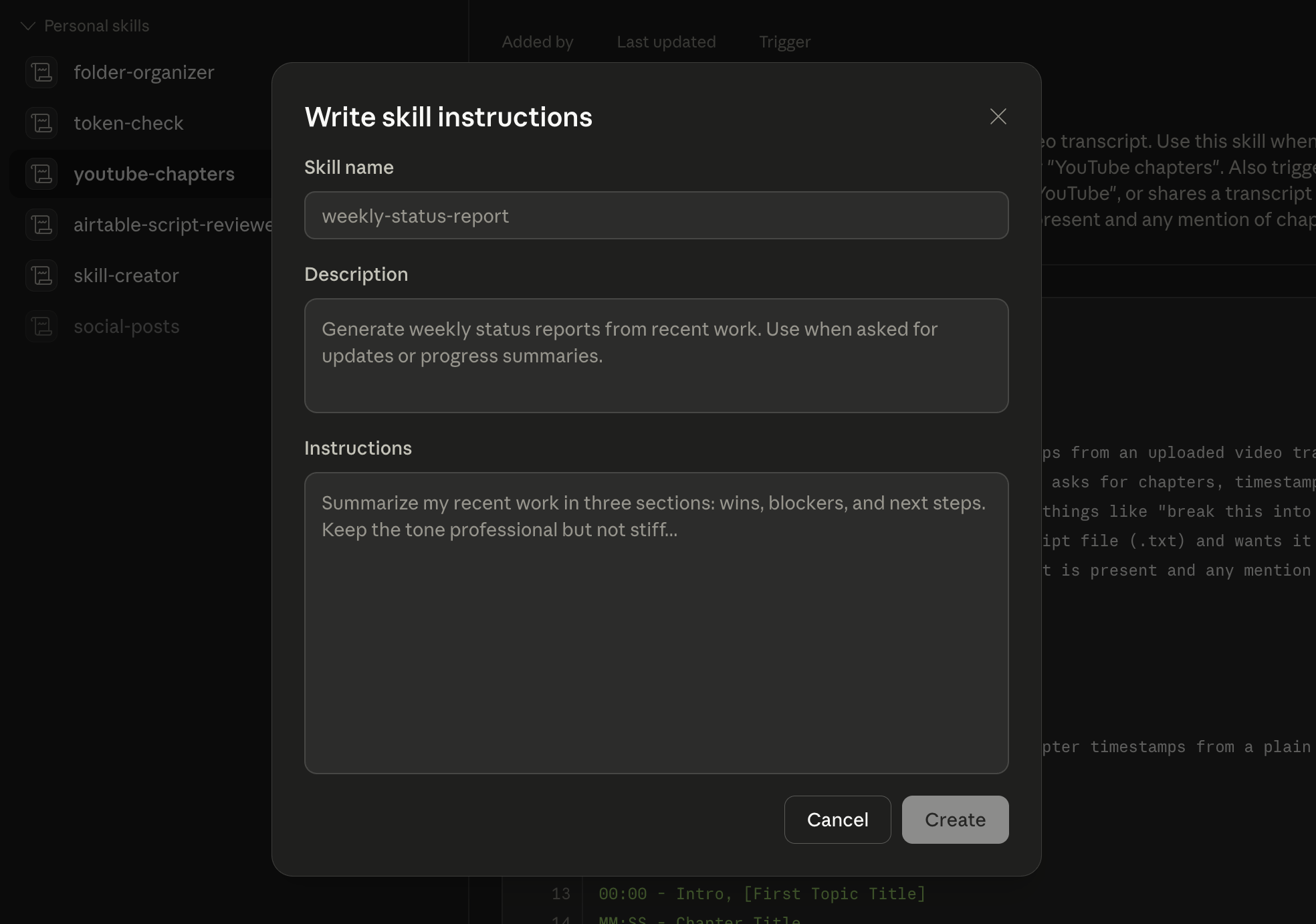
To copy the skill, click on the plus button from the Skills menu (Customize > Skills), select "Create skill", and choose "Write skill instructions".
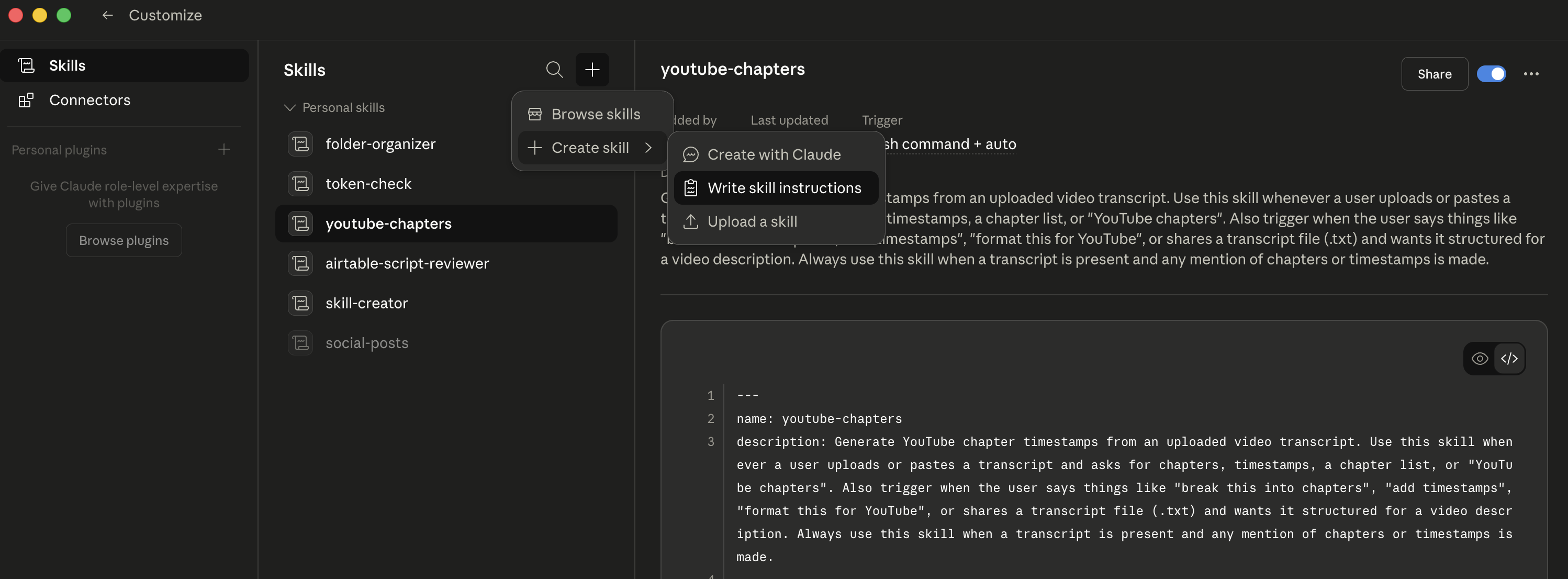
Paste the following text blocks into the "Description" and "Instructions" fields.
Generate YouTube chapter timestamps from an uploaded video transcript. Use this skill whenever a user uploads or pastes a transcript and asks for chapters, timestamps, a chapter list, or "YouTube chapters". Also trigger when the user says things like "break this into chapters", "add timestamps", "format this for YouTube", or shares a transcript file (.txt) and wants it structured for a video description. Always use this skill when a transcript is present and any mention of chapters or timestamps is made.# YouTube Chapters Skill
Generate clean, properly formatted YouTube chapter timestamps from a plain text transcript.
## Output Format
```
00:00 - Intro, [First Topic Title]
MM:SS - Chapter Title
MM:SS - Chapter Title
...
```
**Rules:**
- First chapter is always `00:00 - Intro, [First Topic]` where `[First Topic]` is a 2–4 word summary of what the video opens with
- All timestamps use `MM:SS` format with **zero-padded minutes** (e.g., `03:42`, never `3:42`; `09:57`, never `9:57`). This is critical — single-digit minutes MUST have a leading zero.
- For videos over one hour, use `H:MM:SS` format instead (e.g., `1:23:45`). The hour is **not** zero-padded — write `1:05:30`, never `01:05:30`.
- Chapter titles are **2–4 words**, title case
- No blank lines between chapters
- Output ONLY the chapter list — no preamble, no explanation, no extra formatting
- **Do not include** the outro or closing remarks as a chapter (see "What to Skip" below)
## How to Read the Transcript
Transcripts use time **range** blocks in this format:
```
01:00:00:00 - 01:00:09:29
Speaker 1
Today, I'm going to show you...
01:00:09:29 - 01:00:26:17
Speaker 2
So what is agent mode?...
```
The format is `HH:MM:SS:FF` (hours, minutes, seconds, frames). These transcripts use **professional timecodes that always start at `01:00:00:00`** — the `01:` prefix is an artifact of the timecode system, not actual video time. So `01:00:00:00` = video position 0, `01:02:30:00` = 2 minutes 30 seconds into the video.
To convert to a YouTube timestamp:
- Take the **start time** of the block
- **For videos under one hour** (all HH values are `01`): extract only `MM:SS`, ignoring the `01:` prefix and the frames. Always zero-pad the minutes: `01:02:29:14` → `02:29`, `01:09:57:00` → `09:57`
- **For videos over one hour** (HH reaches `02` or higher): elapsed time = `(HH − 1)` hours + `MM:SS`. Format as `H:MM:SS` with the hour **not** zero-padded: `02:05:30:00` → `1:05:30`, `02:23:45:12` → `1:23:45`
- The first chapter is always `00:00` regardless of the starting timecode
Examples:
- `01:00:37:07` → `00:37` (under 1 hr)
- `01:14:20:05` → `14:20` (under 1 hr)
- `02:05:30:00` → `1:05:30` (over 1 hr — elapsed is 1h 5m 30s)
Use the **start time of the first block in a new topic** as that chapter's timestamp.
## Identifying Chapter Breaks
Split chapters at **topic shifts** — moments where the conversation or content meaningfully pivots to a new subject. Good signals:
- A new concept, tool, or framework is introduced
- A transition phrase is used ("Now let's talk about...", "Moving on...", "The next thing is...")
- A question is asked and a new thread begins
- A list item or step is introduced in sequence
**Do not** split on:
- Minor asides, examples, or brief tangents that return to the same topic
- Demo perspective changes (e.g., switching from narrator to screen share within the same demo)
- Setup blocks that are part of the same topic
**Capture named frameworks/principles at first mention**, not when the detail begins. For example, if "Four Safety Principles" is introduced at 02:26 but the first principle isn't explained until 02:38, the chapter starts at 02:26.
## What to Skip
**Skip the outro entirely** — do not create a chapter for closing remarks, sign-offs, subscribe CTAs, or "see you next time" segments. These are not content chapters. The last real chapter should be the last substantive topic (e.g., "Key Takeaways", "Final Demo", "Pricing"). If a recap or summary segment covers genuinely new synthesis, include it; if it's just a goodbye, leave it out.
## Minimum Chapter Count
Aim for 4–10 chapters for a typical 5–20 minute video. For very short videos (<5 min), 3 chapters is acceptable. For longer videos (>20 min), go up to 12–15 if the content warrants it. Never create chapters just to hit a number — only split where there's a genuine topic shift.
## Chapter Title Style
- 2–4 words, title case
- Descriptive but punchy — summarize the topic, not the action
- Use correct acronym casing for industry terms (e.g., MDF, SPIF, CRM, PRM, API, MCP — not "Spiff" or "Mdf")
- Examples of good titles: `The Core Problem`, `Why Automation Fails`, `Setting Up Zapier`, `Key Takeaways`
- Avoid generic fillers: ~~`Introduction to the Topic`~~, ~~`More Discussion`~~, ~~`Wrap Up Section`~~, ~~`Final Thoughts`~~
## Example Output
Based on real XRAY transcripts:
**Agent Mode video (~5 min):**
```
00:00 - Intro, What is Agent Mode?
00:37 - Analyzing an Image
02:29 - Finding Documents
04:22 - Get Expert Support
```
**AI Workflows video (~7.5 min):**
```
00:00 - Intro, The AI Problem
00:51 - Workflow Overview
02:26 - Four Safety Principles
02:58 - Inside the Agent
04:43 - Airtable & Zapier Logic
06:37 - XRAY Services
07:15 - Key Takeaways
```
**Partner Ops video (~12 min):**
```
00:00 - Intro, Partner Ops
00:48 - CRM-PRM Disconnect
01:23 - MDF & SPIF Tracking
02:19 - Unused Partner APIs
03:36 - The Integration Gap
04:53 - Why Zapier
06:08 - Cost & Time Savings
07:09 - Governance & Control
08:38 - Deal Stage Automation
09:52 - Private API Access
11:23 - Key Takeaways
```
Skills represent a shift in how you should think about working with AI. Instead of treating every conversation as a blank slate, you're building a library of reliable, tested processes that Claude can execute on command. Each skill you create removes one more repetitive task from your plate.
This is what it looks like to stop doing your job manually and start orchestrating your tools instead. You don't write YouTube chapters by hand. You don't reformat transcripts from scratch. You don't rewrite the same prompt for the hundredth time. You build the skill once, test it until it's right, and let Claude handle it from there.
The best part is that you build these skills through conversation. No coding required, no complex setup. Just describe what you want, refine it with Claude, and save it.
If you're looking to take this further and build AI-powered workflows across your entire operation, that's exactly what we do at XRAY. We help teams design and implement automations using AI and the tools they already use every day. Whether it's building custom Claude skills, integrating systems, or streamlining repetitive processes, the goal is always the same: turn AI from an experiment into reliable infrastructure for your business.
Schedule a free consultation at the top of this page to learn more.