

Claude can now build interactive diagrams right inside your chat. No new app. No new subscription. Just type the word "diagram" in your prompt and watch it happen.
This is a deceptively simple update with massive utility.. If you're building automations, mapping a workflow before you build it is the difference between shipping something clean and rebuilding it three times. Before, that meant opening Lucidchart, Miro, or Figma, dragging boxes around, and labeling arrows by hand. Now, you can get a detailed chart by sending a quick prompt.
Here's how it works and why it belongs in your toolbelt.
The diagramming feature ships with every Claude subscription. Nothing to install, nothing to enable. You just ask for a diagram in plain language and Claude renders one inline.
Claude’s diagrams aren’t simply static images. When appropriate (or if you ask for it directly), Claude can make interactive diagrams with collapsible sections, or even give you information about any topic you click on.
For a quick test, try asking Claude to explain any concept that you’d like to learn more about. For instance, we asked Claude to explain software architecture using a diagram.
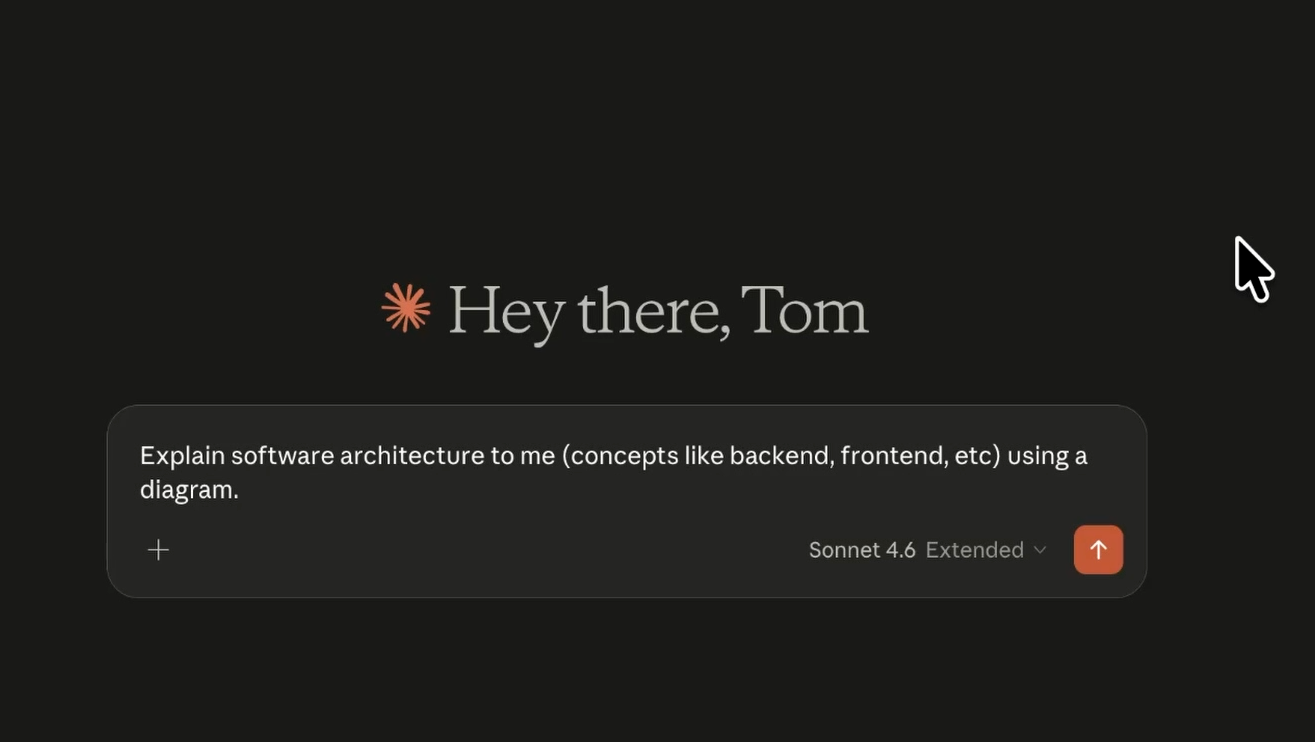
In response, we got a clean stack showing the client layer, API gateway, backend services, and data layer.
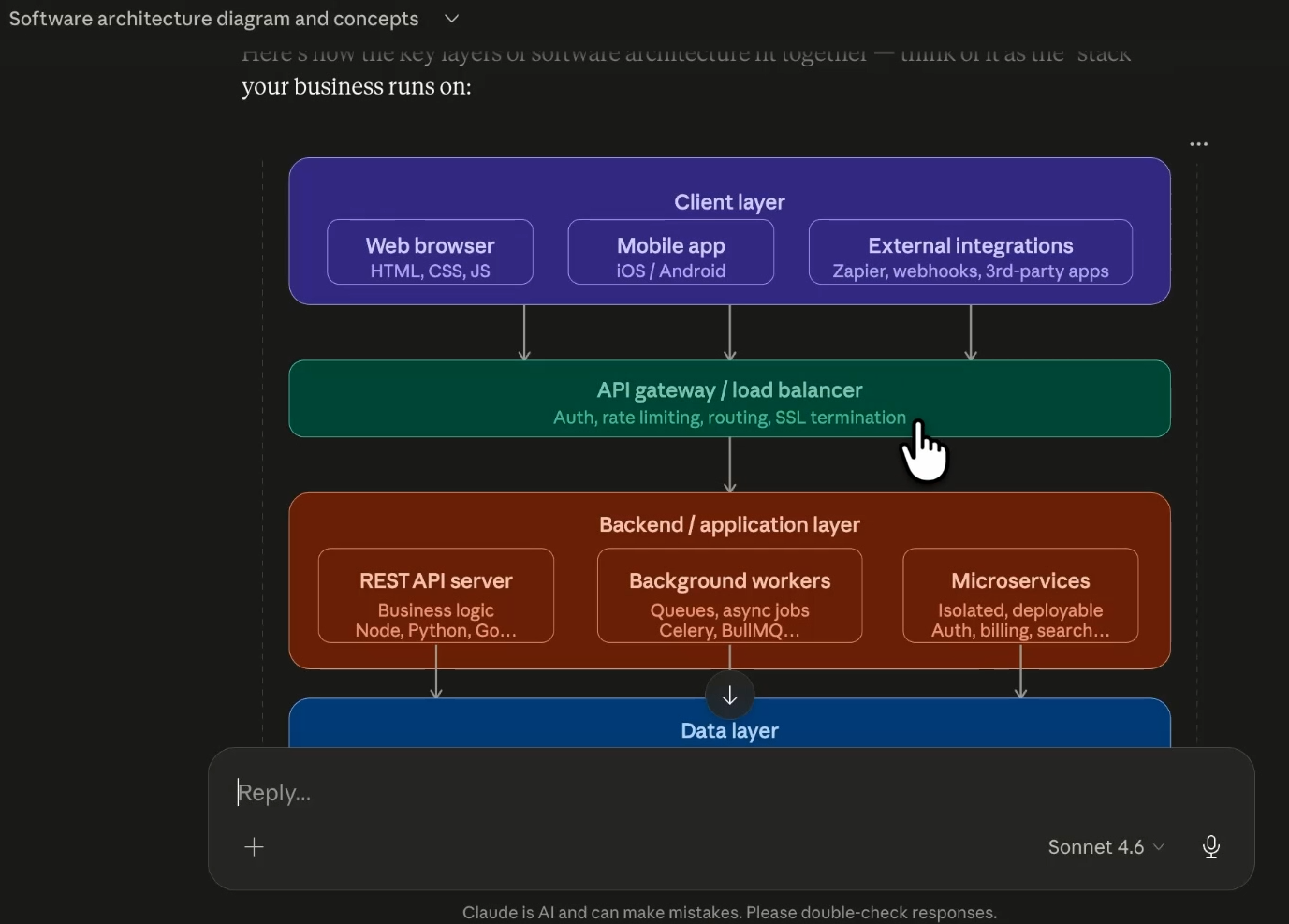
Clicking "microservices" prompts Claude to explain the concept in context.
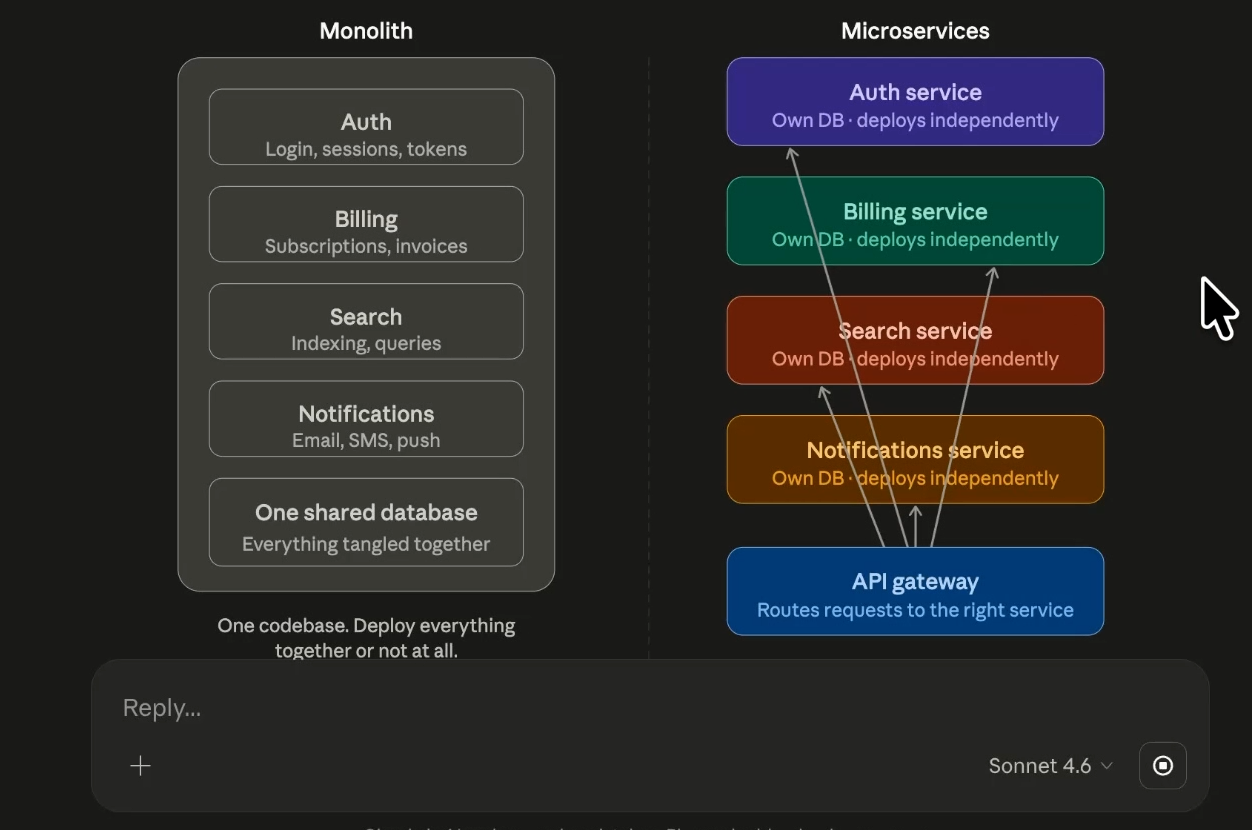
It's the kind of exploratory learning that used to require three browser tabs and a patient friend.
Claude’s diagrams can go far beyond educational tools. For no-code builders, workflow diagrams are where this feature really earns its keep.
Paste a description of an existing process into Claude – perhaps from a meeting transcript, or from your team’s documentation. Something like a client onboarding flow, a content pipeline, a support escalation path.
We tried asking Claude to diagram an example onboarding workflow, and ask it to flag any steps that could be easily automated with apps like Zapier.
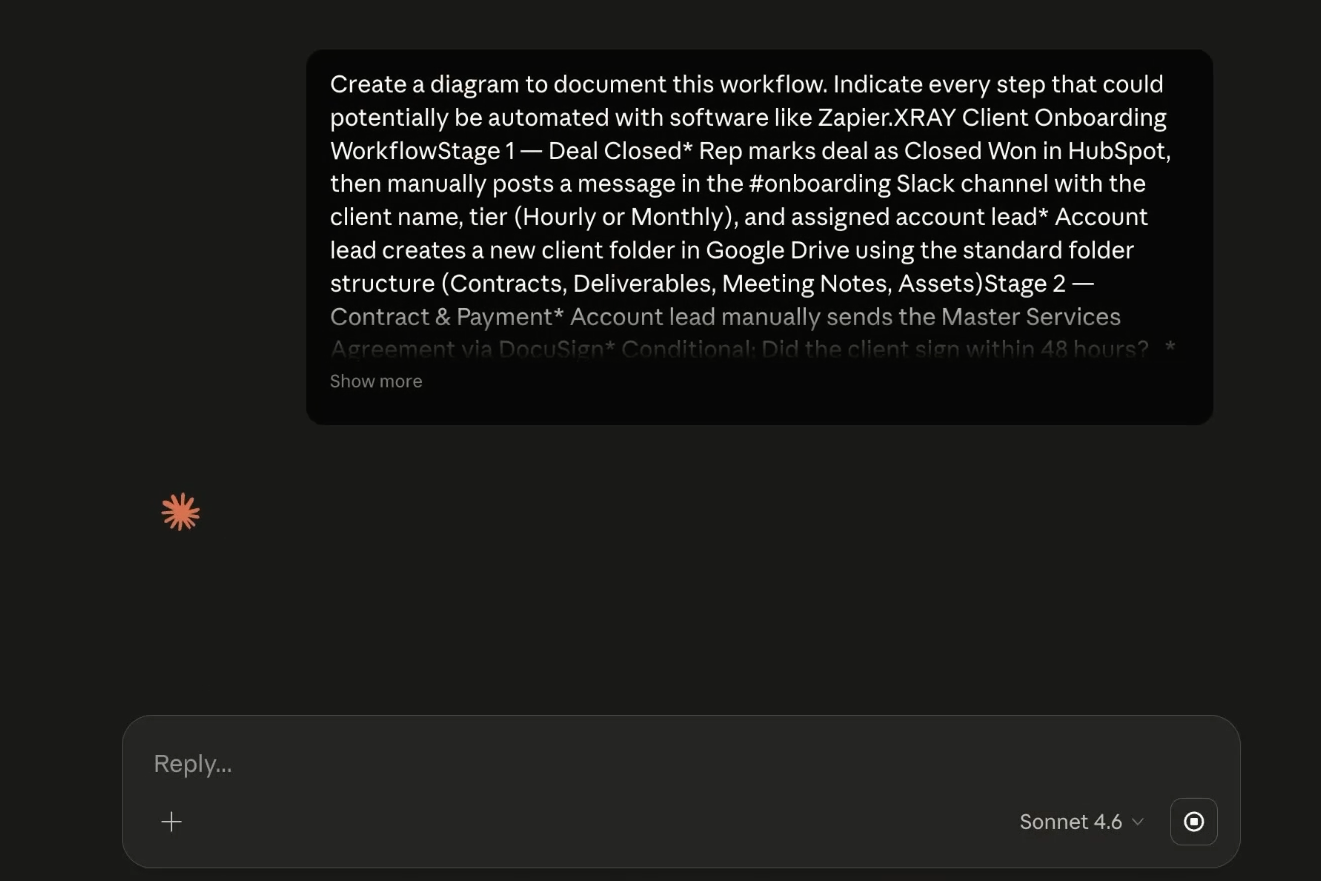
What comes back is a labeled map of the whole process with decision points, conditional branches, and callouts for every manual step that could be handed off to Zapier, Make, or an AI agent.
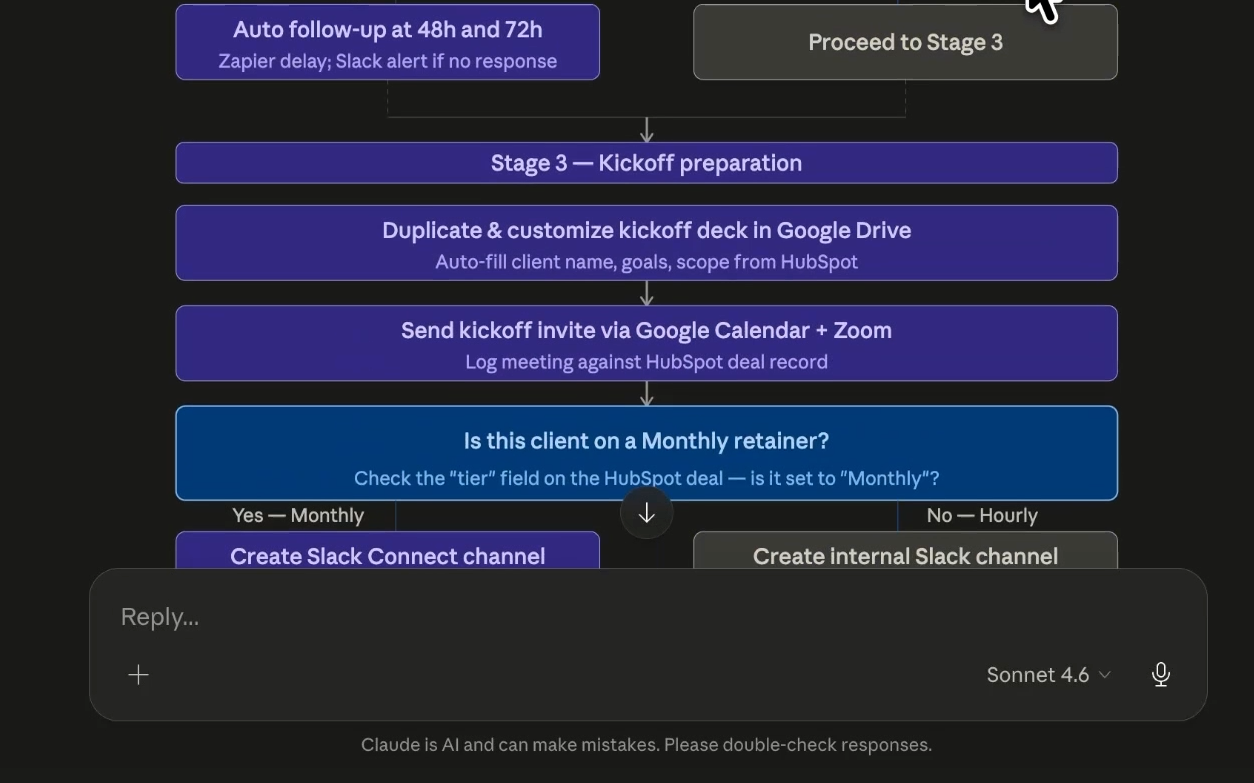
This is the step most teams skip when it comes to automation. They jump straight into Zapier, build something, realize halfway through that the logic is wrong, and start over. A diagram up front prevents that entirely – and Claude diagrams make it easier than ever to map out your ideas before building.
Once you have a diagram you like, you can easily export it to use it outside of the conversation where you created it. Just click on the three dots at the top of the message, and you’ll see your options.
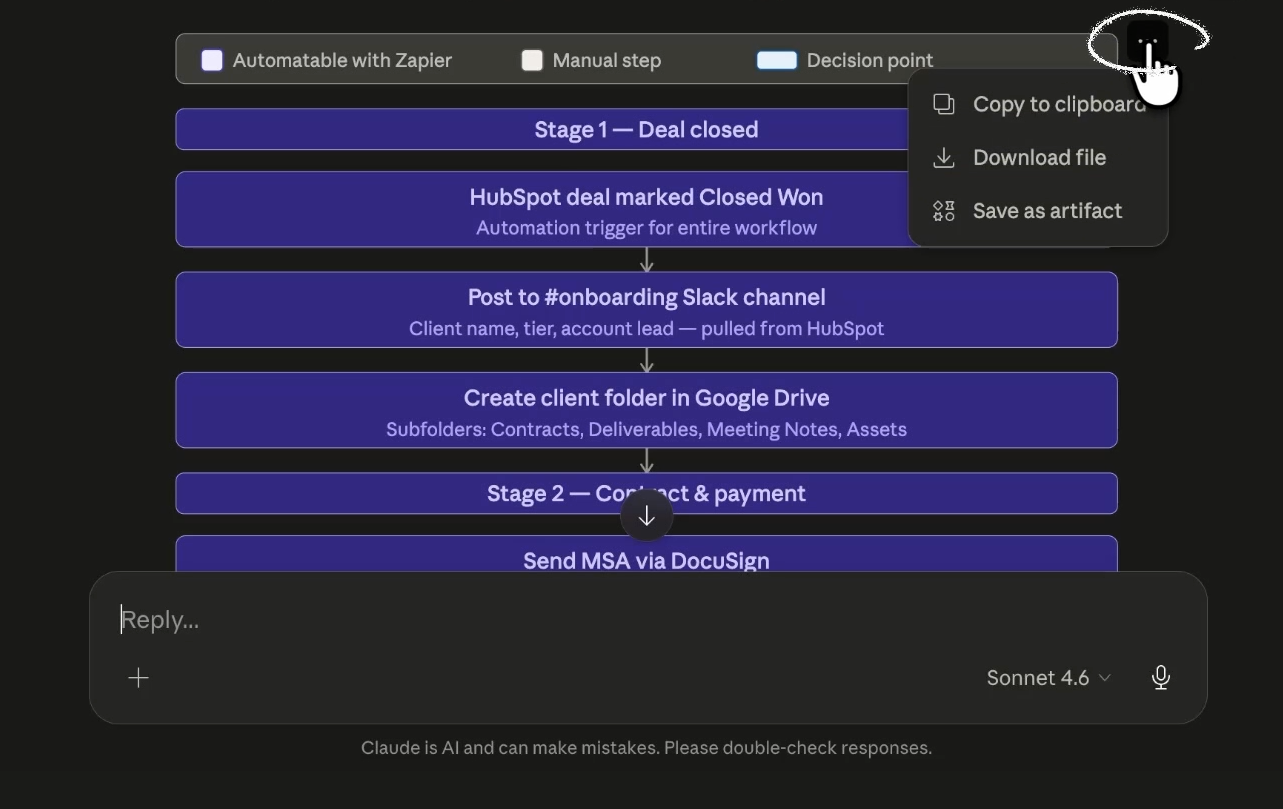
• Copy to Clipboard. Copies a static image of the diagram to your clipboard. The image can be pasted into any app.
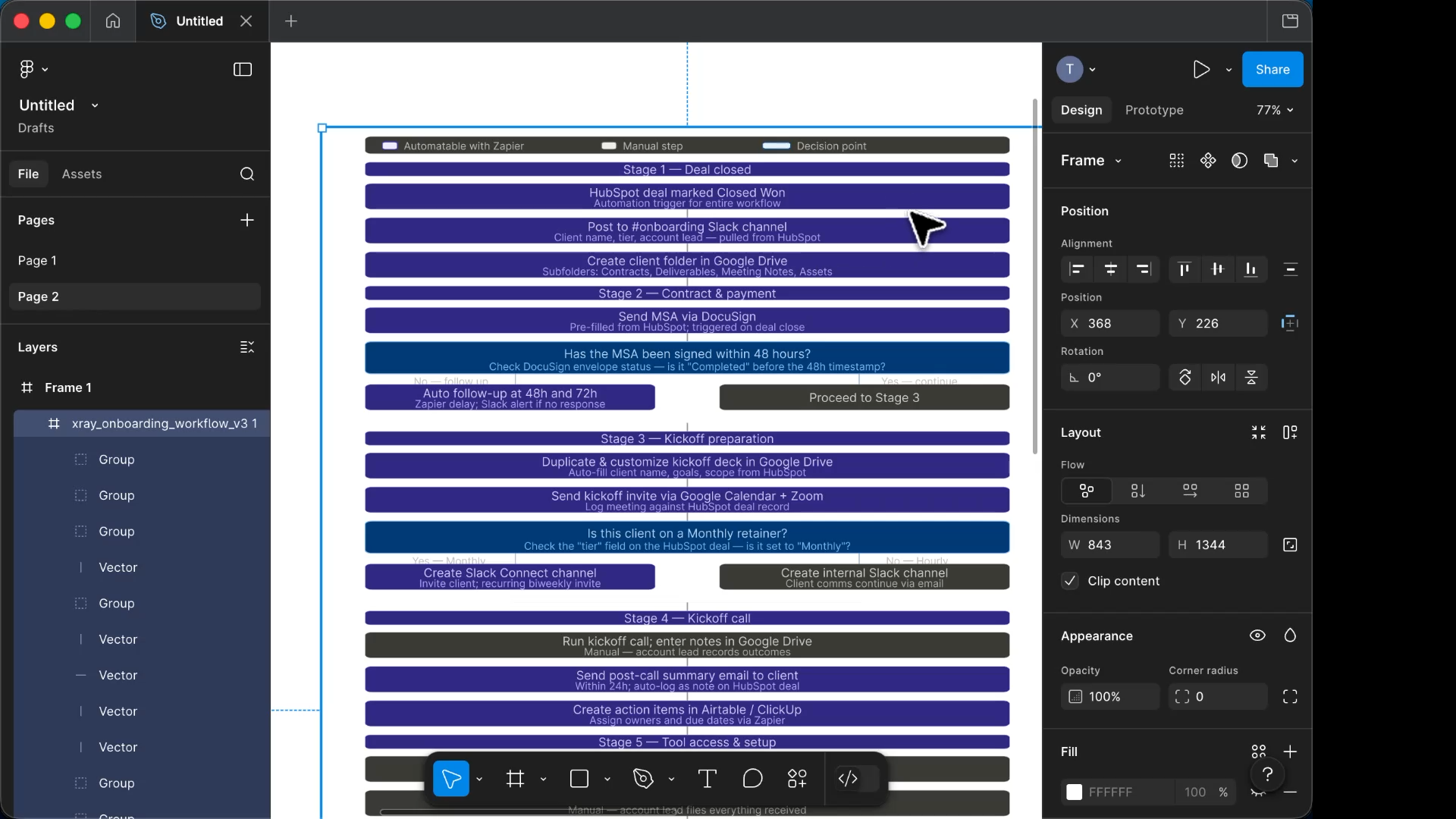
• Download as SVG. You can drop the SVG into an app that supports the filetype, such as Figma. Once pasted into Figma, the SVG is fully editable, so you can tweak labels or restyle it without going back to Claude.
• Save as an artifact. The diagram lives in your Claude artifacts panel and links back to the chat it came from, so you can keep iterating later.
Here's the thing worth sitting with. Diagramming used to be the boring preamble to automation work. You knew you should do it, but you usually skipped it. Now the boring part takes thirty seconds and produces something better than what you'd have drawn yourself.
That means there's no excuse to build blind anymore. Map the process, identify the manual steps, then automate the ones that matter. The diagram becomes the blueprint, and Claude becomes the draftsman.
Your job isn't to draw boxes and arrows. Your job is to decide what the workflow should do and then orchestrate the tools that make it happen. This is one more piece of grunt work you can stop doing.
If you're about to build an automation, open Claude first. Paste in your process. Ask for a diagram. Clean it up. Then build.
At XRAY we design, implement, and maintain automated workflows for our clients. If you want help mapping and automating your own, you can read more and schedule a free call at the top of this page.