
Most AI agent builders are complicated. They require technical knowledge, coding skills, and significant setup time. The result? Teams avoid them entirely, continuing to waste time on repetitive manual work.
There's a better way.
Today we'll show you how to build a functional AI agent in under 15 minutes using Zapier – no code required.
Agents built with Zapier will work across thousands of apps, handle real business tasks, and run automatically on your schedule.
We're creating a lead research agent that runs every morning at 6 AM. Here's what it does:
• Scans your Google Calendar for today's meetings
• Identifies external attendees
• Searches the web for information about each person
• Finds company details and relevant background
• Drafts a concise summary paragraph
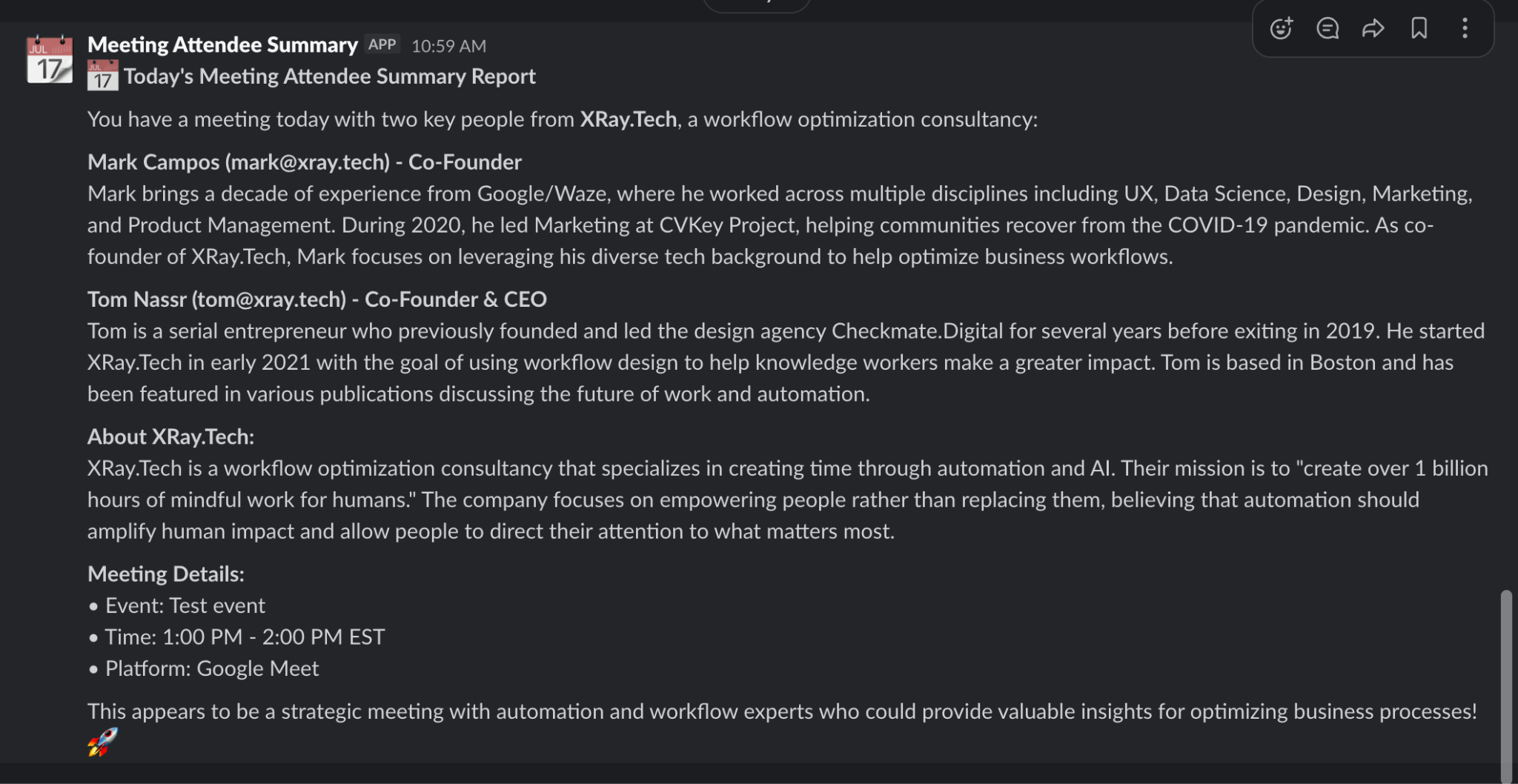
• Sends it to you via Slack
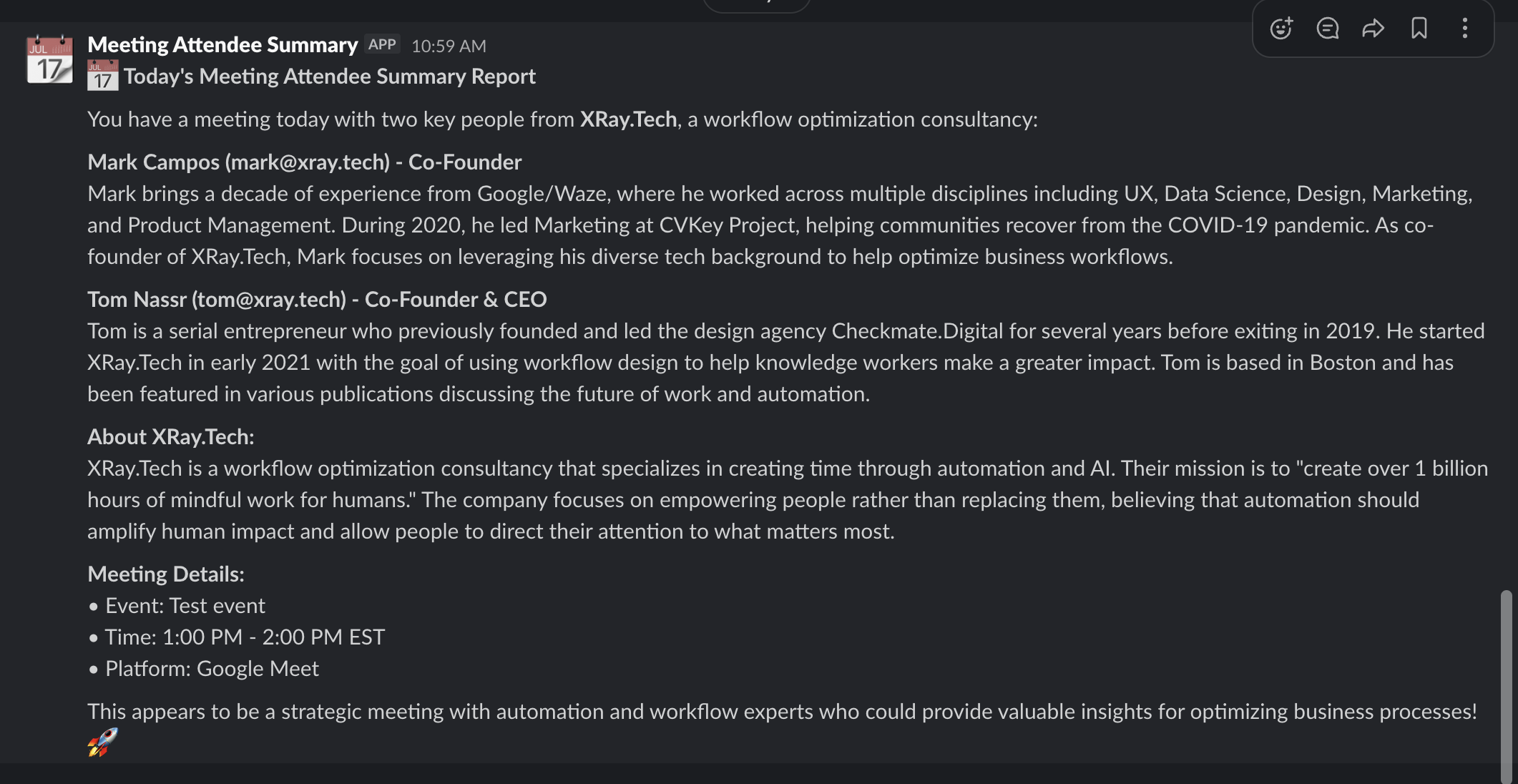
This agent operates with three simple tools: web search, Google Calendar access, and Slack integration.
We're using Zapier for this build because it removes every technical barrier. The interface is visual and intuitive, and you won't have to write a single line of code.
On top of that, no software can beat Zapier when it comes to connectivity.

Zapier integrates with over 8,000 applications. Gmail, the Microsoft Office Suite, Notion, Slack, Google Calendar – if you use it daily, Zapier probably connects to it.
This makes your agent immediately useful across your existing tools.
The pricing is generous too. You can build and test this entire agent on the free plan.
If you don't have a Zapier account yet, sign up here and follow along.
Every Zapier agent has the same basic structure:
1. Trigger
This defines when your agent runs. You can trigger your agent:
• On demand
• On a schedule (daily, weekly, monthly)
• Based on events in other apps (e.g., whenever a new row is added to a Google Sheet)
• Via webhook
• From a Zap
2. Instructions
This is your agent's roadmap. Write clear, step-by-step directions for what the agent should accomplish. Think of this as training a new team member - assume no prior knowledge, but trust them to execute exactly what you describe.
3. Tools
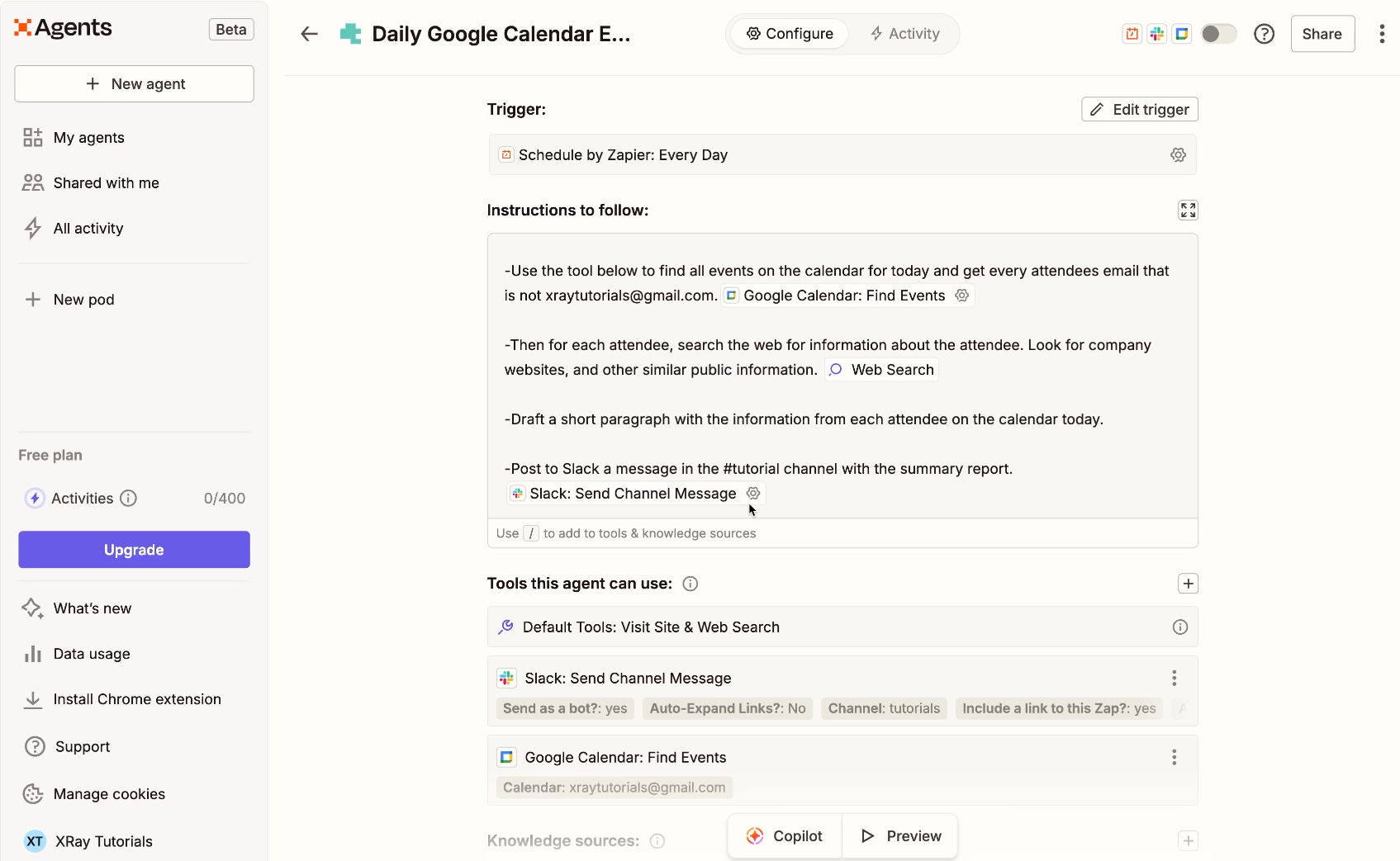
Tools give your agent the ability to actually do work. Each tool represents access to an application or service. For our lead research agent, we need three tools: Google Calendar (to find events), Web Search (to research attendees), and Slack (to send updates).
4. Knowledge sources (optional)
These are documents, PDFs, or other files your agent can reference as a source of truth. We won't need them for this build, but they're valuable for agents that need to follow specific company processes or reference detailed information.
Navigate to the Agents section in Zapier and click "New Agent." We'll start from scratch rather than using a template.
For our lead research agent, select "Schedule" as the trigger type. Set it to run daily at 6 AM. This gives you time to review the research before your first meeting.
Note that if you click on “Show all options”, you can set the trigger to only run on weekdays.
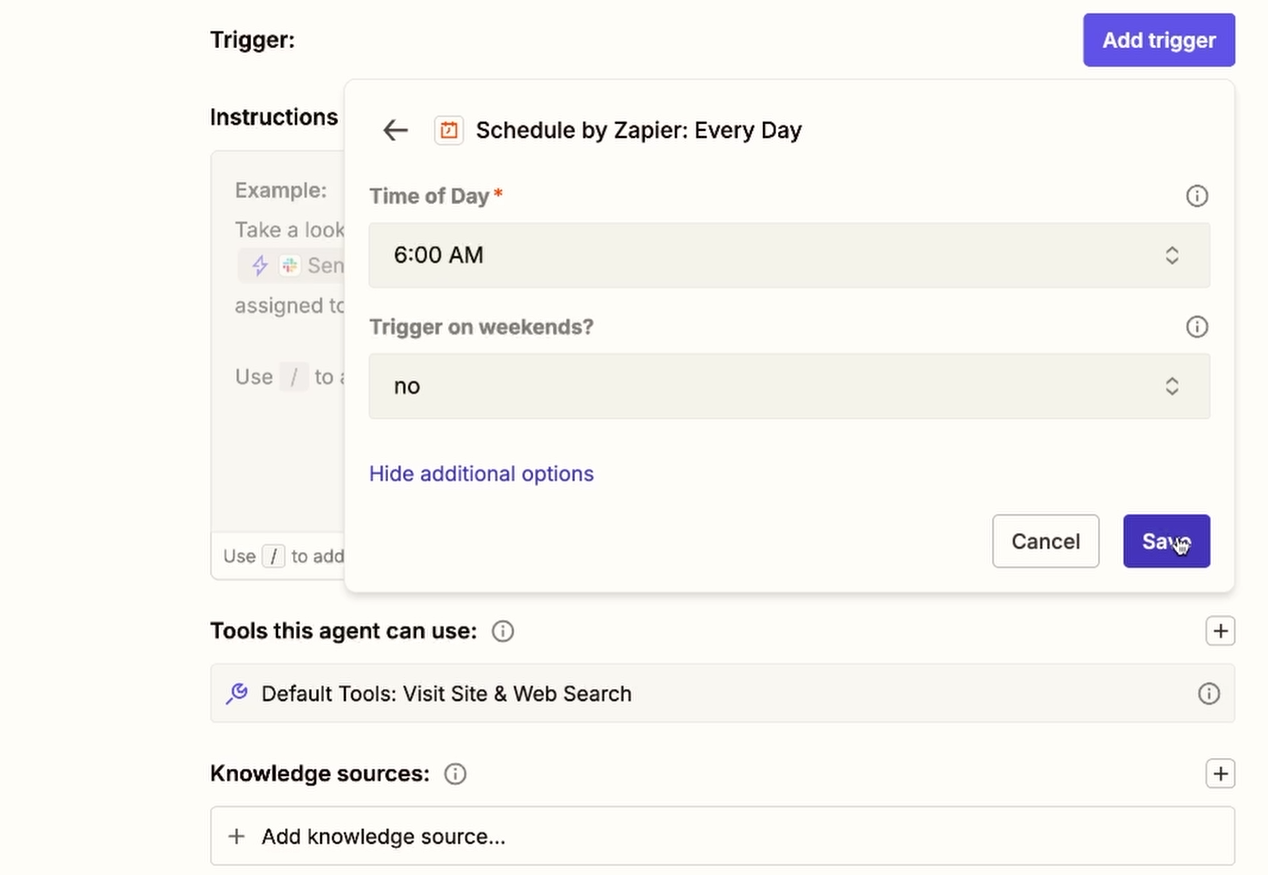
You could also choose "On demand" if you prefer to manually trigger the agent, or "Via zap" if you want another automation to call this agent.
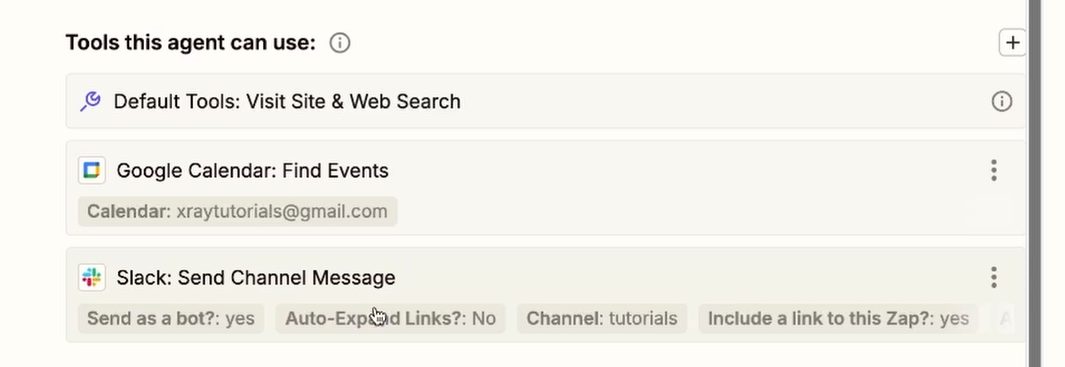
Add two tools to your agent:
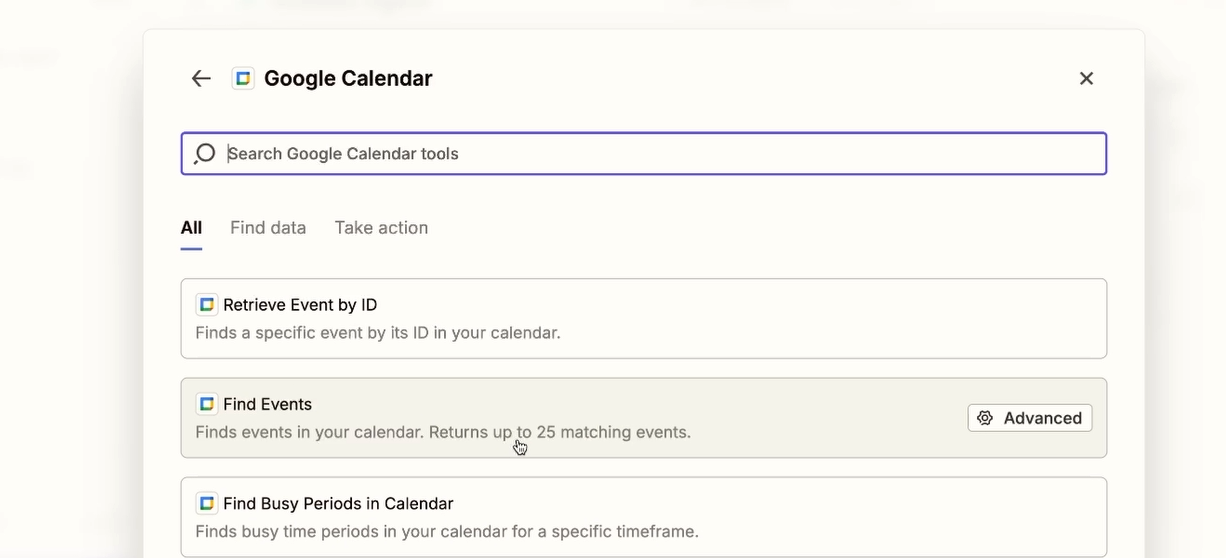
Google Calendar: Find Event This tool searches your calendar for events. You'll need to authenticate your Google account when you first add it.
Slack: Send Channel Message Connect your Slack workspace and select the channel where you want to receive updates. We recommend creating a dedicated channel like "#daily-briefings" or "#meeting-prep" to keep these updates organized.
We’ll also be using Web Search. However, this is a default Zapier tool that’s included in every agent, and doesn’t need to be added manually.
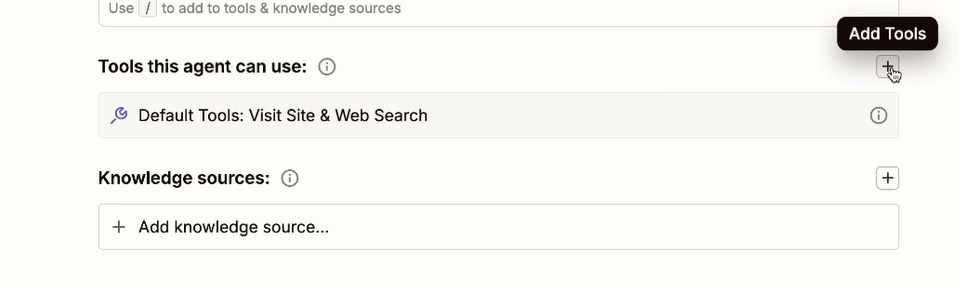
To add a tool, click on the plus button to the right of “Tools this agent can use.”
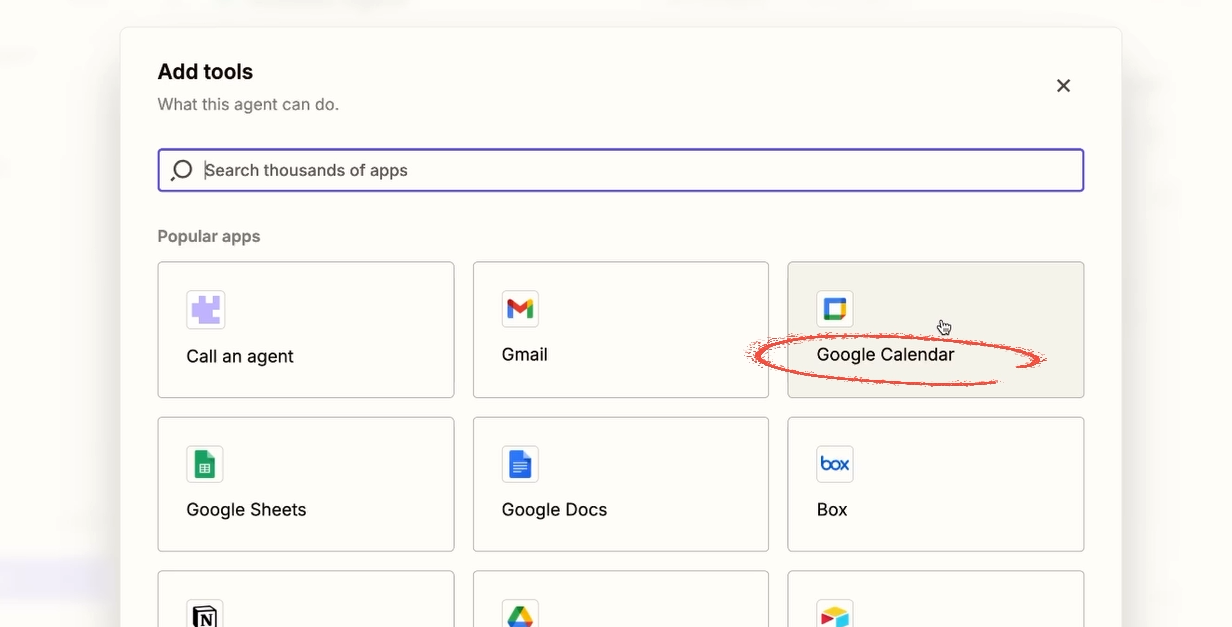
Select the app you want to use (e.g., Google Calendar).
Choose the specific action you want the agent to be able to perform with your app (e.g., “Find events” in Calendar).
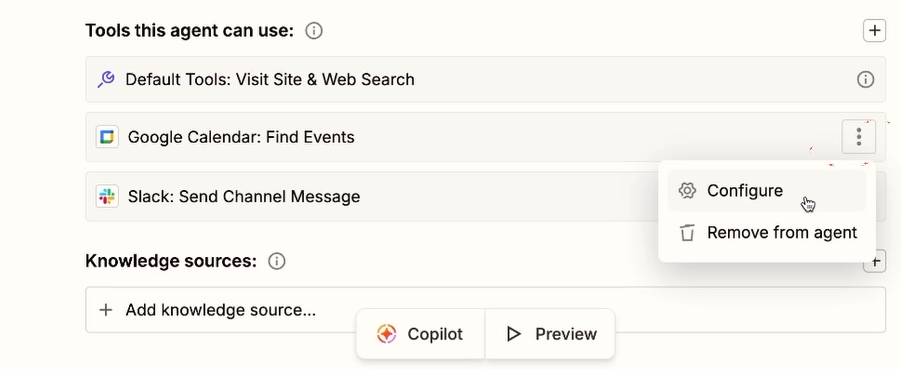
Once you’ve added a tool, you can configure its setup. Click on the three dots menu and select “Configure”.
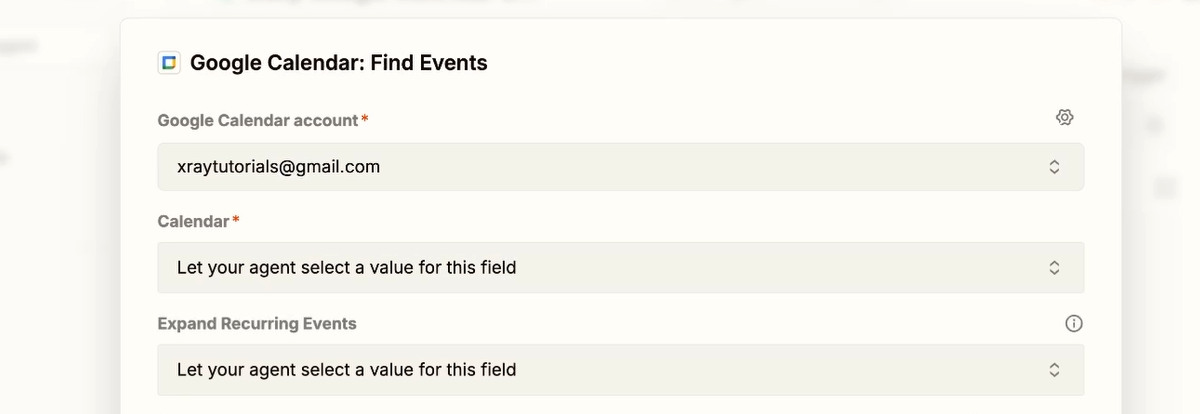
In the configuration menu, you can choose which of your connected accounts the tool will use, and you can choose how the AI will provide data for each parameter or field.
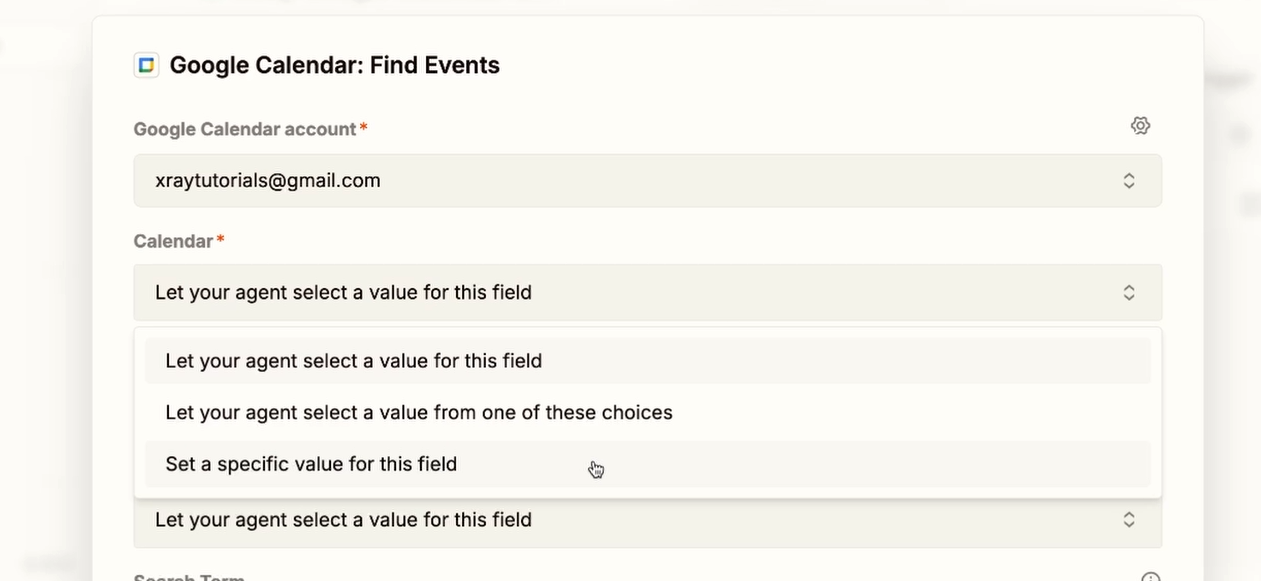
You can let the agent come up with any value it wants, give it a limited selection to choose from, or give it a single static value to use every time.
You can set each of these however you’d like based on your circumstances and preferences. For example, you’ll likely want to tell the agent to just use one specific calendar every time, but may leave most of the other fields up to the AI’s discretion.
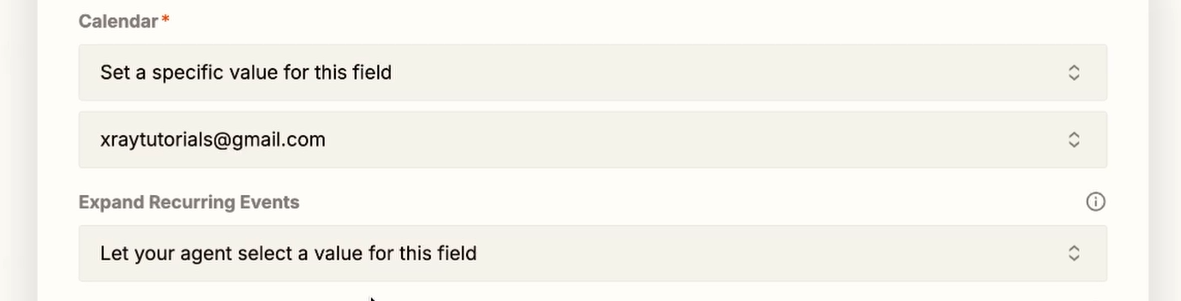
You’ll see a summary of the tools you’ve selected and your configuration options, which you can change at any time.
This is where your agent comes to life. Here's the complete instruction set we're using:
You are a helpful agent that is helping the user better understand who they are meeting with today.
Two critical principles guide these instructions:
Be specific. Tell the agent exactly what to do, in what order, with what parameters. Vague instructions produce unreliable results.
Insert tools inline. Place each tool reference directly next to the instruction that uses it. This helps the agent understand which tool to apply for each step.
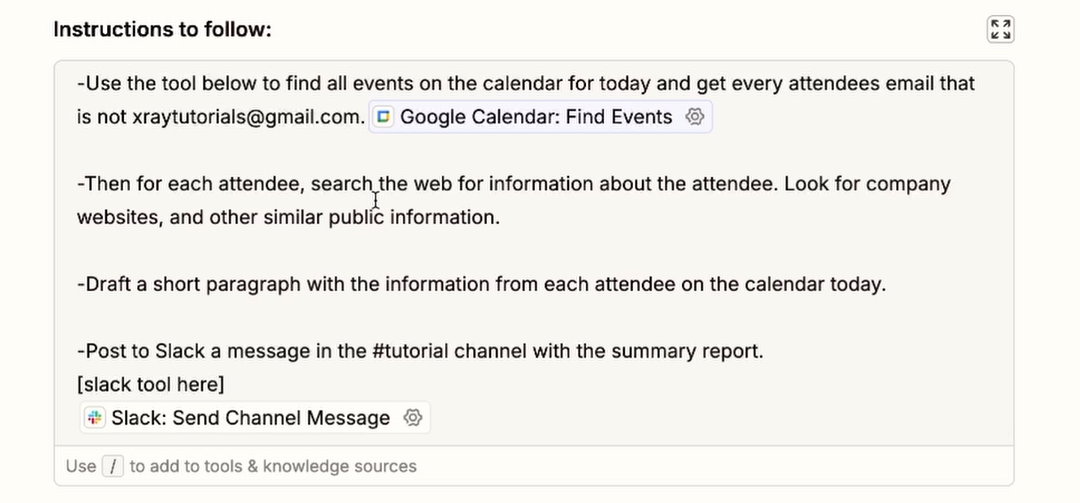
You can drag and drop tools within your instructions to reorder them. Use this feature to keep your instructions clean and logical.
Click "Preview" and then "Test Agent." This lets you see exactly what your agent will do before actually turning it on.
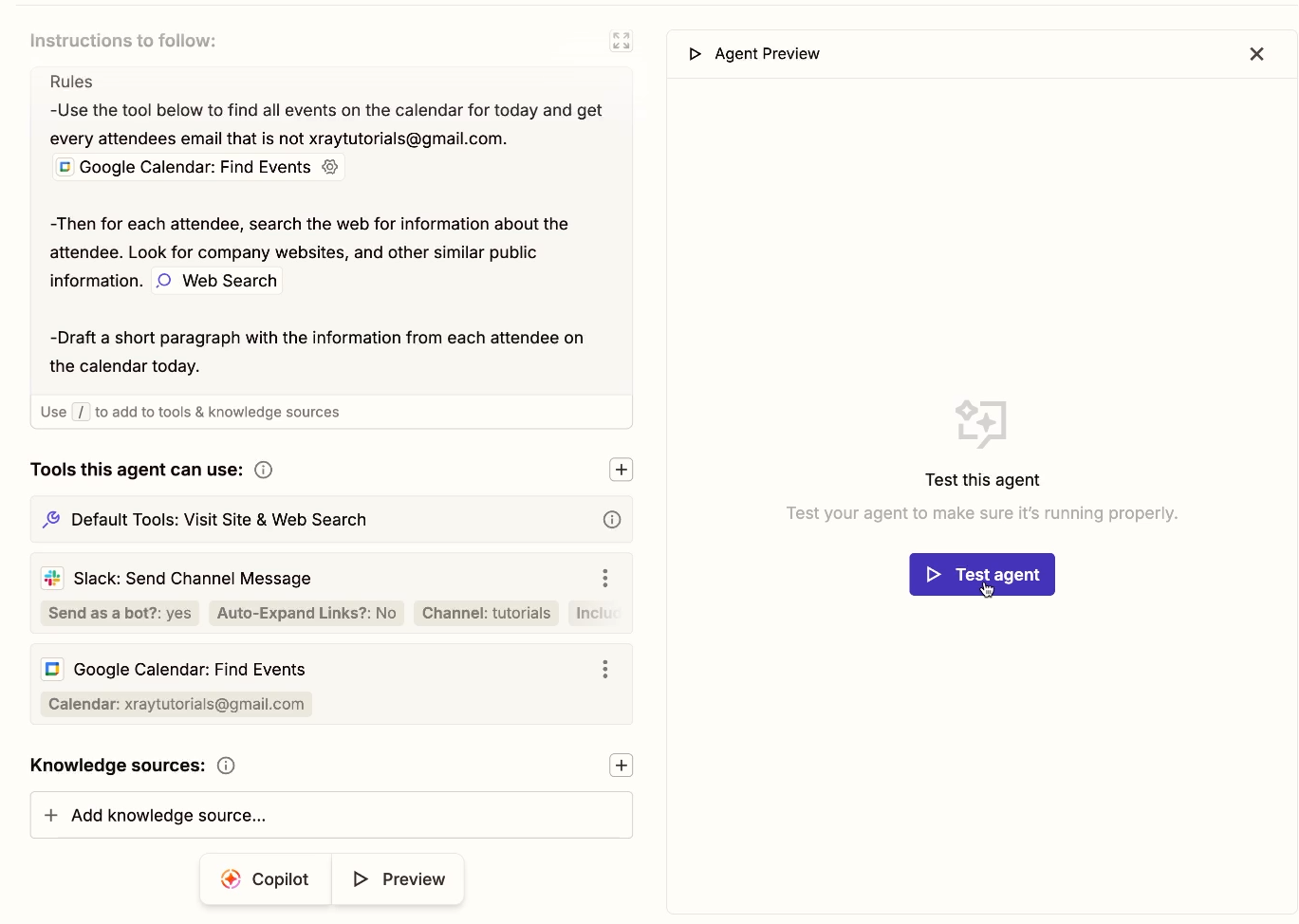
Watch as the agent:
• Finds events on your calendar
• Extracts attendee information
• Conducts web searches for each person
• Compiles the research into a readable summary
• Prepares the Slack message
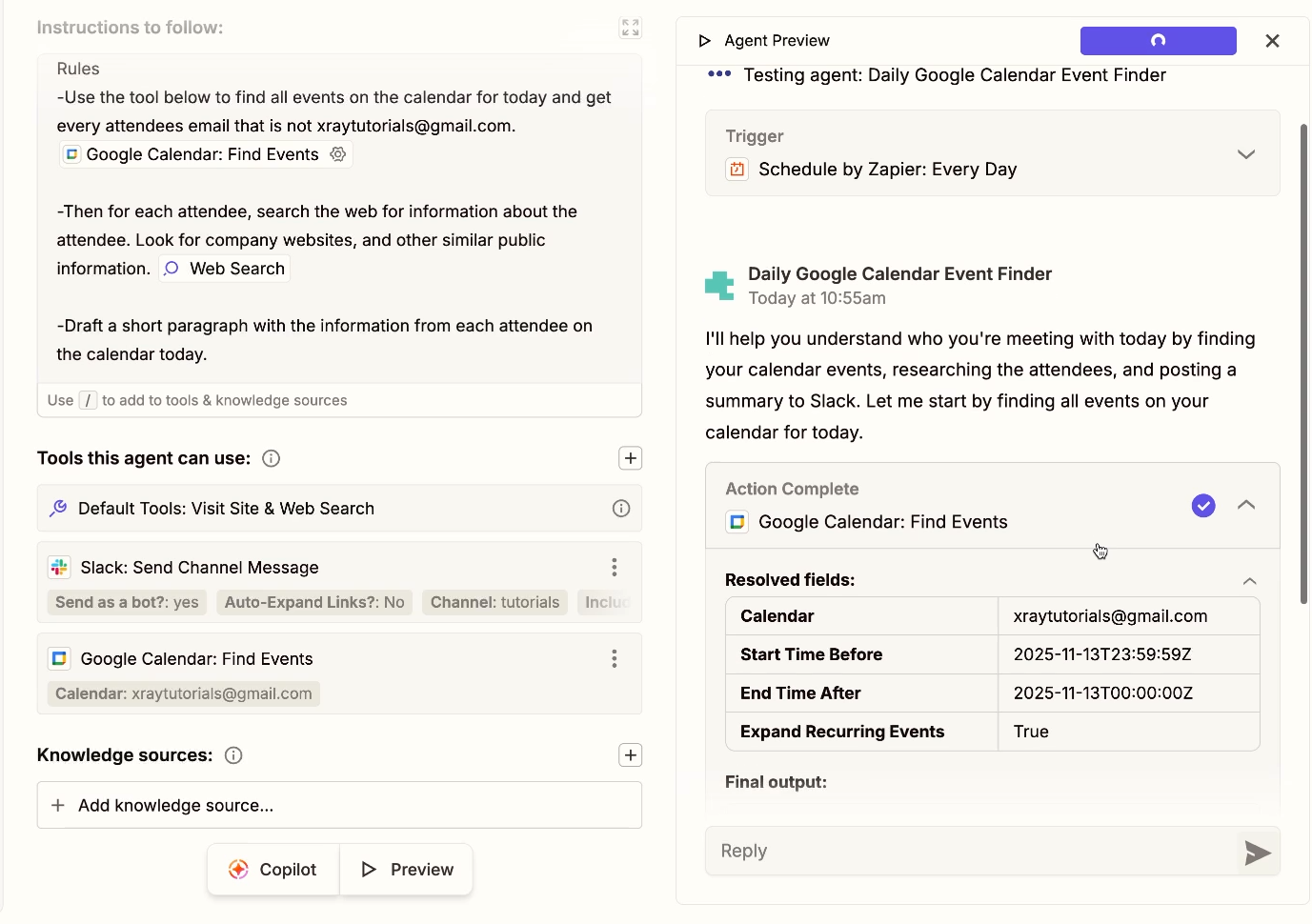
Note that as your agent runs through its test actions, it may ask you for confirmation before proceeding. This will only happen while testing; when the agent is live, it will run autonomously without needing your input.
Review the output carefully. Does it include the right information? Is the format useful? Make adjustments to your instructions if needed, then test again.
In our example, the agent successfully researched our CEO and CTO – Tom Nassr and Mark Campos – correctly finding all sorts of useful biographical info about their past work and current positions.
On the free plan, you're limited to 10 actions per test run. This is plenty for this simple build, but keep it in mind for more complex workflows.
When you're satisfied with the test results, toggle the agent on. It will now run automatically according to your trigger schedule.
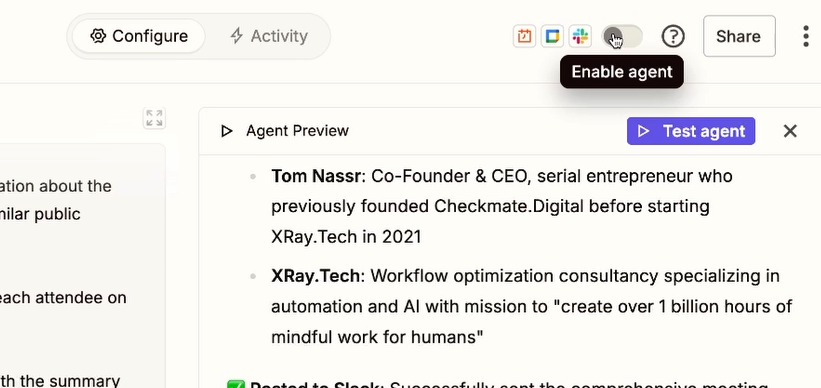
That's it. Your agent is working.
This lead research agent eliminates a tedious daily task. Instead of scrambling to Google people right before meetings, you receive organized research every morning. You walk into calls prepared and informed.
But the real value is in the pattern, not the specific use case.
This same approach works for customer support triage, data entry, report generation, content summarization, expense tracking, or any other repetitive task you perform more than once. If you're doing it manually, you can probably build an agent for it.
The tools change. The instructions change. The core structure stays the same.
Want to build agents and workflows for your entire team? That's what we do at XRAY. We design systems that give your people their time back. Book a free call to discuss your workflow challenges and explore how automation can solve them.
And if this article helped you build your first agent, we publish new automation and AI content every week – check back often to stay updated on the tools and techniques that are reshaping how work gets done.
The future of work isn't about doing everything yourself. It's about orchestrating tools that do the work for you.
Stop doing your job. Start designing it.