

Building custom apps and automations with Airtable requires secure access to your data. Personal Access Tokens (PATs) are the key to making that happen.
A Personal Access Token lets third-party applications connect to your Airtable bases safely. Whether you're building a custom integration, automating a workflow, or using AI tools to work with your data, you'll need to create a PAT first.
Here's how to set one up.
We’ll start with a brief overview of the whole process. If you’d like more detail on each step, read on for the full tutorial.
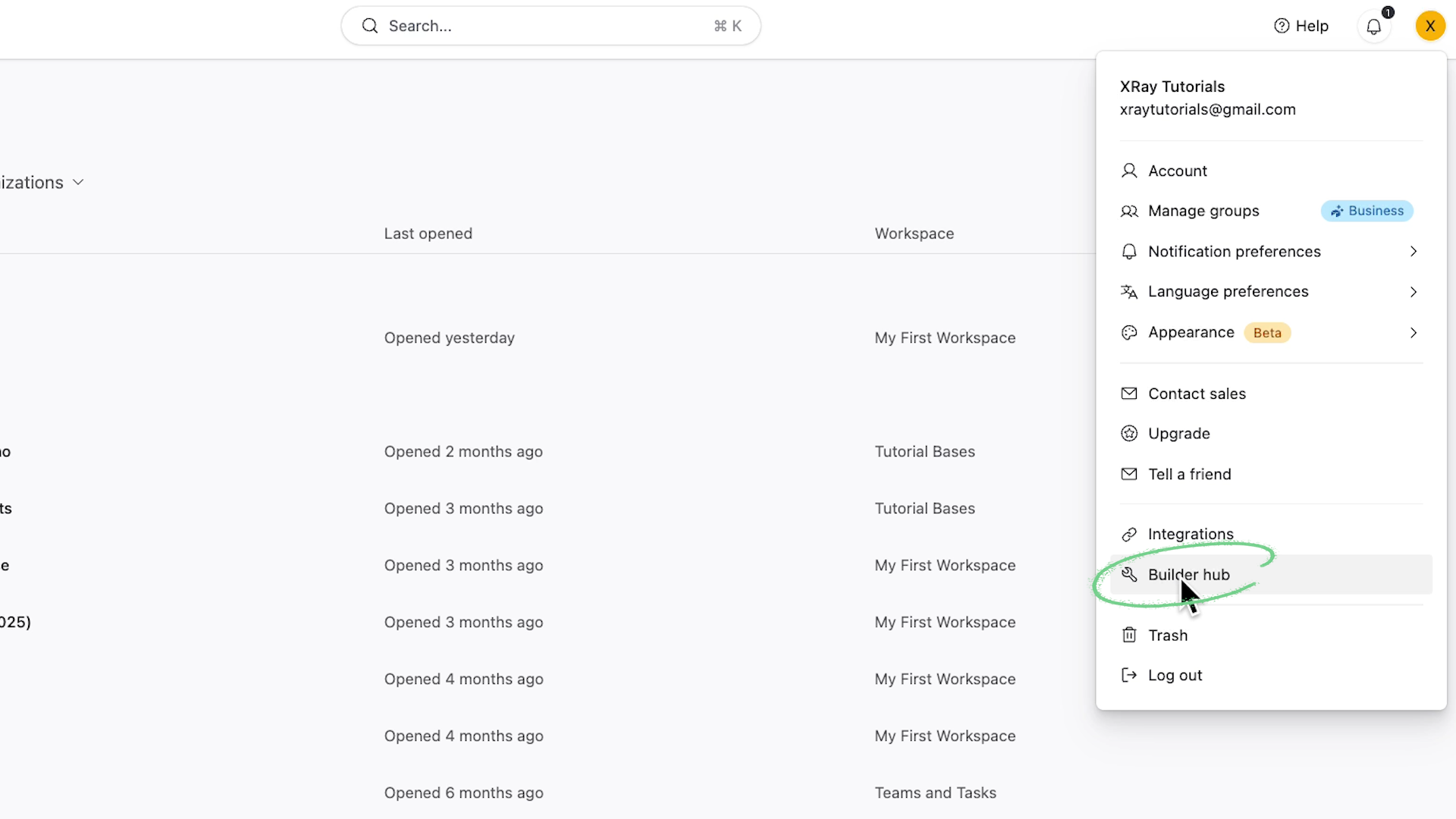
1. Click on your profile in the top right corner and select “Builder Hub”
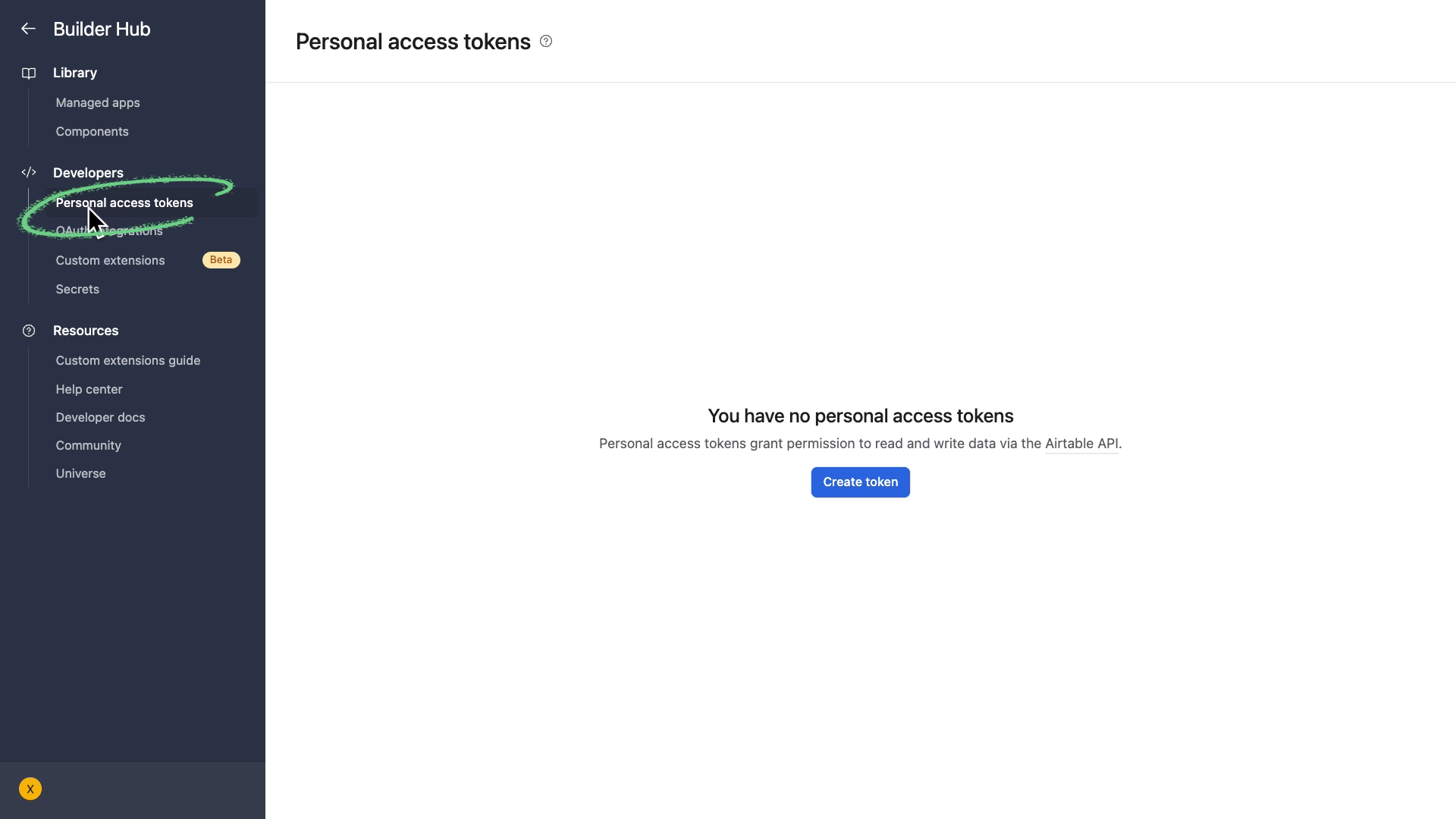
2. In the left-hand menu, navigate to “Personal Access Tokens” (found in the “Developers” section)
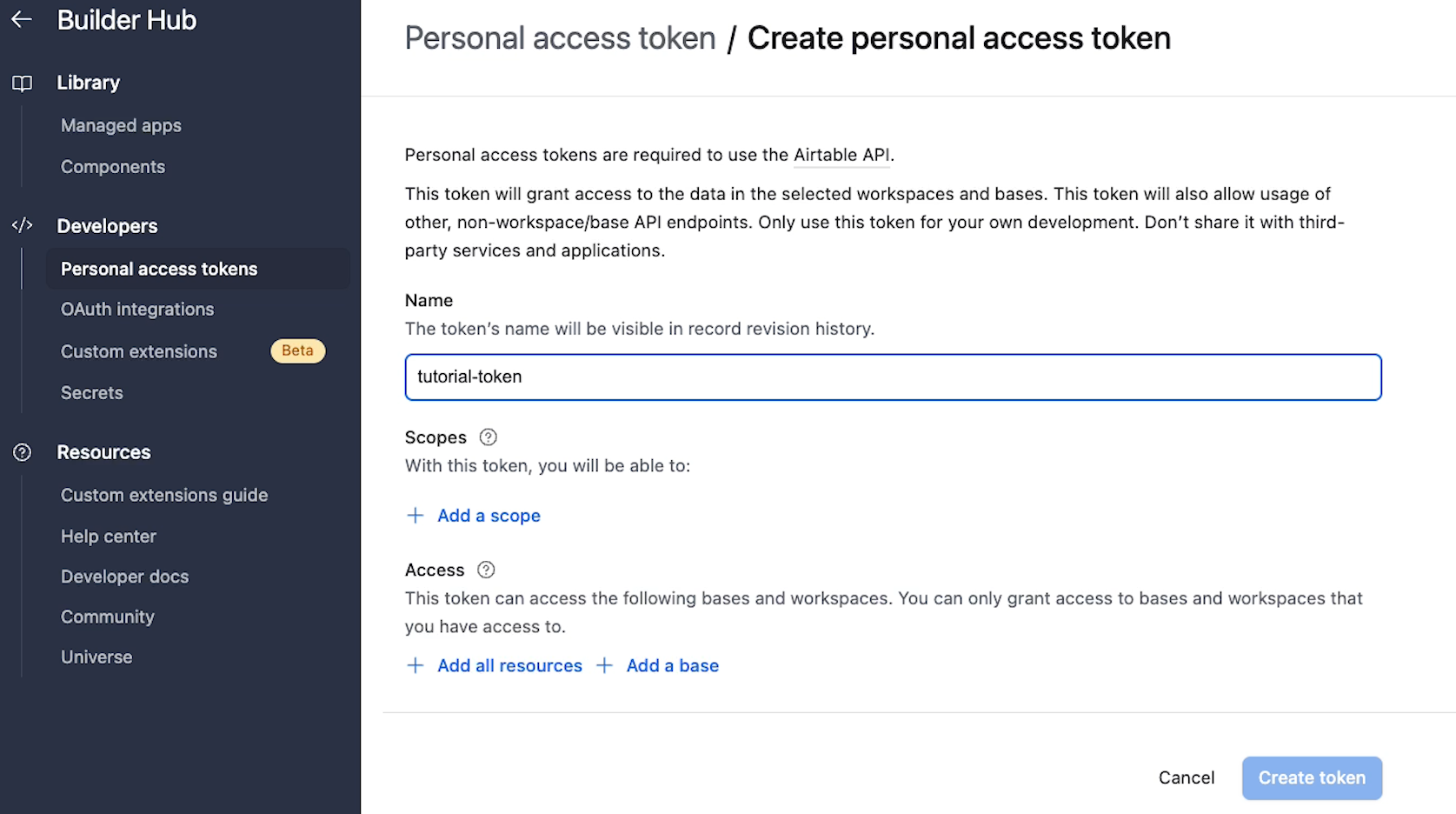
3. Create a new token and give it a name.
4. Set your token’s scopes to define the available actions (e.g., schema.bases.read)
5. Choose which bases can be accessed with your token
6. Save and copy your token. Paste it into your project.
To start, click on your account profile in the top right corner of Airtable. Select "Builder Hub" from the dropdown menu.
In the Builder Hub’s left-hand sidebar, click on "Personal Access Tokens", which you can find under the "Developers" section.
Click "Create a token", and give it a descriptive name. Choose something that clearly indicates what this token is for. You'll thank yourself later when you're managing multiple tokens.
Scopes define what actions an app can perform when it connects using your token. Think of them as permissions.
Airtable offers several scope categories. The ones you need depend on the specific demands of your project.
If your app needs to read or modify the actual data in your base, add scopes from the "Record data and comments" section.
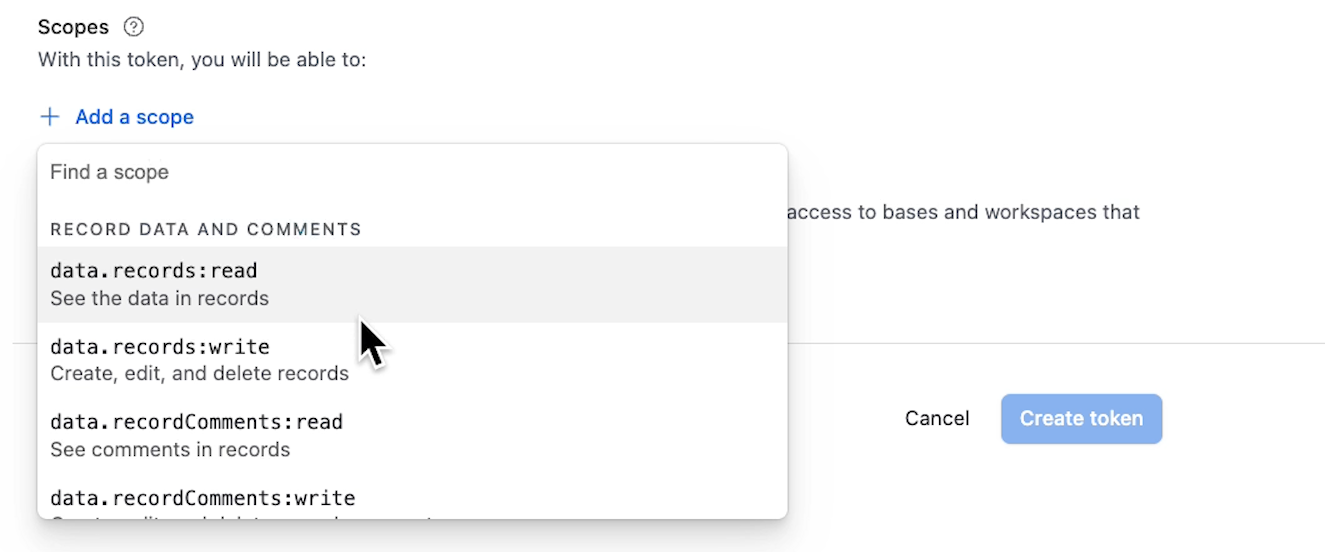
These let connected apps view, create, update, or delete records.
For projects that only need the structure of your base (i.e., tables, fields, and their configurations), use the schema scopes.
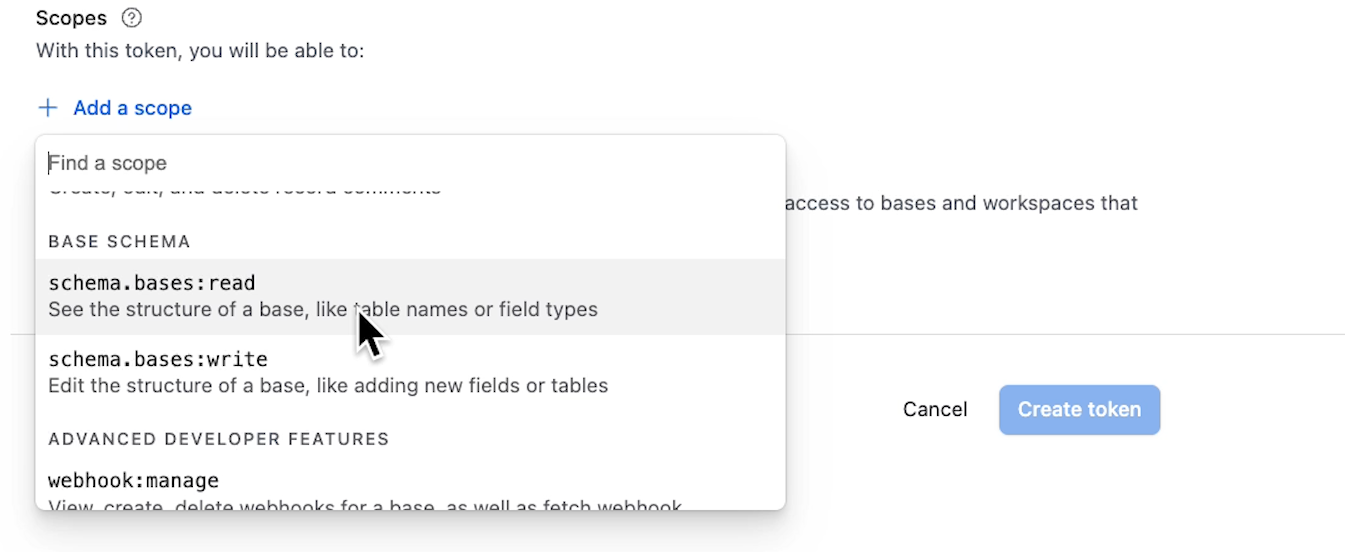
For our example, we’ll add schema.bases.read to let our app view our base structure, and schema.bases.write so they can modify it.
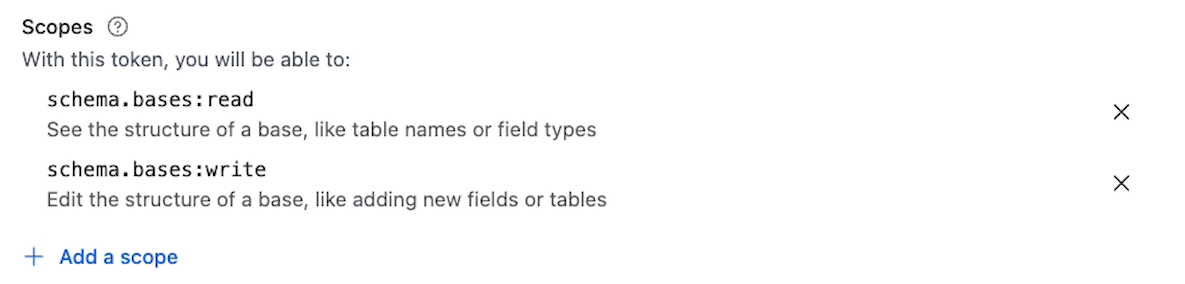
In general, it’s best to choose the minimum scopes your project needs. Limiting permissions reduces risk.
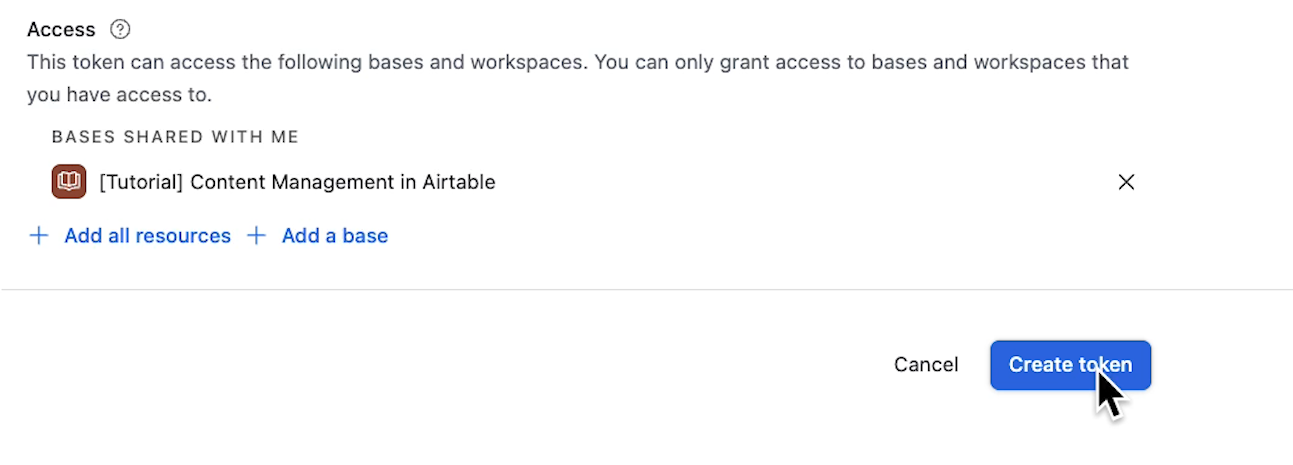
After setting scopes, you need to determine which bases this token can access.
You can select "Add all resources" to grant access to every workspace and every base in your account.
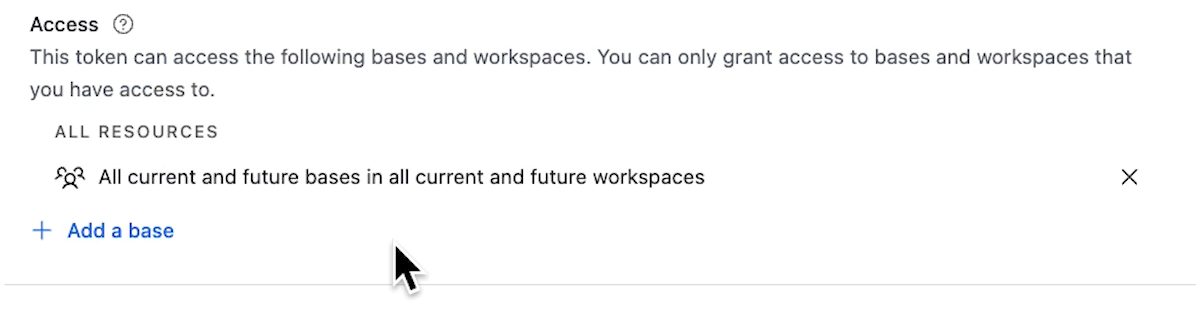
This works well for personal projects where convenience matters more than tight security.
For more precise control, you can specify individual workspaces or bases.
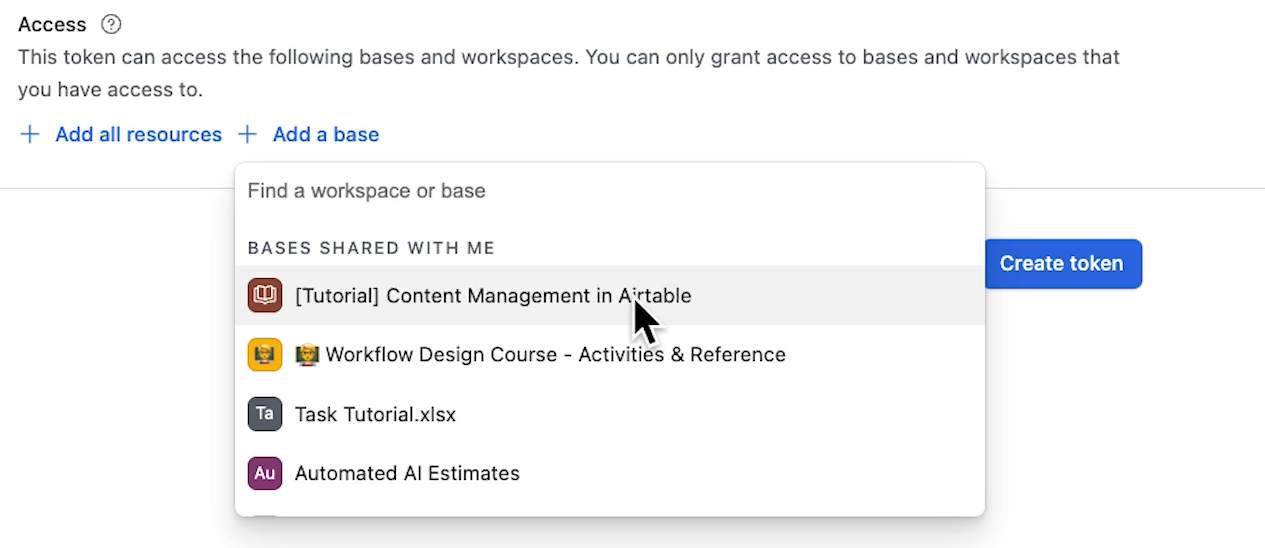
This approach keeps the token's reach limited, and ensures that your project won’t be able to alter unrelated bases.
With your scopes and access set, you can click "Create Token" to generate your token’s unique ID.
A popup will display your new token. Copy it immediately and paste it wherever you need to use it.
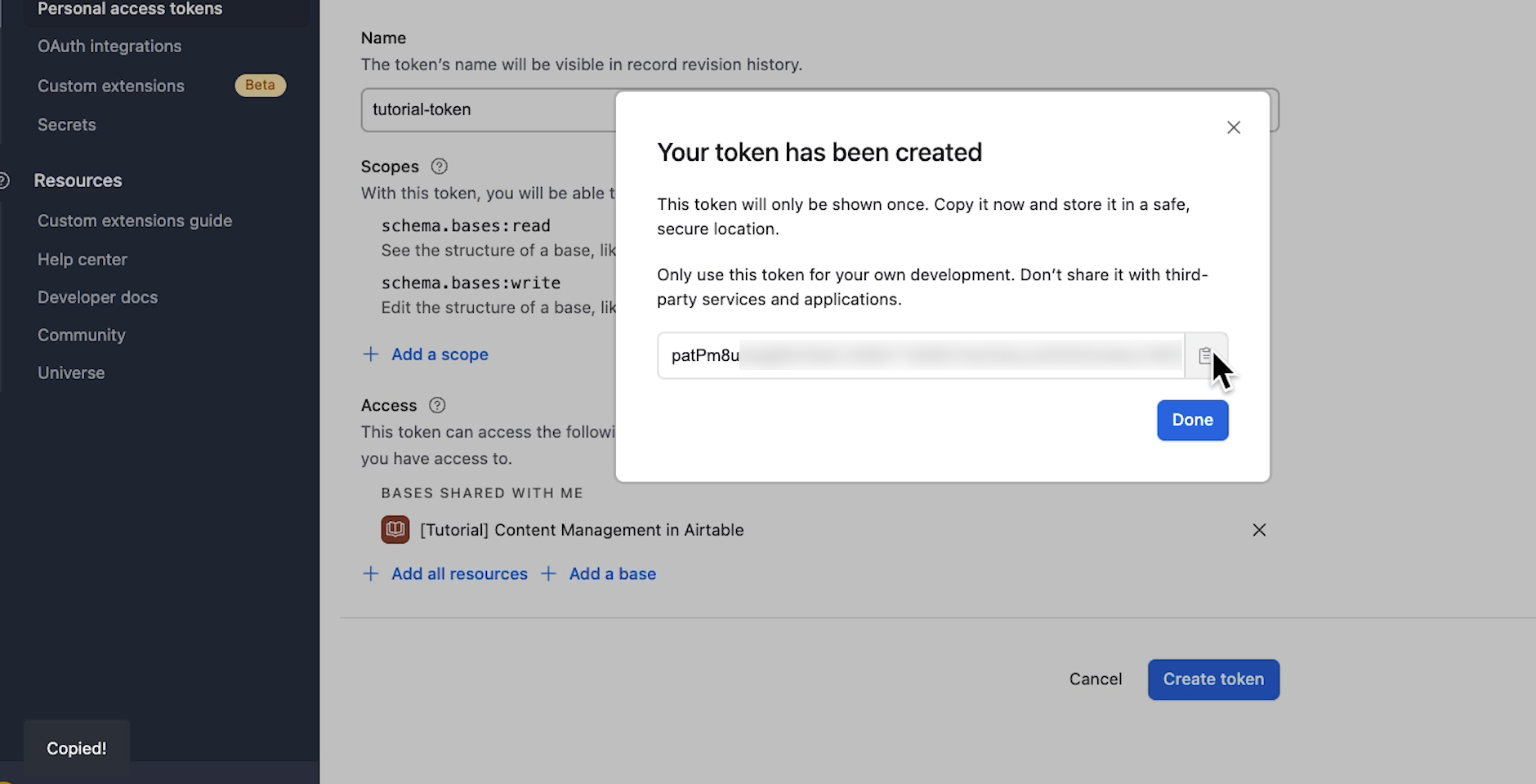
This is your only chance to see this token. Airtable won't expose the full token again.
If you lose the token, you can't recover it. Instead, you'll need to create a new one with the same settings. That's not difficult, but it means updating the token in any app or script that was using the old one.
Want to learn more about automating your work with Airtable, Zapier, and other no-code tools? Check out our blog for hundreds of free tutorials.
And if you want to design a better way to work for your entire team, reach out to XRAY to learn about professional services.
We offer 1-on-1 hourly support for quick projects, as well as long-term retainers for total workflow transformation.